BibiGPT v4.345.1 अपडेट: Android लॉन्च, Playlist Picking, Chat Attachments, Export Variants
BibiGPT v4.345.1 अपडेट: Android लॉन्च, Playlist Picking, Chat Attachments, Export Variants
प्रिय BibiGPT users,
हमने इस सप्ताह बहुत कुछ शिप किया — और एक keyword सब कुछ एक साथ बाँधता है: आपको चुनने को मिलता है। अपना device चुनें (Android के पास अब एक dedicated landing पेज है), जो videos मायने रखते हैं उन्हें चुनें (playlists अब “summarize everything” नहीं हैं), reference material चुनें (chat अब आपके अपने PDFs, spreadsheets, screenshots स्वीकार करता है), एक्सपोर्ट format चुनें (batch ZIP सब कुछ एक bag में dump करना बंद करता है)। कागज़ पर छोटे changes, व्यवहार में meaningful friction reduction।
👀 Quick View
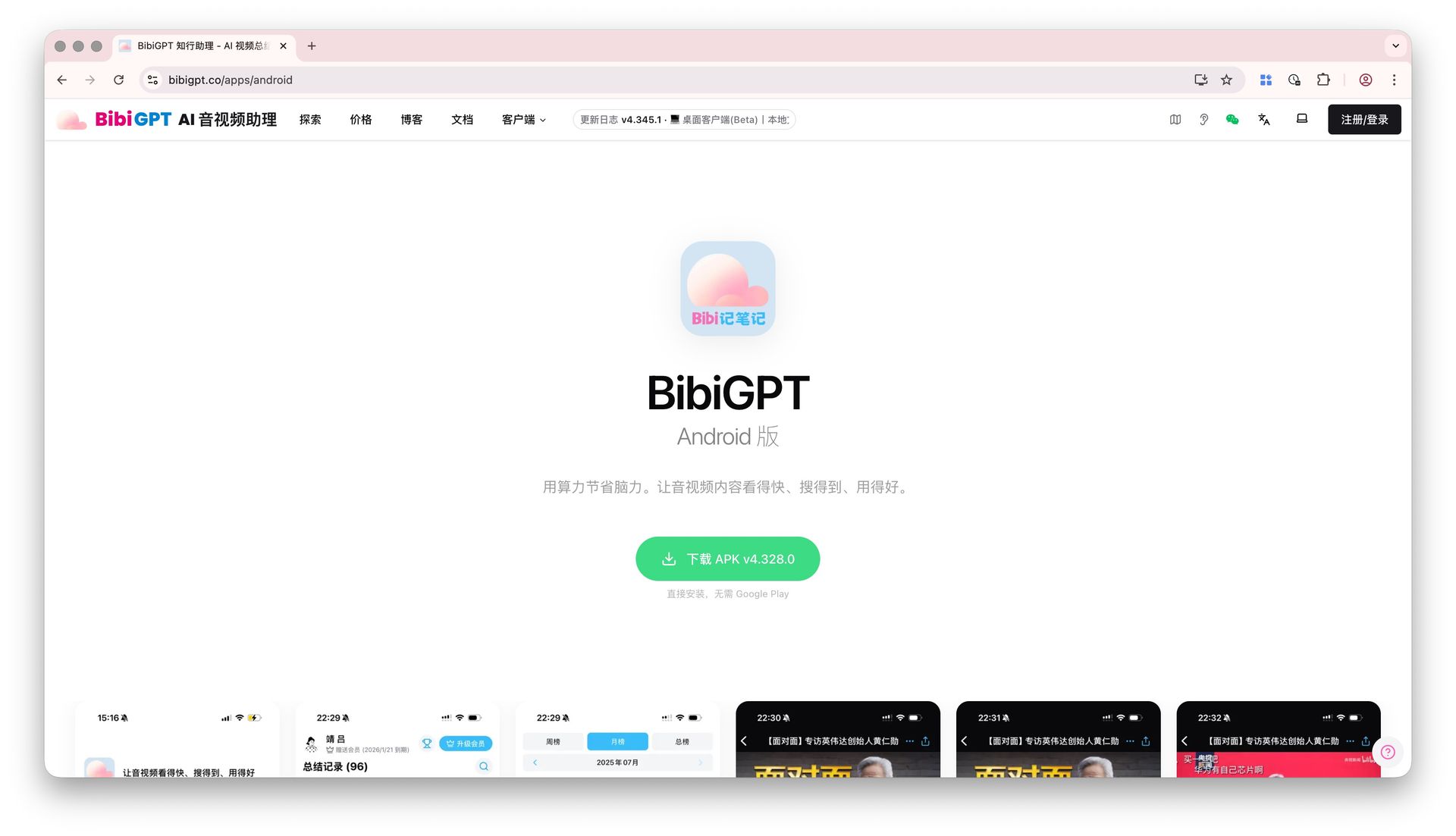
Android डाउनलोड Landing Page Live हो गया
“Android version कहाँ डाउनलोड करूँ?” — हमने यह बहुत सुना है। सच कहूँ तो, Android APK link desktop client menu में deeply buried था, मेनलैंड चीन में users के लिए Google Play accessible नहीं है, और एक मित्र को link share करने का मतलब था पहले आधा दर्जन steps explain करना। अच्छा नहीं।
अब हमारे पास bibigpt.co/apps/android पर एक dedicated Android landing page है:
- One-click APK डाउनलोड — primary button कहता है “Install directly, no Google Play required”, green, clear, zero friction
- Brand-ready presentation — tagline “Use compute to save brainpower” plus real in-app screenshots (summary list, leaderboard, AI video detail page) ताकि users को install करने से पहले पता चले कि वे क्या पा रहे हैं
- Share-friendly — एक single link friend recommendations, community referrals, और article citations के लिए बिना अतिरिक्त explanation के काम करता है
अगर आप Android users जानते हैं जिन्हें इससे लाभ हो सकता है, बस link drop करें। Automated release pipeline भी wired up है, इसलिए future APK versions इस पेज पर ऑटोमैटिकली flow होंगे — कोई stale downloads नहीं।
🔍 Easy Search
Selective Playlist Summarization: कोई और “Summarize It All” नहीं
“मैंने एक Bilibili playlist paste की, dozens videos, credits सेकंड में burn हो गए — लेकिन मैं केवल दो या तीन की चाहता था।” यह शिकायत एक से अधिक बार आई।
Playlist ingestion flow अब अलग तरह से काम करता है: जब आप एक Bilibili-style playlist URL paste करते हैं, सिस्टम पहले playlist में सभी videos दिखाता है, प्रत्येक के बाएँ checkbox के साथ। केवल वही चुनें जो आप चाहते हैं। ऊपर-दाएँ “Summarize Selected” button count को live update करता है (जैसे “Summarize Selected (2)”) और केवल जो आपने checked हैं उन्हें process करता है।
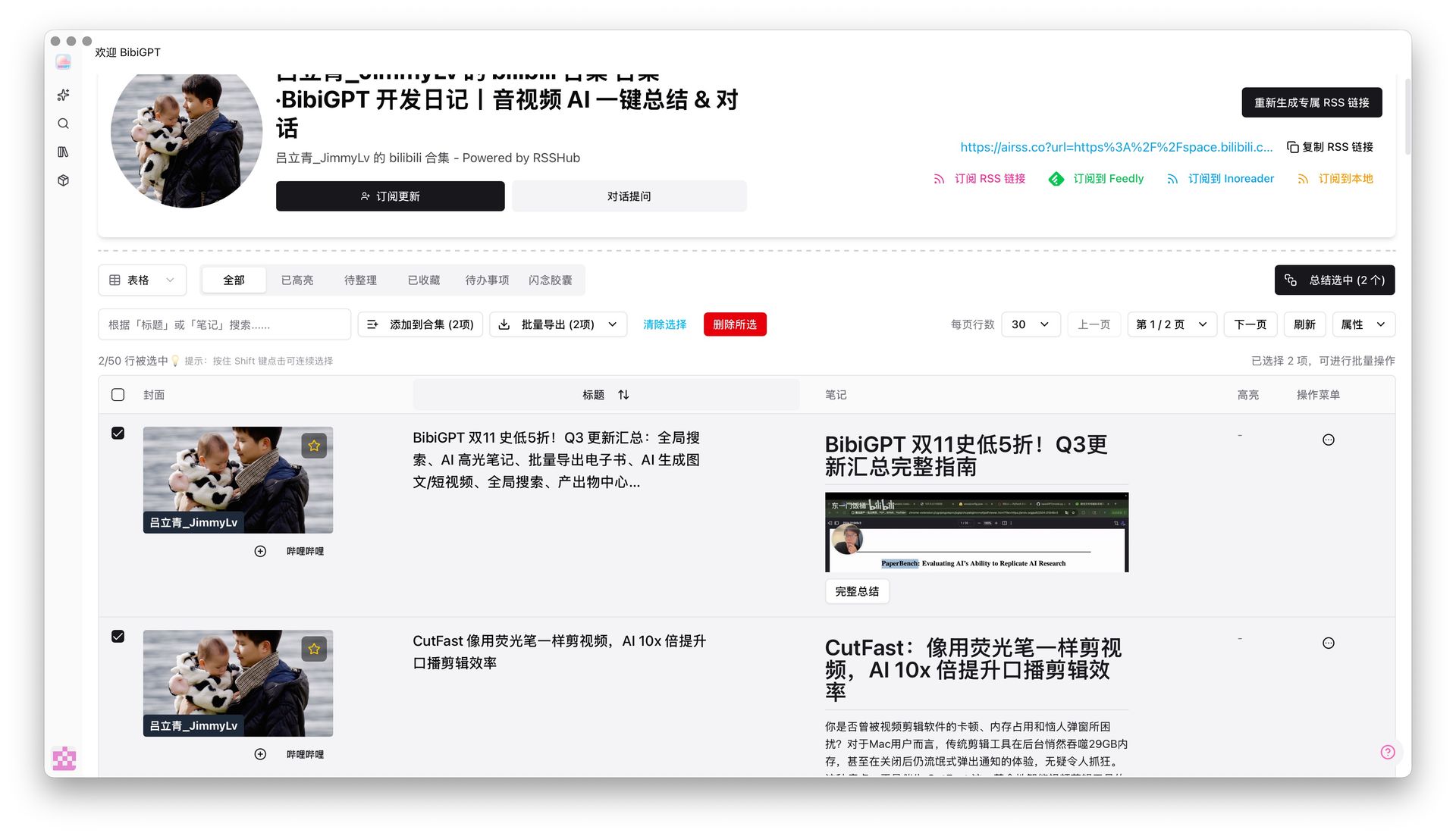
default को “summarize all” से “pick first” में क्यों flip किया? क्योंकि अधिकांश playlists में, केवल कुछ episodes deep read के लायक हैं — सब कुछ summarize करना कोटा waste करता है और अच्छी सामग्री को अप्रासंगिक कंटेंट के नीचे दबाता है। अगर आप उस तरह के user हैं जो deep notes लेते हैं या playlists को Notion नॉलेज बेस में भेजते हैं, यह change आपके लिए है (पूर्ण pipeline के लिए Bilibili-to-Notion AI workflow देखें)।
वही screen अभी भी “Add to Collection” और “Batch Export” प्रदान करता है, इसलिए filter → summarize → archive सब एक जगह होता है।
🛠️ Better Use
Chat अब Image + Document Attachments स्वीकार करता है
आपने शायद इसका सामना किया है: आप एक वीडियो के बारे में BibiGPT से चैट कर रहे हैं और चाहते हैं कि AI आपके अपने PDF notes, एक Excel sheet, या एक related screenshot factor in करे। अब तक आप केवल text paste कर सकते थे — tables और images out of reach थे। प्रतिबंधात्मक।
अब वीडियो detail chat window और एक custom summary के अंदर follow-up conversation दोनों attachments स्वीकार करते हैं:
- Broad format सपोर्ट — images, common documents, और videos
- स्पष्ट previews — attachments input के ऊपर cards के रूप में दिखाई देते हैं, images thumbnails के रूप में render होती हैं, प्रत्येक card का अपना dismiss button है
- “Base on Video” के साथ अच्छी तरह काम करता है — AI एक single answer में वीडियो transcript और आपके uploaded PDF / spreadsheet / UI screenshot को cross-reference करता है
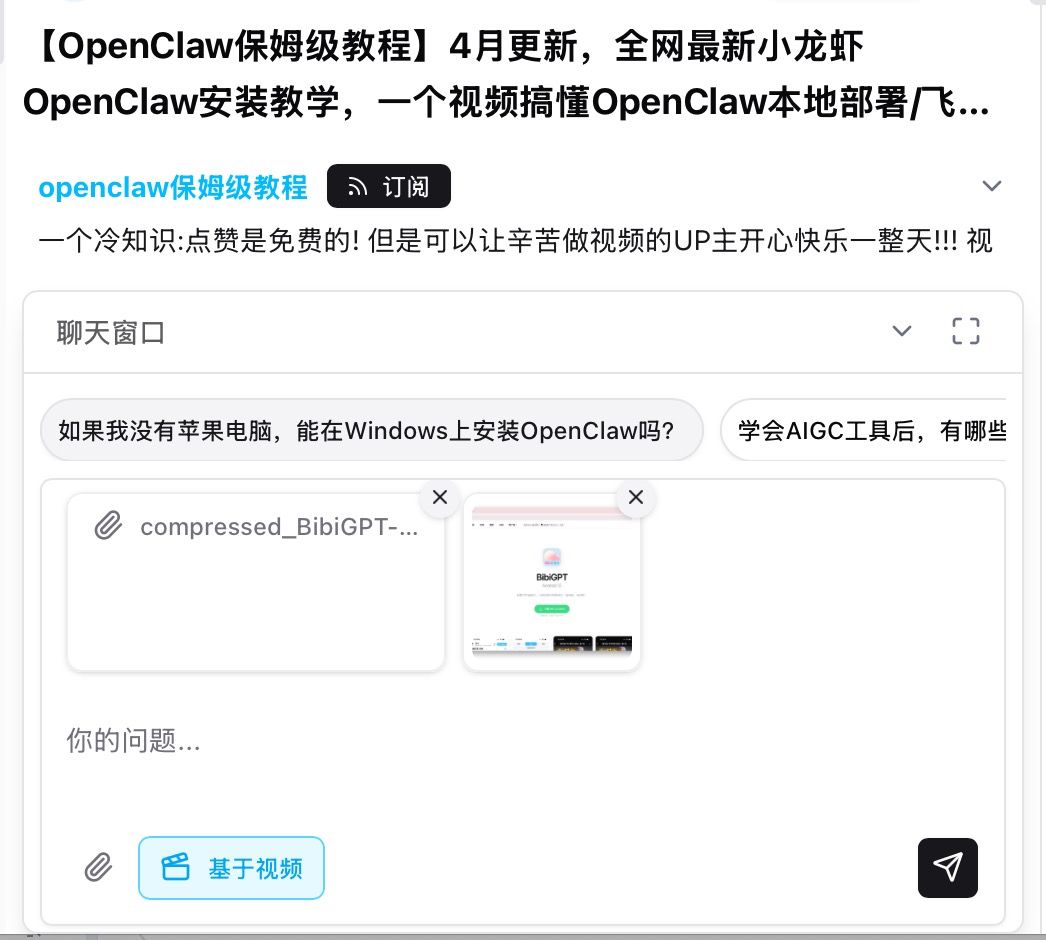
एक concrete परिदृश्य: एक earnings-call breakdown देख रहे हैं? Company के actual 10-K PDF को सीधे chat में drop करें — AI एक तरफ वीडियो commentary cite कर सकता है जबकि दूसरी तरफ source PDF के साथ cross-check कर सकता है। Research, studying, data reconciliation — कुछ भी जो पहले तीन windows की ज़रूरत थी अब एक conversation में फ़िट हो जाता है।
नए “Summary Only” और “Article Only” Batch एक्सपोर्ट ZIPs
पहले, multiple videos का batch-exporting एक ZIP produce करता था जो summaries, articles, सबटाइटल, और JSON से भरा होता था — सब एक साथ mixed। केवल summaries चाहिए? या केवल polished articles? Tough luck, unzip करें और manually sort करें।
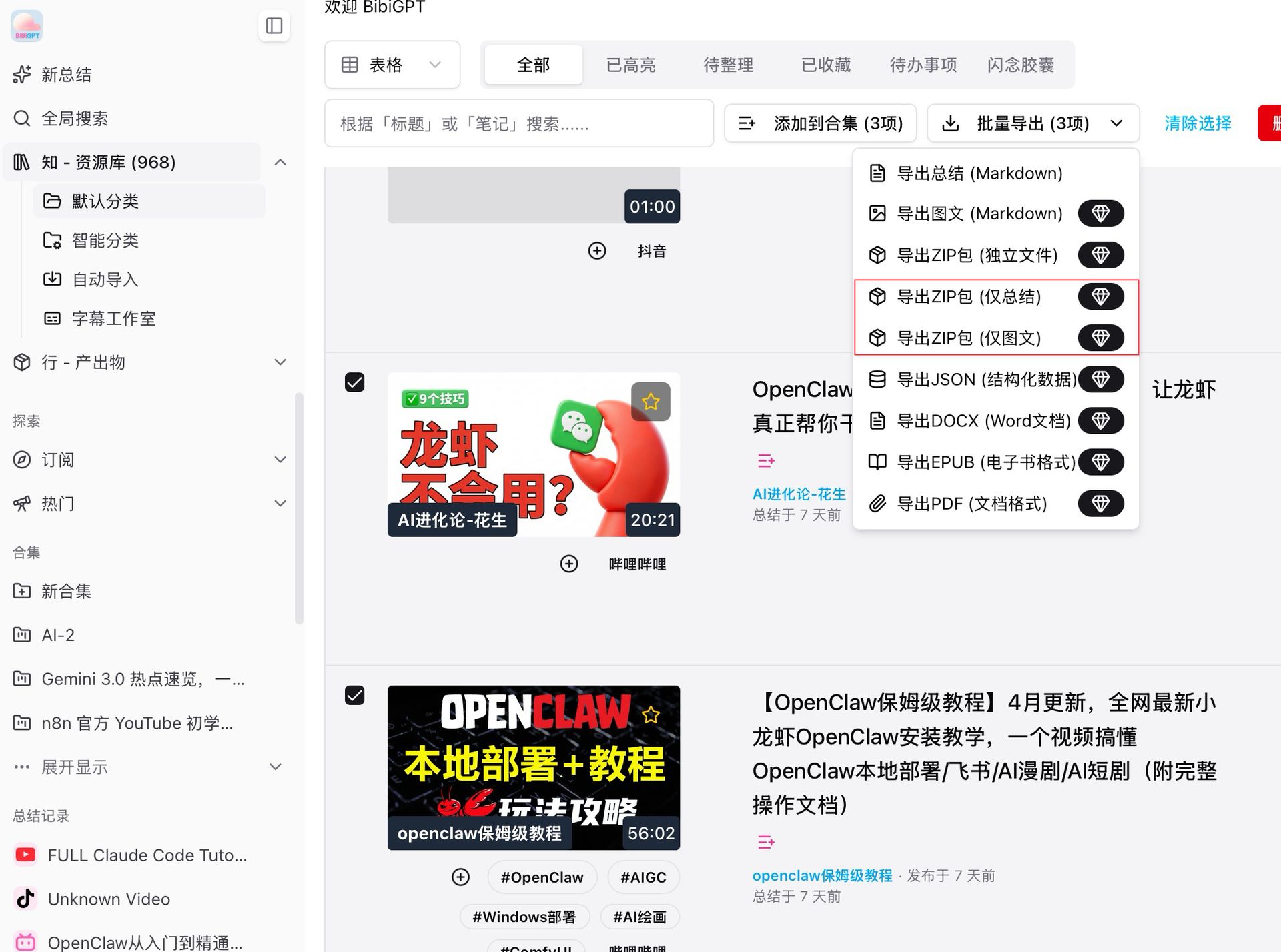
“Batch Export” dropdown में अब दो नए options live हैं:
- एक्सपोर्ट ZIP (केवल Summaries) — प्रत्येक record के लिए केवल AI सारांश text packs करता है, text-first नॉलेज बेस बनाने वाले users के लिए आदर्श
- एक्सपोर्ट ZIP (केवल Articles) — केवल rewritten article content packs करता है, blogs या newsletters में paste करने वाले creators के लिए आदर्श
दोनों options menu में diamond icon ले जाते हैं (Plus member features)। मौजूदा Markdown / DOCX / EPUB / PDF options के साथ, batch export किसी भी archiving need को कवर करना चाहिए। अगर आप एक video-to-blog repurposing workflow चला रहे हैं, “केवल Articles” ZIP manual sifting step को eliminate करता है।
अधिक Recent Improvements
चार headline features से परे, एक desktop-side change है जो अपने आप call out करने लायक है:
- Desktop folder watcher auto-processing — desktop client को एक folder पर point करें और कोई भी नई file ऑटोमैटिकली processing queue में land होती है, multiple folders एक साथ सपोर्ट किए जाते हैं। विशेष रूप से podcast archiving और bulk study-material processing के लिए उपयोगी जहाँ आप अन्यथा files को एक-एक करके drag कर रहे होते।
सारांश
यह सप्ताह आपको options देने के बारे में है — Android को अपना entry point मिलता है, playlists आपको चुनने देते हैं, chats आपको अपना context लाने देते हैं, और batch एक्सपोर्ट आपको एक format चुनने देता है। Subtitle Studio overhaul, supplementary material uploads, और folder watching के साथ मिलाकर, “Quick View / Easy Search / Better Use” path अब noticeably अधिक granular है।
अभी अपनी AI कुशल सीखने की यात्रा शुरू करें:
- 🌐 आधिकारिक वेबसाइट: https://bibigpt.co/hi/desktop?utm_source=growth-pages&utm_medium=blog-inline-cta&utm_campaign=bibigpt-newsletter-2026-04-20
- 📱 मोबाइल डाउनलोड: https://aitodo.co/app
- 💻 डेस्कटॉप डाउनलोड: https://aitodo.co/download/desktop
- ✨ और फ़ीचर्स जानें: https://aitodo.co/features
Enjoy!
BibiGPT Team