
How to Use AI to Learn from Videos: Turn Every Clip into Actionable Knowledge with BibiGPT
Learn how to use AI to study smarter. BibiGPT helps you summarize videos, ask questions, generate flashcards, and export your learning as EPUB or Markdown — turning videos into actionable knowledge. Master AI video summarization, Q&A, memory systems, and knowledge management best practices.
AI Audio Video Action Assistant
Quick to watch, easy to find, great to use — turning your media into Knowledge as Action.
You probably watch tons of videos to learn something new — lectures, interviews, podcasts.
But when it's time to recall what you've learned, everything feels scattered.
Notes are missing, links are lost, and that "great insight" you remember? It's buried in the timeline.
The real challenge isn't finding information — it's turning it into knowledge you can act on.
This is where BibiGPT comes in.
It's an AI Audio-Video Learning Assistant that helps you move through a complete learning loop:
Understand → Question → Recall → Organize → Apply
In this guide, you'll learn exactly how to use AI to learn from videos — step by step.
As a professional AI audio video summary tool, BibiGPT uses AI technology to help you transform video content into actionable knowledge assets.
Step 1: Understand Content Faster with AI Video Summaries
Open BibiGPT and drop in any video — YouTube, Bilibili, podcasts, or local files.
Click Generate Summary, and the AI will automatically extract key ideas, timestamps, and structure.
This is your quick overview — a "map" of the video.
But what makes it powerful is that it's interactive.
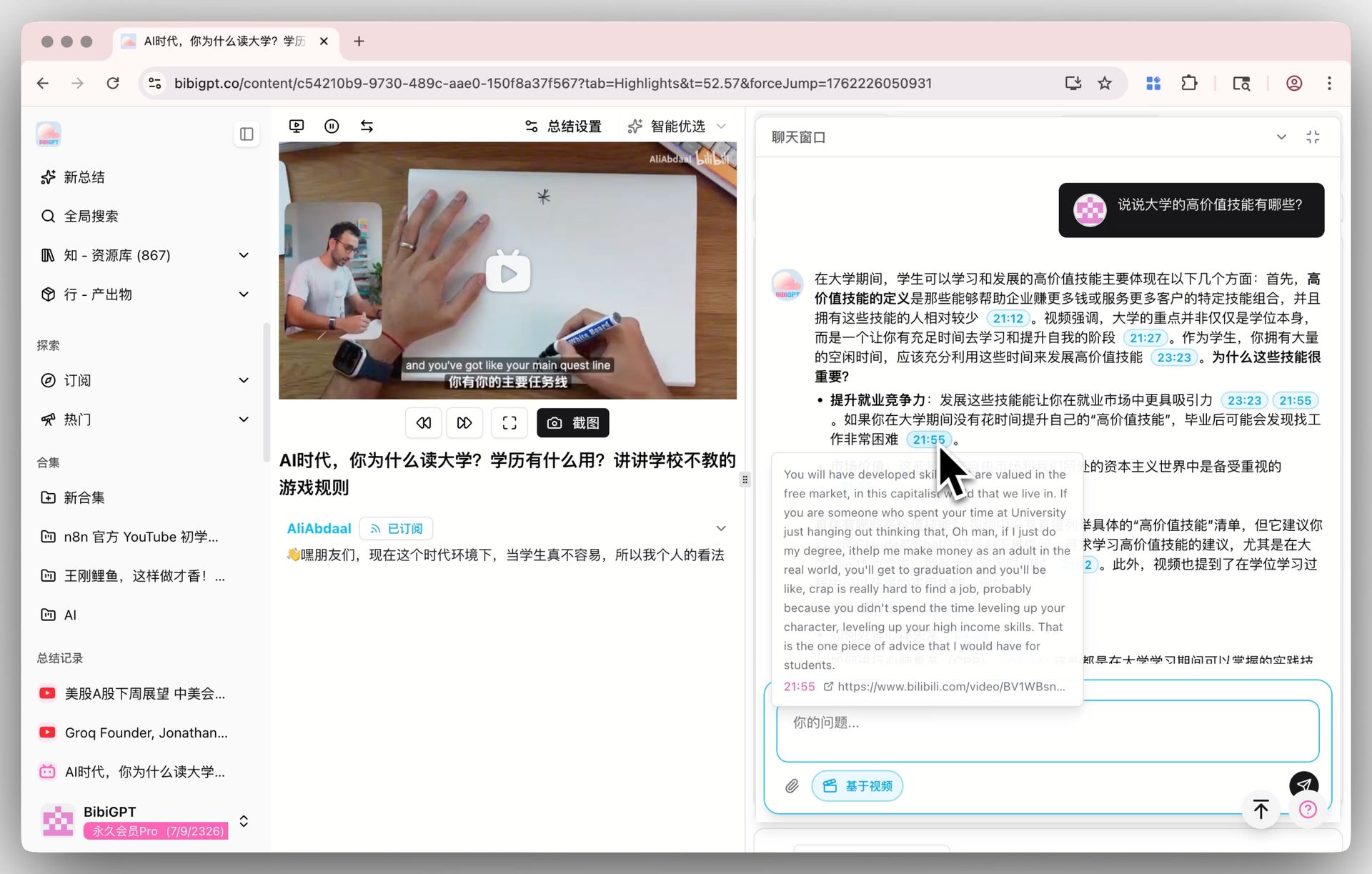
Hover over any timestamp to jump back to the original clip.
You're not just summarizing; you're building AI-powered comprehension.
🔍 Pro Tip: Switch to the "Chat" tab to start an AI video Q&A —
ask questions directly about the content and get contextual answers.
Learn how to use BibiGPT for YouTube video summarization and Bilibili video summarization to quickly grasp video content.
Step 2: Ask Questions Like You're in Class
Learning doesn't happen by reading — it happens by questioning.
With Ask AI, you can talk to your video the same way you'd talk to a mentor.
BibiGPT automatically suggests three relevant questions to start, or you can type your own:
"What were the three main principles mentioned?"
"How does this idea connect to the previous section?"
Each answer includes timestamp references so you can fact-check instantly.
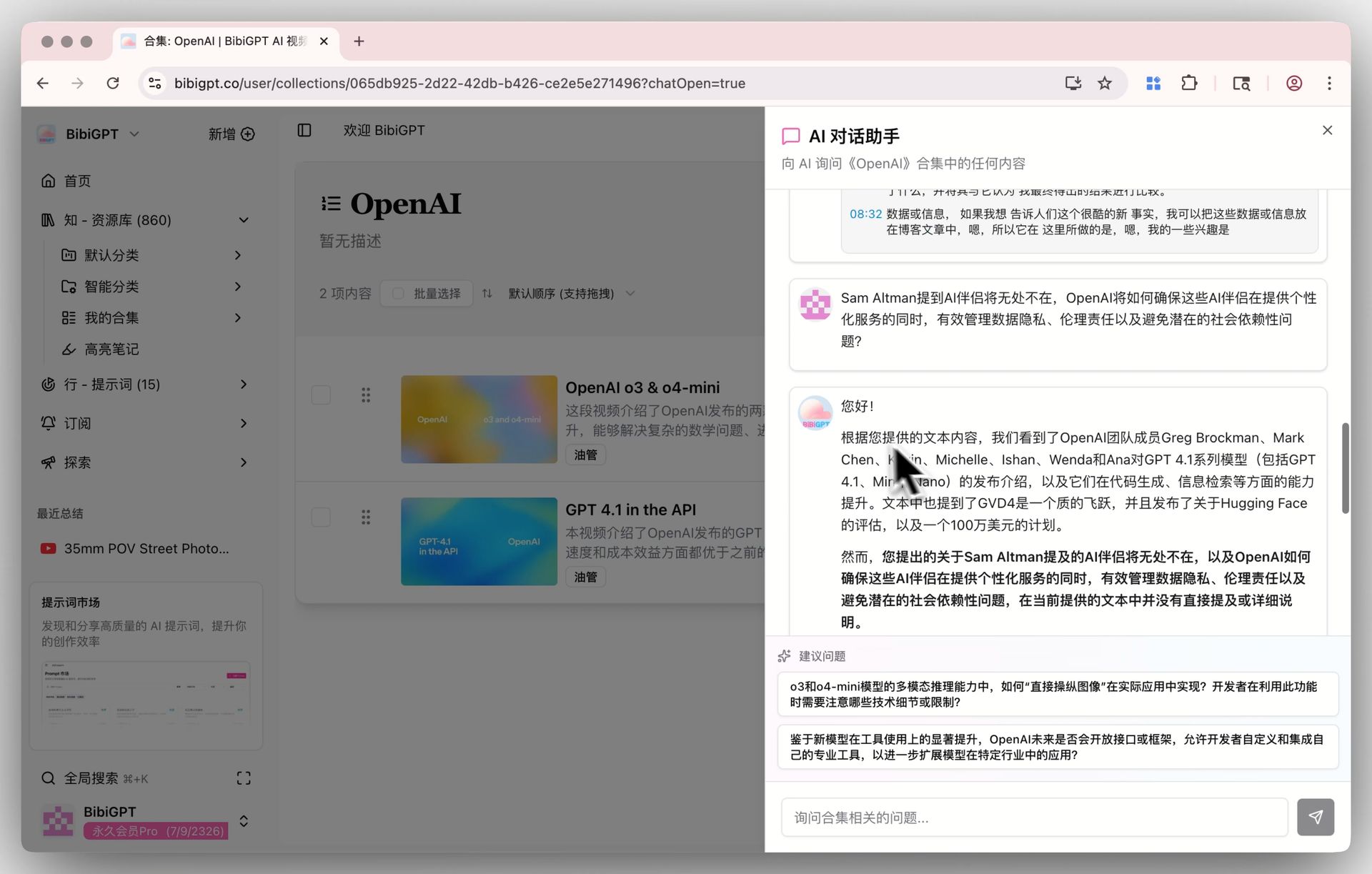
And if you're studying a series — say, a course or an interview set —
you can use Ask AI in Collections to question multiple videos at once.
BibiGPT will synthesize and compare answers across all of them.
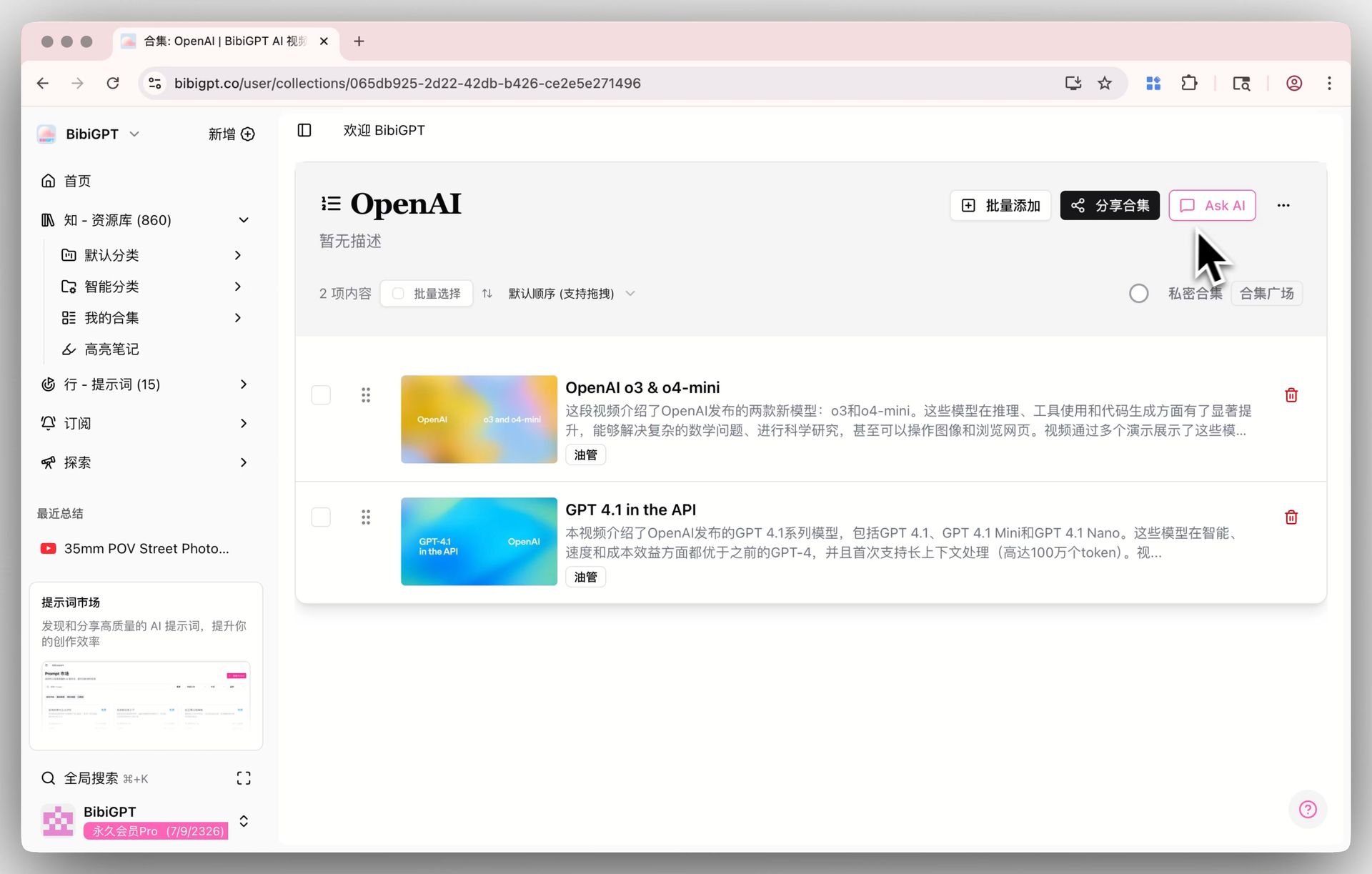
With the AI Q&A Assistant feature, you can ask in-depth questions about video content at any time and get precise answers.
Step 3: Remember What You Learn with Flashcards
Understanding is short-term; recall makes it permanent.
The Flashcard feature helps you actively review what you've learned.
BibiGPT automatically generates question-and-answer cards from the video summary,
complete with difficulty labels and topic tags.
Use keyboard shortcuts to flip through them, or hit Regenerate for a fresh set.
💾 Want to build your own memory system?
Export your flashcards as a CSV file and import them directly into Anki, Readwise, or other spaced-repetition tools.
Step 4: Organize Everything into a Structured Knowledge System
The more you learn, the more organization matters.
BibiGPT's Sidebar Navigation and Collections turn your video notes into a knowledge graph.
You can drag any summary into a Collection, group by theme, and instantly access related materials.
Each Collection has its own AI chat window,
so you can continue asking questions within the context of a topic, not just a single video.
🎯 This is how you move from scattered insights to a living AI knowledge base —
one where every note, question, and idea connects.
Recommended BibiGPT Features
Based on the article content, we recommend the most relevant AI audio-video processing tools
AI YouTube summary
Generate instant AI summaries for YouTube videos with timestamp navigation and key takeaways.
AI Bilibili summary
Chinese-friendly summaries for Bilibili videos with accurate chapters and highlights.
AI podcast summary
Transcribe, search, and replay podcasts to capture the key talking points.
Step 5: Export and Apply — Take Your Learning Offline
Once you've built your library, it's time to take it with you.
BibiGPT lets you bulk export multiple summaries in just one click.
Choose from Markdown, ZIP, JSON, or Word formats.
For Pro users, there's also EPUB export —
which turns your entire video collection into an e-book you can read offline on any device.
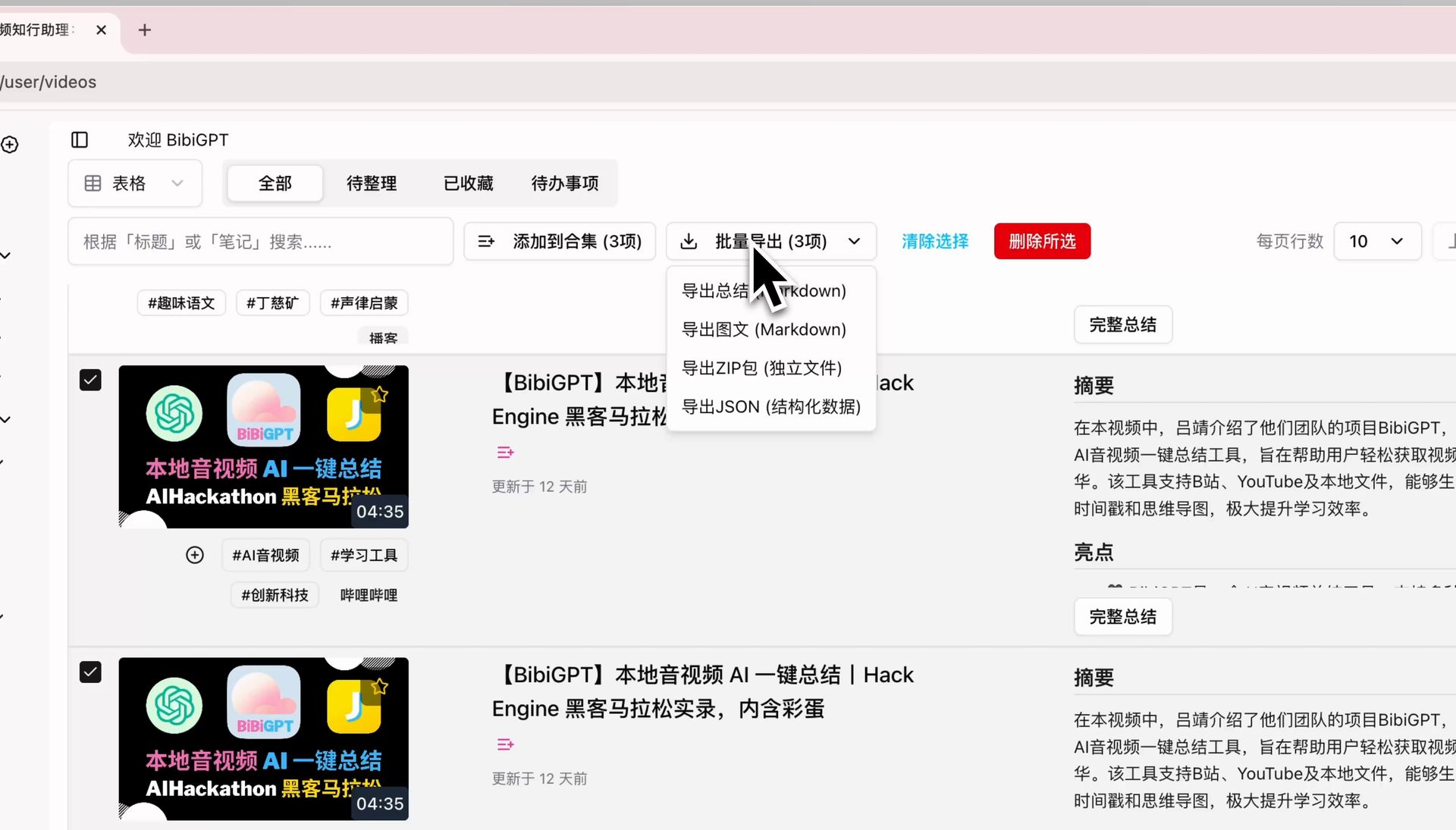
✨ This step turns BibiGPT into more than a learning platform —
it becomes your AI publishing tool for knowledge portability.
Bonus: Build Your Personal AI Learning Loop
By now, you've walked through the five key stages:
Understand → Question → Recall → Organize → Apply
To complete the loop, you can connect BibiGPT with other tools you already use:
- Export Markdown to Notion for long-form study notes.
- Send CSV flashcards to Anki for spaced repetition.
- Sync EPUB files to Readwise or your Kindle for offline review.
That's what we call AI Audio Video Action Assistant —
helping you turn every video into knowledge you can actually use.
Conclusion: Learning Shouldn't Stop at "I Understand"
BibiGPT isn't just an AI summarizer.
It's a practical companion that helps you watch faster, think deeper, remember longer, and act smarter.
In the age of AI, your edge isn't how much content you consume —
it's how well you convert it into action.
🎯 AI Audio Video Action Assistant
Quick to watch, easy to find, great to use — turning your media into Knowledge as Action.
Experience BibiGPT now
Ready to try these powerful features? Visit BibiGPT and start your intelligent audio/video summarization journey!
Get started👉 Try it now at bibigpt.co
Turn your next video into a study guide you can act on.
Have feedback or ideas?
We value your input! If you encounter issues or have suggestions, please let us know anytime.
Submit feedback