
AI Video to PPT Complete Guide: Turn Any Video into Editable Slides in 3 Steps (2026)
Step-by-step guide to convert videos (YouTube / Bilibili / meeting recordings / animations) into editable PPT with AI. Side-by-side comparison of Qwen AI PPT Agent, Gamma, and BibiGPT on source-content fidelity.
AI Video to PPT Complete Guide: Turn Any Video into Editable Slides in 3 Steps (2026)
One-line answer: The fastest way to turn a video into a PPT with AI is "video link → AI extracts keyframes and rewrites content into structured chapters → one-click export as PPT." In 2026 the three tools worth trying are Qwen AI PPT Agent (general, long context), Gamma (strong design templates), and BibiGPT (highest source-content fidelity, native support for YouTube / Bilibili / podcast links). If your input is a video link rather than a text outline, BibiGPT gives you the shortest path.
A lot of people misunderstand "AI video to PPT." They think it means pasting the whole video in and letting AI slap some templates on. The real value is extracting the knowledge structure of the video and re-presenting it in a slide-deck format. This guide covers three things: 1) which videos are worth converting, 2) how source-content fidelity differs across the three tools, and 3) the three-step workflow inside BibiGPT.
Try pasting your video link
Supports YouTube, Bilibili, TikTok, Xiaohongshu and 30+ platforms
Why Turn Videos Into PPT? Three Real Scenarios
Converting video to PPT isn't a "looks nice" feature — it's driven by three concrete use cases:
- Workplace reporting: You watched a 1-hour industry talk and have to give a 10-minute summary to your boss. Text notes feel scattered, the video is too long — a PPT is the ideal intermediate format.
- Course / training re-production: A trainer recorded a video lesson and wants to turn it into a standardized training deck for distribution. Manually screenshotting and writing copy takes 2-3 hours; AI compresses it to 5 minutes.
- Content creator redistribution: YouTubers and Bilibili creators want to repost the same video as a carousel on LinkedIn or Xiaohongshu. PPT-shaped slides slice cleanly into 9-square image cards.
The common thread: the input is a video link or video file, not text. That determines tool selection — any "AI PPT" tool that forces you to write an outline first is not a fit for this workflow.
Three Tools Compared: Source-Content Fidelity Is the Real Axis
Dozens of AI PPT tools exist in 2026, but very few actually accept video as input. Here's the head-to-head:
| Dimension | Qwen AI PPT Agent | Gamma | BibiGPT |
|---|---|---|---|
| Direct video-link input | Must convert to text first | Not supported | Native: YouTube / Bilibili / podcasts |
| Keyframe image retention | No (text-only) | No | Automatic (PPT keyframe extraction) |
| Chinese-source coverage | Strong (Tongyi ecosystem) | Weak (English-first) | Bilibili / Xiaohongshu / Douyin native |
| Editability | Via Qwen Doc | Gamma editor | Export PPT / Markdown |
| Multilingual output | ZH / EN | EN-first | ZH / EN / KO / JA |
| Free tier | Generous | Limited | Daily free quota |
Key takeaways:
- Qwen AI PPT Agent is great at generating PPT from long text or an outline. But the input is text, not video — you still need a separate step to transcribe the video first.
- Gamma ships the most beautiful AI design templates, but it has almost zero native support for video links, especially on Chinese video platforms.
- BibiGPT differentiates on source-content fidelity: it starts from the video URL, does subtitle extraction + semantic chapter splitting + keyframe extraction, then turns the structured content into a PPT presentation. Nothing about the original video structure gets lost in translation.
Related reading: Mapify vs BibiGPT AI Video/Podcast Mindmap Comparison | Meeting Video to PPT Report AI Tool 2026
BibiGPT Three-Step Workflow: Video Link to Editable PPT
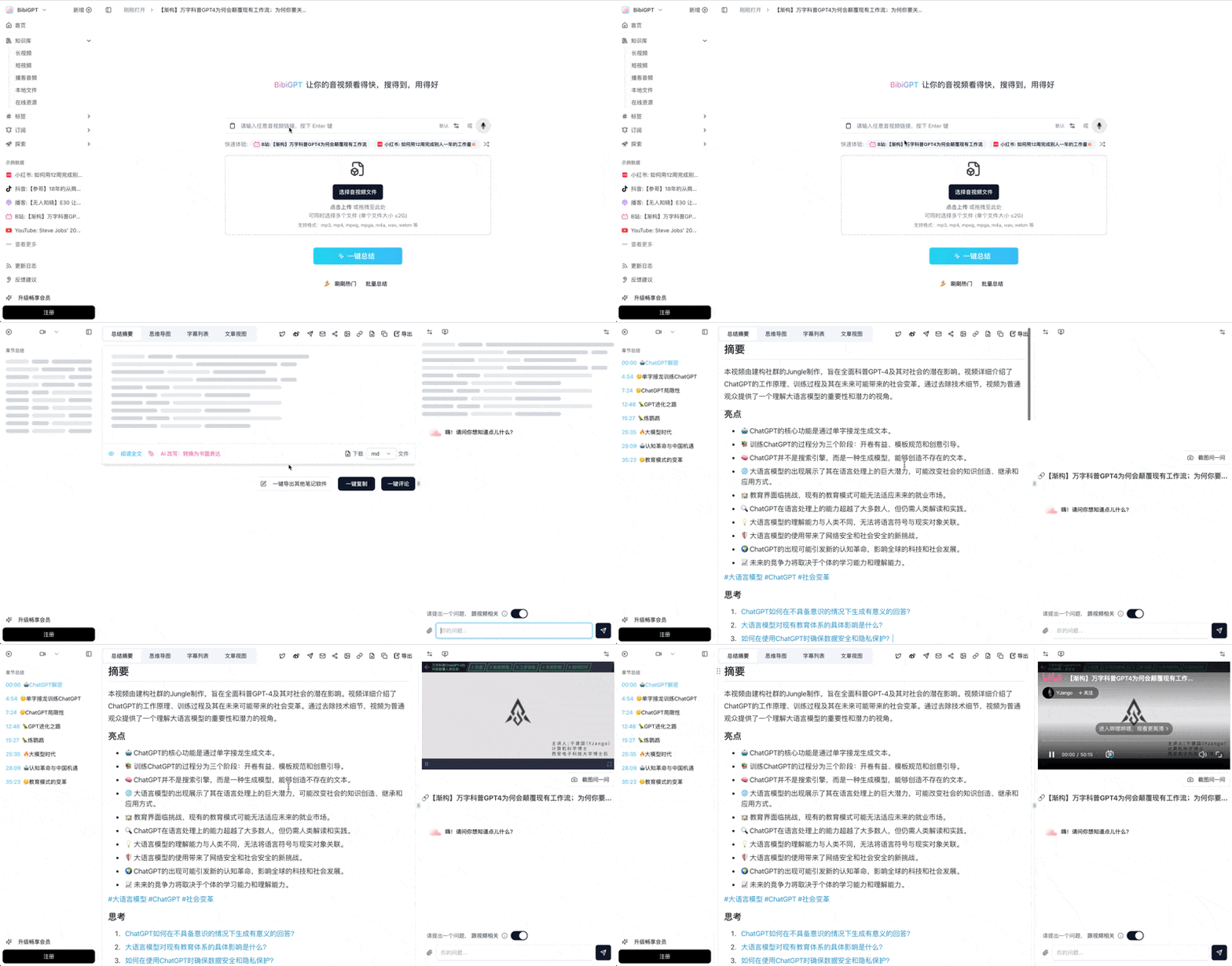
Step 1: Paste the video link, let AI generate chapters
Paste any YouTube / Bilibili / Xiaohongshu / podcast link into the BibiGPT homepage. AI extracts subtitles, generates timestamps, and splits the video into semantic chapters. For videos over 30 minutes, chapter splitting is especially critical — it defines the table of contents of the resulting PPT.
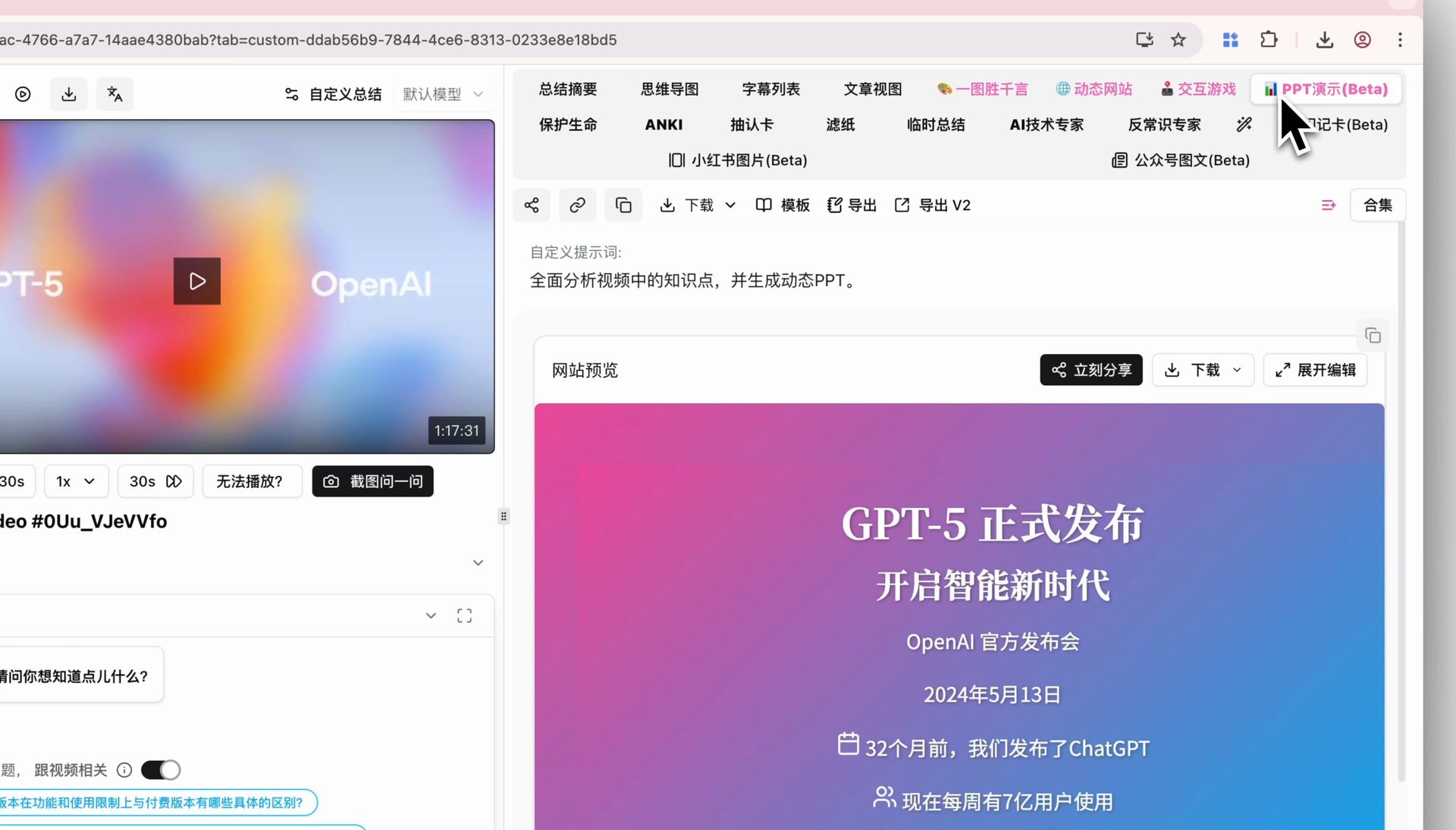 Successfully generated PPT presentation
Step 2: Click the "PPT Presentation (Beta)" tab
On the video summary page, look for the pink "PPT Presentation (Beta)" tab in the top right. AI turns the core content into a dynamic, page-by-page deck. Use keyboard arrows or on-screen buttons to flip through — just like a real presentation.
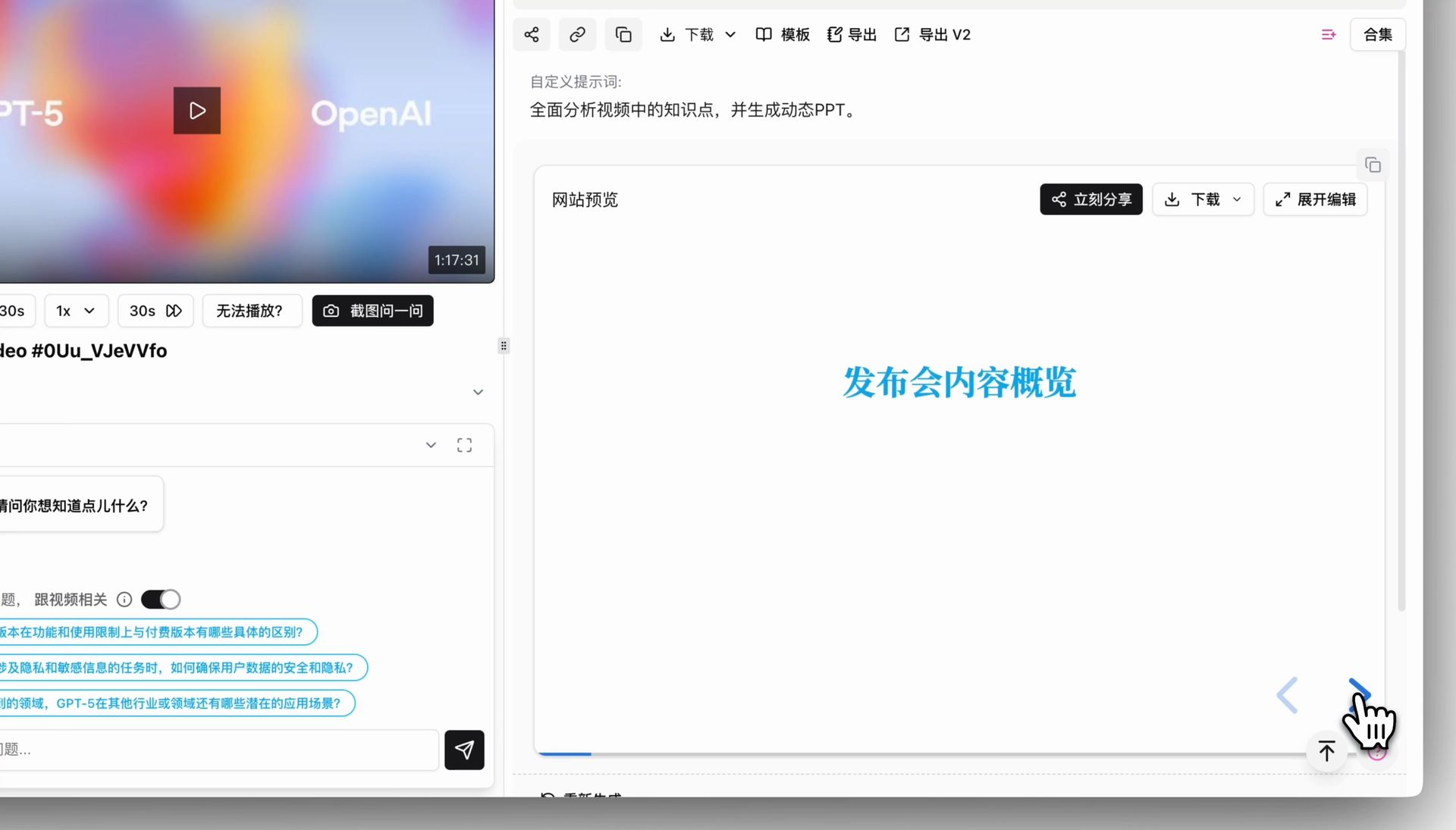 Page-by-page PPT browsing
Step 3: Use PPT Keyframe Extraction for visual evidence
Unlike pure AI-generated PPTs, BibiGPT has a unique PPT keyframe extraction mode. It detects visual scene changes and pulls out non-repetitive, non-random keyframes from the original video — ideal for online courses, lectures, and technical talks. Each keyframe is paired with the corresponding subtitle segment, forming a "visual + text" double-evidence layout.
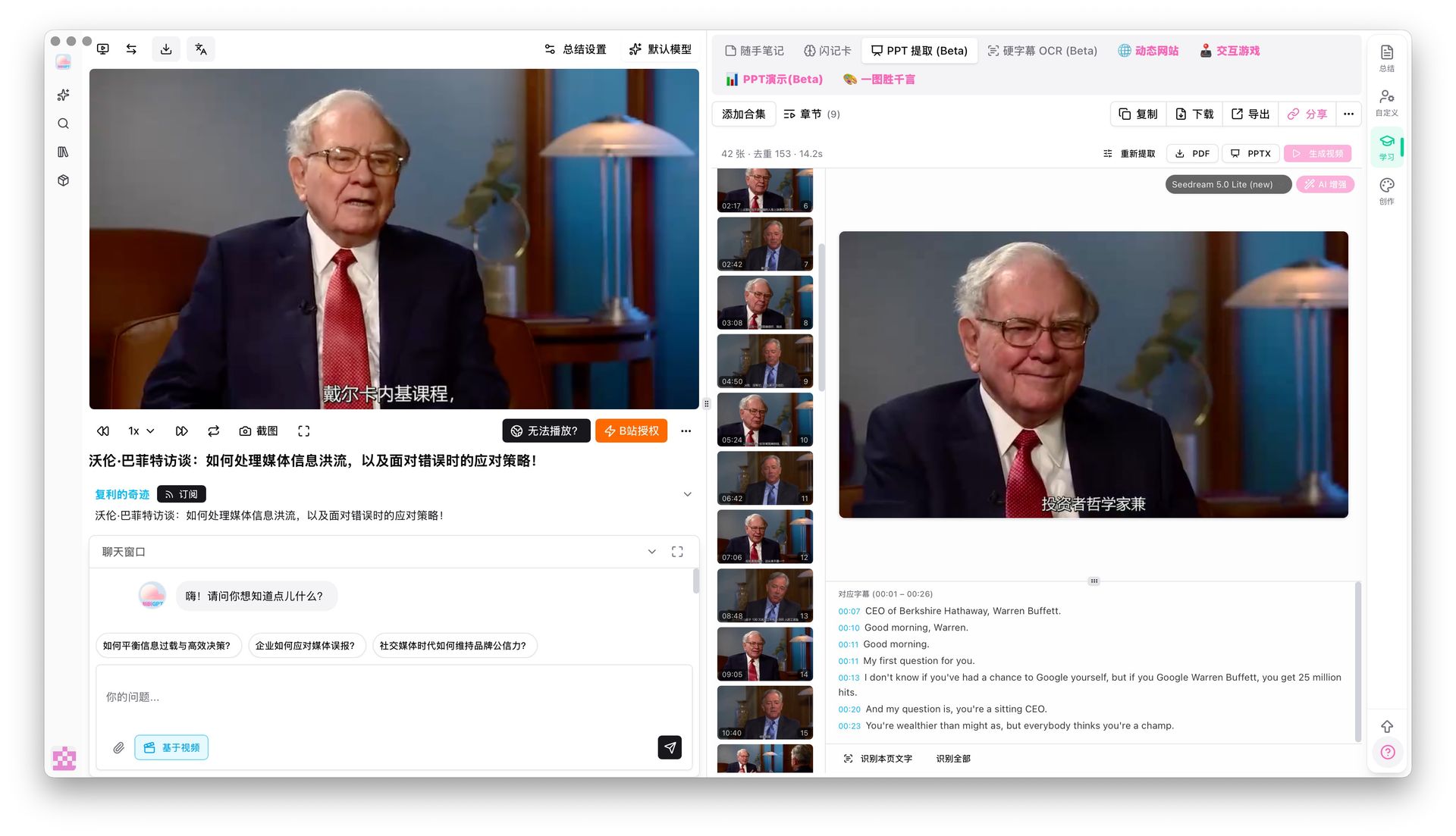 PPT keyframe extraction result
If you need deeper visual understanding, the visual analysis feature can parse the video frames to generate social-media carousels, short-video scripts, and more knowledge artifacts.
See also: Video to Slides AI PPT Generator Guide 2026 | BibiGPT v4.318 PPT OCR Local Privacy Update
Which Tool to Pick?
Based on source-content fidelity, a quick selection heuristic:
- Input is a video link (YouTube / Bilibili / podcast / meeting recording) → Pick BibiGPT. Paste and go; no pre-transcription needed.
- Input is a long text or existing outline → Pick Qwen AI PPT Agent or Gamma. Both excel at text-to-PPT.
- Design template polish + English audience → Gamma has the strongest visual layer.
- Need PPT with actual video-frame evidence → Only BibiGPT's PPT keyframe extraction does this.
FAQ
Q1: Will AI video-to-PPT lose the original video's order?
A: Depends on the tool. Gamma / Qwen transcribe first and then let the AI reorganize however it wants — original chapter flow is often lost. BibiGPT's PPT presentation is generated directly from the video's native chapter structure, so the order matches the original 1-to-1.
Q2: What length of video works best?
A: Under 5 minutes isn't worth converting — too little density. 10-60 minutes (courses, talks, podcasts) is the sweet spot. Over 2 hours, use chapter splitting to divide the video into sections and process each separately.
Q3: Can the generated PPT be used as-is?
A: As a first draft, yes. Plan to spend 5-10 minutes on style unification and highlight emphasis. AI handles structure and copy, humans handle final polish — the most reasonable division of labor for AI PPT tools right now.
Q4: Which video platforms are supported?
A: BibiGPT supports 30+ mainstream platforms including YouTube, Bilibili, Xiaohongshu, Douyin, TikTok, podcasts (Apple Podcasts / Spotify / Xiaoyuzhou), Tencent Meeting recordings, and more. Qwen and Gamma do not natively accept Chinese video platform links.
Q5: What's the difference between PPT keyframe extraction and "Generate PPT"?
A: "Generate PPT" rewrites the subtitles into an AI-authored deck. "PPT keyframe extraction" pulls real visual frames that appeared in the source video, with no AI rewriting. They complement each other — lecture content benefits from keyframe extraction (faithful); monologue content benefits from Generate PPT (polished).
Closing: Source-Content Fidelity Is the Real North Star
AI PPT tools have been a crowded space for two years. Templates keep getting prettier. But for the specific "video-to-PPT" use case, whether the tool can eat a video link directly, whether it preserves the video's native chapter structure, and whether it brings keyframes along — these three matter far more than template aesthetics.
If your scenario is "I have a video, I need to turn it into a deck I can present," BibiGPT offers the shortest path available today: 30+ platforms, AI video-to-article, mind maps, PPT presentation, PPT keyframe extraction — all multimodal and connected, plus deep integration with Notion / Obsidian / Siyuan Note. The whole "watch → present" chain is handled.
See BibiGPT's AI Summary in Action
Let's build GPT: from scratch, in code, spelled out
Andrej Karpathy walks through building a tiny GPT in PyTorch — tokenizer, attention, transformer block, training loop.
Want to summarize your own videos?
BibiGPT supports YouTube, Bilibili, TikTok and 30+ platforms with one-click AI summaries
Try BibiGPT FreeStart your AI efficient learning journey now:
- 🌐 Official Website: https://aitodo.co
- 📱 Mobile Download: https://aitodo.co/app
- 💻 Desktop Download: https://aitodo.co/download/desktop
- ✨ Learn More Features: https://aitodo.co/features
BibiGPT Team