How to Download YouTube Subtitles in 2026: 5 Methods Compared + BibiGPT One-Click Extraction (No Install)
How to Download YouTube Subtitles in 2026: 5 Methods Compared + BibiGPT One-Click Extraction (No Install)
TL;DR: The fastest way to download YouTube subtitles is to paste the video link into BibiGPT and click export — SRT / VTT / TXT, no install, four-language auto translation included. This guide also walks through yt-dlp CLI, third-party sites, browser extensions, and YouTube’s native CC, with selection guidance.
YouTube is the world’s largest video learning platform, but the official subtitle export has never been opened to all users. If you do content research, language learning, course note-taking, blog/social writing, or academic citation, the subtitle file is your 10x productivity lever.
This article jumps straight to the result: 5 mainstream methods → who each fits → why BibiGPT is the 2026 default.
The Comparison Table
| Method | Install | Speed | Multilingual | Auto Summary | Best For |
|---|---|---|---|---|---|
| BibiGPT one-click | None (paste URL online) | Instant | ✅ ZH/EN/JA/KO | ✅ AI summary + chat | Creators, researchers, learners |
| YouTube native CC | None | Slow (manual copy) | ⚠️ Display only | ❌ | One-off viewing |
| yt-dlp CLI | High (Python / Homebrew) | Fast | ❌ | ❌ | Power users, batch jobs |
| Third-party sites | None | Medium | ⚠️ Partial | ❌ | One-off downloads |
| Browser extension | Medium (install needed) | Medium | ⚠️ Partial | ⚠️ Some | Heavy YouTube users |
Let’s break each down.
Method 1: BibiGPT One-Click Extraction (Recommended ⭐⭐⭐⭐⭐)
Best for: anyone who wants subtitles + AI summary + multilingual translation in one shot, without touching the command line.
Steps:
- Open bibigpt.co;
- Paste the YouTube video URL into the homepage input;
- Wait a few seconds — BibiGPT extracts subtitles, runs AI summarization, and chapters the video;
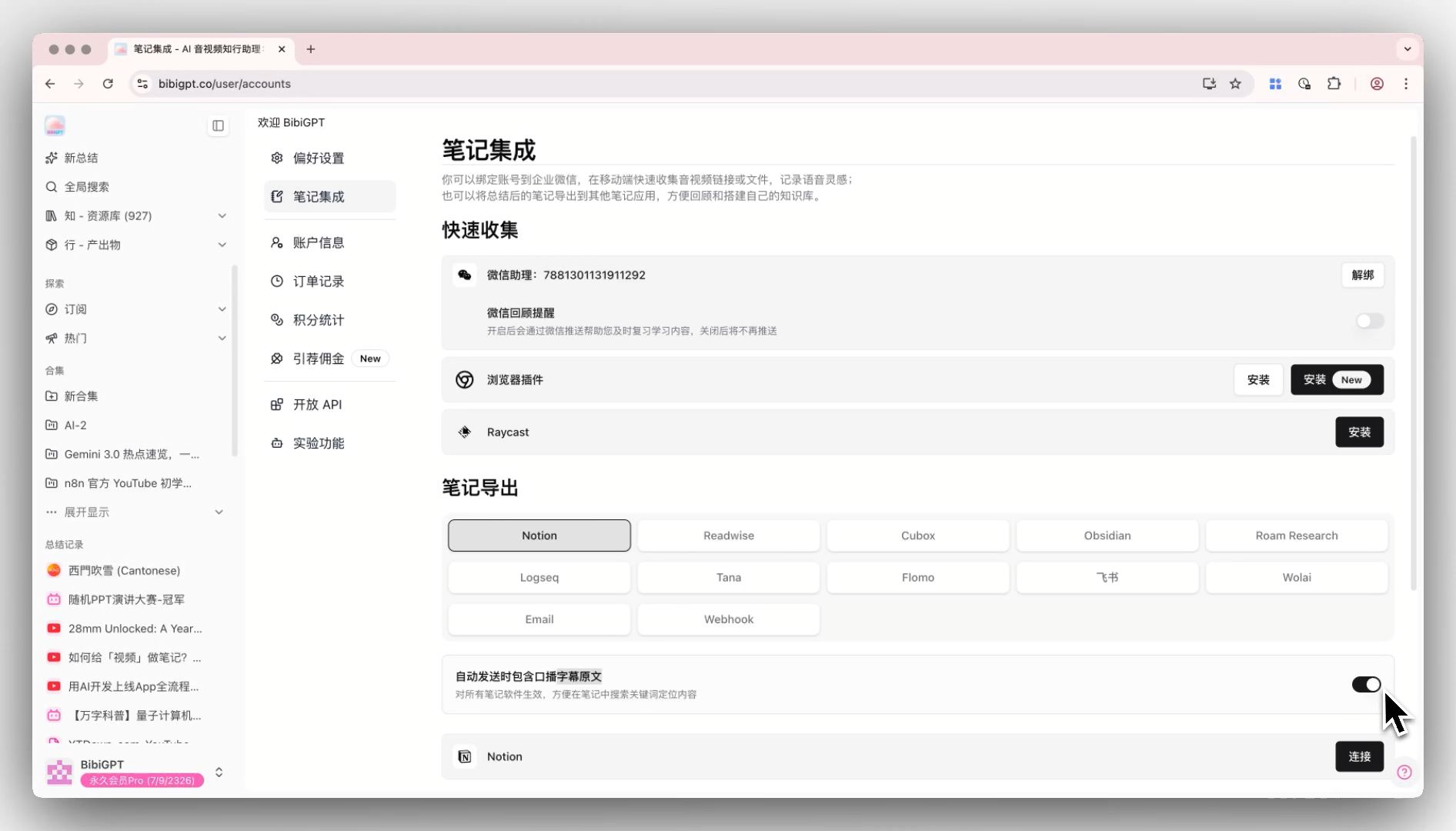
- Click the export menu → choose SRT / VTT / TXT / Markdown;
- Need another language? Switch the language and re-export. Original subtitles can be embedded inside the exported notes.
Why it’s the default:
- Zero install: no Python, no Homebrew, no CLI flags;
- Batch friendly: paste multiple URLs to process several videos at once (Multi-link batch summarize);
- Auto AI value-add: subtitles are just the start — chapters, mind maps, and AI chat come bundled;
- Cross-platform: web, desktop client, browser extension, mobile app — same UX everywhere;
- Native multilingual: ZH / EN / JA / KO output is native, not machine-translated.
Method 2: YouTube Native CC (View Only)
Best for: a one-time glance, no saving needed.
How: click “Subtitles” at the bottom-right of the player → pick a language. If the creator uploaded official subtitles you’ll see them; otherwise YouTube’s auto-generated track shows up.
Limitation: there is no official “download subtitles” button — you can only copy-paste. That’s exactly why methods 3-5 exist.
Method 3: yt-dlp CLI (Power User)
Best for: developers, content researchers, anyone needing hundreds or thousands of subtitle files.
# Install
brew install yt-dlp        # macOS
# or: pip install yt-dlp   # generic

# Download a single video's subtitles (auto-pick available languages)
yt-dlp --write-subs --write-auto-subs --sub-langs zh,en \
       --skip-download \
       "https://www.youtube.com/watch?v=VIDEO_ID"

# Batch a whole playlist
yt-dlp --write-auto-subs --skip-download \
       "https://www.youtube.com/playlist?list=PLAYLIST_ID"
Pros: free, fast at batch, scriptable. Cons:
- Steep learning curve: many flags, easy to misconfigure;
- Solves “fetch”, not “understand”: you still need to read, organize, and translate yourself;
- Maintenance load: yt-dlp needs upgrades whenever YouTube changes its anti-bot strategy.
If you already use yt-dlp, feed the SRT into BibiGPT for AI summarization — let yt-dlp handle “fetch”, BibiGPT handle “understand”.
Method 4: Third-Party Sites (DownSub, SaveSubs, etc.)
Best for: occasional 1-2 video downloads where privacy is not a concern.
How: paste URL into the site, wait, download SRT.
Risks:
- Privacy untracked: your viewing history is logged by the third party;
- Stability poor: YouTube changes APIs, third-party sites go down;
- Weak multilingual: many sites only export the source language;
- Ad-heavy: free sites usually push aggressive ads.
For one-off use it works in a pinch; high-frequency users should switch to BibiGPT or yt-dlp.
Method 5: Browser Extensions (YouTube Subtitle Downloader, Tactiq, etc.)
Best for: heavy YouTube users who open the site 5+ times a day.
Notes:
- UI embeds inside YouTube — smooth experience;
- Some extensions support AI summarization (often paid or BYOK);
- Cross-device sync is weak (re-install per machine).
Watch out:
- Permission audit: subtitle extensions request “read all tab content” — only install trusted vendors;
- Pricing: free tiers usually cap usage;
- Platform coverage: extensions typically only support YouTube — no Bilibili / TikTok / podcasts / etc. — that’s the core gap vs BibiGPT.
After You Have the Subtitles, Then What?
Dragging a SRT into a text editor is just step one. Real value comes from “what do you do with the subtitles”:
- Build study notes: turn a 30-min video transcript into a polished article with Video to Article;
- Cross-video search: once you have hundreds of transcripts, Global Deep Search lets you query subtitle text directly;
- Generate mind maps: Mindmap Timestamp Jump turns subtitles into clickable knowledge structure;
- AI follow-up dialogue: ask the video questions instead of rewatching, via AI Chat;
- Export to Obsidian / Notion: Subtitle-inclusive note export wires into your PKM system.
Multilingual: Translating YouTube Subtitles
Three routes:
- YouTube’s built-in translation: variable quality, machine-translated feel;
- DeepL / Google Translate on the SRT: works but loses the AI-summary context;
- BibiGPT auto translation: Auto-translate on upload gives ZH / EN / JA / KO native output paired with AI summary translation — closest to source meaning.
Selection Guide
- Learners / creators / researchers → just use BibiGPT, saves 10 steps;
- Batch download 1000+ subtitles for corpus building → yt-dlp for fetch, BibiGPT for understanding;
- One-time view → YouTube native CC + copy-paste;
- Heavy YouTube user resistant to new tools → browser extension;
- Privacy + stability conscious → skip third-party sites, go BibiGPT.
FAQ
Q1: What subtitle formats does BibiGPT export?
SRT, VTT, TXT, Markdown — and you can choose whether to include original subtitle text in the export. Researchers usually keep it on.
Q2: What if the YouTube video has no official subtitles?
BibiGPT auto-runs an AI transcription engine (Custom Transcription Engine supports OpenAI Whisper / ElevenLabs Scribe switching), giving you a complete transcript even without official captions.
Q3: Can I batch process all videos in a playlist?
Yes. Paste the playlist URL into BibiGPT — it auto-expands each video. Or paste multiple URLs on separate lines using Multi-link Batch Summarize.
Q4: Is subtitle download a paid feature?
Basic export is free. Pro membership unlocks batch download, custom models, auto translation, and collection knowledge bases.
Q5: Beyond YouTube, what platforms does BibiGPT support?
30+ major audio-video platforms including YouTube, Bilibili, TikTok, Xiaohongshu, podcast networks (Apple Podcasts, Spotify, etc.). Paste the link, no need to switch tools.
Q6: Will subtitle downloads trip YouTube’s anti-bot system?
BibiGPT’s server-side handles concurrency and anti-bot adaptation. CLI tools like yt-dlp should add --sleep-interval for high-frequency runs. We recommend BibiGPT for non-batch use to avoid maintenance.
Related Reading
- Cross-platform subtitle download overview: Best YouTube Subtitle Downloader Tools 2026
- Bilibili subtitle download: Bilibili Subtitle Downloader Guide
- TikTok subtitle download: Douyin/TikTok Subtitle Downloader
- YouTube summarization tools review: YouTube Video Summarizer Tools 2026
The 5 methods are clear now — but reading is no substitute for doing. Open BibiGPT, paste a YouTube URL, and 30 seconds later you’ll have full subtitles + AI summary + mind map.
— BibiGPT Team