
Plaud AI Recorder + BibiGPT: The 2026 Workflow for Turning Recordings Into Deep Notes
Plaud NotePin S and Plaud Note made recording frictionless, but the hard part is what comes after. Here is the 2026 workflow for using Plaud hardware with BibiGPT to get high-quality transcripts, summaries and multi-language notes.
Plaud AI Recorder + BibiGPT: The 2026 Workflow for Turning Recordings Into Deep Notes
How do you turn a Plaud recording into a high-quality transcript and summary? The most practical answer in 2026 is: use Plaud hardware for capture and BibiGPT for transcription, summary and second-round content creation. Plaud NotePin S and Plaud Note solved the "how do I capture audio without looking weird" problem, but the official app is still relatively thin on long-form transcripts, multi-language translation, chapter splits and deep notes. Drop the exported MP3/WAV into BibiGPT and within minutes you get timestamped chapter summaries, mind maps, AI follow-up chat and multi-format export. BibiGPT is trusted by over 1 million users and has generated over 5 million AI summaries — a natural "second brain" for anyone using a Plaud device.
试试粘贴你的视频链接
支持 YouTube、B站、抖音、小红书等 30+ 平台
Plaud hardware is booming — but the real pain point is what comes after the recording
2026 has been the breakout year for AI recording hardware. Plaud NotePin S debuted at CES 2026, and TechCrunch has been running a steady stream of coverage on Plaud, Anker, Omi and Viaim. The "$89, clip-to-chest, talks to your phone" form factor has finally made it socially acceptable to record meetings, 1:1s and spontaneous interviews.
But hardware only solves half the problem — capture is fixed, processing is not.
Early Plaud users we've talked to all hit the same wall around week two:
- The official app is not great at long-audio transcripts. A 90-minute interview often comes back as a "topic list" that's nowhere near a proper meeting note you can send to coworkers.
- Multi-language is thin. You recorded in English and need a Chinese summary, or recorded in Chinese and need English talking points — the official app struggles.
- No follow-up querying. You can only see a static summary. There is no "turn the arguments in segment 3 into a debate outline" kind of interaction.
In other words, AI recording hardware saves you the hassle of "press record + hold a phone", but it can't save you the much bigger hassle of "turn raw audio into usable content". That second step is exactly what BibiGPT has been building for years.
Why BibiGPT is the best "after-brain" for Plaud users
BibiGPT was built around the idea that long-form audio and video should be watchable, searchable and usable. For Plaud users, it slots perfectly into the gaps the official app leaves open.
1. Top-tier transcription engines — get close to human-quality notes
BibiGPT supports custom transcription engine configuration — you can switch freely between OpenAI Whisper and the top-tier ElevenLabs Scribe engine, and even plug in your own API key. For interviews, doctor-patient conversations, legal depositions and other accuracy-critical scenarios, being able to pick your own engine pushes transcription quality close to human level.
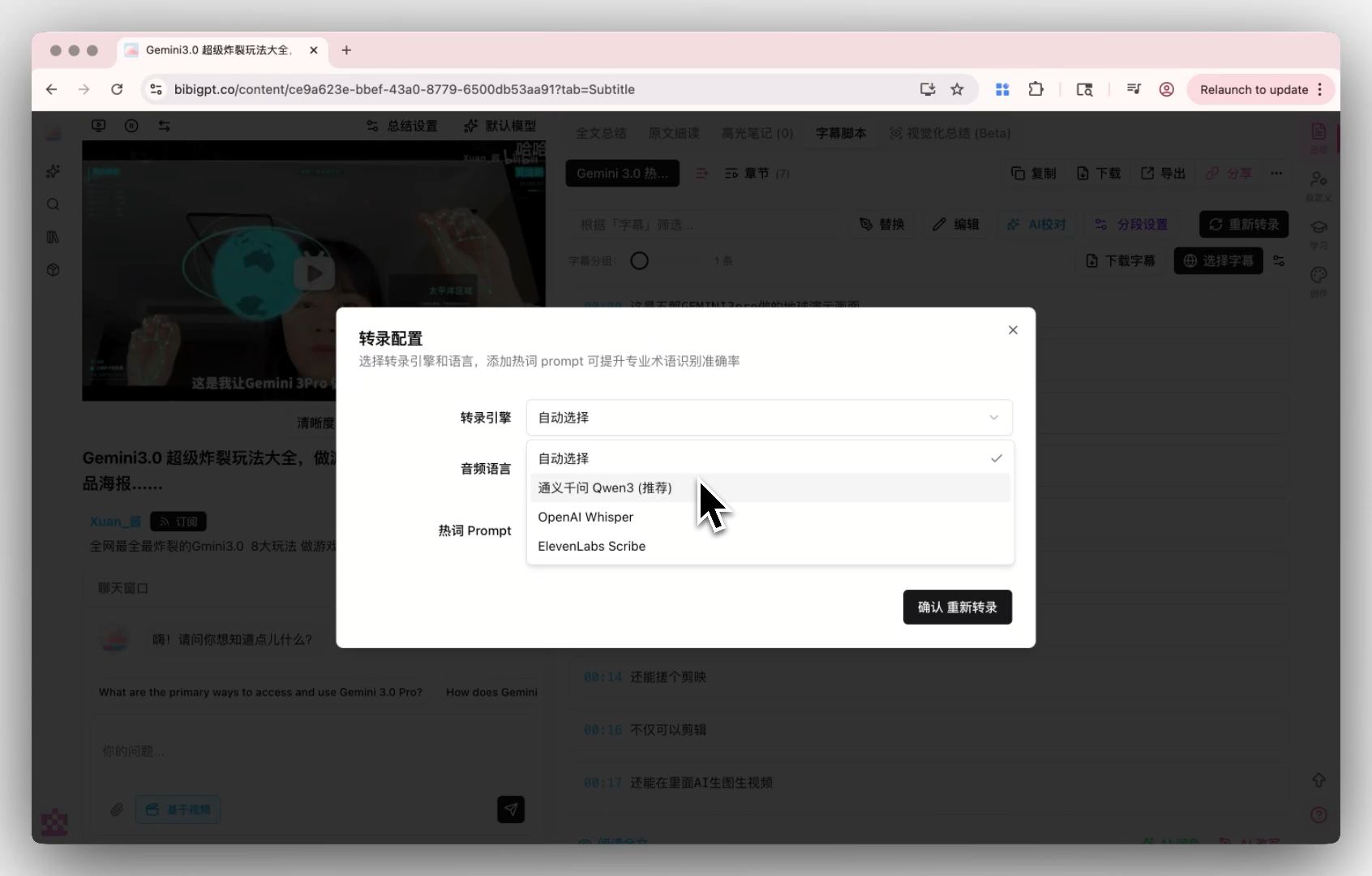 BibiGPT custom transcription engine entry
For many Plaud users, that effectively drops a stronger brain into the hardware app.
AI 字幕提取预览
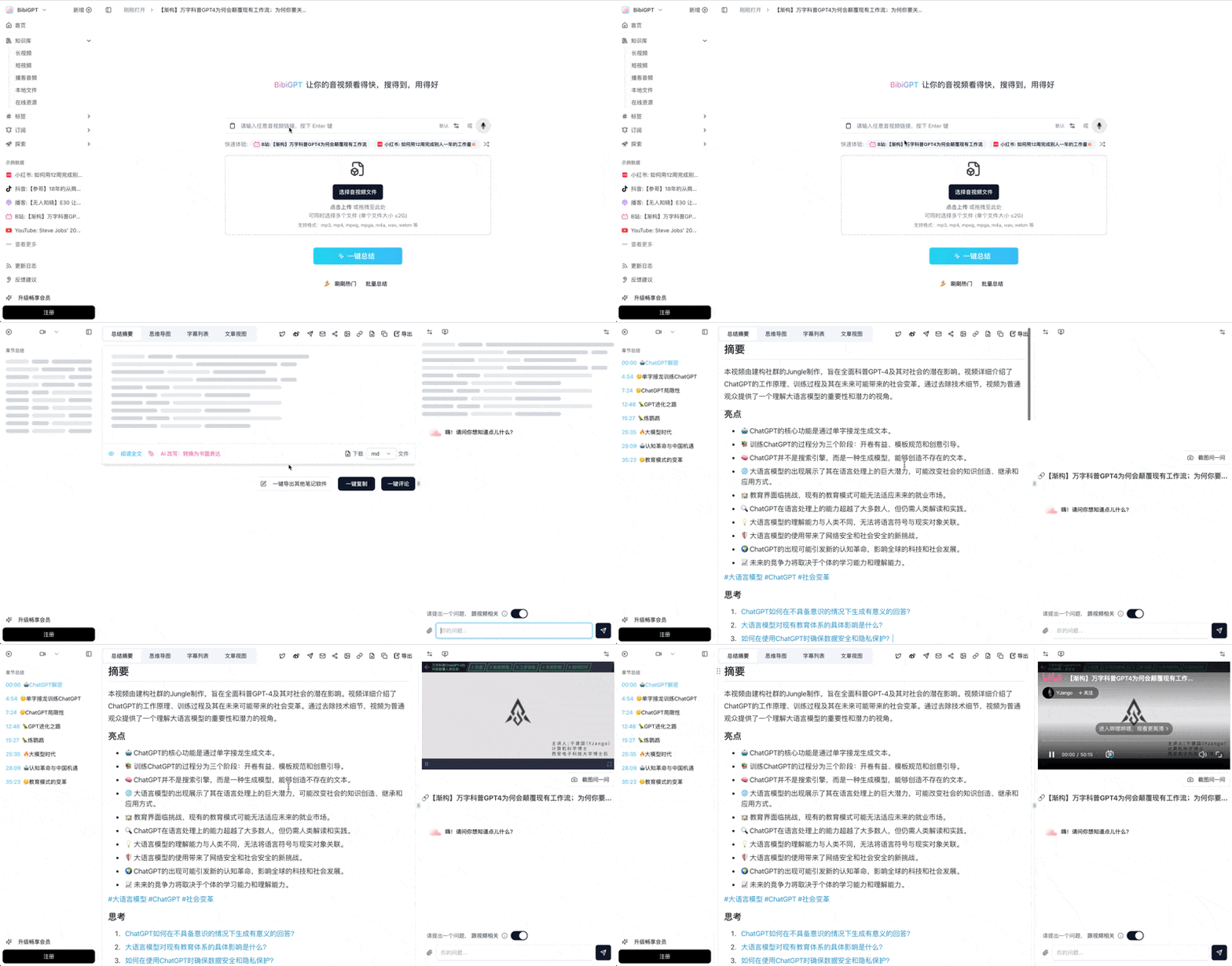
Bilibili: GPT-4 & Workflow Revolution
A deep-dive explainer on how GPT-4 transforms work, covering model internals, training stages, and the societal shift ahead.
2. Auto chapter split + mind map + AI chat for long recordings
Plaud's sweet spot is "record the whole morning at once", and that's also BibiGPT's home turf: long audio auto-split into chapters, mind-map generation, plus AI follow-up chat on top. Drop a 3-hour training session into BibiGPT and what you get back is not a wall of transcript — it's:
- A topic-based chapter list (click any chapter to jump to the original audio position)
- A mind map of the overall structure
- An AI assistant you can keep asking questions ("what exactly were the three KPIs mentioned earlier?")
That upgrades "recording" from "I can replay it" to "I can converse with it".
3. Multi-language translation + Notion / Obsidian / Markdown export
BibiGPT supports auto-translate on upload — you pick the target language at upload time and get bilingual transcripts and summaries out the other side. Combined with multi-format export (Markdown/PDF/Notion/Obsidian/Cubox), the whole processing pipeline just... finishes itself.
That's the part of the workflow Plaud's own app struggles to match.
Plaud recording → BibiGPT summary: four real-world workflows
Here are the four scenarios we see Plaud users hitting most often, and how the "hardware capture + BibiGPT processing" combo solves each of them.
Scenario 1: long meetings / 1:1 interview notes
Pain: you need to send meeting notes within 30 minutes of the call ending, and manual write-ups don't cut it.
Workflow:
- Record the full meeting with Plaud NotePin S
- Export the audio (MP3/WAV) from the Plaud app
- Open BibiGPT and upload the audio file
- Tick "custom prompt" in the upload dialog and pick your saved "meeting notes template"
- Wait a few minutes for timestamped chapter notes + action items + mind map
- One click export to Notion / Cubox and paste into your team channel
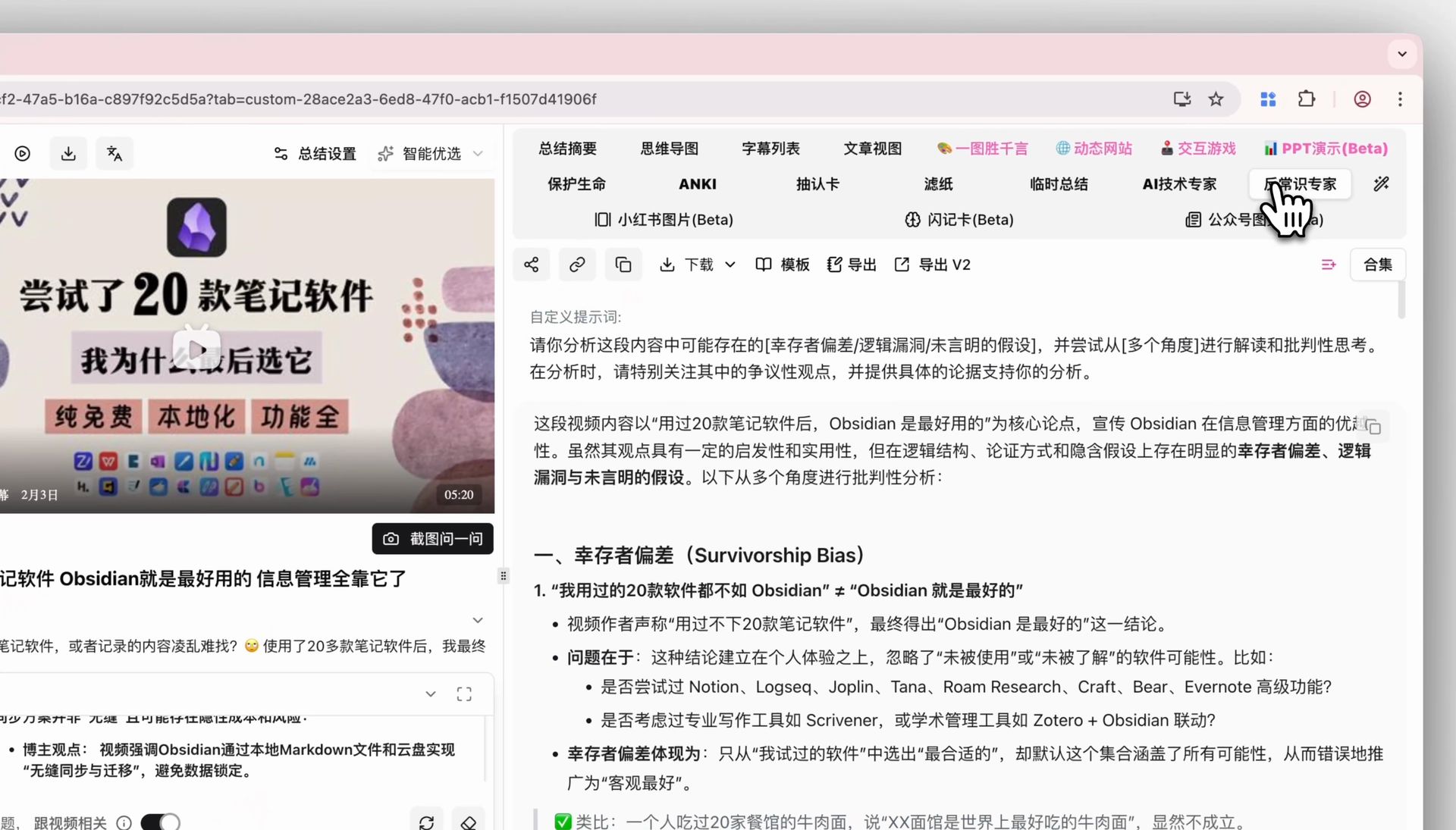 BibiGPT custom prompt selector
Scenario 2: field interviews / journalism research
Pain: journalists and researchers need topic search and citation tracing across many recordings, and the Plaud app alone isn't enough.
Workflow:
- Capture all interview audio with Plaud
- Batch upload into BibiGPT — every interview gets a full transcript and summary
- Use BibiGPT's AI dialogue + source tracing: ask "what is the interviewee's core stance on policy X" and the AI answers with clickable timestamps back to the original audio clip
- Export the highlight reel as Markdown / share cards for the final article
This compresses the classic "replay tape → find the quote → cite" into a minutes-long operation.
Scenario 3: classroom / training course review
Pain: training sessions are typically 2-3 hours, and re-listening is nearly impossible.
Workflow:
- Record the entire course with Plaud
- Upload to BibiGPT, pick a "lecture summary" custom prompt (chapter split + knowledge checklist + follow-up questions)
- Use the Chapter Deep Reading tab: captions auto-scroll as the audio plays; click any confusing line to jump back to the original position
- Export Anki CSV for spaced-repetition revision
Ideal for continuing education, certification prep and self-study.
Scenario 4: podcast / long audio creation
Pain: podcast hosts have to produce show notes, chapter markers and promotional copy after every episode — that's a lot of repetitive work.
Workflow:
- Use Plaud (or a phone backup recorder) to capture the interview track
- Upload to BibiGPT for full transcript + chapter split + AI summary
- Use AI Video to Article to rewrite the episode as a blog-ready article
- Combine with multi-language translation to create English show notes for Apple Podcasts / Spotify
The entire "record → transcribe → organise → publish" loop runs end to end in a single tool.
Plaud app vs BibiGPT — a clean division of labour
A question we hear a lot: is BibiGPT a replacement for Plaud's own app? No — it's a complement. Here's how we split the work:
| Step | Plaud official app | BibiGPT |
|---|---|---|
| Hardware sync / audio upload | ✅ Best native UX | — |
| Live / offline recording | ✅ Hardware-exclusive | — |
| Basic transcription | ✅ | ✅ Custom engines (Whisper/Scribe) |
| Long-audio chapter split | ⚠️ Coarse | ✅ Auto chapters + timestamps |
| Multi-language translation | ⚠️ Limited | ✅ Target language at upload |
| Mind map | ❌ | ✅ Click-to-jump |
| AI follow-up chat | ❌ | ✅ Interactive + source tracing |
| Custom prompts | ❌ | ✅ Multiple templates, one click |
| Highlight notes / share cards | ❌ | ✅ Drag to save |
| Export to Notion / Obsidian | ⚠️ | ✅ Native integration |
In short: Plaud captures, BibiGPT refines and produces. You need both for a complete workflow.
Getting started: three steps to connect Plaud and BibiGPT
If you already own a Plaud device, plugging BibiGPT into your workflow is a three-step job:
- Prep the audio: export the recording you want to process from the Plaud app as MP3 or WAV.
- Upload to BibiGPT: go to aitodo.co, click upload on the home page and drag the file in. If it's a foreign-language recording, tick "auto-translate" in the same dialog.
- Pick a template: choose a custom prompt (e.g. "meeting notes", "interview notes", "podcast show notes"). If you don't have one yet, the default summary is a fine starting point.
A few minutes later you'll have timestamped chapter summaries, a mind map, a full transcript, and one-click export to Notion, Obsidian, Cubox, Markdown, PDF or Anki CSV.
Conclusion: the value of AI hardware is decided by the AI workflow that comes after
The Plaud, Anker and Omi wave isn't just "another recorder". It's the first time at this scale that real meetings, interviews, classes and podcasts are going to be fully recorded by default. What actually decides how much value those recordings generate is which tool you use to process them afterwards.
BibiGPT has been building the "long-form audio/video → structured knowledge" pipeline for years, and paired with Plaud's capture quality it can 5-10x the value of your raw recordings. If you already own a Plaud device, try this workflow today:
🎙️ Let BibiGPT become your Plaud "after-brain"
- 🔗 Visit: aitodo.co
- 🎁 Free tier available for new users
- 🔊 Works with audio exports from Plaud / Anker / Omi / Viaim and any other hardware
BibiGPT Team