How to Add Subtitles and Summarize English MOOC Courses: A Coursera / edX / Udemy Speed Guide for Students (2026)
How to Add Subtitles and Summarize English MOOC Courses: A Coursera / edX / Udemy Speed Guide for Students (2026)
Finals week is here, and your Coursera watchlist still has a dozen-plus hours of English lectures piled up. The professor talks fast, technical terms come one after another, and even keeping up with English-only subtitles is a struggle—let alone taking notes and prepping for the exam. You open a video, set it to 0.75x, follow the subtitles with your eyes while your brain is still translating—one lecture later you’re exhausted and barely remember the key points.
This isn’t really a “your English isn’t good enough” problem—it’s a wrong-tool problem. Add bilingual subtitles to an English lecture, then let AI produce a summary with key timestamps, and reviewing one lecture drops from an hour to a few minutes.
This guide takes the student’s perspective and explains how to turn English videos from Coursera, edX, and Udemy into study material you can understand, remember, and breeze through before an exam.
100-word answer: Drop an English course’s link or downloaded video into an AI tool, and it can first transcribe English subtitles, translate them into bilingual subtitles, then generate a summary (TL;DR + bullet points + key timestamps). Before the exam, read the summary to catch the key points, then use timestamps to jump back to the clips you need to study closely—one lecture done in minutes. To try it now: paste a Coursera video URL and get a summary plus key timestamps.
1. Why Students Need Both Subtitles and a Summary
Many people only think “add subtitles,” but for an exam-bound student, subtitles solve only half the problem.
Subtitles Solve “Understanding,” Summaries Solve “Remembering”
Subtitles let you stop translating as you watch, so comprehension speeds up a lot; but a 90-minute lecture is still 90 minutes of subtitles. What truly saves time is the summary—AI compresses the whole lecture into “what it covered + 5 to 8 key points + which minute each point appears.” Before the exam, one glance tells you where the priorities are. Together, that’s “understand + remember + review fast.”
Take a typical US student scenario: not enough time to review required-course recordings, with 12 weeks of content to get through in the week before midterms. Watching at full speed is nearly impossible; “use the summary to find priorities first, then use timestamps to study the hard parts” is the only realistic way to catch up in a week.
In the interactive demo below, pick a sample video and see what AI turning a video into a summary looks like:
Summarize any video in seconds
Pick a sample below to see the AI summary — TL;DR, key points, and jump-to timestamps.
TL;DR: Karpathy builds a GPT-style language model from scratch in code, explaining every piece — from a tiny character-level model up to the full Transformer.
Key points
- Start with a bigram model, then add self-attention so tokens can "talk" to each other
- A Transformer block = multi-head attention + feed-forward + residual connections + layer norm
- Training is just predicting the next token; scale and data do the rest
- The same architecture behind nanoGPT is what scales up to ChatGPT
Jump to
- 00:07 Why build GPT from scratch
- 08:23 Self-attention, intuitively
- 1:00:00 Assembling the Transformer block
- 1:35:00 From nanoGPT to ChatGPT
Practical rule: To review English courses, read the summary first to locate the priorities, then go back into the video with questions—don’t watch start to finish from the top; that’s the slowest way.
Bilingual Subtitles Beat Translation-Only for Learning
If your goal isn’t just to pass but also to practice English along the way, bilingual subtitles are the better choice: the translation confirms your understanding, while the original preserves terms and phrasing. The English terms in your major are exactly what you’ll need in exams and papers—they shouldn’t be translated away.
Further reading: to compare online-course summarizer tools side by side, see the best online course summarizer AI tools; worried that accented recordings won’t transcribe accurately? See what more accurate AI subtitles really mean.
2. Option A: Platforms You Can Paste Directly (YouTube Open Courses, Bilibili Learning)
Here’s how BibiGPT handles the same thing — see the screenshot below:
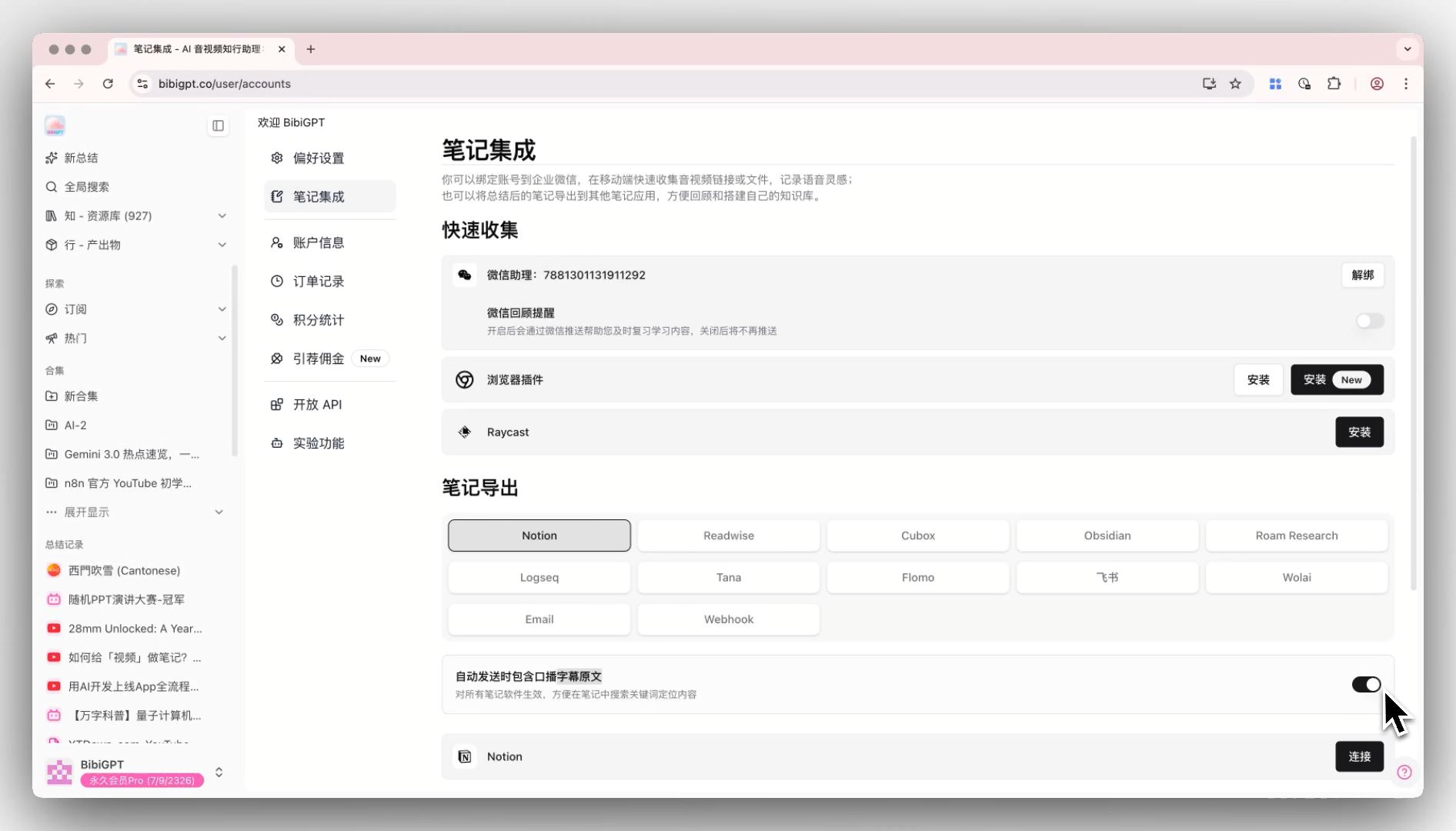
Screenshot: BibiGPT
A lot of great courses are already on public platforms: official university channels, MIT OCW, Khan Academy, plus learning content on Bilibili. This kind is the easiest—just paste the link.
It’s simple:
- Copy the video link (30+ platforms supported, including YouTube and Bilibili).
- Paste it into the AI tool and choose “transcribe + translate + summarize.”
- In tens of seconds you get: bilingual subtitles + a summary + a timestamped list of key points.
- Before the exam, read the summary first, then click timestamps to jump back to the parts you need to study.
Source: YouTube · English video to notes demo
For Canadian students juggling a Co-op job and online courses, this “paste a link in a spare moment, and the summary is ready before you head out” approach fits perfectly.
3. Option B: Platforms You Download First (Coursera / edX / Udemy)
For comparison, the screenshot below shows the matching step inside BibiGPT:
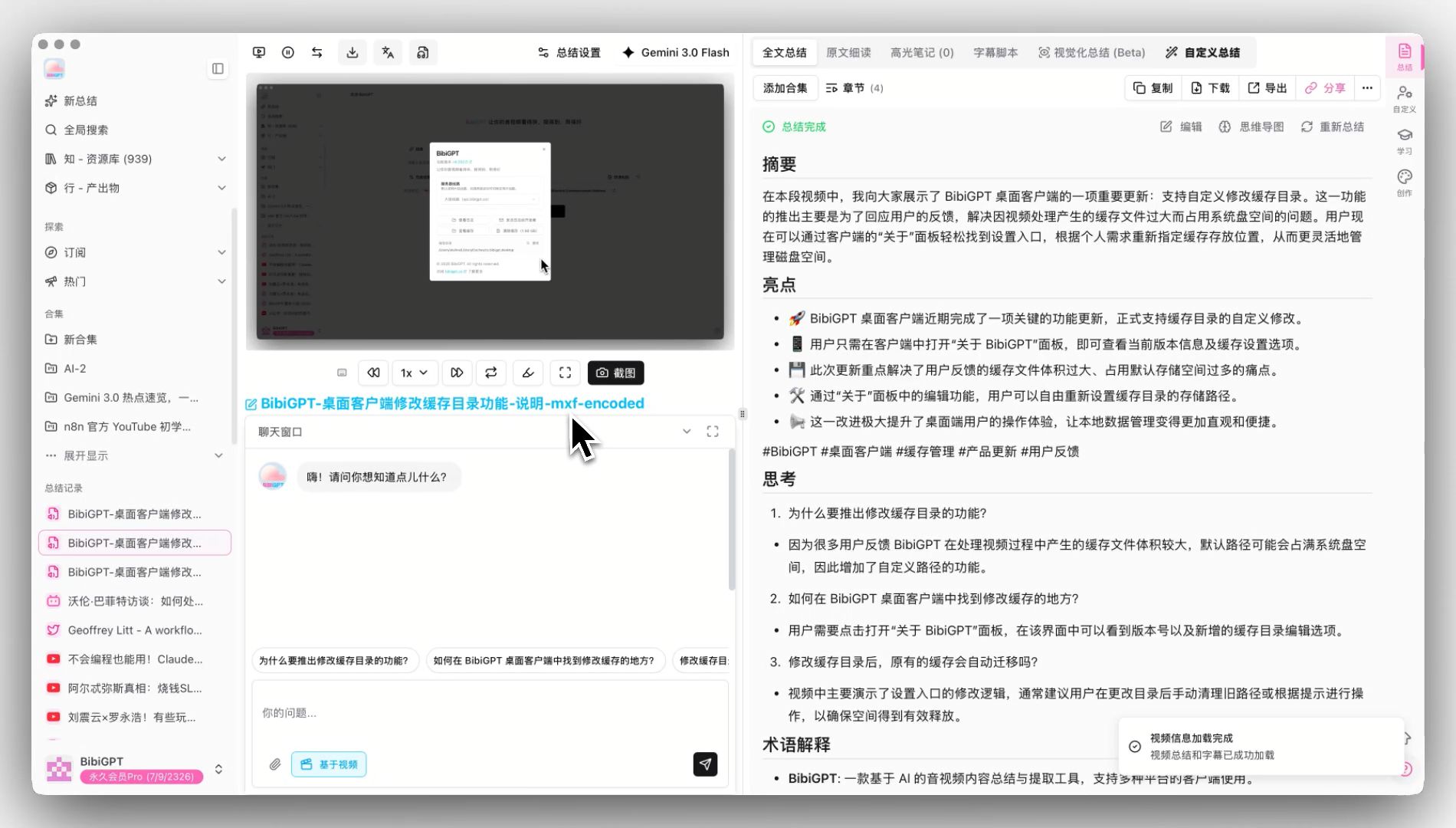
Screenshot: BibiGPT
Videos on paid platforms like Coursera, edX, and Udemy can’t be pasted directly, but the flow only adds one step—download first, then upload.
- Inside a course you’ve purchased / enrolled in, use the platform’s built-in download feature (most support offline download) to save the video locally.
- Upload the downloaded video file to the AI tool.
- You get the same result: English subtitles → bilingual subtitles → summary + timestamped key points.
- Want a plain transcript for notes? Transcripts export to Markdown and text, ready for your note app.
UK PgDip students often face incomplete seminar recordings and hard-to-understand tutor accents—uploading those recordings to transcribe + translate saves far more effort than replaying them over and over.
The translation demo below shows the bilingual-subtitle effect first:
Translate captions into your language
Original and translation, line by line, with timestamps. Great for foreign-language talks.
| 00:07 | We're going to build GPT from scratch, together. | Vamos a construir GPT desde cero, juntos. |
| 08:23 | Self-attention is the heart of the Transformer. | La autoatención es el corazón del Transformer. |
| 45:10 | Each token emits a query and a key. | Cada token emite una consulta y una clave. |
| 1:35:00 | At its core, this is the same model behind ChatGPT. | En esencia, es el mismo modelo detrás de ChatGPT. |
Practical rule: For paid-platform videos, use the official download feature to save locally before uploading—that’s the compliant, safe approach. Don’t go hunting for shady third-party downloaders.
4. How to Choose: The Best Combo for Each Situation
| Your situation | Recommended approach | Why |
|---|---|---|
| Course is on YouTube / Bilibili, etc. | Paste link → summary | Easiest, works in spare moments |
| Course is on Coursera / edX / Udemy | Official download → upload → summary | Compliant handling of paid content |
| Just need to pass, short on time | Subtitles + summary, focus on the summary | Catch a lecture’s priorities in minutes |
| Want to practice English too | Bilingual subtitles + summary | Preserve terms, confirm understanding |
| Heavy tutor accent / noisy recording | Transcribe first, then summarize, verify with timestamps | Even hard content becomes usable text |
Decision filter: First ask yourself, “Do I need to pass this course, or master it?” Pass → prioritize the summary, catch priorities; master → use both bilingual subtitles and summary, slow and steady.
5. Frequently Asked Questions (FAQ)
Q1: Can Coursera / edX videos be pasted directly? A: Paid platforms generally can’t be pasted directly; use the platform’s built-in offline download to save the video locally, then upload. Public platforms like YouTube and Bilibili can be pasted directly.
Q2: Is the translation accurate? Will technical terms get mistranslated? A: Everyday content translates quite usably. Choose bilingual subtitles so technical terms stay matched to the English original—you confirm understanding without losing the exam-relevant phrasing.
Q3: How long does a 90-minute lecture take to process? A: Transcription plus summary usually takes tens of seconds to a few minutes (depending on length). Once you have the summary, review time drops from an hour to minutes.
Q4: Can the output be saved into a note app? A: Yes. Transcripts and summaries export to Markdown, text, and more, ready for Notion, Obsidian, and other note tools.
Q5: I can’t follow all-English classes—is this for me? A: Absolutely. A summary in your native language lets you grasp the priorities first, then revisit the original English with understanding—far more efficient than grinding through an all-English class.
Try It Now
Finals week is tight—start by testing it on one lecture:
Paste a Coursera video URL and get a summary plus key timestamps
BibiGPT Team