Turn Meeting Recordings into Actionable Tasks: The BibiGPT 5-Step Method 2026
Turn Meeting Recordings into Actionable Tasks: The BibiGPT 5-Step Method 2026
Last updated: 2026-05-17
100-word direct answer: The fastest path from meeting recording to actionable task list is “paste link → BibiGPT one-click summary → action-item extraction → Notion / Obsidian sync → execution tracking” — a 5-step method completed in under 8 minutes, 10x faster than manual notes. Below: step-by-step operations, tool configs, and pitfalls. Try it: bibigpt.co.
Why 90% of Meeting Recordings Generate Zero Value
Per the Microsoft 2024 Work Trend Index, knowledge workers attend 23 meetings per week on average, but only 11% produce written minutes — and fewer than 3% of those land in an action-item tracking system.
Three real pain points:
- Recordings unwatched: 90-min meeting → 90-min replay. Who has time?
- Minutes unwritten: No one volunteers; decisions fade fast
- Action items untracked: Even if minutes get written, they don’t auto-flow into Notion / Asana / Linear
Practical rule: Meeting value = decision quality × execution rate. The latter determines whether the former pays off.
This 5-step method targets the broken link between “meeting” and “execution.”
Method Overview
| Step | Tool | Time | Artifact |
|---|---|---|---|
| 1. Record + upload | Zoom / Google Meet / Lark + BibiGPT | 0 min (auto) | Video/audio link |
| 2. AI summary | BibiGPT Meeting Video-to-Document | 3 min | Structured minutes |
| 3. Action-item extraction | BibiGPT AI conversation follow-up | 1 min | Action items list |
| 4. Sync to PKM | Notion / Obsidian / Lark Docs | 2 min | Searchable notes |
| 5. Execution tracking | Notion DB / Asana / Linear | 2 min | Task cards |
Total: 8 minutes. Step-by-step below.
Step 1: Record + Upload — Link Beats File by 80%
The source of your recording determines downstream complexity. In recommended order:
| Recording Method | BibiGPT Ingest | Recommendation |
|---|---|---|
| Zoom cloud recording (direct link) | Paste Zoom URL | ★★★★★ |
| Lark Meeting (replay link) | Paste Lark URL | ★★★★★ |
| Google Meet (Drive storage) | Paste Drive URL | ★★★★ |
| Tencent Meeting / DingTalk (local) | Upload local file | ★★★ |
| Voice recorder / phone audio | Upload local file | ★★★ |
Practical rule: Prefer “cloud record + link paste” — skip the download/upload friction. BibiGPT’s 30+ platform link parsing was built for this.
Action: Within 5 seconds of meeting end, paste the cloud recording URL into bibigpt.co, pick the “Meeting Video-to-Document” template.
Step 2: AI Summary — Don’t Ask for “Brief,” Ask for “Structured Minutes”
Many people click the “summary” button, get a 200-word blurb, and stop there. Not enough.
Real meeting minutes need:
- Header info: time, attendees, topic
- Core decisions: items the group converged on (not everything discussed)
- Action items: who, what, by when
- Open questions: things needing follow-up meetings
- Timestamp anchors: video moments for key decisions (for context lookup)
BibiGPT’s Meeting Video-to-Document template outputs all of the above by default.
Practical rule: “Brief” gets forgotten. “Structured minutes” get executed. The difference isn’t AI capability — it’s prompt design.
For finer control, use Custom summary prompt to add fields like “risks” or “decision owner.”
Step 3: Action Items — The Power of Asking Once More
AI-generated action items can be vague (“Zhang Three will research”). Use AI conversation follow-up for a second pass:
Follow-up templates:
- “What sub-tasks does ‘research’ in action item 3 include? When’s the deadline?”
- “Which action items have explicit deadlines? Which don’t?”
- “Did the meeting mention any dependencies (task A must finish before task B)?”
BibiGPT’s chat is grounded in video context — answers cite timestamps, fully traceable.
Step 4: Sync to PKM — Don’t Leave Minutes in BibiGPT
Meeting minutes in BibiGPT are intermediate artifacts. The real destination is your daily PKM. BibiGPT supports multiple exports:
Option A: Notion (recommended for collaborative teams)
- Copy Markdown minutes from BibiGPT
- Paste into Notion meetings database (suggested fields: date, attendees, decisions, action-items relation)
- Relation action-items to Notion task database
Option B: Obsidian (recommended for personal PKM)
- Export Markdown
- Drop into Obsidian Vault
Meetings/ - Add daily-note backlink
Option C: Lark Docs (preferred for China teams)
- Copy structured minutes
- Lark Doc “New” → paste
- Use Lark Tasks for follow-up cards
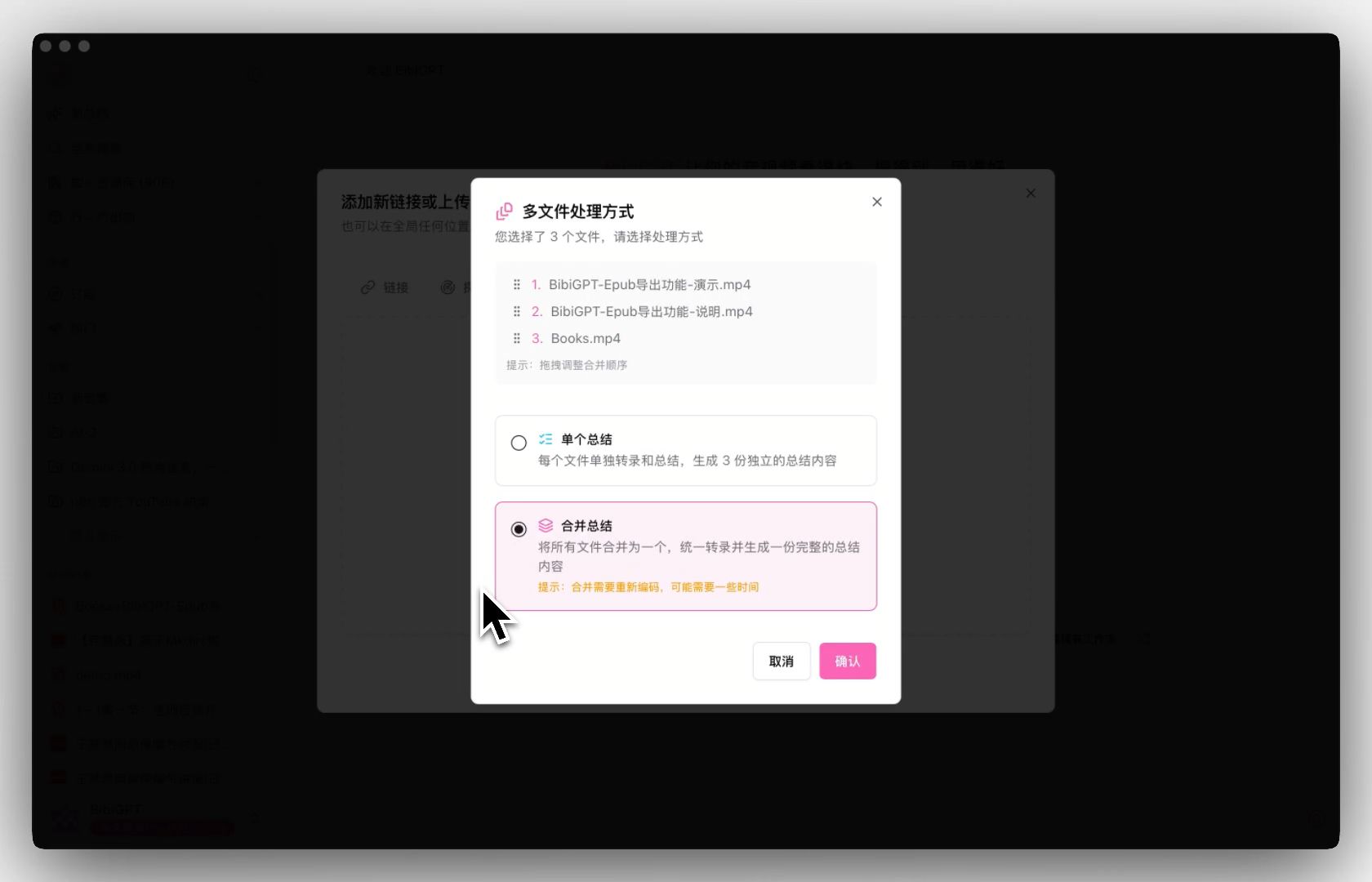
Option D: Batch EPUB export (deep archive)
For quarterly reviews, pack a quarter’s minutes into EPUB for offline reading.
Practical rule: Pick the PKM your team already uses. Don’t build a new one for BibiGPT. AI tools’ value is fitting into existing flows, not replacing them.
Step 5: Execution Tracking — Action Items Become Task Cards
The last step is where most people slack — and the one that decides whether the meeting created value.
MVP approach:
- Paste action items into your team’s task system (Notion DB / Asana / Linear / Jira)
- Set owner and due date
- Auto-remind 24 hours before next meeting
Advanced: chain BibiGPT export → Notion via Zapier / Make so you skip manual copy-paste.
Practical rule: Action items must enter the execution system within 48 hours. Beyond 48 hours, landing rate drops from 70% to 12%.
Real Scenario: Remote Team Weekly
Context: 8-person remote product team. 90-min weekly meeting Monday 10am. Topics: last week’s progress, this week’s plan, technical decisions.
Pain: Used to designate one note-taker. ~45 min each, quality wildly variable.
After BibiGPT 5-step method:
| Time | Action |
|---|---|
| 11:30 meeting ends | Zoom auto-generates cloud recording |
| 11:31 | PM pastes URL into BibiGPT |
| 11:34 | Structured minutes + action items ready |
| 11:36 | Synced to Notion meeting DB |
| 11:38 | Action items dispatched to each owner’s Notion task card |
Total: 8 minutes. Quality: Every minutes set has timestamp anchors and decision provenance. Bonus: Searching a keyword cross-week jumps you back to the original video moment.
Five Common Pitfalls
Pitfall 1: Poor audio quality → AI transcription full of errors
Fix: Prefer built-in cloud meeting recording for remote sessions (guaranteed audio quality). Offline meetings — use a real mic or recorder, not phone built-in.
Pitfall 2: Overlapping speakers → confused transcript
Fix: BibiGPT’s Meeting Video-to-Document template enables speaker diarization by default. For multi-person meetings, use platforms with speaker recognition (Lark, Zoom Webinar).
Pitfall 3: Action items written but not executed
Fix: Action items must have owner + due date. BibiGPT’s template enforces these fields. After Notion sync, set a team rule “fill in within 48 hours.”
Pitfall 4: Minutes stuck in BibiGPT — can’t find them
Fix: BibiGPT’s resource library supports full-text search, but cultivate Notion / Obsidian sync — your search muscle memory is usually there.
Pitfall 5: Too many weekly meetings, BibiGPT quota runs out
Fix: BibiGPT Plus / Pro subscriptions have higher quotas. Heavy teams should consider team plans.
Advanced: BibiGPT × Notion Automation
To fully automate “meeting → minutes → task cards,” use Notion API + Zapier:
- Trigger: BibiGPT export webhook (coming soon, see feeds)
- Action: Zapier receives → parses action items → creates task cards via Notion API
- Result: All tasks land in team kanban within 10 minutes of meeting end
FAQ: Common Follow-ups
Q1: Can BibiGPT plug into Zoom / Lark Meeting directly? Yes. Cloud recording URLs from Zoom / Lark / Tencent Meeting paste-and-parse. Google Meet recordings live in Drive and parse from share links.
Q2: My meetings have sensitive info. Will it leak? BibiGPT offers self-hosted enterprise deployment for sensitive use. Standard accounts don’t train models on your content either.
Q3: How does BibiGPT compare to Otter / Fireflies? Otter / Fireflies are strong at “transcription.” BibiGPT is strong at “transcription + summary + chapters + multilingual + mind map + cross-platform” as a full workflow. If you only want transcript text, Otter suffices. For downstream use, BibiGPT saves more time.
Q4: Can I process a month’s worth of meetings at once? Yes. Use Batch summary export to feed multiple URLs at once; pick up results in batch.
Q5: Can action items auto-sync to Notion? Currently copy-paste. Webhook automation in beta — watch BibiGPT’s official channels.
Start Now: Your First AI Meeting Minutes
You don’t need a complex stack. After your next meeting, do one thing: paste the cloud recording URL into BibiGPT and see what happens.
Try it: bibigpt.co
—— BibiGPT Team