How to Convert Video to Text in 2026: 4 Methods Compared + AI One-Click Key Points (3-Step Tutorial)
How to Convert Video to Text in 2026: 4 Methods Compared + AI One-Click Key Points (3-Step Tutorial)
Last updated: May 2026
Quick answer: There are 4 main ways to turn video into text — browser extensions that grab subtitles, online transcription tools, exporting a platform’s native subtitles, and AI one-click transcription that also extracts key points. If you only need a clean transcript, native subtitles are enough; if you want a whole video turned into a structured transcript you can actually use, the fastest route is an AI video-to-text tool — paste a link or drop in a file, and get a timestamped transcript plus key points in minutes.
Where converting video to text actually gets stuck
In a one-hour course, meeting, or interview, maybe ten minutes is what you truly need. Typing it out by ear usually takes two to three hours for one hour of video — that’s the first reason most people give up on “turning video into text.”
Worse, the sources are scattered. Your videos might live on Bilibili, YouTube, Douyin, Kuaishou, or Xiaohongshu, or be a podcast, a local screen recording, or something you grabbed on your phone. Every platform exports differently, and just figuring out “how do I get the subtitles off this one” can eat half your day.
Practical rule: First decide whether you want “a transcript” or “key points you can use directly.” For the former, native subtitles will do; for the latter you need AI, otherwise you’ll still have to read the transcript and highlight it yourself.
The good news: in 2026, turning video into text takes zero technical skill. Let’s lay out the 4 mainstream methods first, then give you a 3-step workflow that works anywhere.
4 methods to convert video to text — and who each suits
Video and audio are essentially “sound + picture.” Converting to text means recognizing the speech into words, sometimes layered with the text shown on screen. By ease of use and output quality, the mainstream methods fall into 4 types.
Method 1: Browser extension that grabs subtitles
Install a video-to-text extension in your browser and grab subtitles right in the sidebar while watching Bilibili or YouTube. The upside: you never leave the player. The downside: it only works on platforms that already have a subtitle track — no track, nothing to grab.
Method 2: Online transcription tool
Upload a video or audio file to an online tool and wait for speech recognition to return a transcript. Great when you already have a file (a recording, a screen capture, a downloaded video) and not picky about platform. The downside: large files upload slowly, and free tiers usually cap the duration.
Method 3: Export the platform’s native subtitles
Bilibili, YouTube, and others generate subtitles for some videos that you can export directly. It’s the most “as-is” method, but coverage is patchy — short videos on Douyin, Kuaishou, and Xiaohongshu often have no exportable track, and each platform hides the export in a different place. To nail one specific platform, see our deeper Bilibili subtitle download guide.
Method 4: AI one-click transcription with key points
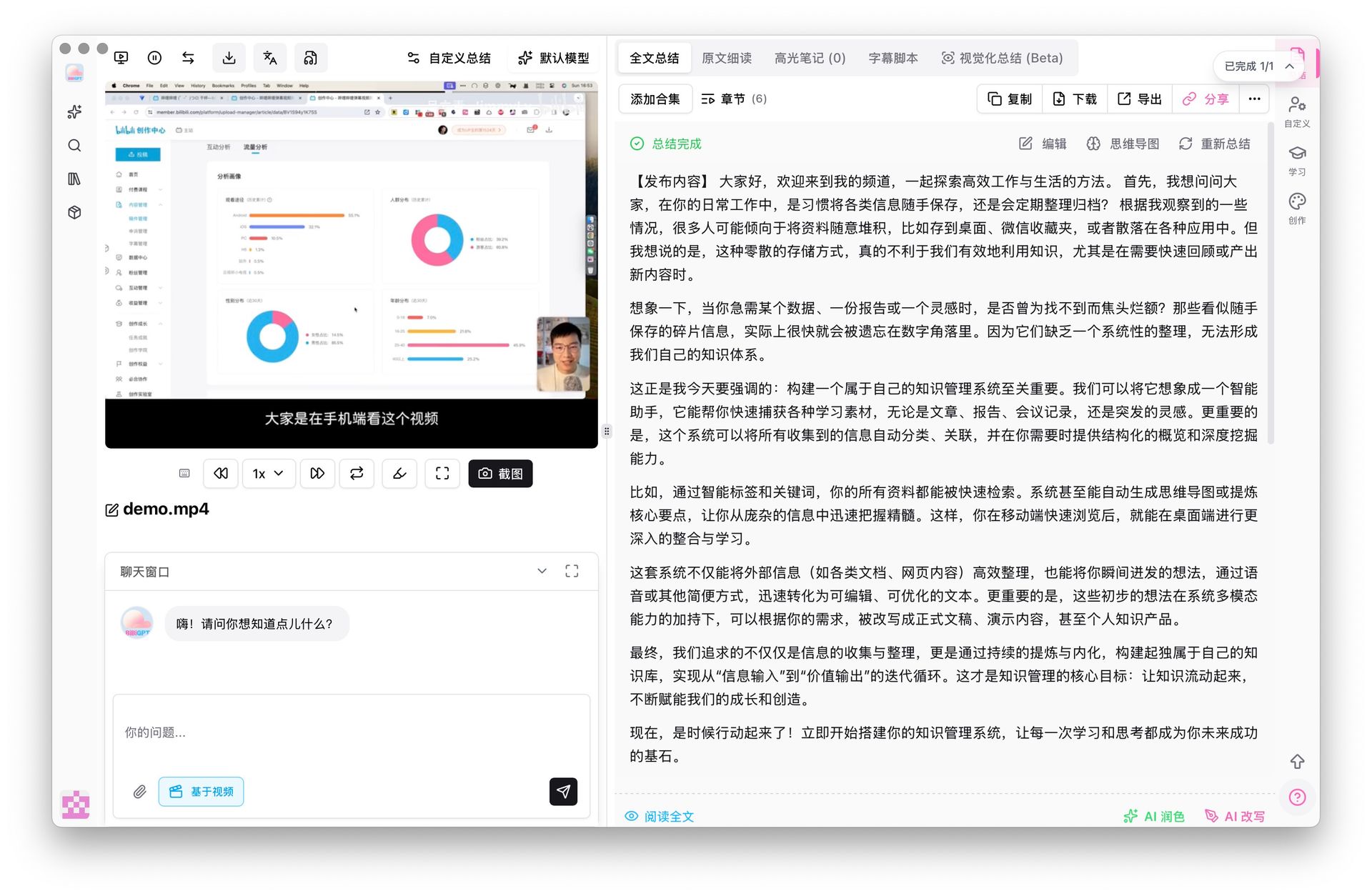
Paste a video link or drop in a file, and the AI handles all three: transcribe, organize, extract key points. That’s the big difference from the first three: they hand you “a wall of text,” while the AI method hands you “structured content you can use immediately” — a timestamped transcript, section headings, and core takeaways.
Practical rule: If you process more than 3 videos a week, stop running the old loop of “transcribe, then read it, then highlight it.” Pick an AI tool that goes straight to key points — what you save is reading the whole thing over again.
Take a public lecture as an example. Andrej Karpathy’s “Let’s build GPT” runs nearly two hours — exactly the kind of long video that’s worth transcribing and key-pointing:
This interactive demo lets you feel what “video → transcript + key points in one step” is like:
Summarize any video in seconds
Pick a sample below to see the AI summary — TL;DR, key points, and jump-to timestamps.
TL;DR: Karpathy builds a GPT-style language model from scratch in code, explaining every piece — from a tiny character-level model up to the full Transformer.
Key points
- Start with a bigram model, then add self-attention so tokens can "talk" to each other
- A Transformer block = multi-head attention + feed-forward + residual connections + layer norm
- Training is just predicting the next token; scale and data do the rest
- The same architecture behind nanoGPT is what scales up to ChatGPT
Jump to
- 00:07 Why build GPT from scratch
- 08:23 Self-attention, intuitively
- 1:00:00 Assembling the Transformer block
- 1:35:00 From nanoGPT to ChatGPT
3 steps to convert any video to text and extract key points (universal tutorial)
No matter which platform the video is on, this workflow is universal. We’ll use AI one-click transcription (Method 4) as the example, because it covers “transcribe + key points” in one move.
Step 1: Get a way into the video
Two ways in — pick whichever is handier:
- Link: copy the video URL (Bilibili, YouTube, Douyin, Kuaishou, Xiaohongshu, podcast — all fine) and paste it.
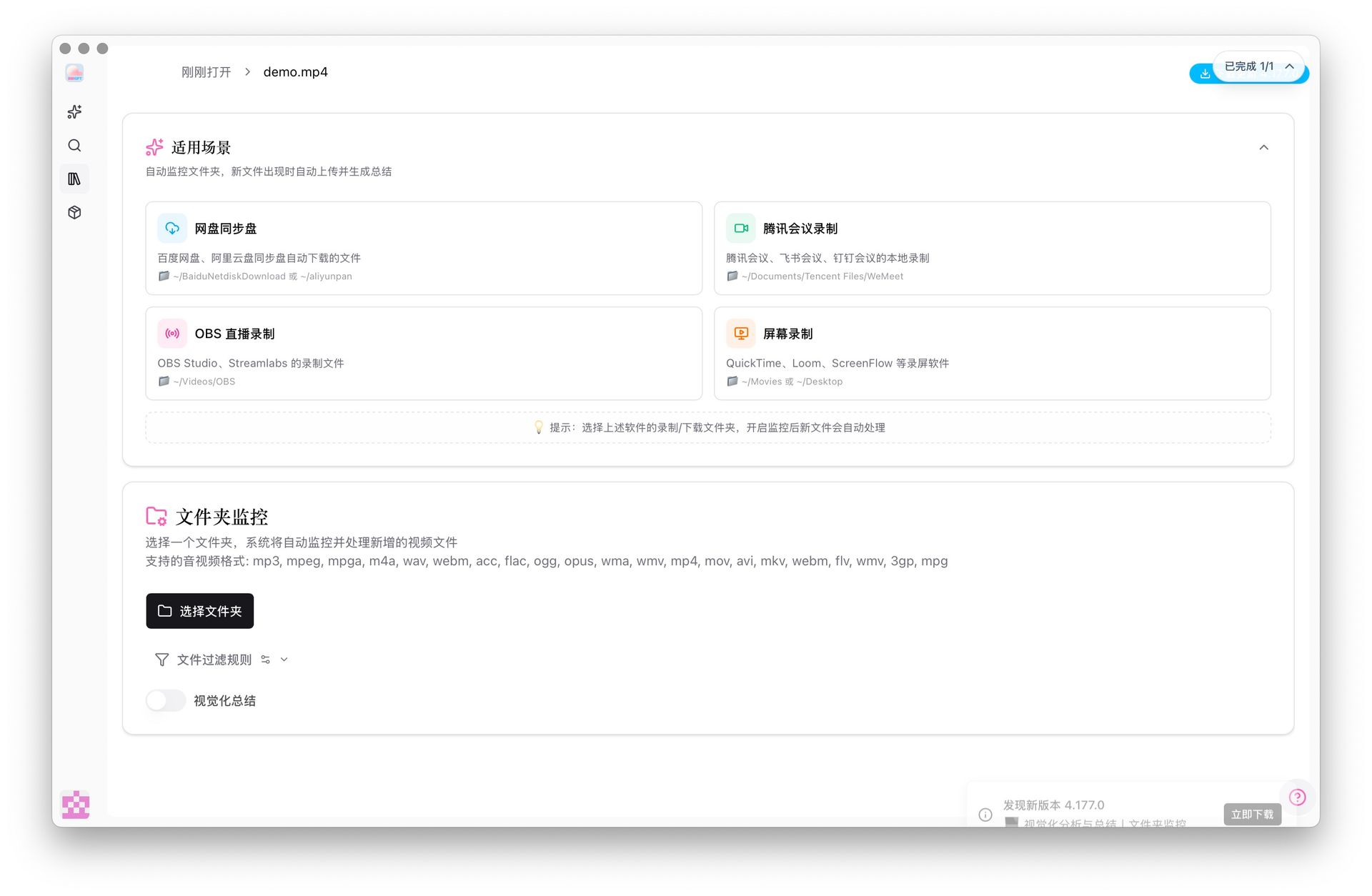
- File: a local screen recording, audio recording, or downloaded video — just drop it in. Common formats like MP4, MOV, and MP3 are supported.
To try link-based transcription first, open the video-to-text tool and paste a link.
Step 2: Let AI transcribe and organize automatically
After pasting or uploading, the AI recognizes the speech, generates a timestamped transcript, and at the same time pulls out section headings and core takeaways. A one-hour video usually finishes in a few minutes — dozens of times faster than typing by ear.
Step 3: Export or keep working on it
Once you have the result, you can:
- Copy the plain transcript, or export it as Markdown, text, and more;
- Click any timestamp to jump back to that point in the video to verify;
- Keep going — generate a mind map, ask follow-up questions, or rewrite it into an article (more below).
Practical rule: The first thing to do after transcribing is a spot-check — click 2–3 random timestamps and compare with the original video. AI occasionally trips on proper nouns and names; one pass of verification makes it safe to use.
How to choose among the 4 methods: one table
Put all 4 side by side and match them to your real scenario.
| Method | Difficulty | Best for | Output | Limitation |
|---|---|---|---|---|
| Browser extension subtitles | Low | Grabbing while watching Bilibili / YouTube | Plain subtitle text | Only works on videos with a subtitle track |
| Online transcription tool | Medium | You already have a file | Transcript | Large files slow, free tier has duration cap |
| Native platform subtitles | Medium | Nailing a single platform | Raw subtitles | Short videos often lack subtitles, scattered exports |
| AI one-click + key points | Low | Multi-platform, content you can use directly | Transcript + key points + reusable | Long videos need online processing |
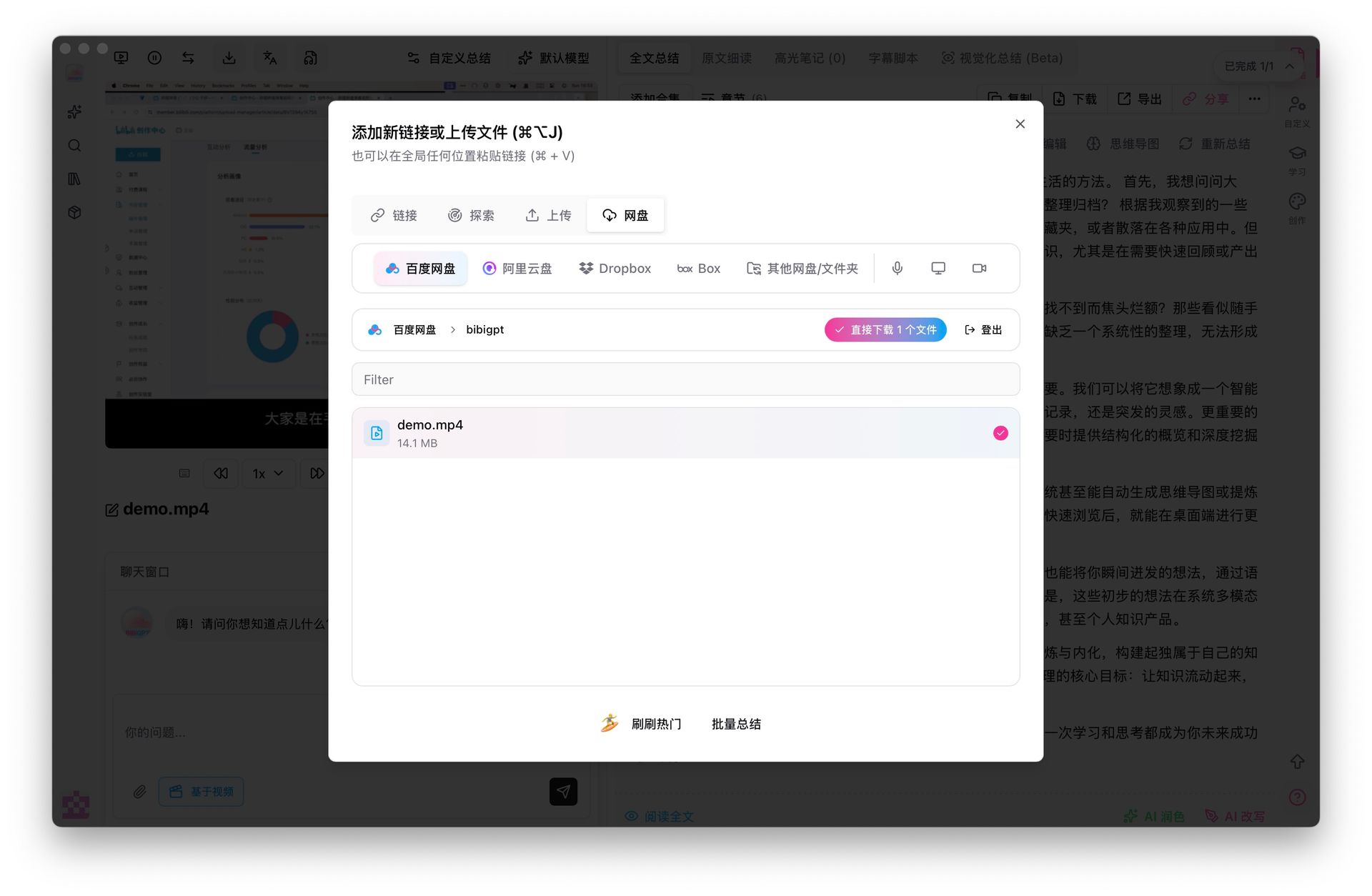
In short: if you only need a transcript, any of the first three works; if you want to save time, use it directly, and unify across platforms, choose AI one-click transcription. If you mostly deal with courses and meeting recordings on cloud drives (Baidu Netdisk, Aliyun Drive, Dropbox), also see this multi-source-focused complete video-to-text guide.
According to Wyzowl’s 2024 video marketing report, over 90% of businesses treat video as a core marketing tool, and the volume of video content will only keep growing — which means the need to “efficiently turn video into searchable text” will keep rising too.
How to convert on each platform + what you can do once it’s text
Quick reference by platform
For different platforms, AI one-click transcription works almost identically (paste a link / upload a file). Here are the entry points for common sources:
- Bilibili / YouTube: paste the video link and transcribe directly — the top pick for long courses and lectures; see also YouTube AI video summary.
- Douyin / Kuaishou / Xiaohongshu: short videos often lack an exportable subtitle track, so pasting the link and letting AI transcribe is easiest — see Douyin video to text.
- Podcast: paste a podcast link or upload an audio file — great for long interviews you heard on the commute.
- Local files: screen recordings, meeting recordings, phone recordings — just drop them in.
Practical rule: When you’re stuck on “can this platform export subtitles,” stop researching each platform’s export menu — just use link/file AI transcription, one workflow for every source.
Once it’s text, don’t let it sit in a doc
Many people stop once the text is out — but the transcript is just an intermediate. The real time-savers, once you have structured text, are these three:
① Generate a mind map. See the logical skeleton of a whole piece at a glance — perfect for reviewing courses and untangling long meetings. Use video mind map generation to make one in a click. This demo shows the effect:
Turn a video into a mind map
A linear talk becomes a structured tree. Drag to pan, click nodes to fold.
② Ask the AI follow-ups. Question the transcribed content directly — e.g., “what are the steps of the method discussed here” — and the AI answers with clickable timestamps that jump to the exact clip, so you don’t scroll from the top.
③ Rewrite it into an article. A creator favorite — turn the spoken content in the video into an illustrated article in one click for repurposing into newsletters, Xiaohongshu posts, or notes, so one video becomes many pieces of content.
According to HubSpot’s content marketing research, content repurposing is one of the most cost-effective growth tactics — rewriting one video’s transcript into multiple formats means leveraging a single asset across many channels.
Turn your first video into text right now
Converting video to text is no longer the manual grind of “listen once, type once.” Wherever your video lives, BibiGPT gets you there in one move:
- 🎬 Unified across platforms: Bilibili, YouTube, Douyin, Kuaishou, Xiaohongshu, podcasts, local files — paste a link or drop a file, 30+ platforms supported;
- ⚡ Key points in one click: auto-transcribe + timestamped transcript + core takeaways, long videos done in minutes;
- 🧠 Still usable after transcription: mind maps, AI follow-ups, article rewrites — one asset, many outputs;
- 🔗 Sync to your knowledge base: export to Markdown / text, or sync to Notion and Obsidian.
Trusted by over 1 million users, with over 5 million AI summaries generated. Open BibiGPT, paste your first video link, and have a ready-to-use transcript minutes later.
FAQ
Q: Which method converts video to text the fastest?
If you only need a transcript, exporting native subtitles is fastest (but coverage is patchy). If you want “transcript + usable key points,” AI one-click transcription is fastest — it does transcribing and organizing in one move, saving you from reading it over and highlighting it yourself.
Q: Can videos without subtitles be converted to text?
Yes. Browser extensions and native subtitles only work on videos with a subtitle track, while AI one-click transcription does speech recognition directly and doesn’t rely on existing subtitles — so short videos on Douyin, Kuaishou, and Xiaohongshu that usually have none can still be converted.
Q: How do I convert local screen recordings and audio files?
Just drop the file into the AI transcription tool — common formats like MP4, MOV, and MP3 are supported, and you don’t need to upload to any platform first.
Q: Is the resulting text accurate?
Mainstream AI transcription is already highly accurate for clear speech. We suggest a quick spot-check after transcribing — click 2–3 random timestamps against the original video and fix any proper nouns or names manually if needed.
Q: Can I make notes or articles directly after converting to text?
Yes. Once you have structured text, you can generate a mind map in one click, ask the AI follow-ups, or rewrite it into an illustrated article for repurposing — no manual reorganizing required.
BibiGPT Team