How to Get Accurate Subtitles for Academic Lecture Videos: A 3-Step Guide for Students (2026)
How to Get Accurate Subtitles for Academic Lecture Videos: A 3-Step Guide for Students (2026)
Short answer: Getting accurate subtitles for academic lecture videos takes three steps — first, get the video file or online link (YouTube open courses, conference recordings, professional lectures, etc.); second, use AI to transcribe the audio into captions and align the technical terminology; third, generate a bilingual side-by-side view so you can cross-reference the original text and timestamps whenever something is unclear. A 40-minute lecture typically takes just a few minutes to process — no more rewinding and replaying the same segment over and over.
Ready to try it? Paste an academic video link into BibiGPT and get bilingual subtitles and key points in under a minute. This guide walks through the full workflow using BibiGPT, which supports 30+ platforms and local audio/video files, and has already generated 5 million+ summaries for over 1 million users.
1. Why Subtitle Accuracy Is the Real Bottleneck for Academic Videos
Whether you’re cramming lecture recordings before finals in the US, catching up on a conference video during dissertation week in the UK, or working through an industry open course before a deadline in Australia or Canada — the problem is rarely “no subtitles.” The problem is inaccurate subtitles that make it impossible to follow along.
When a non-native speaker encounters dense academic jargon on top of a regional accent, YouTube’s auto-captions frequently drop or mangle the exact terms that matter most.
Is there research to back this up? Yes. A study published on ScienceDirect had 131 native French speakers watch English lecture videos under three conditions — English captions, native-language captions, and no captions — then measured comprehension. The results showed significantly higher comprehension scores when subtitles were present, with the greatest benefit for participants with lower English proficiency. A 2025 online-education subtitle study confirmed the same effect for non-native learners watching online lectures.
In other words, subtitles aren’t a nice-to-have — they’re a necessity for non-native learning. The catch is that they need to be accurate.
Practical rule: When watching academic lecture videos, fix subtitle accuracy first. One wrong technical term can throw off your understanding of an entire section.
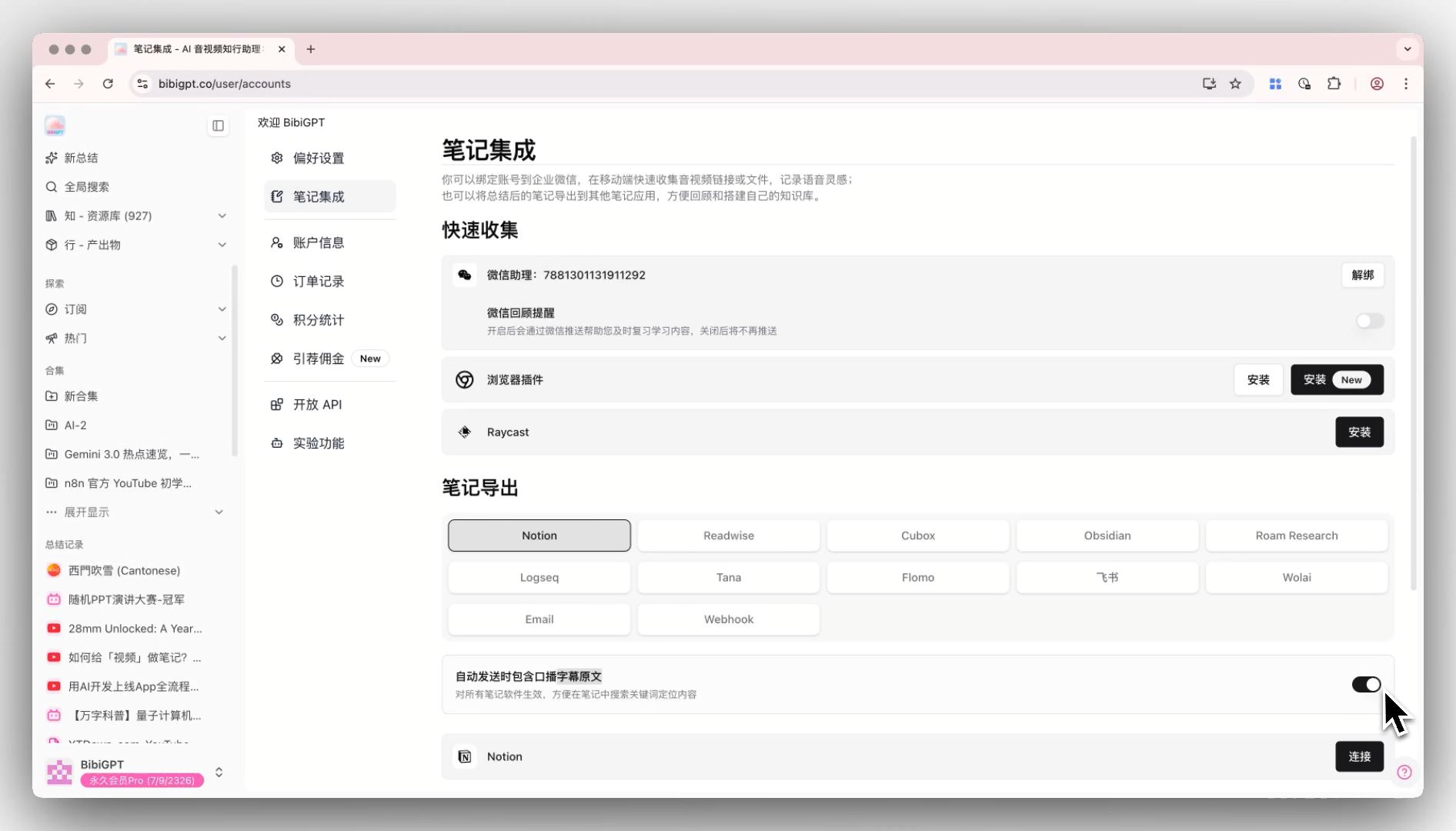
Screenshot: BibiGPT · toggle to retain original subtitle text in note exports
2. Step 1: Get Your Academic Video
Start by locating your source material. Academic videos typically come from three places:
| Video type | Where to find it | How to access it |
|---|---|---|
| Open courses / lectures (YouTube, Bilibili mirrors) | Course page, professor-shared links, platform search | Usually paste the link directly — no download needed |
| Conference / seminar recordings | Course platforms (Canvas / Moodle), conference websites | Download, or get an accessible link |
| Locally recorded lectures / talk files | mp4 / m4a files on your computer | Upload the file directly |
Two quick tips:
- Link first — skip the download step. For public videos on YouTube, Bilibili, or similar platforms, pasting the link is faster than downloading.
- Local files work just as well. Recordings shared by your professor or talks you captured yourself can be dragged and dropped via the local audio/video file transcription interface.
A concrete example: a graduate student in Canada whose supervisor recorded a 30-minute methodology explanation during office hours — complete with a French-inflected English accent. That kind of audio is the hardest to parse by ear, and exactly the kind that benefits most from transcription first.
3. Step 2: AI Transcription + Terminology Alignment
Once you have the video, hand the heavy lifting to AI: converting speech into accurate captions. Here’s how to do it with BibiGPT:
- Open BibiGPT, paste the video link into the input box or drag and drop a local file;
- Wait about a minute to receive the full transcript, segmented key points, and timestamped captions;
- Use the timestamps to jump back to the original video and verify anything you weren’t sure about;
- For unfamiliar technical terms, look them up directly from the transcript or use AI follow-up conversation to ask what a specific term means in the context of this video;
- Use smart subtitle segmentation to break long passages into readable chunks.
Why is “transcribe first” an order of magnitude faster than just listening? Because listening is linear — you can’t skim, you can’t jump — while text can be scanned, searched, and re-read. Once accent and speed are converted to text, you can focus entirely on understanding the content.
The screenshot below shows AI transcription with smart segmentation applied — a long lecture broken into clear, scannable sections:
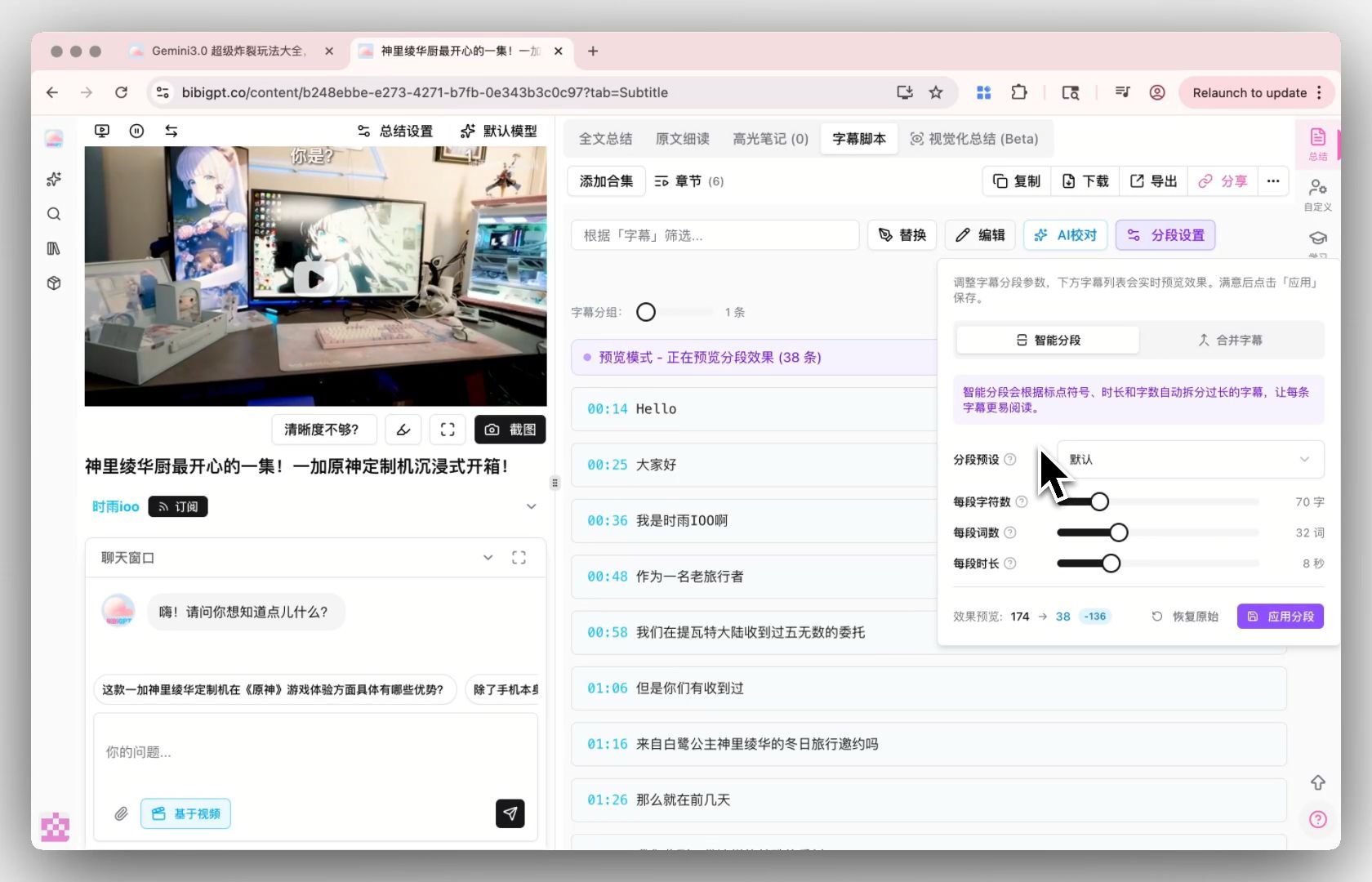
Screenshot: BibiGPT · smart subtitle segmentation interface
Want to see how the transcription and summary look before signing up? Try the interactive demo below:
Summarize any video in seconds
Pick a sample below to see the AI summary — TL;DR, key points, and jump-to timestamps.
TL;DR: Karpathy builds a GPT-style language model from scratch in code, explaining every piece — from a tiny character-level model up to the full Transformer.
Key points
- Start with a bigram model, then add self-attention so tokens can "talk" to each other
- A Transformer block = multi-head attention + feed-forward + residual connections + layer norm
- Training is just predicting the next token; scale and data do the rest
- The same architecture behind nanoGPT is what scales up to ChatGPT
Jump to
- 00:07 Why build GPT from scratch
- 08:23 Self-attention, intuitively
- 1:00:00 Assembling the Transformer block
- 1:35:00 From nanoGPT to ChatGPT
4. Step 3: Generate a Translation and Read Side-by-Side
The transcript is just the intermediate output. What actually helps you understand the content is a bilingual, side-by-side view. BibiGPT supports generating a translated summary alongside the original, and the combination is flexible:
| Pairing | Best for |
|---|---|
| Original transcript + translated summary | Quick overview of what the section covers before deciding whether to dig deeper |
| Original captions + line-by-line translation | Working through difficult methodology, derivations, or definitions sentence by sentence |
| Translated key points + original terminology preserved | When you need to quote or cite in English — cross-reference the original phrasing accurately |
One tip that is especially useful for students: the summary language doesn’t have to match the video language. You can watch an English lecture and read the key points in your native language, which cuts review time significantly. When you need to cite a passage in an essay, switch back to the original transcript to verify the exact wording.
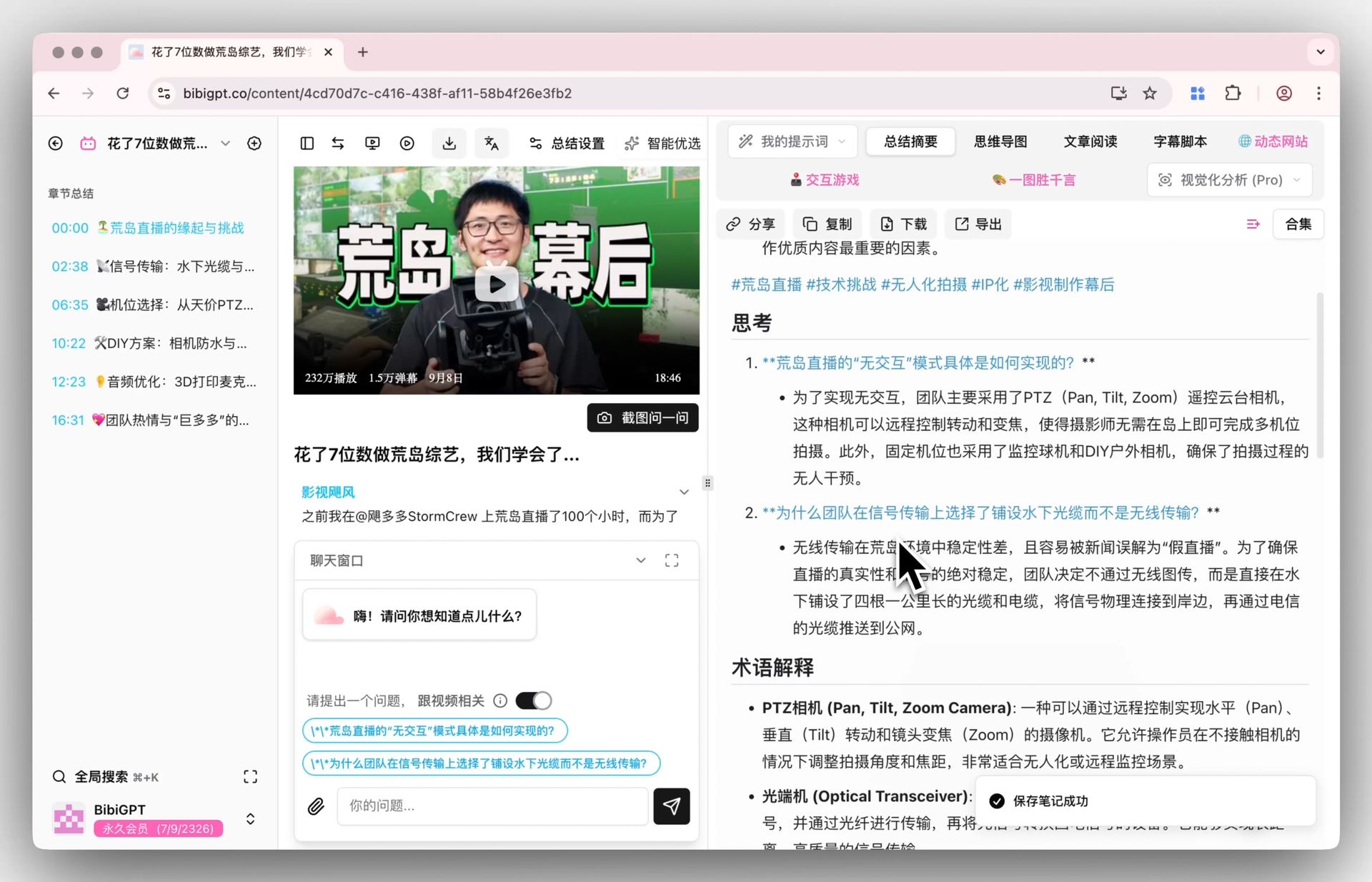
Screenshot: BibiGPT · generating a translated summary from an English video
The video below demonstrates the AI transcription and summary workflow from a hands-on perspective:
Video source: YouTube · AI video transcription and summary demo
Once you’ve understood the content, want to retain it? Read active-recall review techniques for academic videos to turn what you’ve watched into notes you can actually review.
See it for yourself — paste a video link and get a bilingual side-by-side view.
5. Advanced Tips and Pitfalls to Avoid
The heavier the accent, the more you need to transcribe first. An Indian-accented statistics lecture, a Scottish-accented finance talk, a French-accented methodology session — listening word by word is double the cognitive load. Get the transcript first, look up anything unclear from the text, and skip the rewind loop entirely.
Look up terminology before reading on — don’t guess. Academic videos concentrate difficulty in specialist terms. When you hit an unfamiliar term in the transcript, look it up or ask the AI to explain it in the context of this video. Confirm the meaning before continuing — guessing wrong on one term can skew your understanding of an entire section.
When citing, go back to the original source text. The translated summary is for fast comprehension, but academic citations must use the original phrasing. Keep the source transcript and verify your quotes before writing them into your paper.
Check your institution’s policy on lecture recordings. Before uploading course recordings, confirm what your university allows. When in doubt, use the local file upload mode (which doesn’t generate a public link) and stick to videos your professor explicitly shared or made public.
6. FAQ
Q1: How long does it take to process a 40-minute lecture? A: Transcription and summarization typically produce a first draft in about a minute. Translation and follow-up questions respond in seconds. A full lecture is digestible in the time it takes to finish a coffee.
Q2: The recording has a strong accent and average audio quality — will the captions be accurate? A: For standard academic recordings, accuracy is high enough for comprehension. If a specific term is mis-recognized, use the timestamp to jump back to the original clip and confirm — this is still far faster than replaying everything word by word.
Q3: Can I get a translated summary directly from an English video? A: Yes. Generating a translated summary from an English video is one of the most common workflows — it speeds up both comprehension and review.
Q4: Can it handle conference recordings and local files? A: Yes. In addition to platform links, local mp4 and m4a files can be uploaded directly for transcription.
Q5: Is there a free tier? A: After registering, you can try the core transcription and summary workflow with BibiGPT. Run a video through it first to see the results, then decide whether to upgrade for higher usage limits.
Try It Now
Academic lecture videos shouldn’t be a barrier just because the auto-captions are inaccurate or the accent is hard to follow. Paste the open-course or conference video you’ve been putting off — get accurate captions and a bilingual summary of key points in under a minute, and actually understand what you’ve been struggling with today:
Paste a video link and get bilingual subtitles and key takeaways in under a minute.
BibiGPT Team