Moodle AI Tools Guide: How International Students Can Use Gemini, NotebookLM & BibiGPT
Moodle AI Tools Guide: How International Students Can Use Gemini, NotebookLM & BibiGPT
You open Moodle and see this week’s materials: 3 PDF lecture notes, 2 Zoom recording links, 1 embedded YouTube video, a reading list, and a PowerPoint the professor uploaded. The deadline is Friday. You have two days to get through all of it, and midterms are next week.
This isn’t unusual — it’s the weekly reality for most international students in 2026. The volume keeps climbing, the pace keeps accelerating, and the tools many students use to digest content haven’t changed in years.
The good news: AI tools are changing this. The catch: different types of content need different AI tools to handle them effectively. This isn’t a tool review — it’s a complete AI workflow for getting through your Moodle courses faster and retaining more.
The AI Revolution on Moodle: What Changed in 2026
As of May 2026, Google officially integrated Gemini into Moodle LMS via an LTI (Learning Tools Interoperability) plugin. Universities and colleges running Moodle can now enable AI capabilities directly within the course interface — no external tab required.
At the same time, Google announced its AI Educator Series on May 13, 2026, with a plan to train 6 million US K-12 and higher education teachers on using AI for lesson planning and instruction. This isn’t a small pilot — it’s a systematic, teacher-first AI adoption push.
What does this mean for international students?
Practical rule: Your professor is very likely already using AI to prepare lectures — your ability to digest content at the same speed directly determines whether you can keep up.
When the teacher-side is already using AI to produce and structure content, students who stick to traditional study habits face a growing information gap. AI tools aren’t a shortcut — they’re an efficiency multiplier that lets you process more information in the same amount of time.
Screenshot: Using AI tools to digest lecture video content efficiently
NotebookLM: The Best Tool for Moodle Text Materials
NotebookLM is Google’s AI notebook tool, and it excels in one specific scenario: you have a stack of documents and you need to understand them quickly.
How to use NotebookLM with Moodle lecture materials:
- Download PDF notes, PowerPoints, and reading lists from Moodle
- Upload them to NotebookLM and create a Notebook for your course
- Ask direct questions: “What’s the core argument of this chapter?” or “What methodology does the author use?”
- Ask it to generate a revision summary, or create 5 practice questions
NotebookLM’s Audio Overview feature can convert your uploaded lecture notes into a podcast-style conversation — ideal for commutes or for reinforcing material before an exam.
Best use cases:
- Intensive review of multiple weeks of lecture notes in the 48 hours before an exam
- Quickly locating key arguments in reference materials during essay writing
- Getting a concept explained in simpler language when a lecture note isn’t clear
NotebookLM’s limitation: It only handles text content (PDFs, Word docs, web links). The Zoom recordings and embedded YouTube videos that appear constantly in Moodle are outside its scope — that’s where the next tool comes in.
Practical rule: Use NotebookLM to consolidate all your text materials into a single “course knowledge base” — so you can query your entire semester’s content at any time, instead of hunting through folders for old lecture notes.
BibiGPT: The Tool That Fills the Video Gap in Moodle
The hardest content to digest in Moodle is video. The most common types are:
- Zoom recordings: Professors upload class recordings to Moodle or share them via cloud links
- Embedded YouTube videos: TED talks, documentary clips, expert interviews embedded in course pages
- Instructor-recorded videos: Asynchronous lectures recorded via Panopto, Echo360, and similar platforms
These videos typically run 30 minutes to 2 hours, with high information density. International students face extra challenges: fast speech, unfamiliar accents, dense technical vocabulary. A 90-minute Zoom recording can take 2+ hours to process with pausing and rewinding.
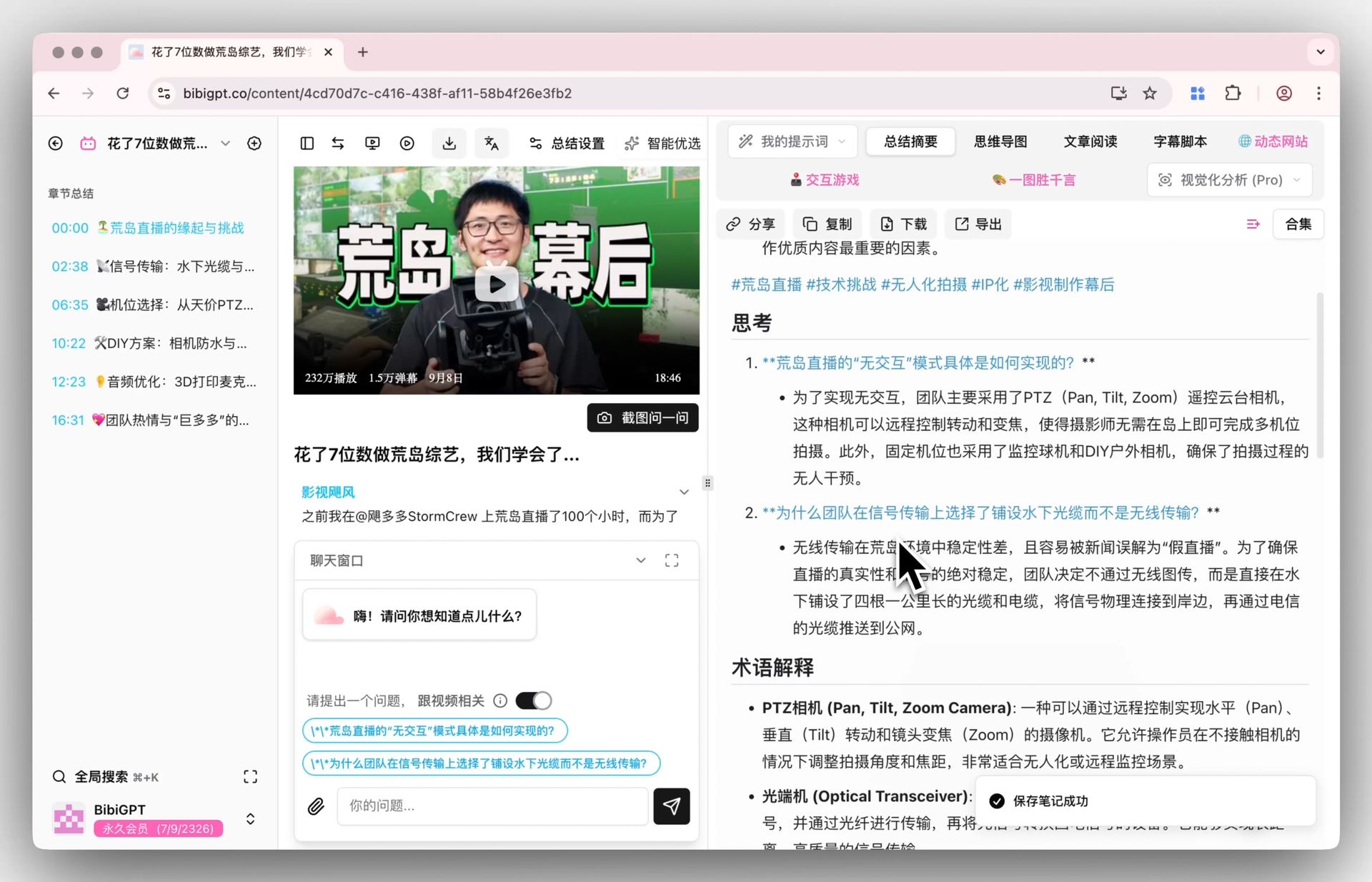
BibiGPT is built for exactly this: paste a video link, get a structured summary in about 30 seconds, with timestamps and AI follow-up built in.
5-step workflow:
- Copy the video link from Moodle (Zoom recording URL, YouTube URL)
- Open BibiGPT and paste the link
- Get a structured summary in ~30 seconds (organized by topic, key points extracted automatically)
- Use timestamps to jump to specific sections you want to review in the original video
- Ask follow-up questions in the AI conversation panel: “What did the professor mean by that theory in chapter 3?”
Screenshot: BibiGPT generating a timestamped structured summary from a Zoom recording
Most useful scenarios for international students:
- Getting a Chinese (or other language) summary of an English-language lecture video
- Pre-class prep: understand the core content of a lecture in 10 minutes
- Post-class review: process a 90-minute recording in 30 minutes
Practical rule: Zoom recordings are the highest-density content in Moodle — and the hardest to get through. Drop the link into BibiGPT, get the key points in under a minute, then use timestamps to review anything you didn’t follow.
Gemini in Moodle: What Your LMS AI Assistant Can Do
With Gemini LTI integrated into Moodle, students at enabled institutions can access AI capabilities directly within the course interface:
- Course content Q&A: Ask questions about the current course module without leaving Moodle
- Assignment support: Get writing suggestions or logic structuring within the scope the professor has set
- Study planning: Get help prioritizing revision based on course goals
Worth noting: Gemini in Moodle is still in the institutional rollout phase — not every university has enabled it yet. If yours hasn’t, ask your IT department or professor about the timeline. Based on Google’s AI Educator Series plans, adoption is expected to accelerate significantly through 2026.
If your school doesn’t have Gemini in Moodle yet, Google AI Studio or the Gemini web interface can serve as a standalone substitute — just paste in your course content and ask away.
Three-Tool Combined Workflow (Exam Sprint Edition)
With each tool’s role clearly defined, the most valuable question becomes: how do you actually use this during exam week?
Here’s a tested one-week sprint workflow for midterm or final exam preparation:
| Day | Activity | Tool |
|---|---|---|
| Mon–Wed | Process that week’s Zoom recordings, extract core knowledge points | BibiGPT |
| Thu | Upload all lecture PDFs and PPTs, build the course knowledge base | NotebookLM |
| Fri | Generate a revision outline and practice questions from the knowledge base | NotebookLM |
| Weekend | Use Gemini in Moodle to get answers on unclear concepts, review course requirements | Gemini in Moodle |
The core logic: BibiGPT converts video content into text → NotebookLM integrates all text materials into a unified knowledge system → Gemini closes the loop inside Moodle for any remaining questions.
The three tools handle non-overlapping content types, but their outputs are complementary. BibiGPT summaries can be copied directly into NotebookLM, turning video content into queryable knowledge base material.
Watch this video for a demonstration of how to process lecture video content with AI:
Learn more about Zoom recording summaries and the AI conversation follow-up feature to get the most from this workflow.
Practical rule: This workflow takes roughly 20% of the original content runtime — 6 hours of weekly lecture recordings becomes 1.2 hours of AI-assisted processing, leaving the rest for assignments and active study.
FAQ
Q: My school doesn’t have Gemini in Moodle. What do I do?
A: NotebookLM and BibiGPT are both standalone web apps — they work independently of your school’s LMS setup. Gemini in Moodle is a bonus, not a requirement. Use the Gemini web app as a substitute by manually pasting in content for Q&A.
Q: Is NotebookLM’s Audio Overview useful for international students?
A: Very much so, especially for listening practice. Audio Overview converts your notes into a podcast-style conversation between two “hosts,” using more conversational language than the original academic text. Listening on a commute is an effective way to reinforce material in a different format.
Q: Can BibiGPT handle videos embedded directly in Moodle?
A: BibiGPT supports YouTube links, Zoom cloud recording links, and other standard video URLs. If a video in Moodle is embedded via an external link, copying that link should work. Some institutions use private platforms like Panopto or Echo360 that require login — in those cases, download the video first and upload it to BibiGPT.
Q: Does using AI for note-taking count as academic dishonesty?
A: Using AI tools to help you understand and organize your notes is fundamentally different from using AI to complete your assignments for you. The former is a study tool; the latter is where academic integrity lines are drawn. Check your institution’s AI use policy — most universities in 2026 allow AI-assisted learning while requiring that submitted work reflects your own reasoning.
Q: What’s the most efficient way to use these tools in the 3 days before an exam?
A: Prioritize as follows: Day 1 — use BibiGPT to quickly scan any unprocessed recordings for key exam points. Day 2 — generate 20 practice questions in NotebookLM, focus review on anything you got wrong. Day 3 — use Gemini or NotebookLM to nail down any remaining uncertain concepts. Don’t introduce new materials on day 3.
BibiGPT is an AI-powered audio and video assistant that supports one-click AI summaries and smart conversations for Bilibili, YouTube, Zoom recordings, and more. Try it now.