
AI Video Note-Taking: The Complete 10-Minute Workflow from Video to Structured Knowledge
Learn how to take notes from videos efficiently with this 5-step AI workflow: extract subtitles, generate AI summaries, highlight key insights, export to Notion/Obsidian, and review with flashcards.
AI Video Note-Taking: The Complete 10-Minute Workflow from Video to Structured Knowledge
Table of Contents
- Why Traditional Video Note-Taking Is Inefficient
- The AI Video Note-Taking Workflow: 5 Complete Steps
- Three Real-World Scenarios
- Advanced Tips: Making Your Notes More Valuable
- FAQ
Why Traditional Video Note-Taking Is Inefficient
The core problem with manual video note-taking is not poor memory -- it is a broken input-processing-output chain. You spend 90% of your time transcribing and rewinding, leaving only 10% for actual comprehension and critical thinking. AI flips this ratio, handling the mechanical work so you can focus entirely on understanding.
There are three fundamental problems with taking notes from videos by hand:
1. The Pause-Write-Play Death Loop
A 30-minute video typically requires 60-90 minutes when you take notes manually. Constant pausing breaks your train of thought. Rewinding to verify details wastes time. By the end, you have a pile of fragments but have lost the speaker's overarching logic.
2. Cognitive Overload from Information Filtering
Video is linear. On your first watch, you cannot distinguish core arguments from supporting filler. You either record everything (producing bloated notes) or cherry-pick by instinct (missing critical points).
3. Notes Become Disconnected from Source
Notes written in a separate document lose their positional context. Two weeks later, you read "the speaker's third strategy is important" but have no way to jump back to the exact moment in the original video.
The good news: AI solves all three problems. Below is the complete workflow, validated by over 1 million BibiGPT users.
The AI Video Note-Taking Workflow: 5 Complete Steps
This workflow follows one principle: AI handles the rough processing, you handle the refinement. AI takes care of transcription, summarization, and format conversion. You focus on highlighting, annotating, and connecting ideas. The entire process takes under 10 minutes.
Step 1: Select High-Quality Videos (Curation Strategy)
Not every video deserves notes. Before you begin, apply the "3-minute screening test":
- Check the comments: Are people discussing specific ideas (not just "great video")?
- Check the structure: Does the creator provide chapters or timestamps?
- Check the density: Can you spot at least one valuable insight in the first 3 minutes?
Videos that pass this filter are worth your note-taking investment. Skip the rest.
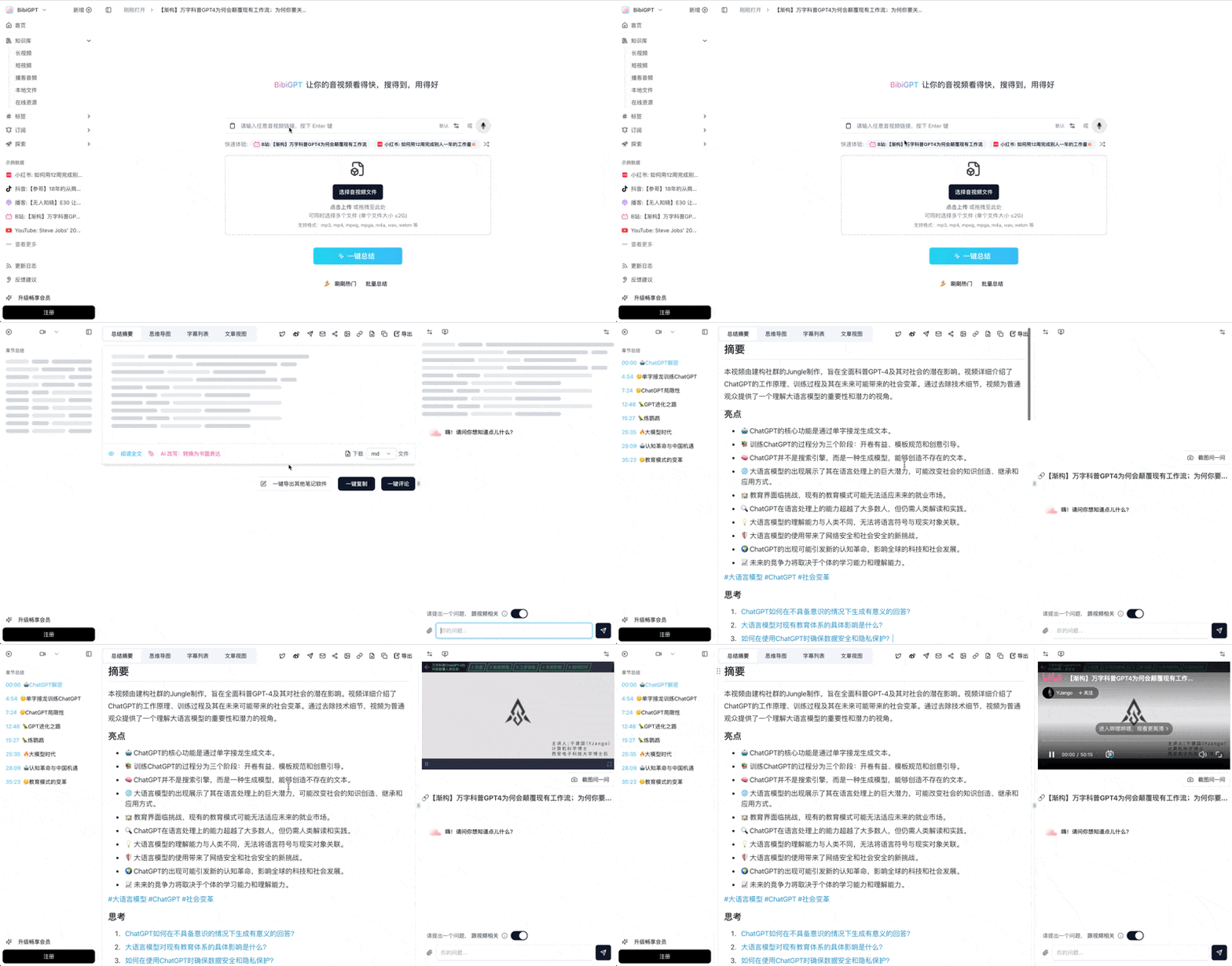
Step 2: Extract Subtitles + AI Summary with BibiGPT (30 Seconds)
Open BibiGPT, paste the video URL, and click "Summarize." Within 30 seconds, you get:
- Full transcript: Timestamped and clickable -- jump to any moment in the original video
- Structured AI summary: Core arguments, key takeaways, and conclusions organized hierarchically
- Mind map: An auto-generated knowledge structure showing how ideas connect
This single step replaces the most time-consuming part of traditional note-taking: listening, pausing, and writing. BibiGPT supports 30+ platforms including YouTube, Bilibili, podcasts, and meeting recordings.
AI 思维导图预览
Let's build GPT: from scratch, in code, spelled out
Andrej Karpathy walks through building a tiny GPT in PyTorch — tokenizer, attention, transformer block, training loop.
Step 3: Highlight Key Information (Like Reading an E-Book)
With the AI-generated transcript and summary in hand, it is time for your refinement pass.
Using BibiGPT's highlight notes feature, you can mark up the transcript just like you would highlight passages in a Kindle book. Each highlight automatically links to the precise timestamp in the video -- click it anytime to jump back to the original context.
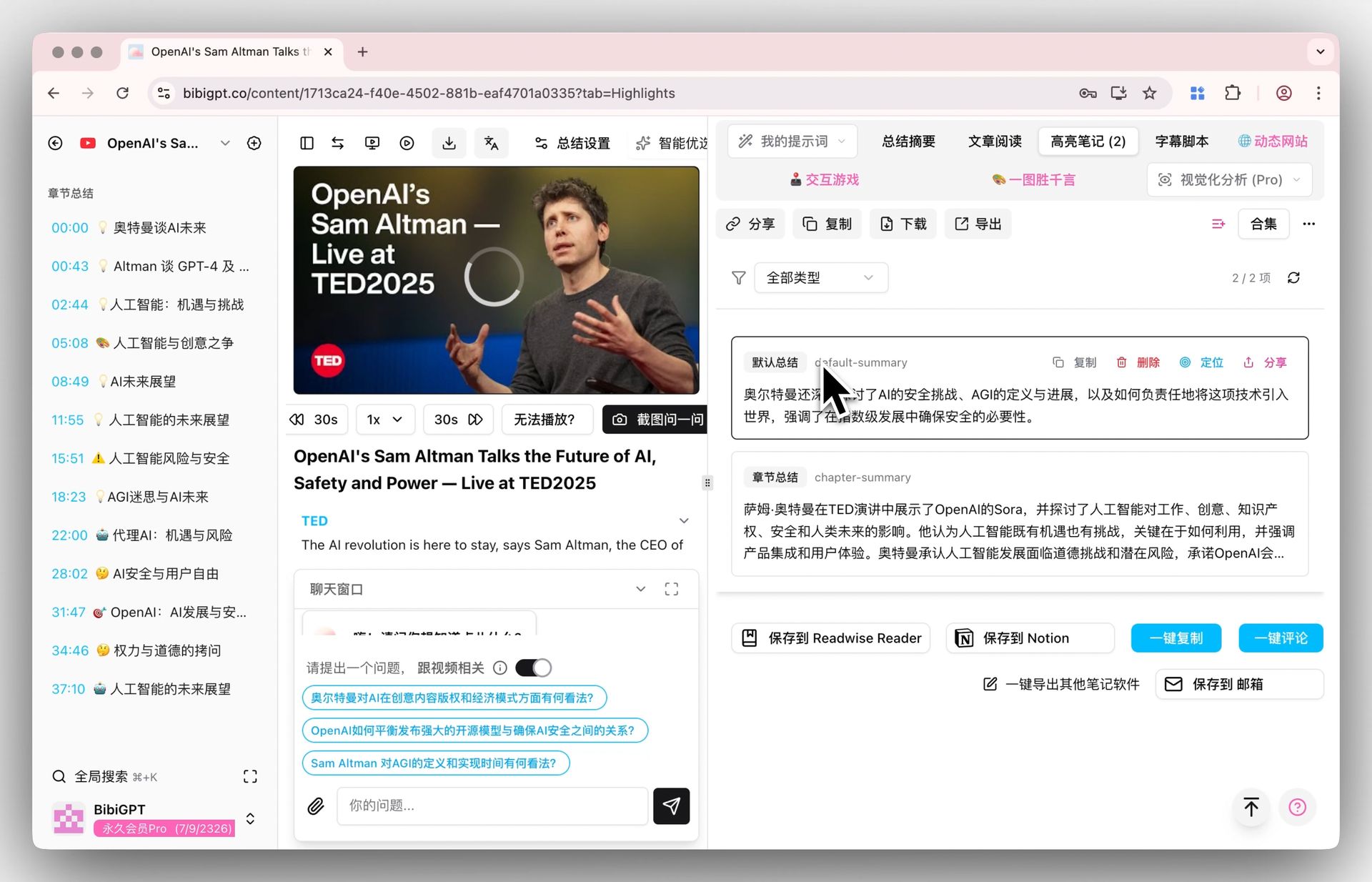 BibiGPT highlight notes feature for marking key information like an e-book
Pro tip: Start by reading the AI summary to identify the 3-5 core arguments (2 minutes). Then locate and highlight their detailed explanations and supporting evidence in the full transcript (3 minutes). This "overview first, then deep dive" approach is 3x more efficient than reading linearly.
For the best experience, enable immersive mode -- the video and transcript appear side by side, so you can watch and annotate simultaneously. No more pause-write-play loops.
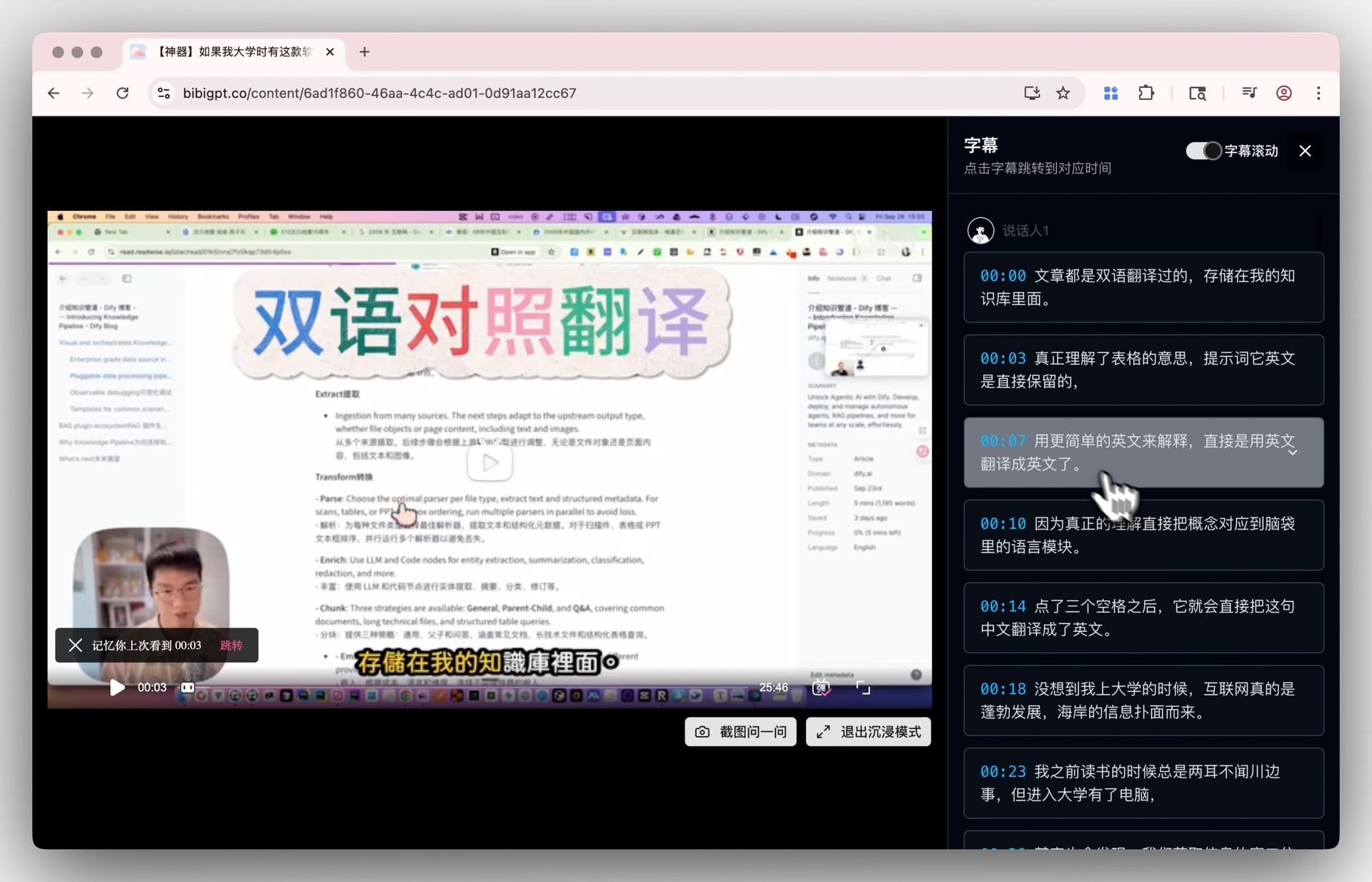 BibiGPT immersive mode with side-by-side video and transcript
Step 4: Export to Notion/Obsidian (One-Click Sync)
Once your highlights are done, export everything to your knowledge management tool with one click. BibiGPT supports direct export to Notion, Obsidian, and other popular apps. The export includes:
- AI summary + your personal highlights and annotations
- Source video link and metadata
- Timestamped references to key moments
After export, your video notes become part of your searchable personal knowledge base, ready for cross-referencing and retrieval.
If you use Obsidian for knowledge management, check out: Obsidian + BibiGPT Video Notes Management Guide
Step 5: Spaced Repetition with Flashcards
Knowledge recorded but never reviewed fades fast -- the forgetting curve erases about 70% within a week.
BibiGPT's flashcard feature automatically generates Q&A cards from your highlighted notes. Each card links back to the original video passage, so when a concept feels fuzzy during review, you can jump to the source in one click.
Spending just 5 minutes a day on flashcard review converts short-term video knowledge into long-term memory.
Three Real-World Scenarios
The same 5-step workflow adapts to different contexts. Students prioritize knowledge structure and retention. Professionals prioritize information extraction and action items. Content creators prioritize material curation and trend analysis. Here is how each group applies the workflow.
Scenario 1: Students -- Online Courses and Lectures
Pain point: A course has 50 video lectures, each 40 minutes long. Watching everything takes 33+ hours, and by exam time your notes are scattered across five different apps.
Workflow in action:
- Batch summarize: Submit all lecture URLs to BibiGPT at once using
Shift+Enterfor multi-line input - Build a course map: Read all AI summaries and generate a mind map for the entire course structure
- Deep-dive into key lectures: Use immersive mode to study critical chapters in detail, highlighting core concepts
- Generate review cards: Convert highlights into flashcards for spaced repetition
- Export to Obsidian: Organize by course structure, creating a searchable knowledge base
Result: Study time drops from 33 hours to roughly 12 hours, with a structured, reviewable note system built along the way.
Scenario 2: Professionals -- Meeting Recordings and Training Videos
Pain point: You missed an important cross-department meeting. A colleague sends you a 1.5-hour recording. You need the key decisions and your action items within 15 minutes.
Workflow in action:
- Upload the recording: Drag and drop the file into BibiGPT (desktop app supports drag-and-drop)
- AI extracts action items: Read the AI summary to identify decisions and to-dos
- Highlight your responsibilities: Mark the sections relevant to your work
- Export to Notion: Sync to your team workspace and tag relevant colleagues
Result: 15 minutes to process what would have taken 1.5 hours to watch, with clear, trackable action items.
Scenario 3: Content Creators -- Competitive Analysis and Material Collection
Pain point: You need to track 5-10 competitor channels daily, analyzing their topic selection and content strategy. But you do not have 3-4 hours a day just for watching.
Workflow in action:
- Batch summarize competitor videos: Submit all new uploads in bulk
- Scan summaries for inspiration: Quickly browse AI summaries, flagging interesting topics and angles
- Highlight quotes and data: Mark shareable quotes, case studies, and statistics in the transcripts
- Export to your material library: Categorize by competitor or topic in Notion for easy retrieval
Result: 30 minutes per day replaces 3-4 hours of watching, with a 5x improvement in material collection efficiency.
For more AI video summary workflow ideas, read: AI Video Summary Productivity Workflows
看看 BibiGPT 的 AI 总结效果
Let's build GPT: from scratch, in code, spelled out
Andrej Karpathy walks through building a tiny GPT in PyTorch — tokenizer, attention, transformer block, training loop.
Advanced Tips: Making Your Notes More Valuable
Beginner notes are information transport. Advanced notes are knowledge creation. These three techniques upgrade your video notes from passive records to active knowledge nodes -- living elements of your personal knowledge graph rather than static files gathering dust.
1. Use Custom Prompts for Targeted Extraction
BibiGPT's default AI summary works well for general use, but custom prompts unlock specialized outputs:
- For academic lectures: use a "methodology extraction" prompt to isolate research methods and experimental design
- For business case studies: use a "business model canvas" prompt to break down cases across 9 dimensions
- For technical tutorials: use a "code notes" prompt to extract executable code snippets and configuration steps
2. Build Cross-Video Knowledge Connections
A single video note has limited standalone value. Real knowledge compounding happens at the "connection" stage. In Obsidian, use bidirectional links ([[]]) to connect related concepts across different videos. For example, link "Feynman Technique" from Video A with "active recall" from Video B to form a "high-efficiency learning methods" topic cluster.
3. Do Weekly Note Reviews
Every week, spend 15 minutes reviewing your video notes. Do two things:
- Prune: Delete notes that are no longer valuable (less is more)
- Enrich: Add your own reflections and extensions to the notes that matter
This keeps your knowledge base lean, high-density, and alive.
FAQ
What video platforms does BibiGPT support?
BibiGPT supports 30+ major platforms including YouTube, Bilibili, TikTok, Xiaohongshu, podcast apps (Apple Podcasts, Spotify, etc.), and meeting recordings from Zoom, Google Meet, and Teams. If you can watch it, BibiGPT can take notes on it.
How accurate are the AI summaries? Will important information be missed?
BibiGPT uses advanced AI models (including GPT-4o and Claude) for content summarization, with accuracy rates above 95%. The AI summary is designed as "rough processing" -- it handles 80% of the mechanical work, while you refine the output with highlights and annotations. This "AI rough + human refinement" model is both efficient and reliable.
Will the formatting break when exporting to Notion/Obsidian?
No. BibiGPT's export function is specifically optimized for Notion and Obsidian formats. Heading hierarchy, lists, highlights, annotations, and timestamp links are all preserved. The export is ready to use immediately -- no reformatting needed.
What types of videos is this workflow best suited for?
This workflow excels with information-dense content: online courses, lectures, technical tutorials, industry analysis, meeting recordings, and podcasts. For purely entertainment videos (vlogs, comedy), note-taking is typically unnecessary.
Can I try BibiGPT for free?
Yes. BibiGPT offers free trial credits for new users to experience the core features. For heavy users, Plus and Pro subscription plans provide higher summarization limits and advanced features like batch processing, custom prompts, and premium export options.
Conclusion
The ultimate goal of video note-taking is not to "record more" but to "retrieve faster." This 5-step workflow -- curate, AI summarize, highlight, export, and review -- transforms videos from "watched and forgotten" entertainment into "searchable and actionable" knowledge assets.
BibiGPT is trusted by over 1 million users, with over 5 million AI summaries generated. Going from video to structured knowledge in 10 minutes is not a marketing claim -- it is what happens every day.
Start your AI-powered learning journey with BibiGPT today:
- 🌐 Website: https://aitodo.co
- 📱 Mobile App: https://aitodo.co/app
- 💻 Desktop App: https://aitodo.co/download/desktop
- ✨ Explore Features: https://aitodo.co/features