
BibiGPT v4.305.2 Update: Mindmap Timestamp Jump, Layout Switch, and MiMo V2 Models
BibiGPT v4.305.2 brings mindmap timestamp navigation, three learning layout modes, an AI-powered TikTok video finder, Xiaomi MiMo V2 models, and a streamlined invoice process.
BibiGPT v4.305.2 Update: Mindmap Timestamp Jump, Layout Switch, and MiMo V2 Models
Dear BibiGPT users,
This week we shipped 5 updates across our core pillars — faster viewing, smarter search, and better workflows. Your mindmaps are now clickable, your learning layout is customizable, and TikTok videos are just a search away.
👀 Quick View
AI 思维导图预览
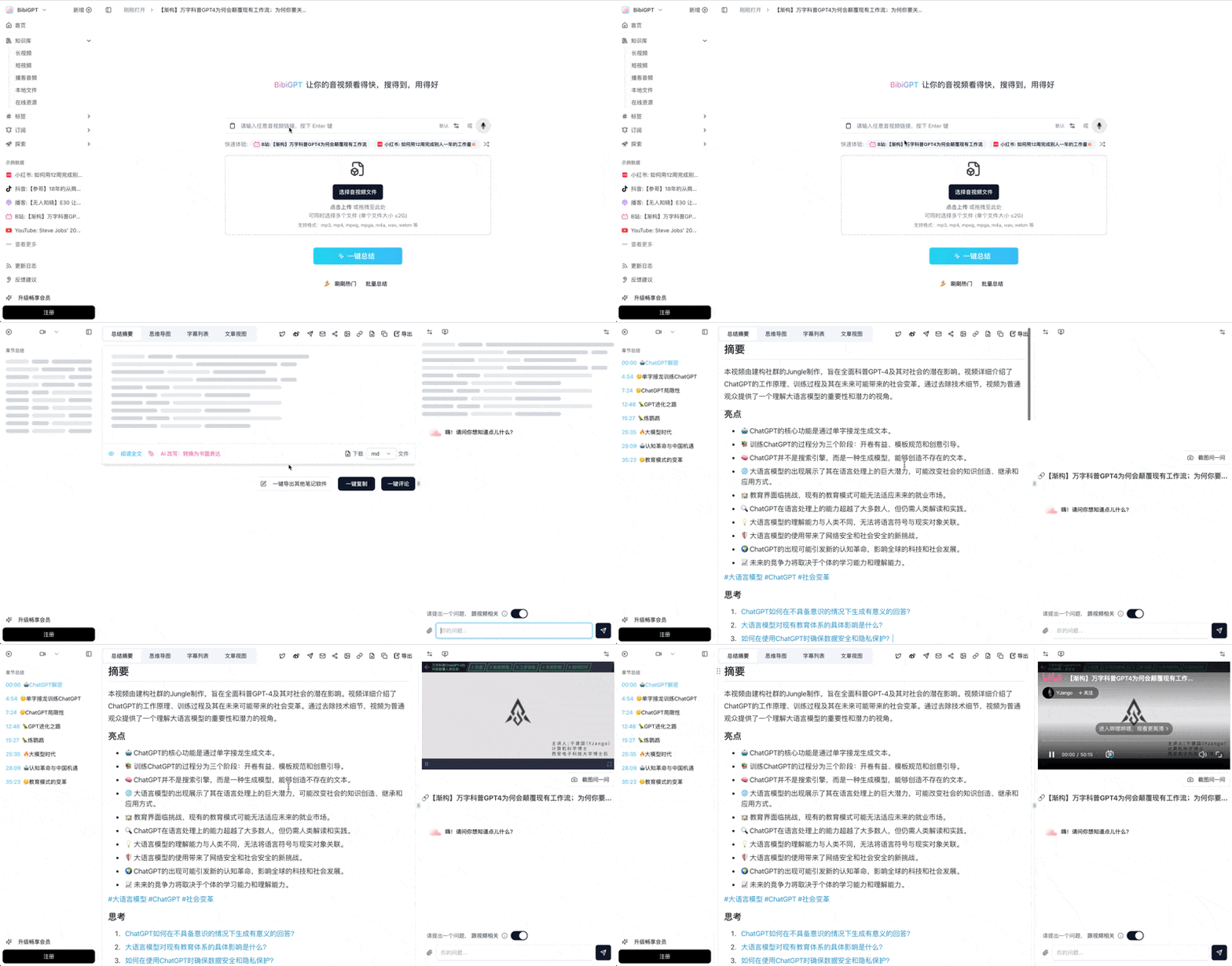
Bilibili: GPT-4 & Workflow Revolution
A deep-dive explainer on how GPT-4 transforms work, covering model internals, training stages, and the societal shift ahead.
Mindmap Timestamp Jump
After summarizing a long video, the mindmap view already gives you a clear overview of the content structure. But until now, it was read-only.
Now, click any node in the mindmap and the video jumps straight to that moment. No more dragging the progress bar to find the section you want to revisit.
This is especially handy for locally uploaded long videos — a 2-hour lecture recording becomes an interactive, clickable table of contents.
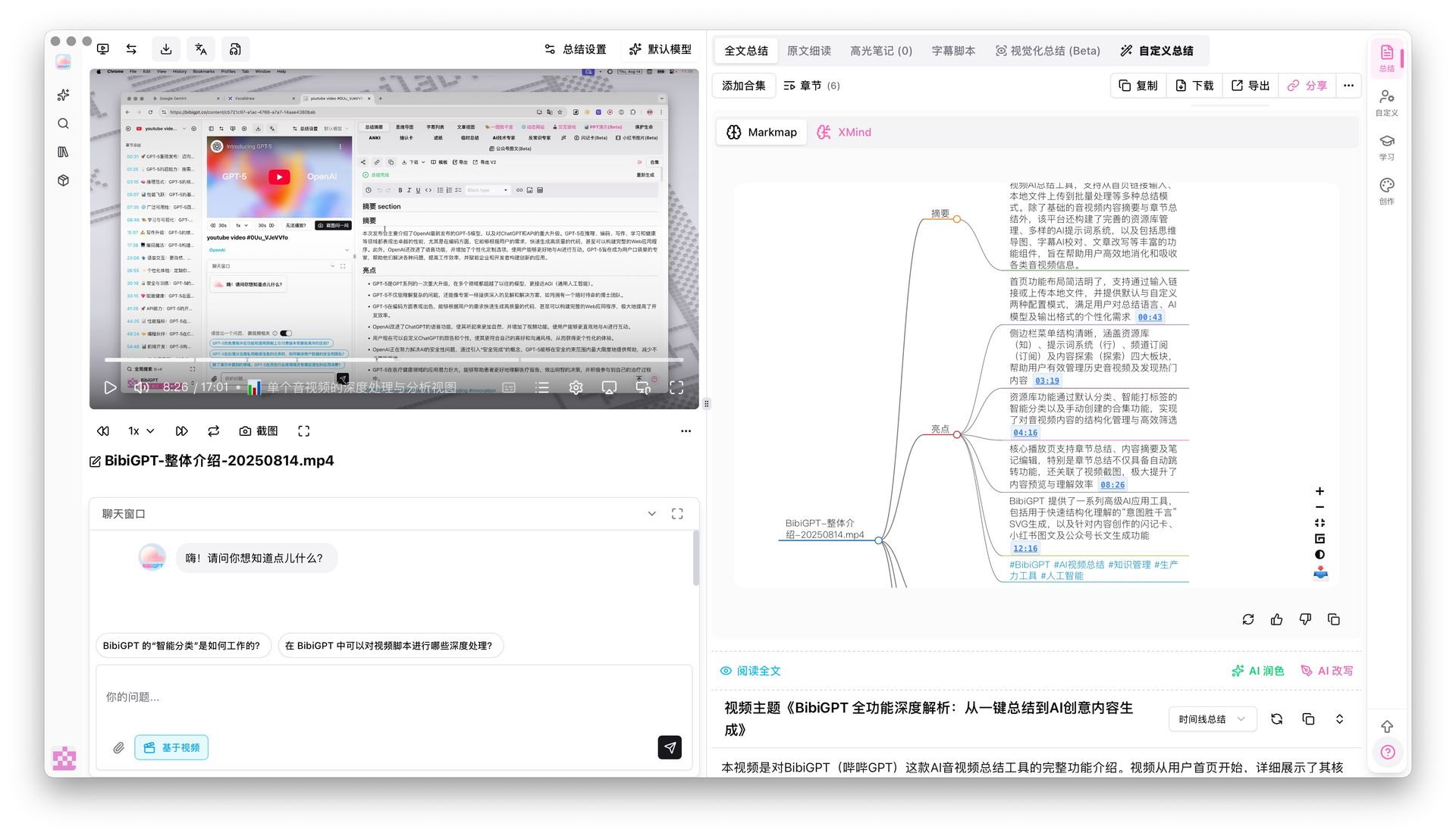 Mindmap timestamp jump — click any node to navigate the video
Xiaomi MiMo V2 Series Models
Three new models have arrived in the model selector — the Xiaomi MiMo V2 series. Type "mimo" in the search bar to find them.
- MiMo V2 Flash: Free for everyone. Lightning-fast summaries in seconds — perfect when you need results quickly
- MiMo V2 Pro: Available to Pro members. Higher-quality summaries with better comprehension for nuanced content
- MiMo V2 Omni: Also Pro-only. The multimodal version — it doesn't just read subtitles, it understands what's happening on screen. Great for videos with slides, demos, or visual explanations
Want to try a new model? Flash is free — run a couple videos and see how it compares.
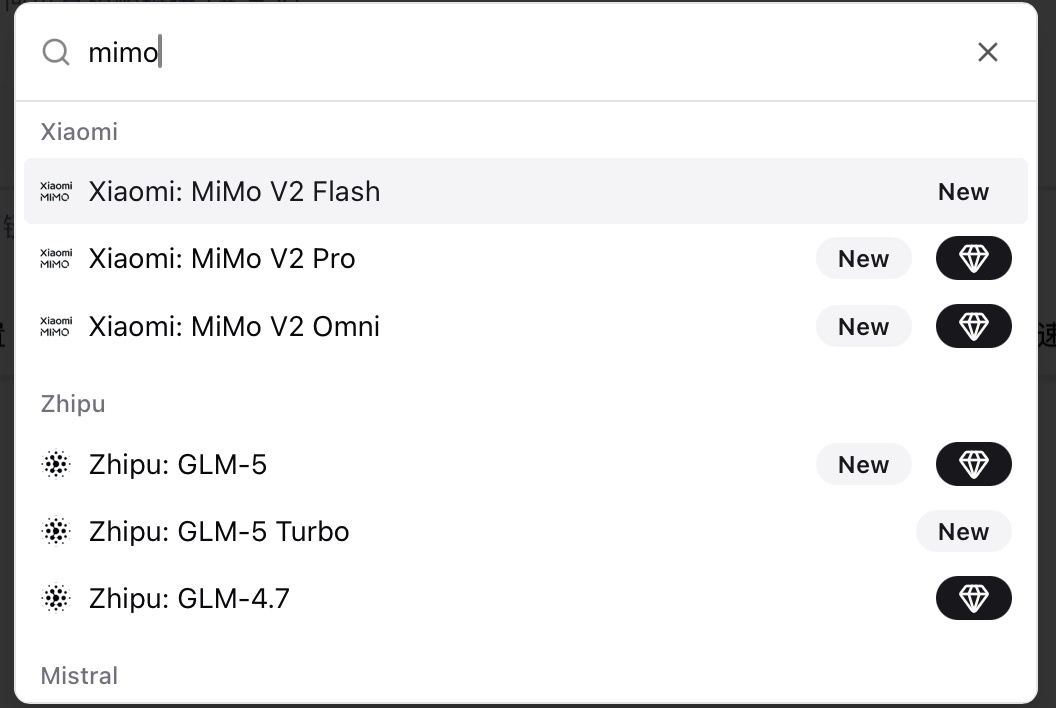 MiMo V2 model selection interface
🔍 Easy Search
AI-Powered TikTok Video Finder
Ever wanted to find TikTok videos on a specific topic but didn't want to leave BibiGPT, copy links, and paste them back? That whole back-and-forth is gone now.
BibiGPT's built-in TikTok Video Finder lets you search by keyword, creator, or topic. Results appear as a visual grid of video cards. See something interesting? Check it and generate an AI summary with one click — discovery to notes, all in one place.
You get free daily searches. For more tips on processing TikTok content, check out our best TikTok video summarizer tools guide.
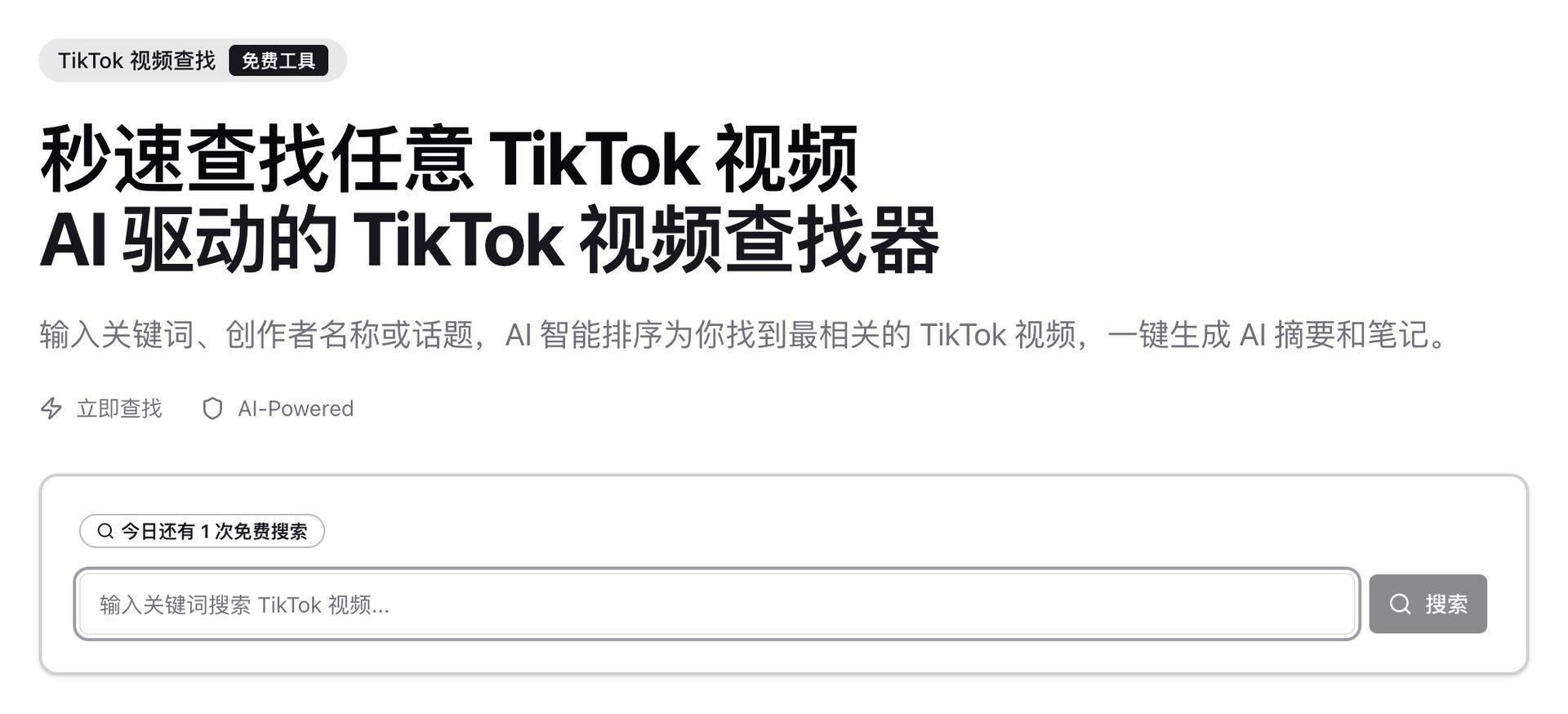 TikTok Video Finder search interface
🛠️ Better Use
Video Learning Layout Switch
Different study sessions call for different interfaces. Now you can switch between three layout modes from the toolbar below the video player:
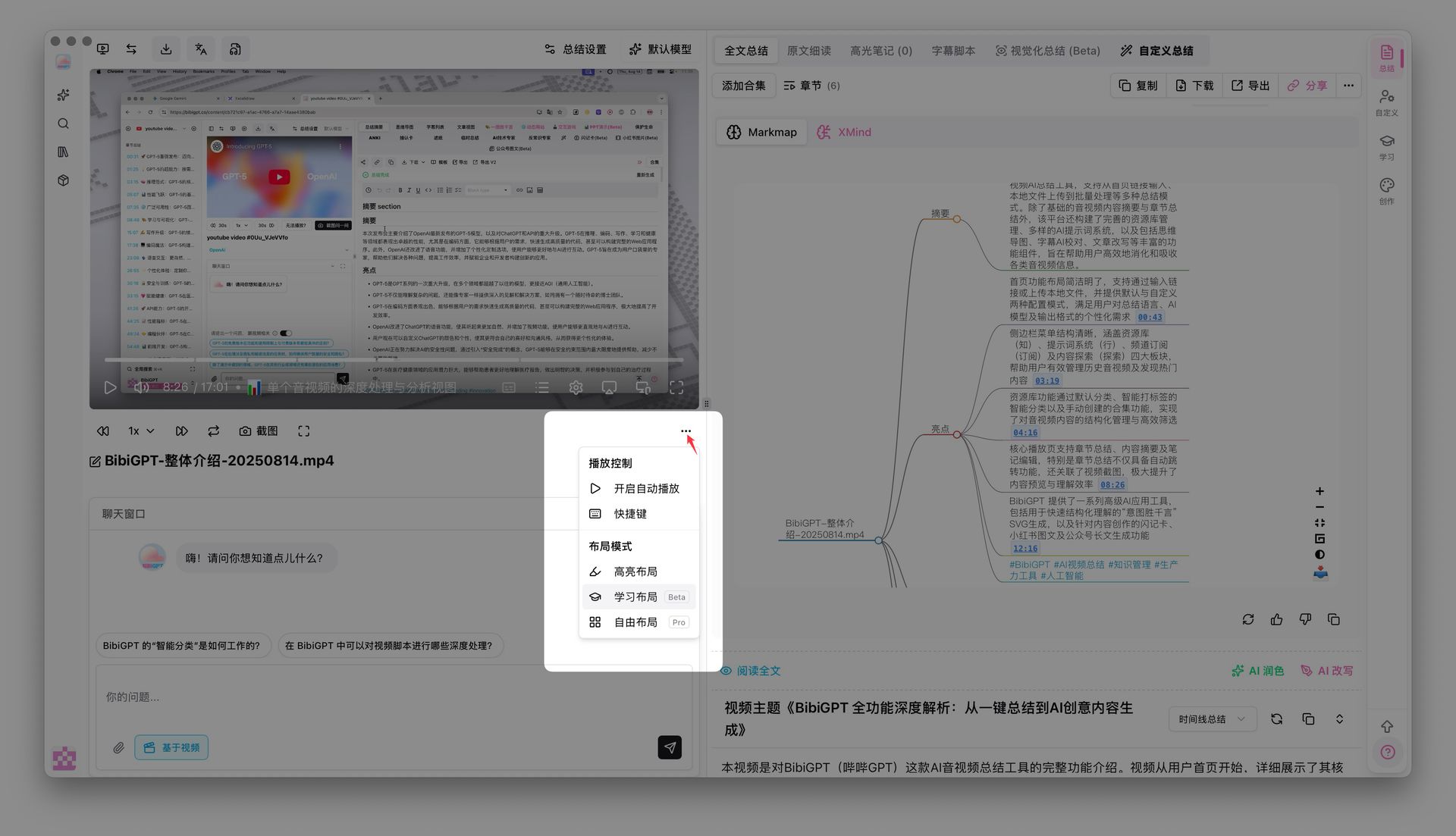 Layout mode switch menu
-
Highlight Layout: Subtitles on the left, video in the center, highlights on the right. Supports three extraction modes — Default, Emotional Peaks, and Viral Clips — for quickly scanning a video's key moments
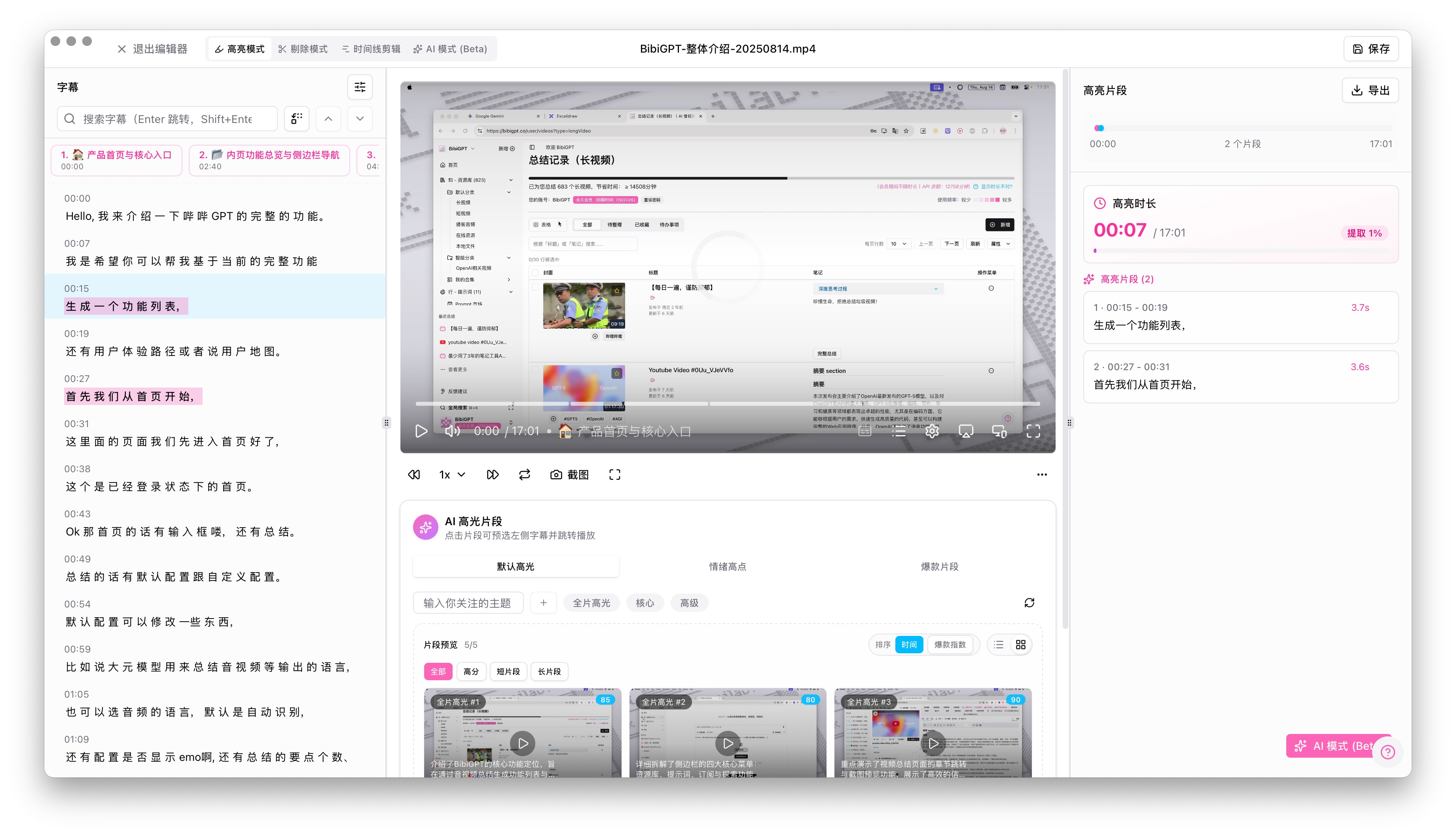 Highlight layout view
 -
Learning Layout (Beta): Three-column setup — full summary on the left, video in the center, AI editing tools on the right. Built for deep study sessions where you want to take notes while watching
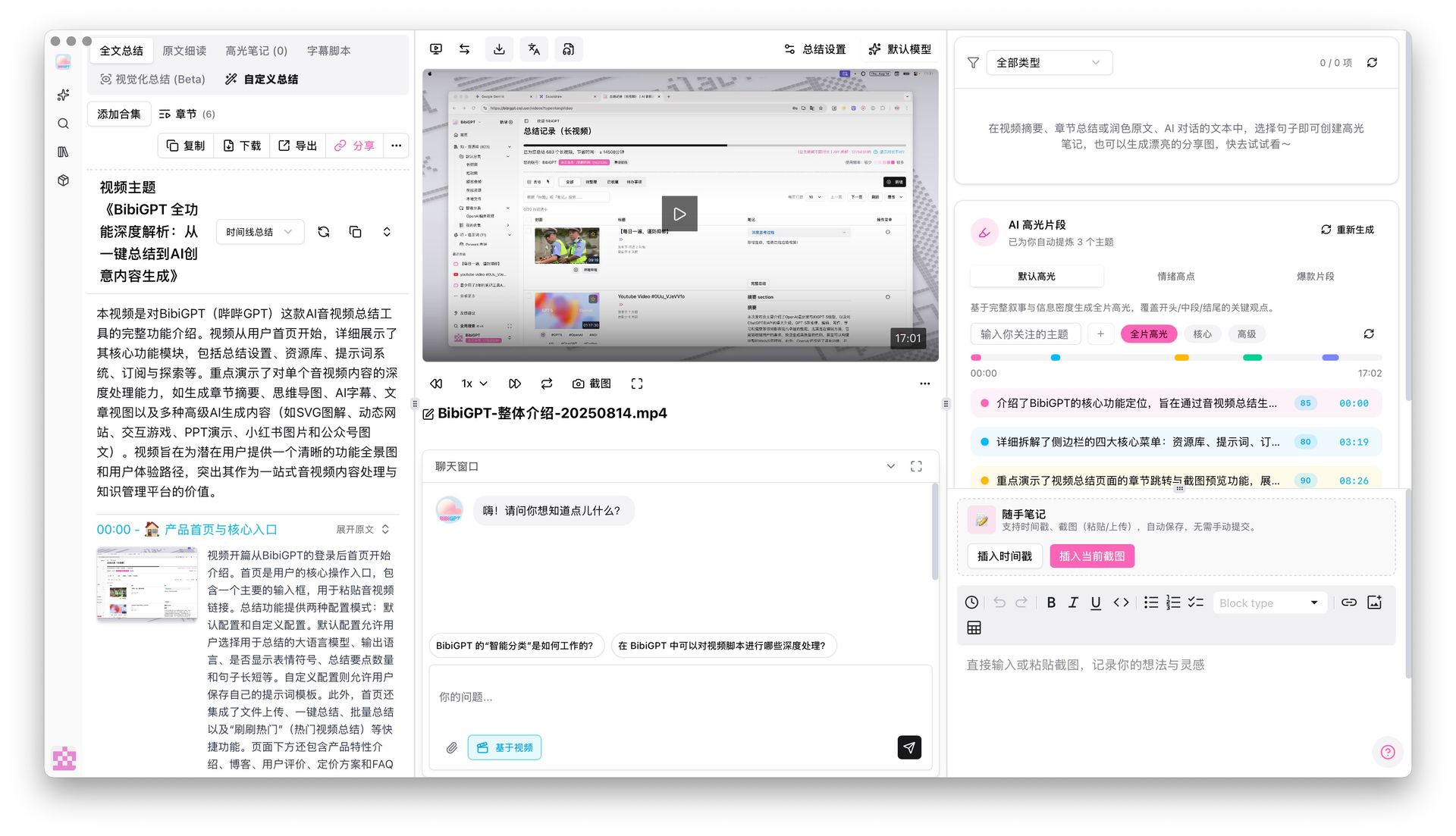 Learning layout view
 -
Free Layout (Pro): Pro members only. Drag and resize every panel to your liking — view summaries, highlights, and notes all at once, arranged however works best for you
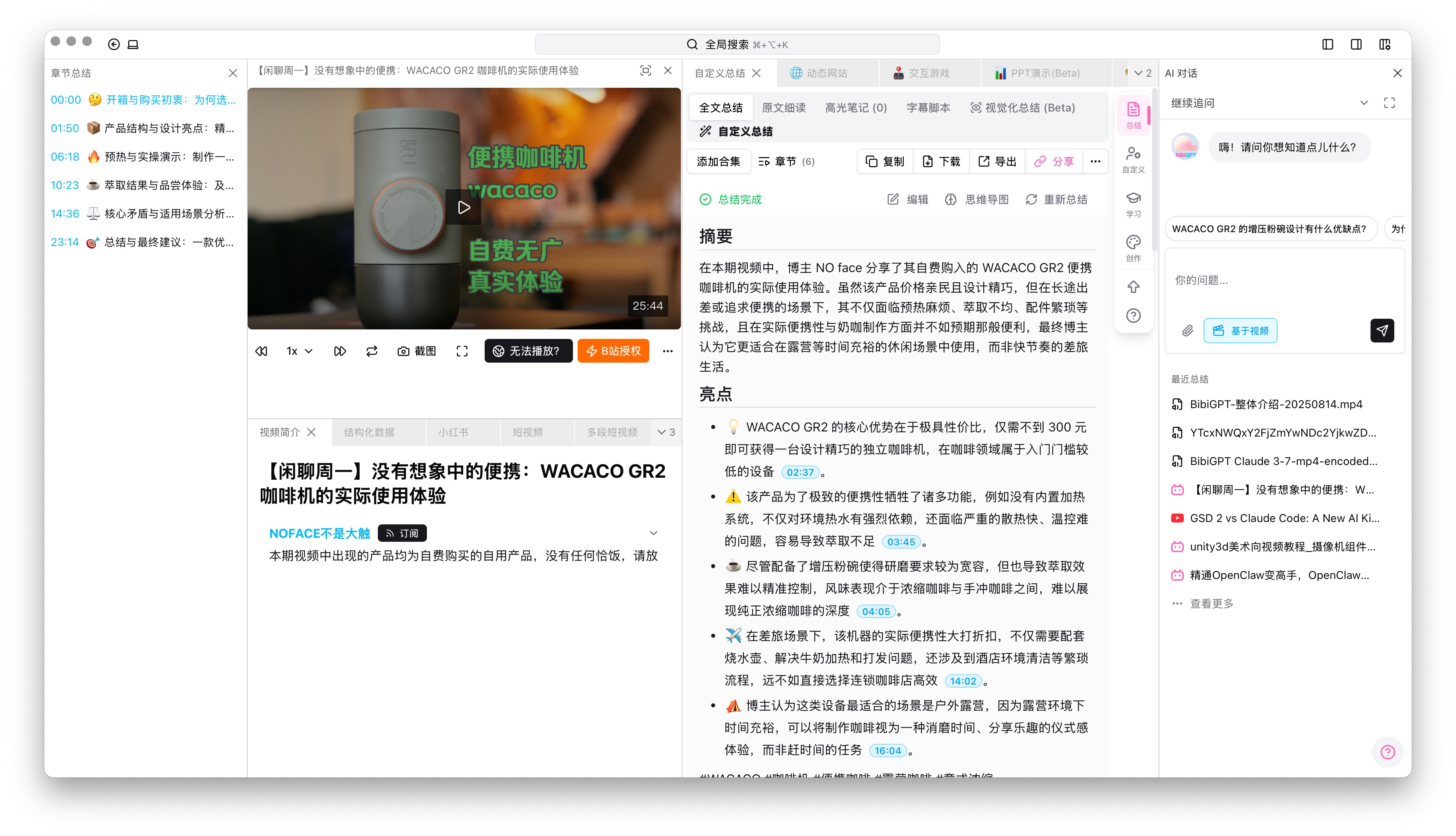 Free layout view
Want to level up your video learning workflow? Read our guide on building a 5-step AI video learning system.
Self-Service Invoice Request
Requesting invoices used to require sending an email and waiting for a reply. Now it takes three steps right from your orders page:
- Go to your orders page and click the "Invoice" button next to the relevant order
- Fill in your email, invoice title, and tax ID (optional for personal invoices), then hit "Submit"
- Once approved, the invoice is automatically sent to your email
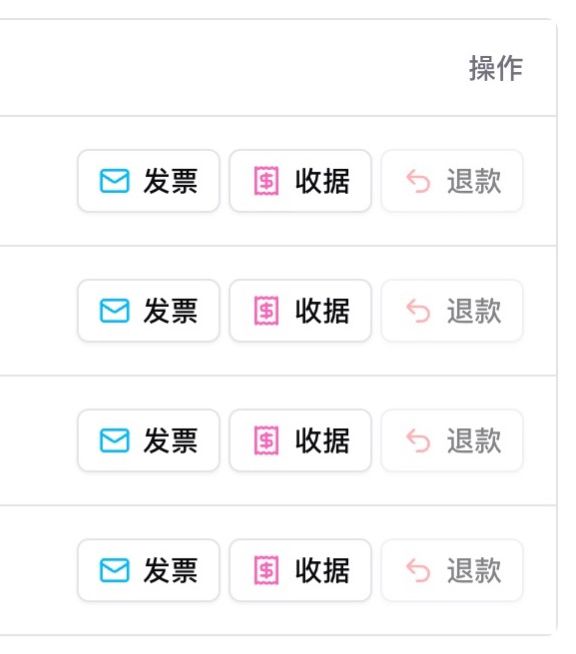 Order page invoice buttons
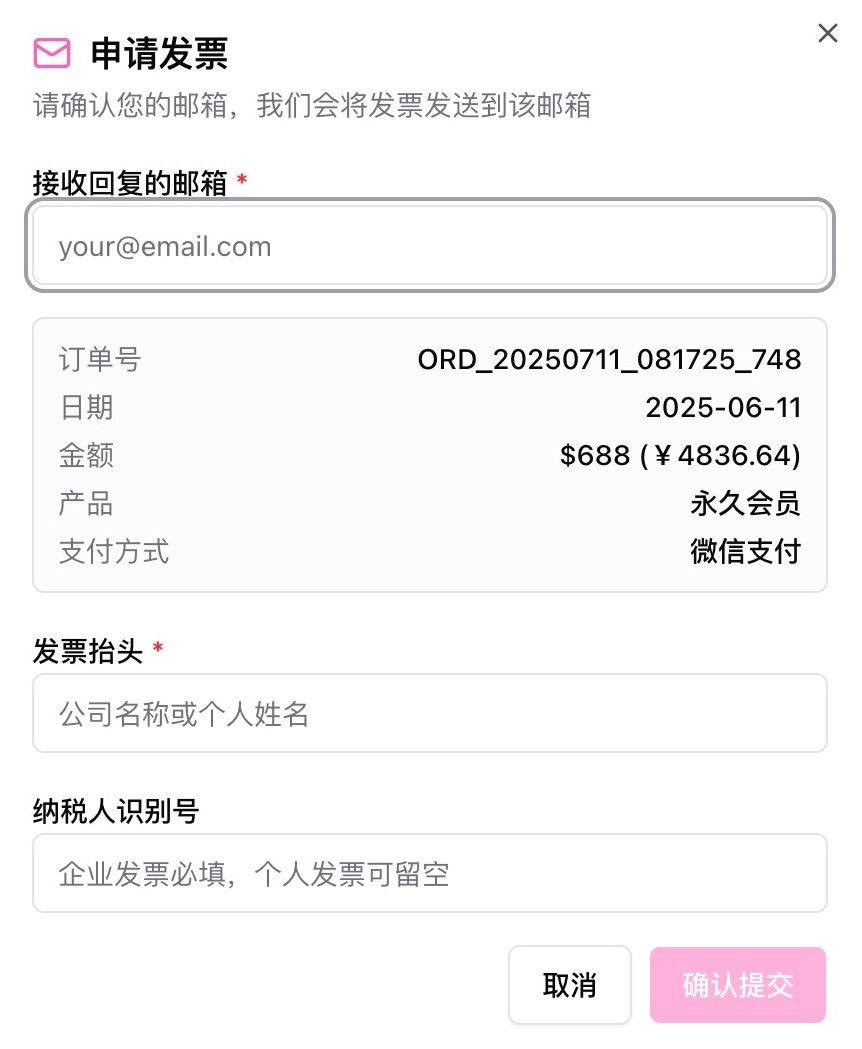 Invoice application form
Done in three steps — no more waiting on email replies.
Summary
From clickable mindmaps to customizable layouts, from built-in TikTok discovery to new AI models, this update makes the distance between you and your video content shorter at every step.
Start your AI efficient learning journey now:
- 🌐 Official Website: https://aitodo.co
- 📱 Mobile Download: https://aitodo.co/app
- 💻 Desktop Download: https://aitodo.co/download/desktop
- ✨ Learn More Features: https://aitodo.co/features
Enjoy!
BibiGPT Team