
Bilibili to Notion Knowledge Base: Complete AI Workflow with BibiGPT (2026 Guide)
How to import Bilibili videos into a Notion knowledge base? This step-by-step guide covers BibiGPT AI summary extraction → highlight notes export to Notion → collection-level knowledge organization — build your second brain in 3 minutes.
Bilibili to Notion Knowledge Base: Complete AI Workflow with BibiGPT (2026 Guide)
Table of Contents
- Why You Need a Bilibili-to-Notion Workflow
- Setup: BibiGPT + Notion API Configuration
- Step 1: Extract Bilibili AI Summary with BibiGPT
- Step 2: Export Highlight Notes to Notion
- Step 3: Collection Summary → Systematic Knowledge Base
- Advanced: AI Agent Automation Workflow
- FAQ
Bilibili (B站) hosts enormous amounts of high-quality educational content — coding, design, language learning, professional skills — but "watch and forget" is the universal experience. With BibiGPT: paste URL → get AI summary → select highlights → one-click export to Notion. The entire process takes 3 minutes and turns any Bilibili video into a searchable, linkable knowledge card in your second brain.
This guide covers a battle-tested workflow: from single-video AI summaries, to collection-level knowledge organization, to AI Agent automation.
Why You Need a Bilibili-to-Notion Workflow
Core answer: Bilibili has excellent educational content, but video format is inherently hard to search and review. Moving Bilibili content into a Notion knowledge base lets you search any concept at any time — instead of rewatching hours of video to find a 2-minute explanation.
Common pain points this workflow solves:
- You watched a 10-part Python tutorial series and need to review a specific concept — but can't remember which episode or timestamp
- You saw a career skills video and want to quote one key insight for your blog, but only remember roughly what it said
- You subscribe to dozens of technical creators and can't keep up with daily output
BibiGPT AI Summary for Bilibili combined with Notion systematically addresses all of these. With this workflow, every video in your Bilibili saved list can become structured, searchable knowledge.
Setup: BibiGPT + Notion API Configuration
Tools you need:
- BibiGPT account (free tier works): Sign up at aitodo.co
- Notion account: Free personal plan is sufficient
- Notion Integration Token (for auto-export):
- Go to Notion Developers → Create Integration → Copy Token
- In BibiGPT settings (Settings → Note Integration → Notion), paste the Token and select your target database
- BibiGPT desktop app (optional, needed for advanced automation)
Once configured, every time you click "Export to Notion" in BibiGPT, your notes automatically appear in your selected Notion database — no manual copy-pasting.
Step 1: Extract Bilibili AI Summary with BibiGPT
Steps (2 minutes):
- Open Bilibili and find the video you want to capture
- Copy the video URL (e.g.,
https://www.bilibili.com/video/BV1xxx) - Go to aitodo.co or open the BibiGPT app, and paste the URL
- Wait 30 seconds — AI automatically extracts subtitles and generates a structured summary
AI 思维导图预览
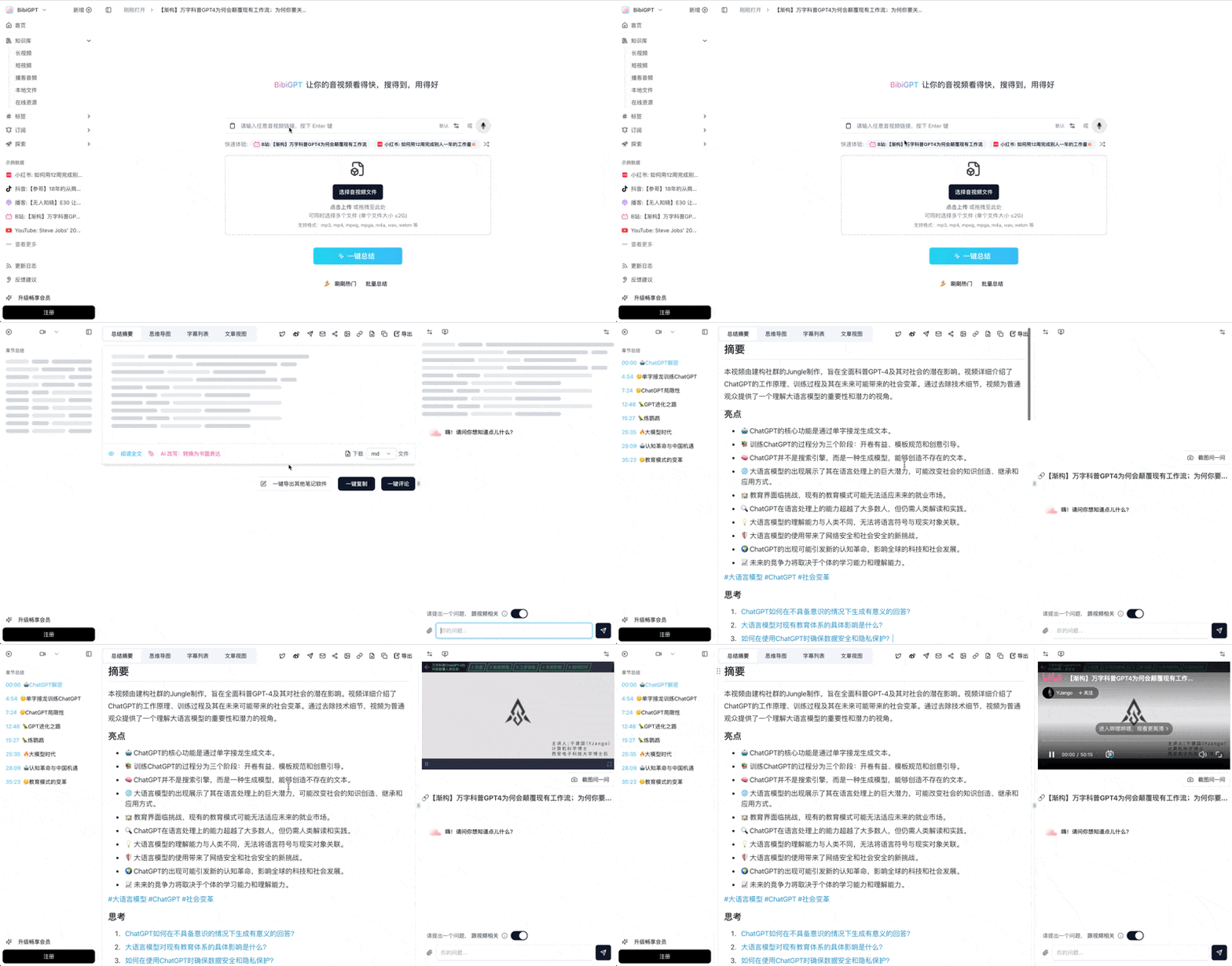
Let's build GPT: from scratch, in code, spelled out
Andrej Karpathy walks through building a tiny GPT in PyTorch — tokenizer, attention, transformer block, training loop.
BibiGPT generates for you:
- Structured summary: Topic-organized key points, not a wall of text
- Chapter breakdown: Long videos split into natural sections, each with a core insight
- Timestamp navigation: Each key point links to the exact video moment
- Mind map: Visualizes the video's knowledge structure for easier understanding
- AI Q&A: Ask follow-up questions about the video content
BibiGPT's Bilibili-specific optimization:
Bilibili's danmaku (live comments) reveal what viewers found most valuable or confusing. BibiGPT incorporates danmaku signals into its Bilibili summaries, helping identify the "real highlights" of a video rather than just a word-for-word condensation.
Step 2: Export Highlight Notes to Notion
This is the core step. Highlight Notes let you select the most important parts of a summary like you would in an e-book, then send them directly to Notion.
Steps (1 minute):
- In BibiGPT's summary view, click and drag to select the passages you find most valuable
- Selected content is automatically added to the "Highlight Notes" tab
- Click "Highlight Notes" → "Export" → select "Notion"
- Confirm the target database and click Send
The resulting Notion page structure:
📄 [Video Title] - Bilibili
  🔗 Original video link
  📅 Summary date: 2026-04-03

  🌟 Highlight Notes
  - [Note 1] ← your selected highlights
  - [Note 2]
  - [Note 3]

  📝 AI Summary
  [Full summary content]

  🏷️ Tags: [Creator] [Topic]
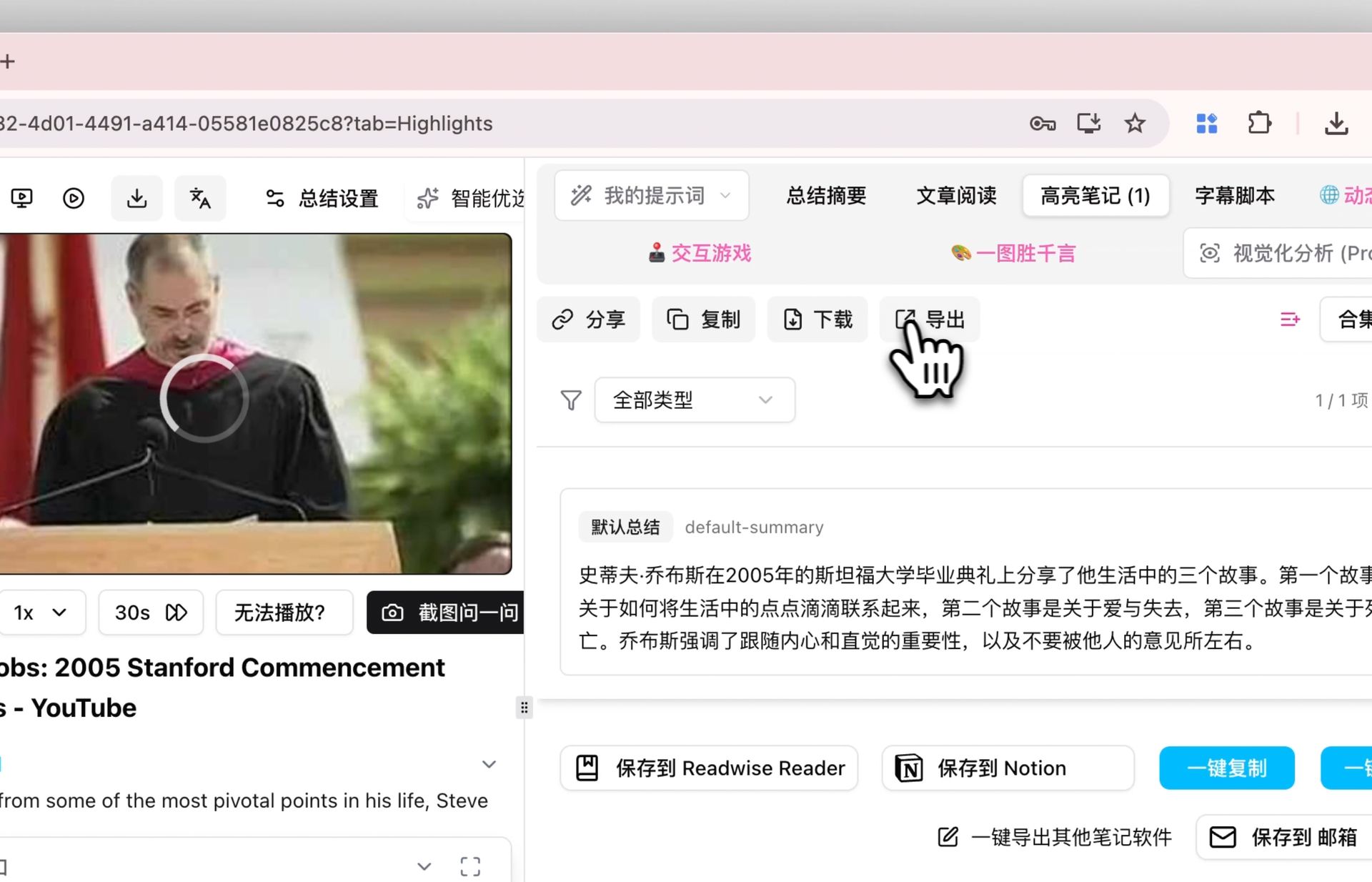 Export highlight notes to Notion interface
Pro tip: When exporting to Notion, you can choose between "Highlight Notes only" (just your selected content) or "Full Summary + Highlight Notes" (full text with highlights marked). We recommend exporting the full summary initially, then adding highlights on re-reads.
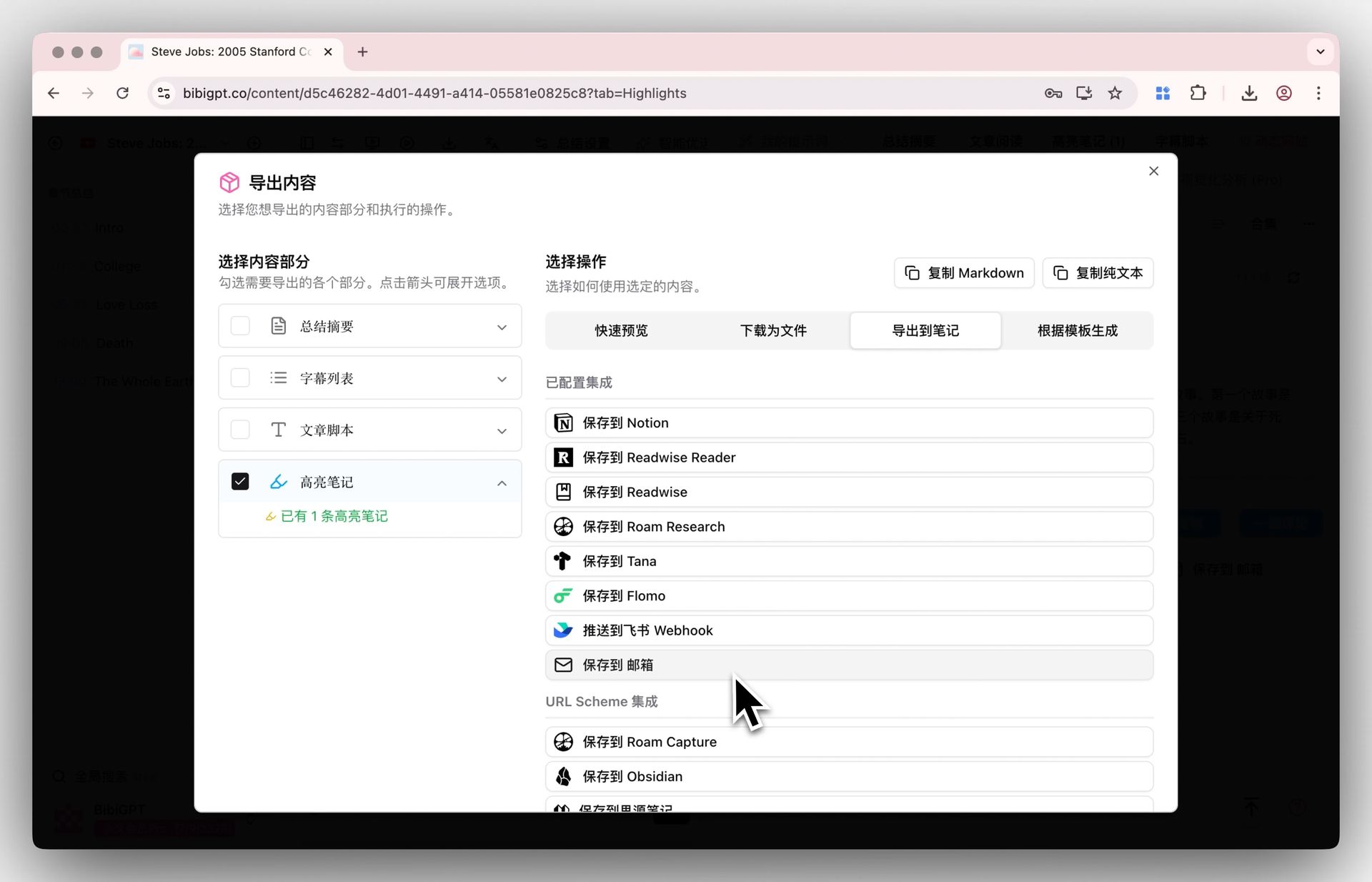 Highlight notes export display
Step 3: Collection Summary → Systematic Knowledge Base
Single-video capture is the foundation. Collection-level summarization is where the knowledge base's real value compounds.
Scenario: You've followed a creator's 20-part "Python for Data Analysis" series and summarized each episode. How do you extract a unified "knowledge map" from all 20 episodes?
Using the Collection Summary feature:
- In BibiGPT, select related videos and create a collection (or batch-add videos from the same creator)
- On the collection page, click "Summarize Now" — BibiGPT generates an integrated summary across all videos in the collection
- The collection summary includes:
- A cross-video knowledge framework (not just a list of individual summaries)
- Expandable citation sources (click to jump to the exact video and timestamp)
- A detailed mind map of the entire series' knowledge structure
- Export the collection summary to Notion as the "chapter index page" for that knowledge area
Your Notion knowledge base now has:
- Top level: Series knowledge index page (from collection summary)
- Sub-pages: Individual episode notes (from single-video exports)
- Connections: Notion bi-directional links connecting the same concepts across videos
Advanced: AI Agent Automation Workflow
Target scenario: "When a creator I follow posts a new video, automatically summarize it and add it to Notion. I open Notion and find today's knowledge updates already waiting for me."
Implementation (bibigpt-skill + OpenClaw/Claude Code):
# 1. Install bibigpt-skill
npx skills add JimmyLv/bibigpt-skill

# 2. Set up an Agent subscription task (Claude Code example)
# Agent runs at 8 AM daily:
# - Checks subscribed creators for new videos
# - Calls bibi summarize <url> --json for structured summary
# - Writes to Notion database via Notion API
bibi summarize https://www.bilibili.com/video/BV1xxx --chapter --json
No-code alternative: Enable "Folder Monitoring" in BibiGPT settings combined with the "AI Watch Later" Chrome extension for semi-automation: discover an interesting video → one-click add to Watch Later queue → batch summarize → periodically export to Notion.
For more on comparison with other AI tools: Microsoft Copilot vs BibiGPT Video Summary Guide
FAQ
Q1: Does BibiGPT's Notion export require a paid plan?
A: The Notion integration is available on BibiGPT's free tier with daily export limits. The Plus plan unlocks unlimited exports and is better suited for heavy daily use.
Q2: Can I process Bilibili premium (paid) content?
A: Yes. After authorizing your Bilibili account in BibiGPT settings (Settings → Platform Auth → Bilibili → Sign in), you can process any video you have viewing rights for (requires Bilibili premium membership for premium content).
Q3: Is the exported format compatible with Notion?
A: BibiGPT exports to Notion using native Notion block format, supporting rich text, lists, and code blocks. All exported content can be directly edited in Notion and works with all Notion features including databases, filters, and bi-directional links.
Q4: How many videos can a collection summary handle?
A: Collection summaries work with any number of videos. For large series (50+ episodes), we recommend splitting by knowledge module — each sub-collection gets its own summary, then manually link them in Notion. This gives better granularity.
Start your AI efficient learning journey now:
- 🌐 Official Website: https://aitodo.co
- 📱 Mobile Download: https://aitodo.co/app
- 💻 Desktop Download: https://aitodo.co/download/desktop
- ✨ Learn More Features: https://aitodo.co/features
BibiGPT Team