NotebookLM Flashcards vs BibiGPT Video Learning: Which Should Students Pick This Exam Season (2026)
NotebookLM Flashcards vs BibiGPT Video Learning: Which Should Students Pick This Exam Season (2026)
As of June 1, 2026: NotebookLM shipped Flashcards from Sources — upload a lecture handout and it automatically extracts key terms, dates, and concepts into cards, tracks “got it / missed it,” and remembers your progress across sessions. For international students racing through finals week, that’s one more review path. But what if your review material is hours of recorded online classes, Zoom replays, and YouTube open courses? That’s exactly where NotebookLM flashcards and BibiGPT video learning start to diverge.
1. Why this matters for international students right now
June is the most stressful review month of the year for international students — finals week in the US, PgDip thesis weeks in the UK, and final exams concentrated in Australia. A big chunk of review material is video: professors record entire classes as Zoom replays, course platforms host two-hour lectures, and catch-up learning runs on YouTube open courses.
Many people choose a study tool by asking just one thing — “can it make flashcards to help me memorize?” But for people who genuinely learn from video, the real questions are finer: which material were these cards pulled from? Can it handle an entire recording directly? Mid-review, can I jump back to that exact second in the original video to verify?
The video below walks through how NotebookLM turns uploaded materials into flashcards and quizzes from a student’s point of view — watch it once to build a mental picture:
This tutorial walks the full path of “upload material → generate flashcards → self-test”:
Source: YouTube · NotebookLM 2026 study tutorial
NotebookLM’s flashcards have one key design choice: cards are pulled only from the material you upload (grounded in source), not a generic version made up out of thin air. According to Google’s official blog, you can also customize the topic, set difficulty, choose the number of cards, and mark them “Got it / Missed it” to drill repeatedly.
Practical rule: Don’t pick a review tool by “can it make cards” alone — ask “are these cards from my course’s real material, and can I trace them back to the source?”
2. Path A: NotebookLM flashcards — for people whose materials are already text / PDF
If your review material is mainly lecture PDFs, reading lists, and course notes, NotebookLM’s flashcard path is very smooth.
How to use it
- Upload lecture PDFs, readings, and notes into one notebook
- Click “generate flashcards,” describe the topic and difficulty you want
- Set the card count, and a full deck generates in seconds
- When flipping, mark “Got it / Missed it” and the system tracks progress
- Click “explain” on a card for a detailed explanation with citations back to the source
When it fits best
- Course material is mostly text / PDF, with little video
- You need point-style memory of terms, definitions, and dates
- You’re already used to the Anki / Quizlet drilling rhythm
According to NotebookLM’s 2026 update notes, when you reopen a deck it remembers where you left off and accumulates study history across sessions — increasingly Anki-like.
Practical rule: When the thing you’re reviewing is “a readable document,” NotebookLM flashcards are a fast, accurate point-memory tool.
3. Path B: BibiGPT video learning — for people whose materials are recordings and online classes
But the reality for international students is that half the review material is stuck inside video. Two-hour lecture recordings, Zoom replays, YouTube open courses — these aren’t “a readable document,” they’re “a timeline you have to watch through before you know what’s in it.” BibiGPT enters from exactly that “video” side.
Just paste a YouTube link, a Zoom replay link, or upload a recording, and BibiGPT first turns the whole video into a structured summary with timestamps. The interactive demo below lets you paste a link and see how it turns video into readable key points:
Summarize any video in seconds
Pick a sample below to see the AI summary — TL;DR, key points, and jump-to timestamps.
TL;DR: Karpathy builds a GPT-style language model from scratch in code, explaining every piece — from a tiny character-level model up to the full Transformer.
Key points
- Start with a bigram model, then add self-attention so tokens can "talk" to each other
- A Transformer block = multi-head attention + feed-forward + residual connections + layer norm
- Training is just predicting the next token; scale and data do the rest
- The same architecture behind nanoGPT is what scales up to ChatGPT
Jump to
- 00:07 Why build GPT from scratch
- 08:23 Self-attention, intuitively
- 1:00:00 Assembling the Transformer block
- 1:35:00 From nanoGPT to ChatGPT
Demo: BibiGPT video summary feature
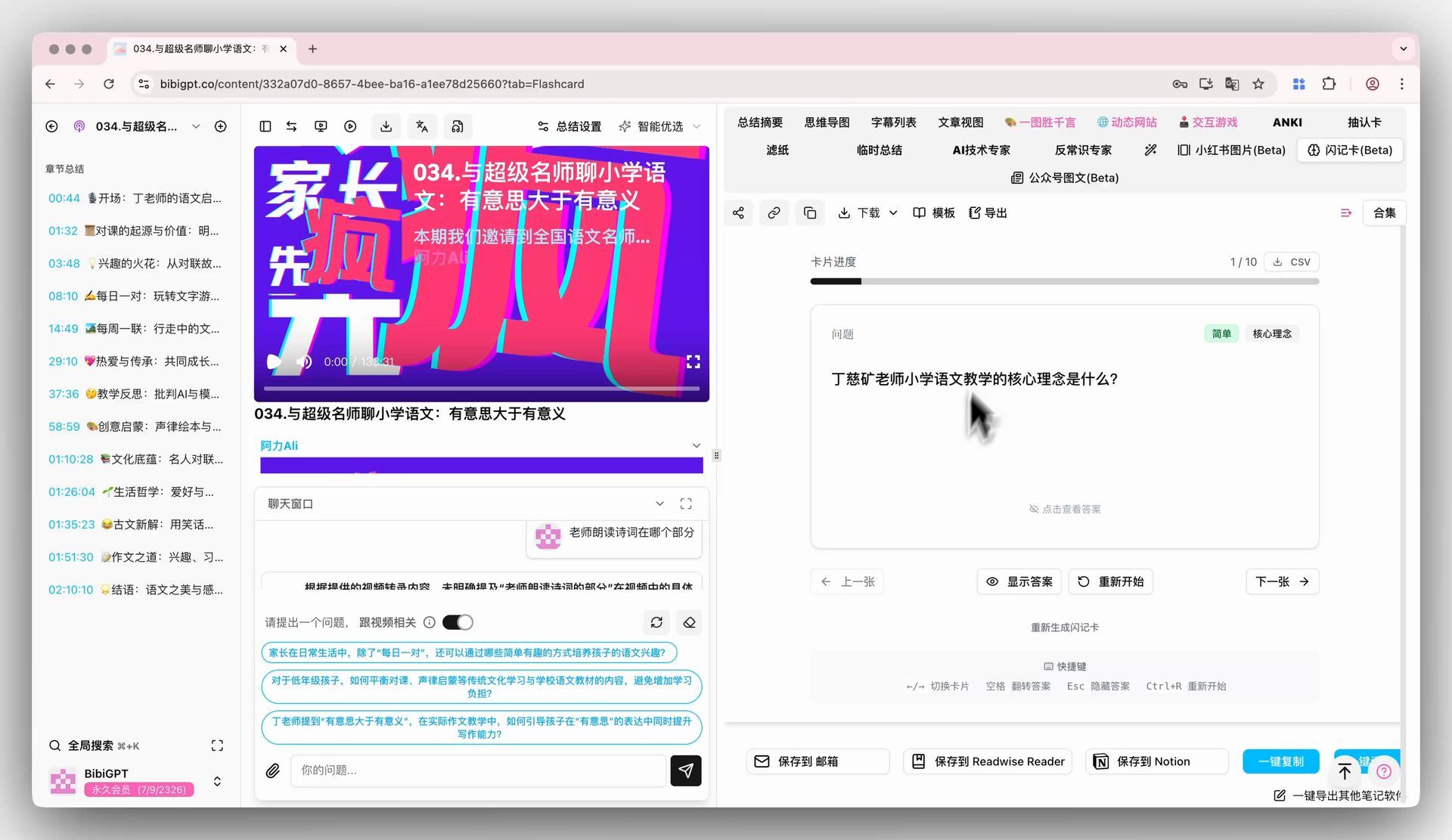
On the summary detail page, BibiGPT’s Flashcards generate a series of Q&A cards from the video content automatically. You can flip and self-test right on the page, mark difficulty, and regenerate for multiple review rounds. More importantly — all cards export to CSV in one click, ready to import into Anki for long-term spaced repetition.
The image below shows the flashcard entry and generation screen, so you know where to click:
Screenshot: BibiGPT · Flashcards feature demo
If you’re already prepping for finals, you can first use BibiGPT to turn a recorded online class into key points and flashcards, then decide whether to import to Anki.
When it fits best
- Video / recordings make up the bulk of your review material
- You need to jump back to a specific second in the video while reviewing
- You want “video summary + cards + Anki export” in one flow
Practical rule: If your knowledge source is a video, turn it into a searchable, jumpable summary first, then talk about making cards — doing it in reverse wastes time.
4. How to choose: one table for both paths
Put both paths on the table and choose by the shape of your review material:
| Dimension | NotebookLM flashcards | BibiGPT video learning |
|---|---|---|
| Best for | Material mostly PDF / text | Material mostly video / recordings |
| Handling video | Needs transcript first | Eats video links / files directly |
| Card source | Uploaded material | Auto-generated from video content |
| Jump back to video moment | Weak | Timestamped, click to jump |
| Anki export | Indirect | One-click CSV export |
| Multilingual | Supported | Chinese / English / Japanese / Korean |
Decision filter: Look at your course’s review material first — text-heavy means NotebookLM flashcards, video-heavy means BibiGPT. Using both is perfectly reasonable.
Worth noting: according to Google’s student-focused feature overview, NotebookLM is also building out video handling, but for now, when it comes to “turning a recording directly into a jumpable summary,” a video-first tool is still smoother.
5. Advanced: turn video key points straight into a mind map for review
In the last round of review before an exam, a single “map of the whole course’s logic” is often more efficient than flipping cards one by one. While generating a summary, BibiGPT can produce a mind map that lays out the logical skeleton of an entire lecture.
The interactive demo below lets you experience video-to-mind-map directly:
Turn a video into a mind map
A linear talk becomes a structured tree. Drag to pan, click nodes to fold.
Demo: BibiGPT video-to-mind-map
Research also backs “active recall + spaced repetition” being more effective than just reading handouts: a randomized controlled trial published on PubMed found that students using mobile flashcards for spaced repetition retained knowledge significantly better than the lecture-only group. In other words, turning video into cards to drill is itself a research-validated study strategy — the tool just makes it faster.
Back on BibiGPT’s side, the shot below shows the one-click CSV export entry for cards — the key step that connects to Anki:
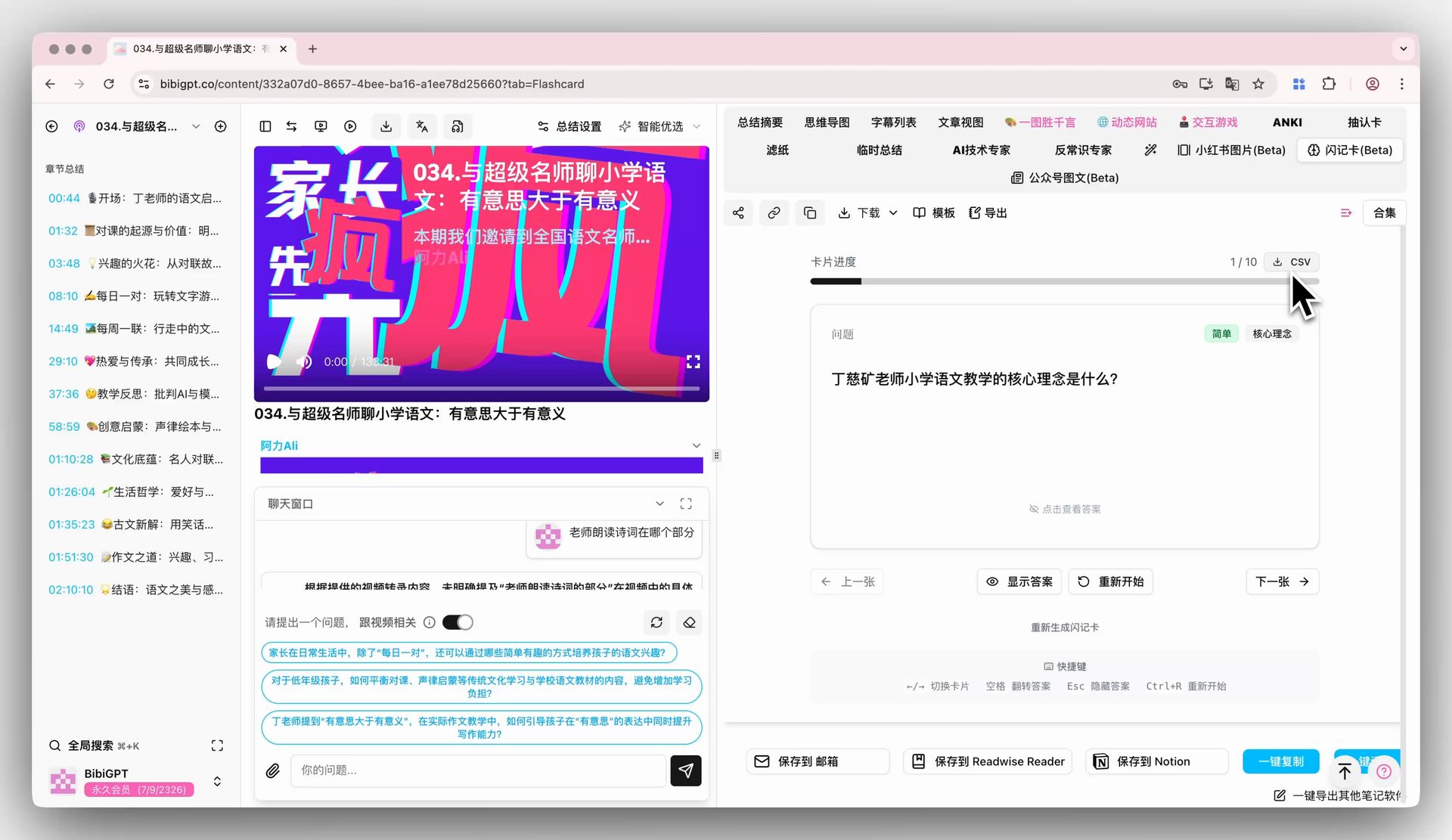
Screenshot: BibiGPT · flashcard export feature demo
A practical exam-season combo
- Use BibiGPT to batch-convert all this week’s lecture recordings into timestamped key points
- Generate flashcards for each and export to CSV for Anki
- Before the exam, run through the whole course’s logic with a mind map
6. From “watching video” to “passing the exam”: a workflow you can actually run
Models are no longer scarce; whether you can quickly turn hours of recordings into “memorizable, searchable, jumpable” review material is the real gap come exam season. Break it into 5 steps you can run tonight:
- Gather this week’s online-class recordings / Zoom replay links
- Paste each into BibiGPT to get timestamped structured key points
- Generate flashcards on the detail page, mark difficulty, drill once
- Export to CSV in one click, import into Anki for long-term spaced repetition
- Before the exam, run through the whole course’s logic with a mind map
Flipping cards is just a means; what really decides your exam result is whether you covered the most important material thoroughly in limited time. NotebookLM flashcards excel at turning documents into cards; BibiGPT excels at turning video into memorizable, jumpable review material — pick the right entry point and every night of exam season is worth more.
Try it now
Time is tightest during exam season — start with a recorded online class you need to review this week: paste the link, get key points and flashcards in minutes, then decide whether to import to Anki.
Turn online-class videos into key points and flashcards for free
BibiGPT Team