BibiGPT v4.482.0: 4 New Features + 618 Sale — Last Few Days (Ends June 20)
BibiGPT v4.482.0: 4 New Features + 618 Sale — Last Few Days (Ends June 20)
This week we shipped 4 small but genuinely useful improvements — the kind of things you notice when you hit a tiny friction point and think “this should just work.” Here’s what’s new: paste an online link in the web app and AI can watch the full video directly without waiting for a download; press H while listening to a podcast to highlight the line playing right now; set flashcard topics and count to match your own learning goals; and bring your AI conversation Q&A along when you export your notes.
One more reminder: the 618 half-price sale is in its final days — it ends June 20. Plus and Pro are both 50% off, the lowest prices BibiGPT offers all year. Full pricing and group-buy details are below.
🎁 618 half-price sale ends June 20 — Upgrade at 50% off →
618 Sale: 50% Off — Lowest Prices of the Year, Last Few Days
The 618 sale wraps up on June 20. Plus and Pro — monthly and annual — are all 50% off, BibiGPT’s lowest price tier of the year. Here’s the full breakdown:
| Plan | Regular Price | 618 Sale Price |
|---|---|---|
| Plus Monthly | $19.80 / mo | $9.90 / mo |
| Plus Annual | $142.56 / yr | $71.28 / yr (≈ $5.94 / mo) |
| Pro Monthly | $34.80 / mo | $17.40 / mo |
| Pro Annual | $250.56 / yr | $125.28 / yr (≈ $10.44 / mo) |
Choosing is simple: Plus covers everyday learning and work video use; Pro is the pick if you do content creation (visual analysis, video-to-article, AI short videos).
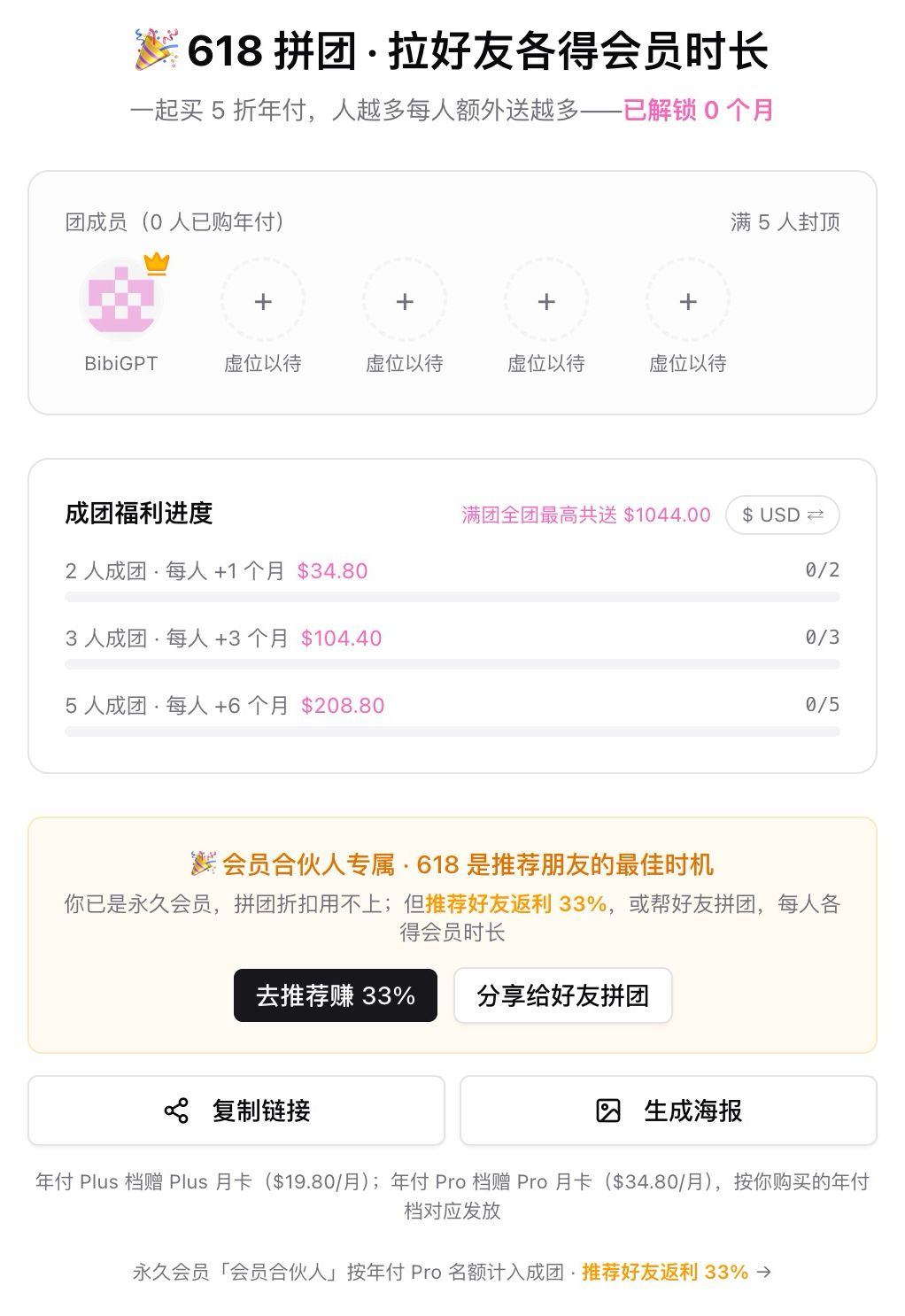
If friends around you also use BibiGPT, you can start a group buy for an annual plan — on top of the 50% discount, groups of 5+ each get an extra 6 months free (2 people get +1 month, 3 people get +3 months). Buying solo at 50% works great too. To start or join a group, go to bibigpt.co/g. If you’re already a lifetime “Member Partner,” this is also a great window to refer friends — you earn 33% commission (vs. 20% for regular members).
The promotion banner and countdown are right at the top of the homepage — you’ll see it the moment you land:
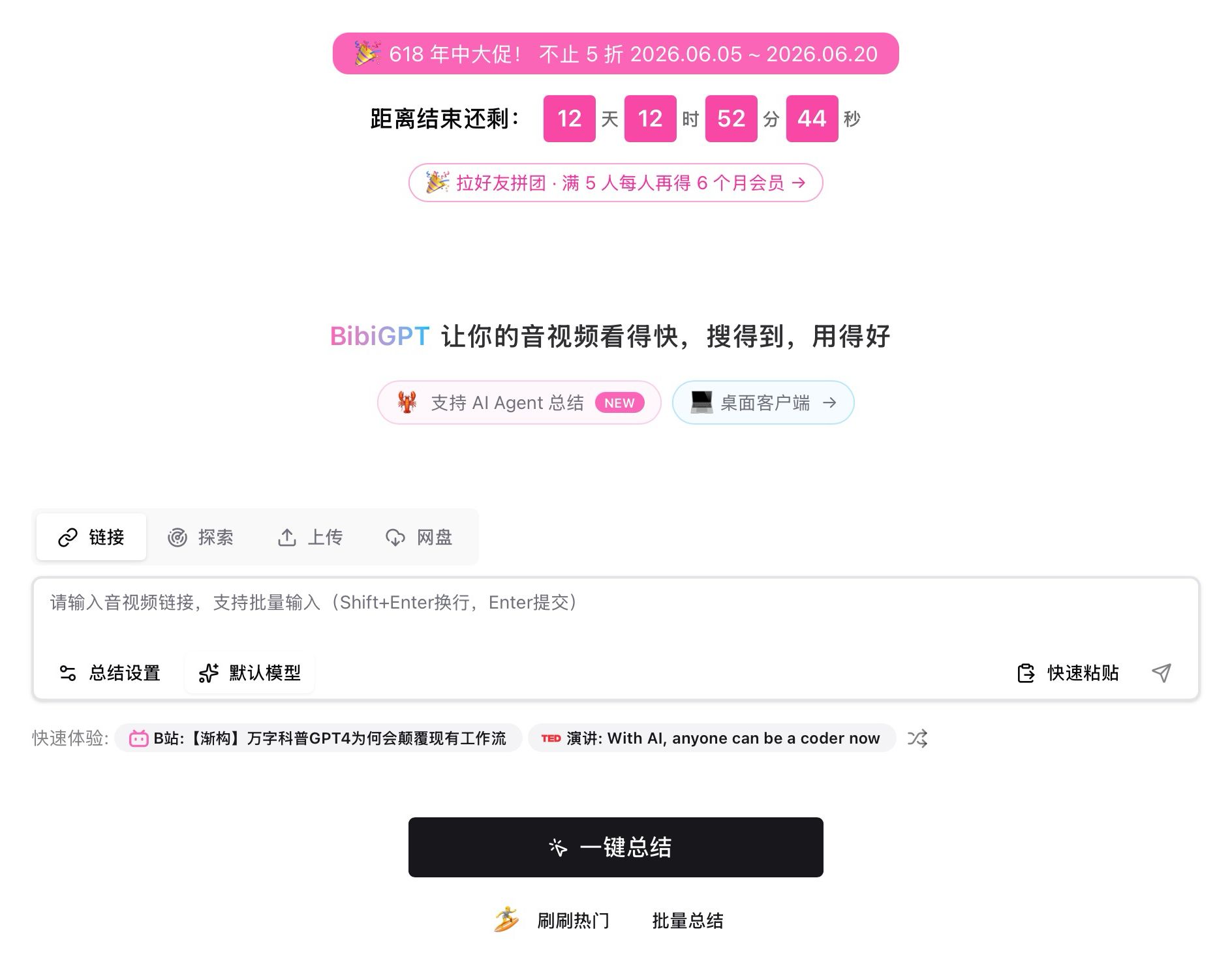
Screenshot: BibiGPT · 618 promotion banner and countdown at the top of the homepage
👉 Best time to upgrade — grab it while the price is this low — Upgrade at 50% off now →
Watch Audio & Video Faster
Paste an Online Link — AI Reads the Full Video Directly
Before, using “Visual Summary” to understand a video frame-by-frame in the web app — whether YouTube or Bilibili — required downloading the entire video first. For long videos that meant waiting several minutes just to get started — not great. Now the web app adds online direct-read: paste a YouTube link and AI can “watch” the whole video right away, no download needed.
It’s easy to use: in the “AI Insights” panel, switch to “Visual Summary (Beta).” You’ll see two modes — “Screenshot Analysis” extracts key frames and interprets them one by one; “Video Understanding” lets AI watch the complete video. Select “Video Understanding,” pick a Gemini (Google) model, paste a YouTube link, and click “Start Visual Analysis” to have BibiGPT analyze the full video directly — no download-then-upload wait. This is especially useful for content where subtitles alone aren’t enough — demos, tutorials, charts, and anything that requires seeing the visuals.
Here’s what it looks like when you paste a YouTube link and AI analyzes the full video directly:
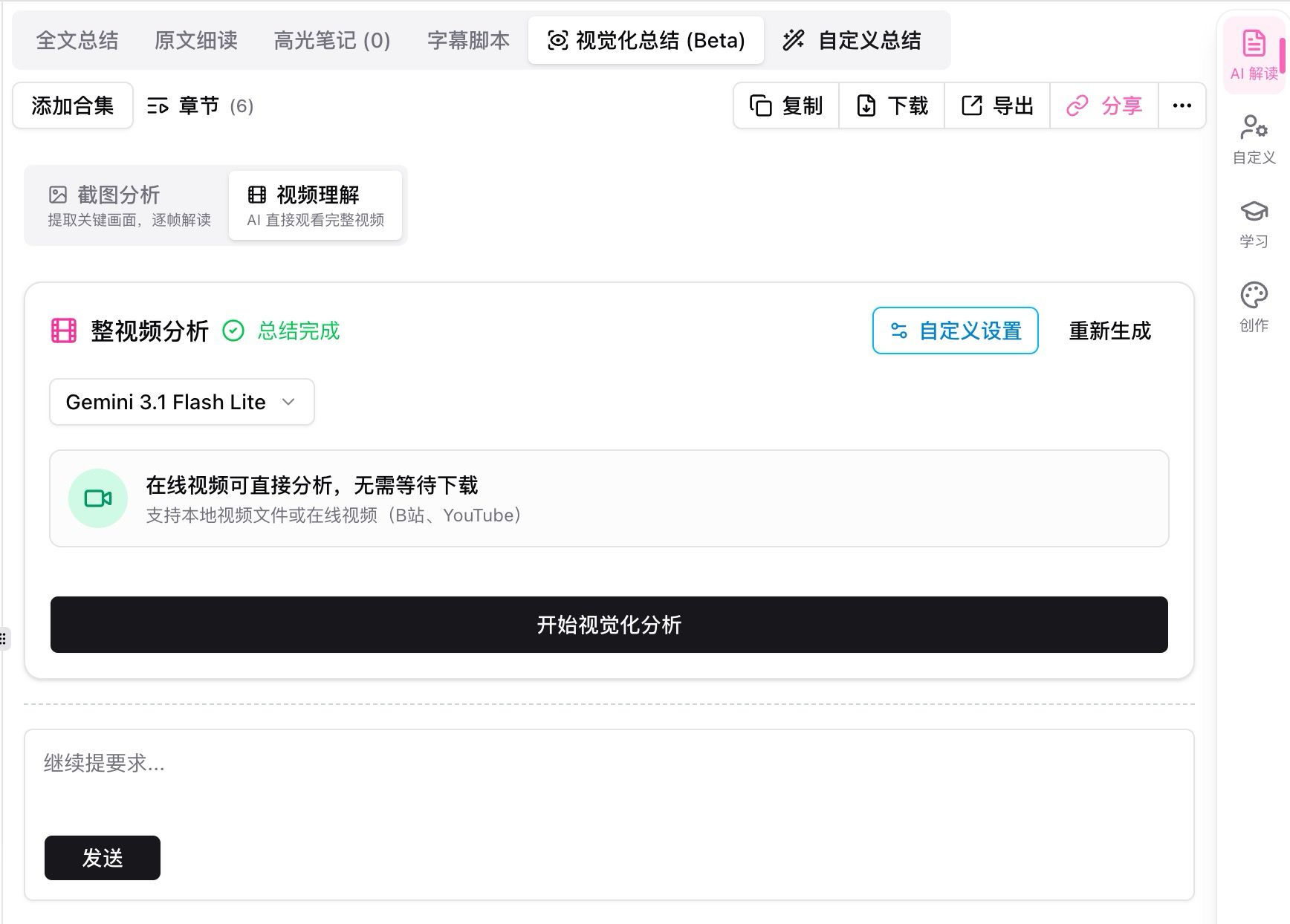
Screenshot: BibiGPT · “Visual Summary (Beta)” in Video Understanding mode, analyzing an online video directly
One important detail: online direct-read relies on Gemini’s native YouTube support, so two things need to line up — pick a Google model (the Gemini series in the list, all labeled Google on the right) and paste a YouTube link. Bilibili and other sources still need to download the video first for now. Here’s the model picker — clear at a glance:
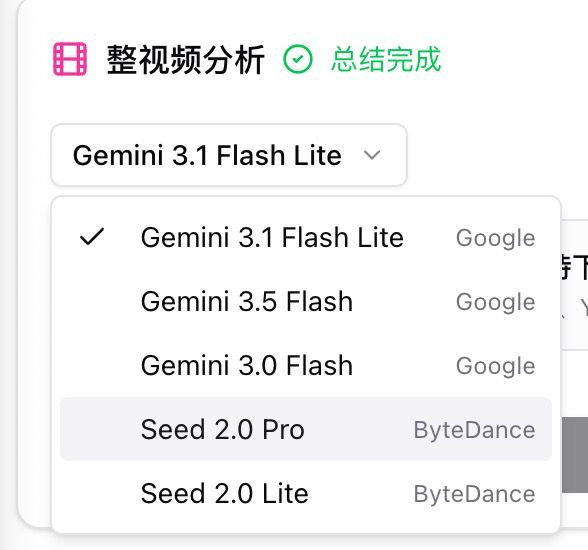
Screenshot: BibiGPT · Model selection in “Visual Summary (Beta)” Video Understanding mode — Gemini series powered by Google
Find What You Need in Audio & Video
Press H During Subtitles — Highlight a Key Line Instantly
The most frustrating thing when listening to podcasts or lectures: a great line just finished playing and you only realize a beat later that you wanted to highlight it — but now you have to grab the mouse, scroll through the subtitle list, find that sentence, and click to highlight it. The audio keeps going, one hand gets busy, and by the time you find it the moment has passed.
The subtitle script now has a highlight shortcut. While playing, just press H and BibiGPT immediately highlights the entire sentence currently playing. Want to tag the previous line? Press Shift+H — no need to leave the keyboard. Highlighted sentences appear with a bold background color and are added to the “Highlights” section at the top, so you can review or export them all at once later. Hovering over any subtitle line also brings up an action bar for adding notes, explaining, sharing, or copying. For listen-and-take-notes workflows, this shortcut fits right into your flow.
Here’s what it looks like after pressing H — the full current line highlighted:
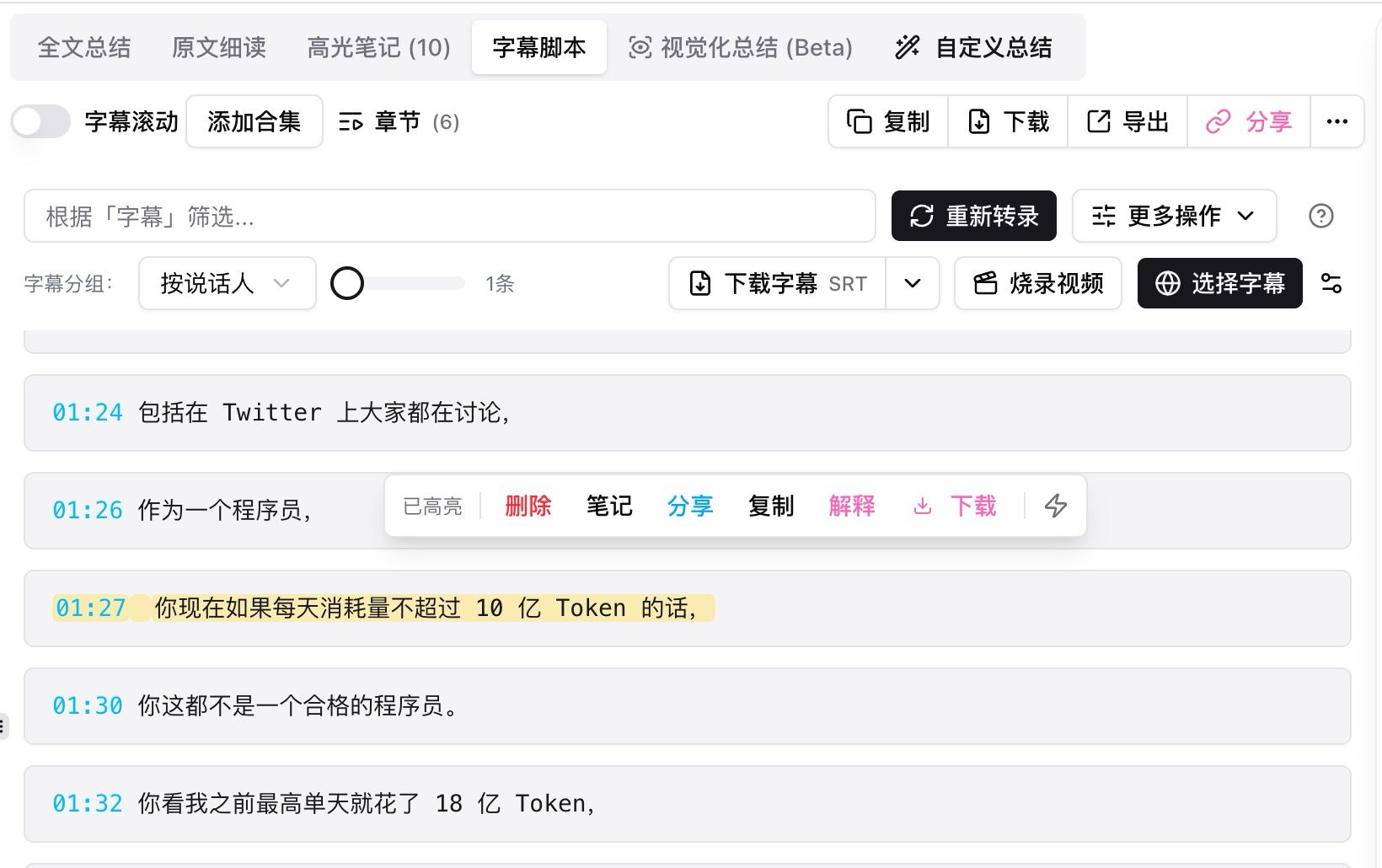
Screenshot: BibiGPT · Pressing H in the subtitle script to highlight the currently playing line
Get More Out of Audio & Video
Custom Flashcards: Generate Cards on Your Own Terms
Flashcards used to be generated from a fixed template, but everyone’s learning goals are different each time — sometimes you want to drill vocabulary, sometimes you want to dig into specific details from the video, and the number of cards wasn’t up to you either. Now you’re in control.
Open the “Study” panel on the right and go to “Flashcards,” then click “Card Settings” in the top-right corner to expand it. In “Custom Card Requirements” you can type exactly what you want — for example: “focus on vocabulary,” “emphasize details,” or “test key technical terms and formulas using fill-in-the-blank format, with answers citing the source text.” “Card Count” is adjustable from 3 to 50 (default is 10). Save your settings, then click “Regenerate Flashcards” and the new rules take effect. Your preferences are remembered — the next time you open the same content they carry over automatically, no need to re-enter. During review you can flip cards with keyboard shortcuts and export to CSV in one click. The whole experience is a lot smoother now.
Here’s the settings panel — open it and fill in what you need:
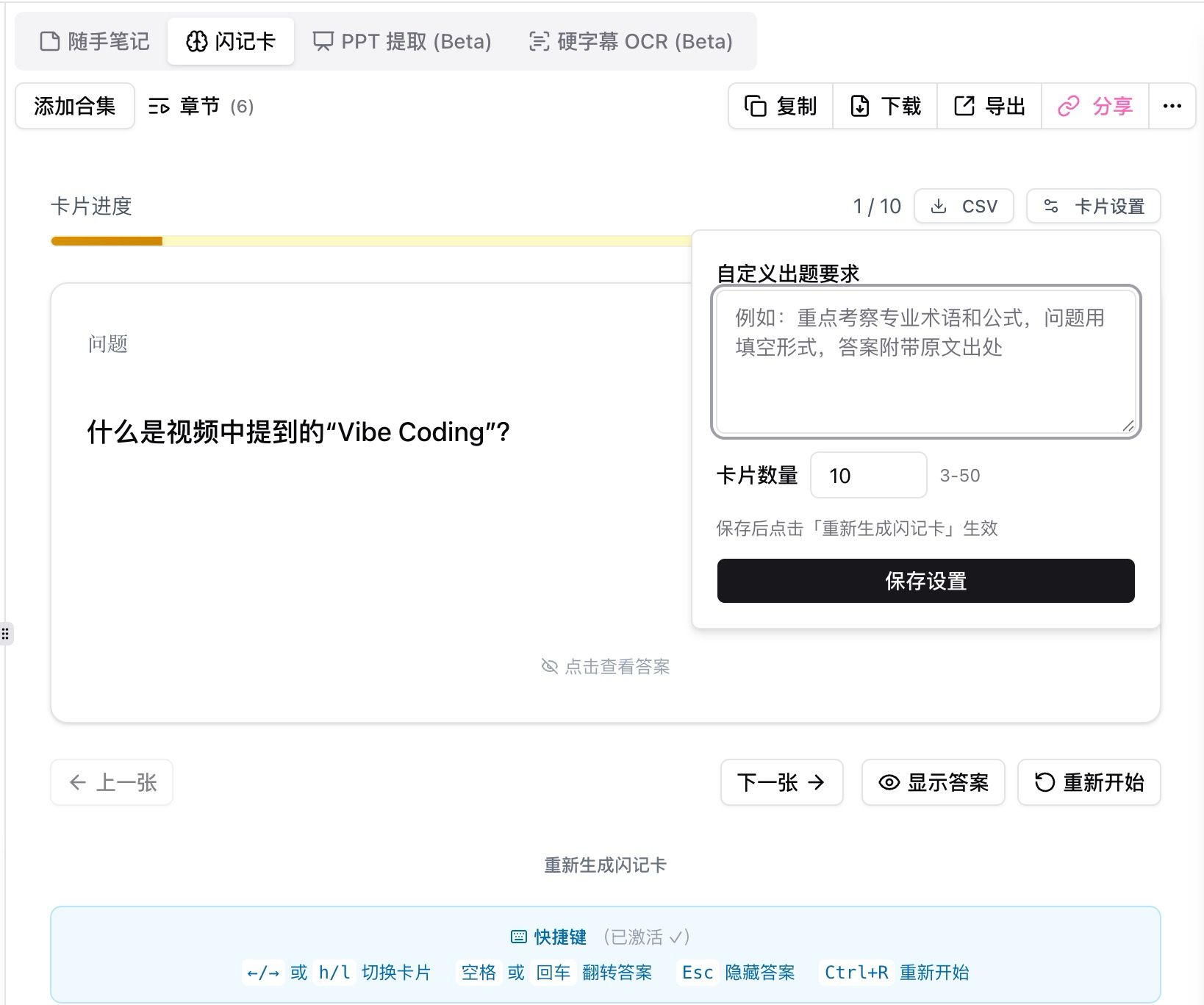
Screenshot: BibiGPT · “Card Settings” panel for flashcards — custom requirements and card count
Export AI Chat History: Take Your Follow-Up Q&A Into Your Notes
When you dig into a video with AI follow-up questions, you often come away with genuinely valuable answers — but previously those conversations couldn’t be included when you exported your notes. You’d have to copy them manually line by line, or just let them go. That changes now: AI chat history can be exported along with everything else.
After chatting with AI on a video page, open the “Export Content” modal. “AI Chat History” appears as a standalone content block: in the “Note Output” section, check it alongside “Highlights” and “Quick Notes.” You can also drag its position in the “Export Order” section on the upper left — for example, place it after “Full Summary” and “Chapter Summary.” Once checked, it works with all export paths — copy as Markdown or plain text, or send directly to Notion, Obsidian, Siyuan, Readwise, Lark, Email, and any other note tools you’ve already connected. Your deep AI Q&A sessions can now be archived in your knowledge base right alongside your summaries, subtitles, and highlights.
Here’s what it looks like with “AI Chat History” checked in the export modal:
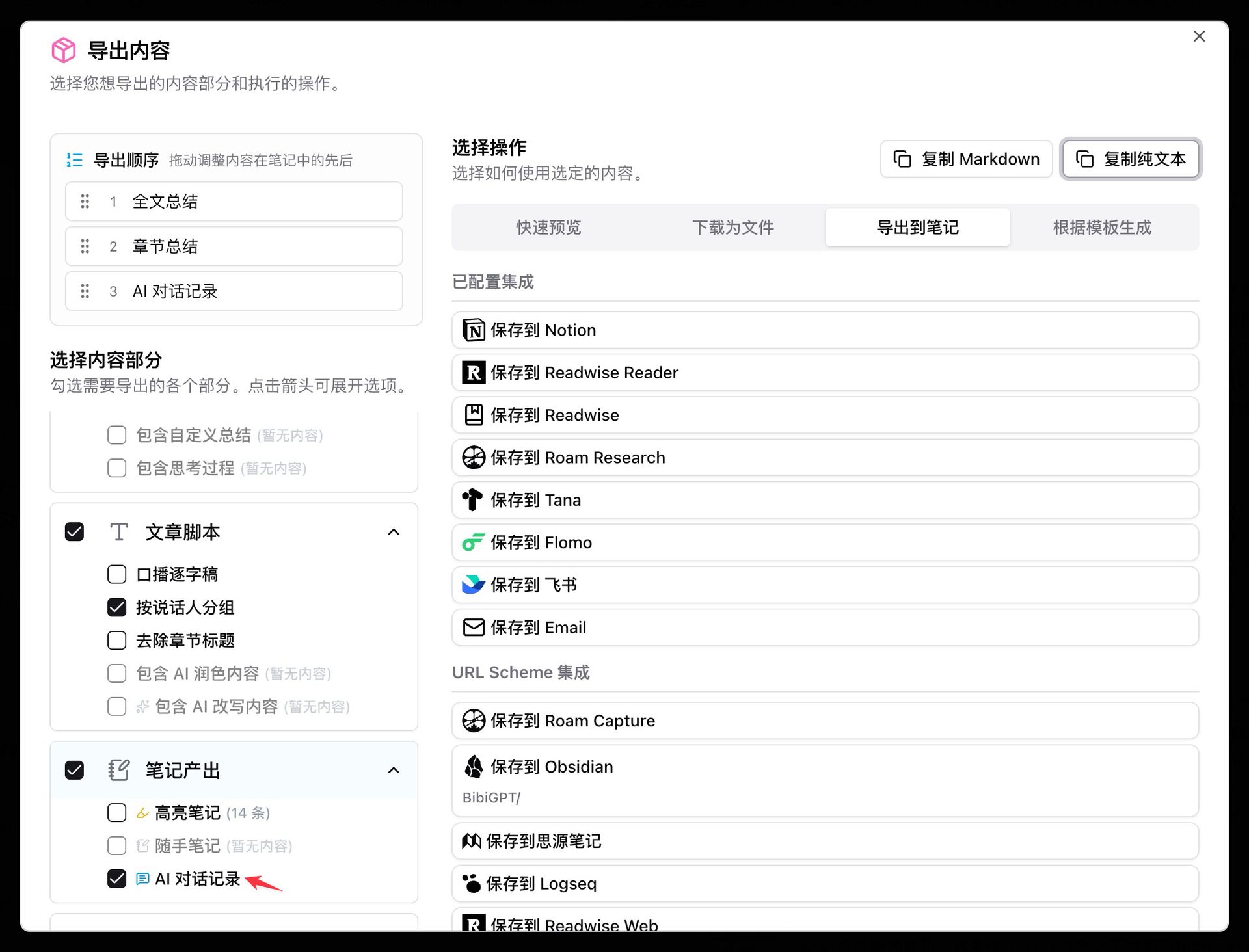
Screenshot: BibiGPT · “AI Chat History” as a selectable block in the “Export Content” modal
A Few More Small Improvements
Beyond the 4 features above, we also tidied up a few other spots this week: the bibigpt.co homepage now lets you paste a link and get a summary right away, plus a quick “3 steps to get started” guide for new users; the mobile experience on iPad got a full pass — the upgrade page, export flow, and content pages no longer look off on larger screens; the group buy page now has member management, so group organizers can remove unpaid placeholder spots and members can leave on their own; subscribing to Bilibili collections and series channels is more reliable and no longer fails to load intermittently. We also fixed a batch of smaller issues with quick notes, AI chat display, and other details to make everyday use feel smoother.
Wrapping Up
In short: the 4 updates this week — AI reading online videos directly from a link, pressing H to highlight a line while it plays, generating flashcards on your own terms, and exporting your AI chat alongside your notes — are all about removing small daily friction. Try whichever one fits your workflow most. And don’t forget: the 618 50% sale ends June 20, the lowest price of the year — don’t miss it if you’re thinking about upgrading.
Save brainpower with AI — watch faster, find more, and do more with audio and video.
For feedback or bug reports, reach us through our WeChat official account 魔法司.
- 🎉 618 50% Off Upgrade (ends June 20): bibigpt.co/shop
- 🌐 Website: bibigpt.co
- ✨ Explore all features: bibigpt.co/features
BibiGPT Team