Qwen AI PPT vs BibiGPT: Who Handles 'Turning a Video/Recording Into Slides' Better? (2026 Comparison)
Qwen AI PPT vs BibiGPT: Who Handles “Turning a Video/Recording Into Slides” Better? (2026 Comparison)
AI slide generation matured fast this year. Give it a topic, drop in a document, and a few minutes later you’ve got a beautifully laid-out deck. But there’s one kind of need most AI PPT tools actually route around: your source material is itself a video or recording — a lecture, a product launch, a two-hour seminar recording — and you want to turn it into a deck you can stand up and present.
Here, “generate slides from text” and “generate slides from video” are two different paths. This post starts from the real scenario where the input is a video, and compares two representative tools: Qwen AI PPT (from Alibaba’s Tongyi, strong at generating polished slides from prompts and documents) and BibiGPT (strong at understanding the video/audio first, then producing a structured presentation).
100-word answer: If your starting point is a text description or a document and you want a visually polished, professionally laid-out deck, Qwen AI PPT is strong — its agent architecture can ingest multiple files and produce a downloadable PPT in minutes, with great imagery and layout. If your starting point is a video or recording, and you want to distill what’s said into structured key points first, then turn that into slides, BibiGPT is smoother — it transcribes, summarizes into an outline, and generates a page-by-page presentation in one click. To try “video into presentation” directly, paste a link into BibiGPT.
1. First, Be Clear: The Two Tools’ “Starting Points” Differ
Before comparing, let’s make the most important difference clear — their input starting points are fundamentally different, and that determines what each is good at.
| Dimension | Qwen AI PPT | BibiGPT |
|---|---|---|
| Typical input | Prompts, documents, PDFs (batch-upload multiple files) | Video / audio / recording links, plus local files |
| Core capability | Agent research + auto-generating polished slides | Understand the video, distill an outline, then generate a presentation |
| Generation speed | A downloadable standard PPT in minutes | One-click presentation after transcribe + summarize |
| Visual style | Auto imagery, professional layout, bilingual layouts | Content-structure first, with timestamps back to the source video |
| Best-fit scenario | Quickly build a polished deck from an idea / document | Turn a long video / recording into presentable key points |
Practical rule: When choosing an AI PPT tool, don’t start with whose templates look nicer — start with what your source material is. Text source → start from a text tool; video source → start from a tool that understands video. Pick the wrong starting point and even the prettiest tool still makes you chew through the video yourself first.
2. Qwen AI PPT’s Strength: Polished Slides From Text and Documents
Per Qwen’s official site, Qwen AI PPT drives full-process automated creation with an agent architecture: you give a topic or upload documents, and its search agent researches, organizes, and builds the narrative structure, then renders a complete deck with text, layout, color schemes, and graphics.
A few of its highlights are genuinely useful:
- Batch upload: upload multiple files at once (documents, PDFs, code, etc.), with the AI auto-extracting core information into the deck.
- Fast output: after you enter your requirements, it typically generates a downloadable standard PPT file in 1-3 minutes.
- Editable: after generation you can edit text, adjust image positions, and modify chart data — solid flexibility.
- Bilingual layouts: it supports multilingual and bilingual layouts, fitting scenarios like English teaching.
So if your work is “I have a topic / a document and want a polished deck fast,” Qwen AI PPT is a smooth choice.
Its boundary is just as clear: its starting point is text. If you’ve got a two-hour lecture recording, you first have to watch the video yourself and organize it into text or an outline before feeding it in — and “chewing the video into text” is exactly the most time-consuming step.
3. BibiGPT’s Strength: Understand the Video First, Then Make a Presentation
BibiGPT’s starting point fills exactly that gap: the input is the video or recording directly. You paste a link to a lecture, launch, or seminar; it first turns the audio into a timestamped transcript, then summarizes it into a structured outline, and finally generates a page-by-page presentation from that content.
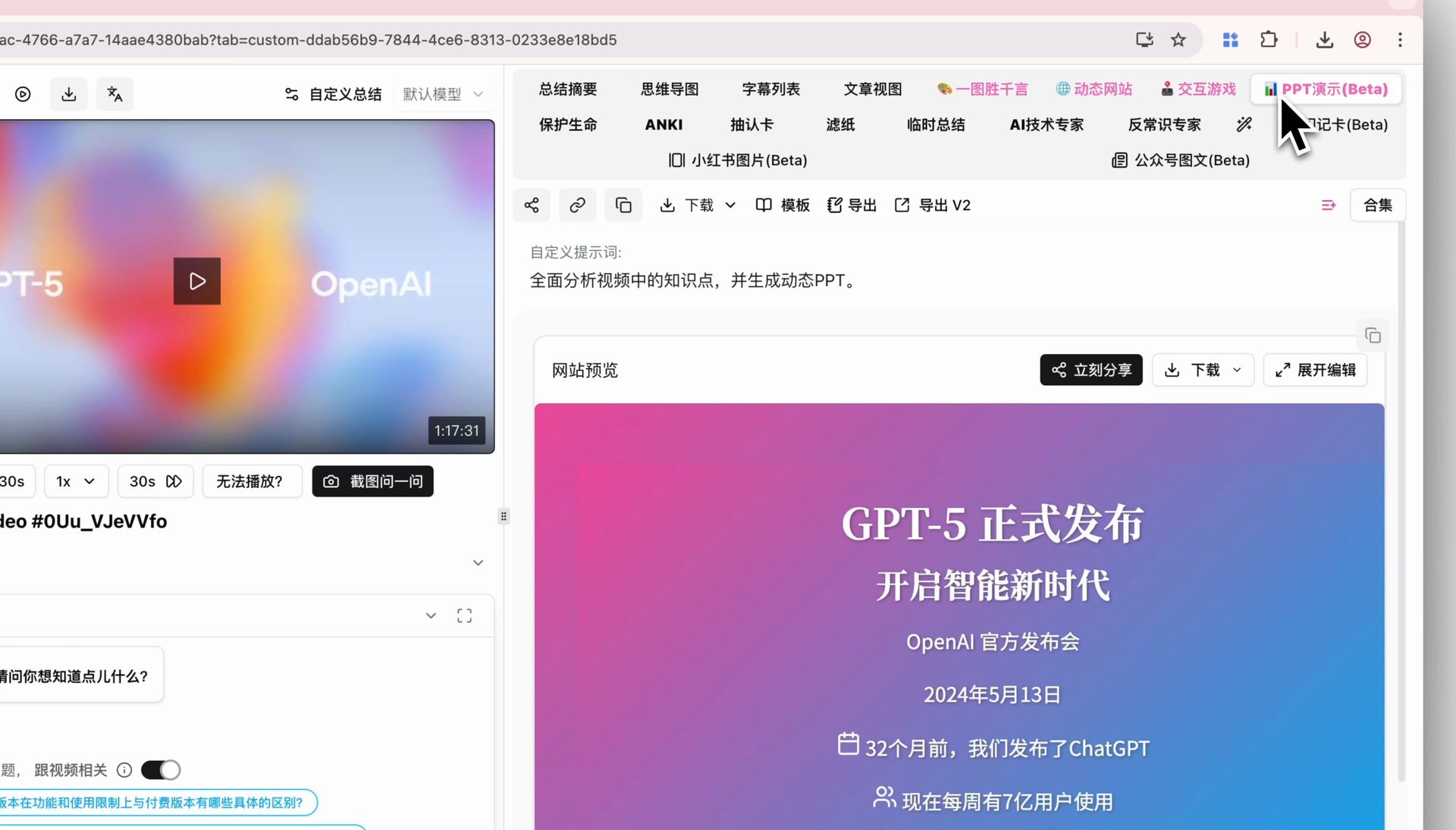
Here’s a product screenshot of the PPT presentation, so you can see what the result looks like:
Screenshot: BibiGPT PPT presentation result
This “video → outline → presentation” chain fits several scenarios especially well:
- Turn someone else’s lecture into your own talk: after watching a conference recording, generate a key-point deck directly, so you can re-present it to your team faster.
- Make a long video into page-by-page focused reading: a two-hour seminar becomes a keyboard-paged presentation — far more comfortable than dragging a progress bar.
- Merge multiple videos into one overview deck: a series collection can be summarized as a whole, including a structured overview and a mind map, then turned into a presentation.
The collection-summary screenshot below shows the ability to “thread an entire series into one presentation”:
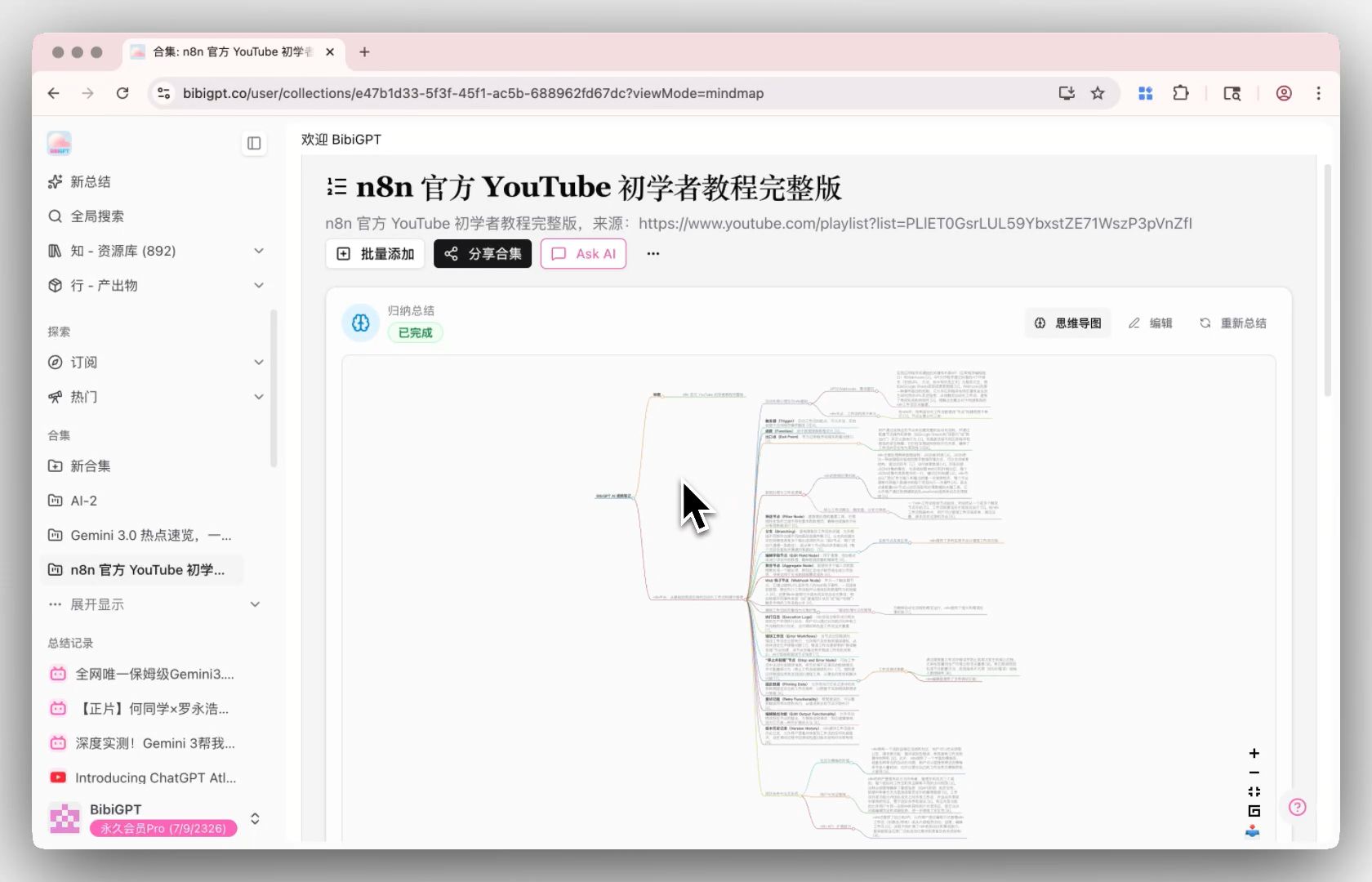
Screenshot: BibiGPT collection summary
Before generating the presentation, BibiGPT first turns the video content into a structured deep summary (core summary + highlights + Q&A); the screenshot below is what that step looks like:
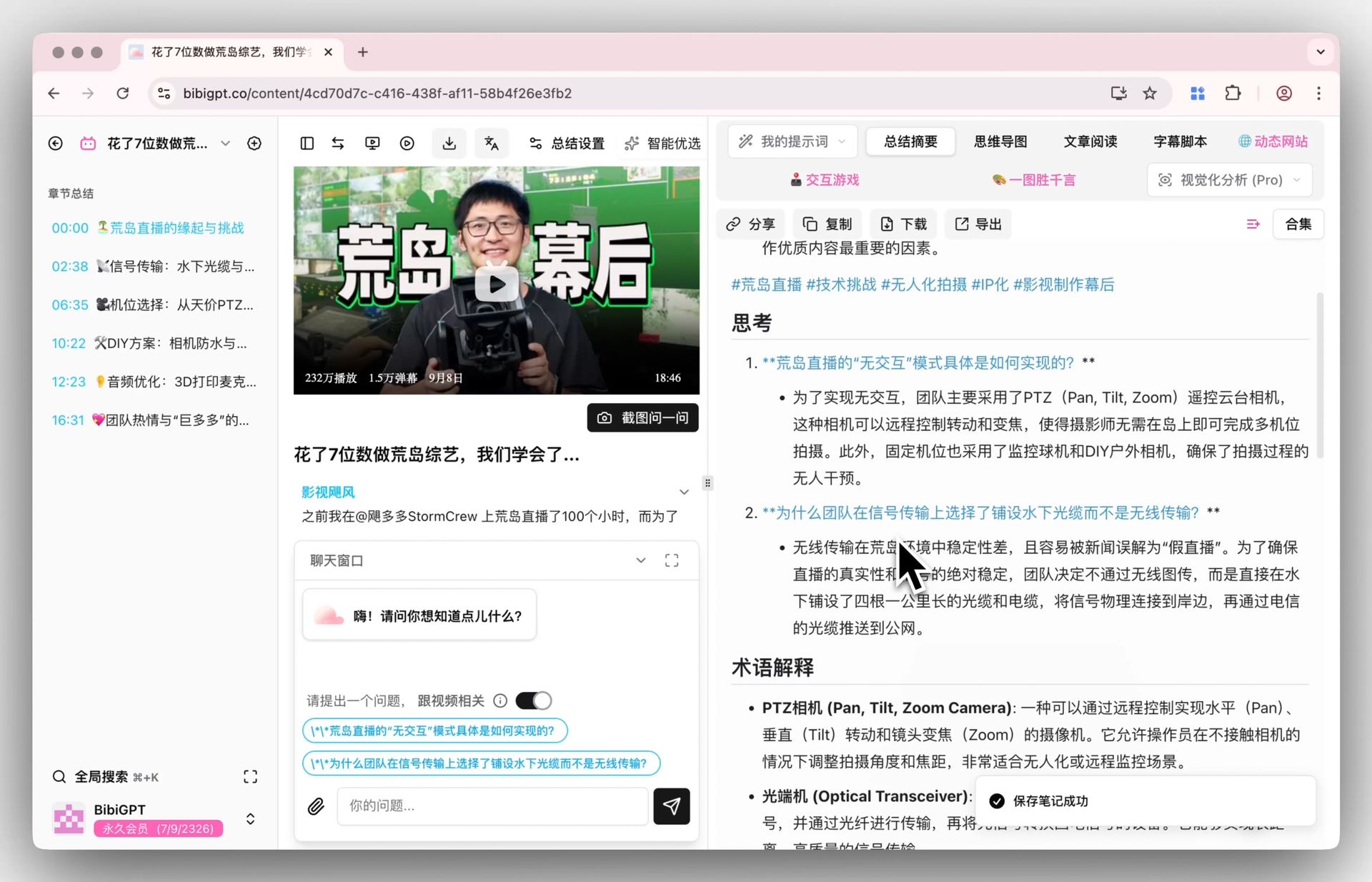
Screenshot: BibiGPT smart deep summary
The crucial part is that, because the content is distilled from the video, every key point can jump back into the original video via its timestamp — the deck you make isn’t generated out of thin air, it’s verifiable.
In the interactive demo below, turn a sample video into structured key points yourself and feel the “understand first, then draft” process:
Summarize any video in seconds
Pick a sample below to see the AI summary — TL;DR, key points, and jump-to timestamps.
TL;DR: Karpathy builds a GPT-style language model from scratch in code, explaining every piece — from a tiny character-level model up to the full Transformer.
Key points
- Start with a bigram model, then add self-attention so tokens can "talk" to each other
- A Transformer block = multi-head attention + feed-forward + residual connections + layer norm
- Training is just predicting the next token; scale and data do the rest
- The same architecture behind nanoGPT is what scales up to ChatGPT
Jump to
- 00:07 Why build GPT from scratch
- 08:23 Self-attention, intuitively
- 1:00:00 Assembling the Transformer block
- 1:35:00 From nanoGPT to ChatGPT
Practical rule: When your material is a video, what really saves time isn’t “how pretty the slide layout is” — it’s “I don’t have to watch the video and organize it myself.” Getting structured content straight from the video is the core value of this kind of scenario.
4. How to Choose: A Decision Table
Distilling the comparison above into one-line decisions:
- Your material is text / documents, and you want visual polish → use Qwen AI PPT; imagery and layout are its strength.
- Your material is video / recording, and you want to distill before drafting → use BibiGPT; skip the “chew the video yourself” step.
- Want both: use BibiGPT first to turn the video into a structured outline and key points, then feed that outline into your favorite polished-layout tool — the two can actually run in relay, it’s not either/or.
The video below demonstrates the “quickly structure long-video content” idea from another angle, as a reference:
Video source: YouTube · video content structuring demonstration
BibiGPT has generated 5M+ AI summaries for over 1M users across 30+ mainstream platforms — the “video → structured content → presentation” chain is its home turf.
Further reading: for a more comprehensive AI PPT tool roundup, see AI PPT Generator Tools Comparison: Qwen vs Gamma vs BibiGPT vs Tome; to understand the full “video to PPT” workflow systematically, see the Video to PPT Complete Guide.
5. FAQ
Q1: Can Qwen AI PPT turn a video directly into a PPT? A: Its starting point is mainly prompts and documents. If your material is a video, you typically need to organize the video content into text or a document first; “distilling directly from video” is exactly where BibiGPT is smoother.
Q2: Are BibiGPT-generated PPTs visually comparable to professional layout tools? A: BibiGPT’s strength is “structuring video content quickly and accurately into a presentable deck,” with the focus on content and efficiency. If you have very high visual-polish demands, you can use BibiGPT to produce the outline and key points first, then polish with a professional layout tool — the two run in relay.
Q3: Can two-hour-long videos also generate a presentation? A: Yes. BibiGPT transcribes then summarizes, compressing a long video into a structured outline, then generates a page-by-page presentation — and each key point can jump back to the source video via its timestamp.
Q4: Can multiple videos in a series be merged into one presentation? A: Yes. A collection can be summarized as a whole, including a structured overview and a mind map — great for threading an entire series of knowledge into one presentation.
Q5: Which should I actually pick? A: It depends on your starting point. Text / documents and you want pretty slides → Qwen AI PPT; video / recording and you want to distill content first → BibiGPT. The two can also be used in relay.
Got a lecture, launch, or long video, and want to skip “watch it through and organize it yourself” and turn it straight into a presentable deck? Paste a link into BibiGPT video to presentation, and see the result before you decide.
BibiGPT Team