BibiGPT v4.529.0 Update: "Bibi记笔记" Launches on China App Store, AI Chat Model Selection / Multi-Model Comparison, Clickable Citation Jump-Back in Exports

Hey everyone, we’ve got quite a few updates piled up, so let’s go through them all at once. First, the good news: BibiGPT is now officially live on the China App Store. The rest of this update centers on the “AI chat” line — you can now pick your own model for chats, compare multiple models side by side on the summary page, and click citations in exports to jump straight back to the original video. Mobile also got smoother. As usual, we’ll wrap up with a round of general experience polish.
🎉 Good News: BibiGPT Is Now on the China App Store
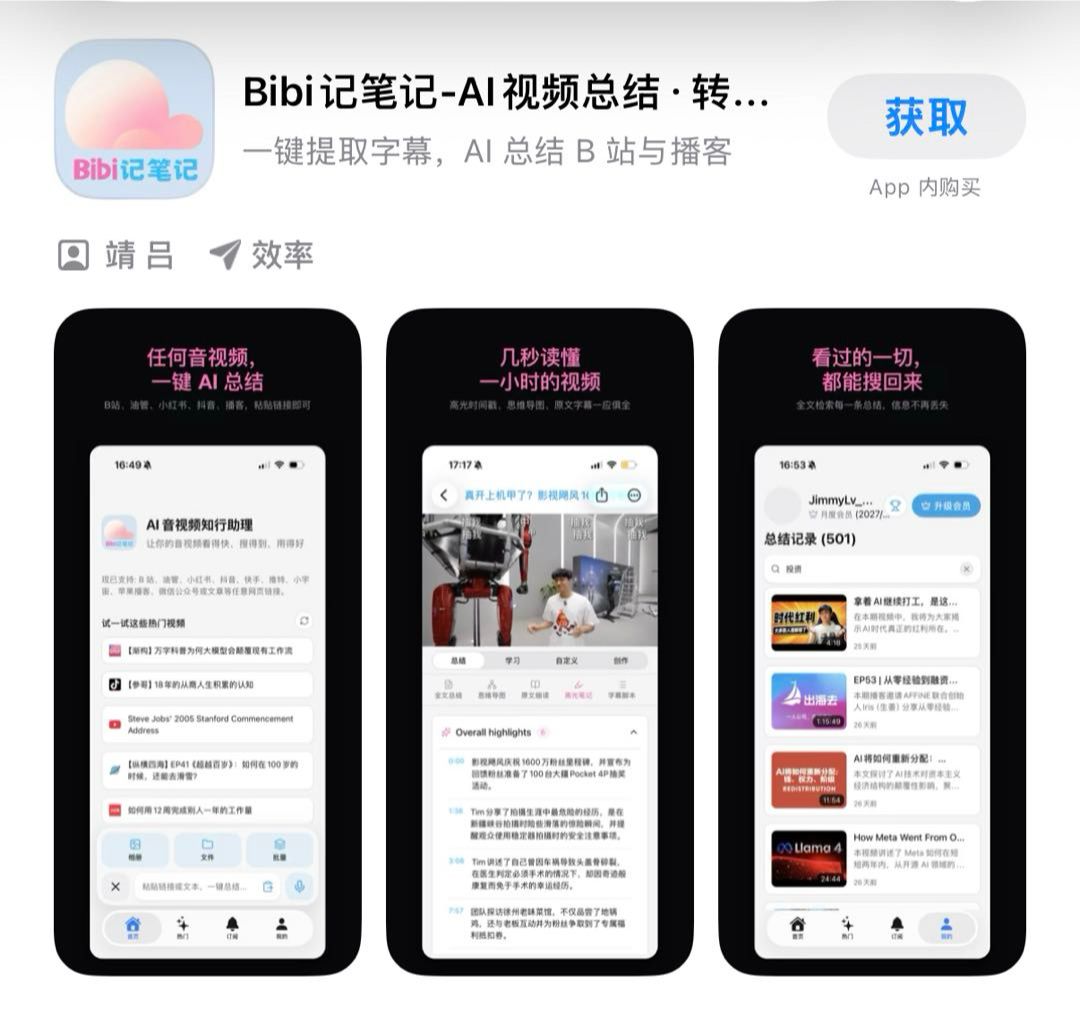
Previously, if you had an iPhone in mainland China and wanted BibiGPT, you either made do with the web version or figured out sideloading and hunted for an overseas account — a high bar and a lot of hassle. Not anymore: BibiGPT is now officially live on the China App Store, listed under the name “Bibi记笔记” — search “Bibi记笔记” or “BibiGPT” in the App Store and you’ll find it directly, free to get, no overseas account or sideloading required.
One-click subtitle extraction and AI summaries for Bilibili and podcasts are now fully available on iPhones in mainland China: paste a Bilibili / YouTube / Xiaohongshu / Douyin / podcast link and get a summary in seconds — even for an hour-long video (highlight timestamps + mind map + original transcript) — and every summary you’ve viewed is fully searchable afterward.
Screenshot: China App Store · Search “Bibi记笔记” to get it free
📱 Mobile Gets Smoother
Copy a Link, Come Back to an Automatic Prompt
For apps like Xiaohongshu and Douyin where system sharing isn’t convenient, copying the link is often your only option. Before, switching back to BibiGPT meant tapping the input field, pasting manually, then tapping summarize — enough steps that you’d sometimes just forget. Mobile now supports automatic clipboard link detection: once you grant clipboard read permission, whenever you copy a summarizable video link, coming back to the app automatically pops up a prompt card — tap “Summarize” to go straight into the summary, or tap “Dismiss” to close it if you don’t need it. It only appears when a usable link is detected, so it won’t interrupt normal browsing.
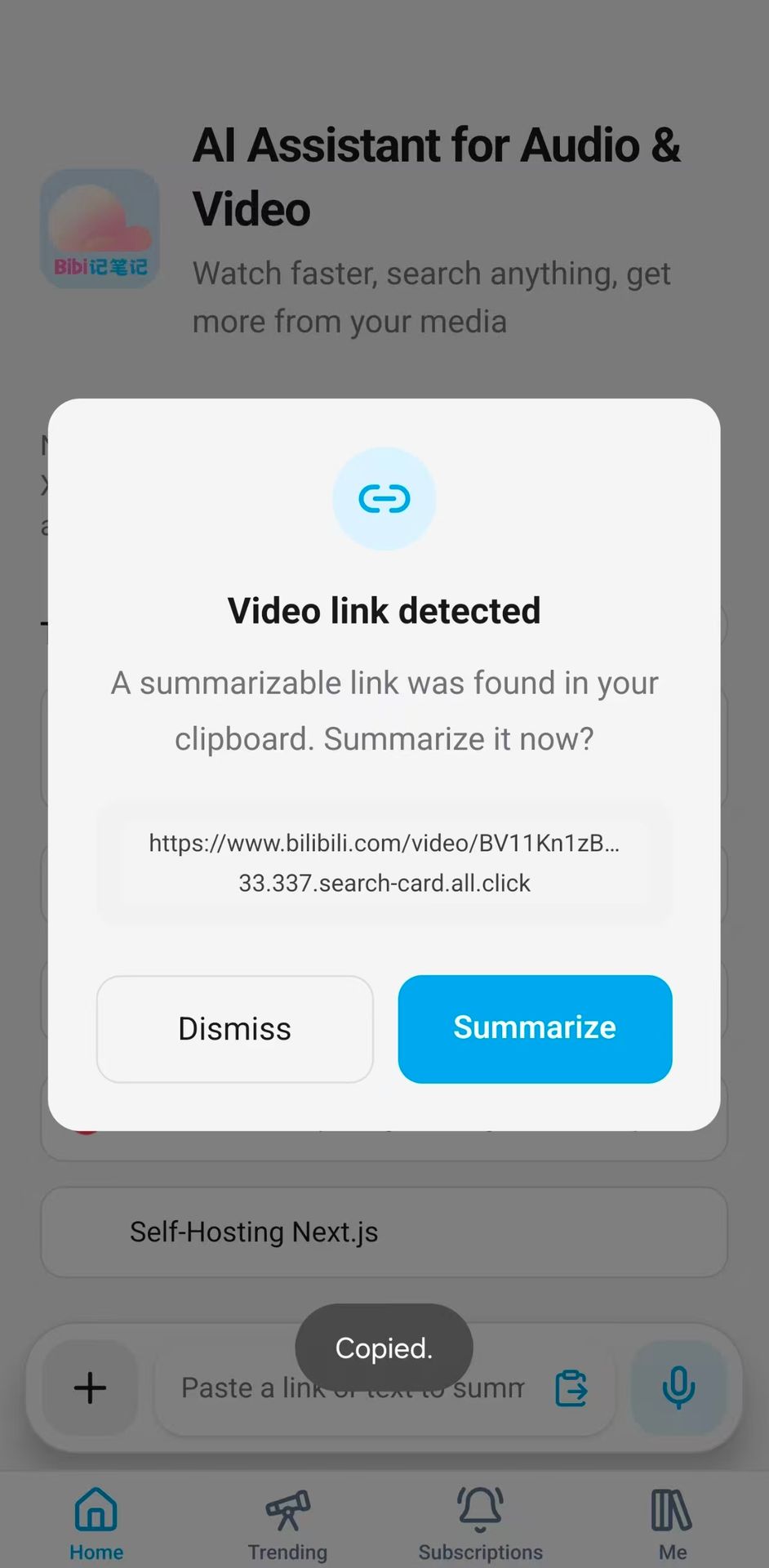
Screenshot: BibiGPT mobile · Clipboard video link detected, one-tap summarize
The mobile playback page also gained a “Description” tab (showing the same video description info as the web version), plus a subscribe button next to the author’s avatar / at the top of the channel page, making it easier to follow the creators and channels you watch regularly.
💬 Major AI Chat Upgrade
Pick Your Own Model for Every Chat
AI chat on the video detail page used to be locked to a fixed default model — no switching to a stronger one for deep digging, and no switching to a cheaper one just to ask something casually. Now there’s a “Default Model” button below the chat input box — tap it and you get the full model library: search at the top, switch to “Smart Match” and let the system auto-pick for you, or browse by provider yourself. Newly added models are marked “New,” members-only ones are marked 💎, so it’s clear at a glance.
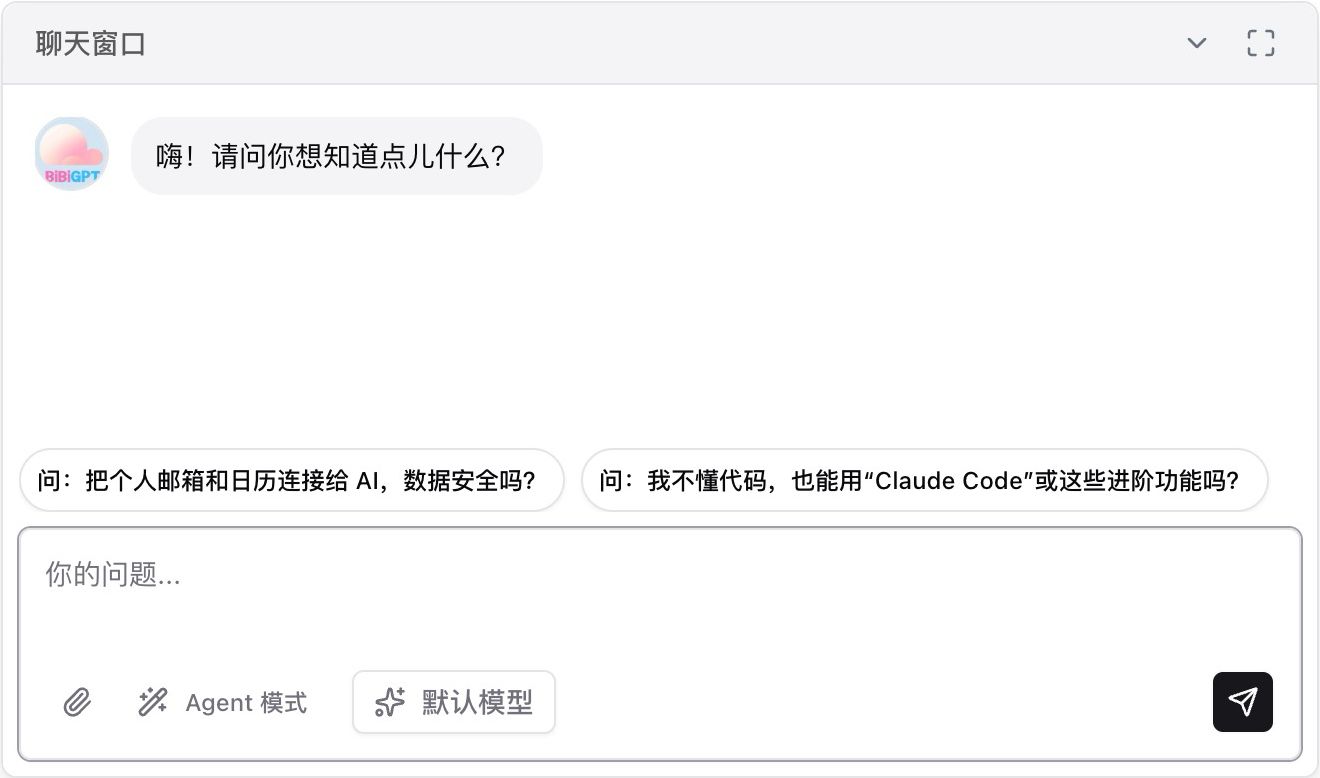
Screenshot: BibiGPT · New model selection entry point in AI chat
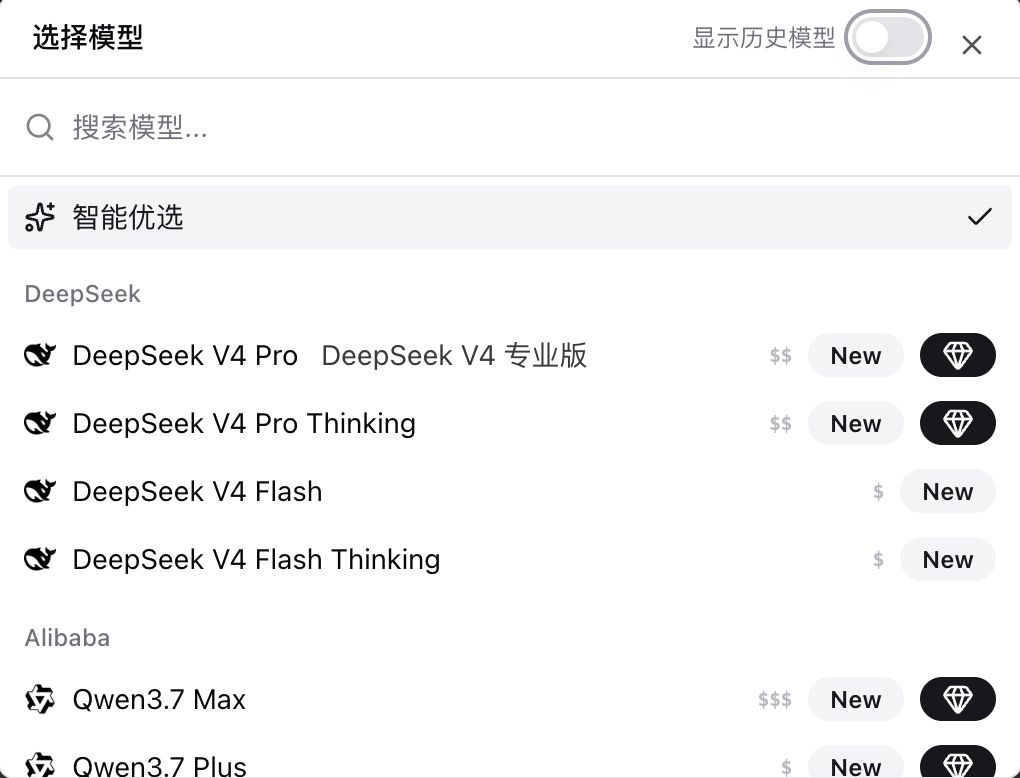
Screenshot: BibiGPT · The “Select Model” panel supports search + provider grouping + membership badges
We’ve also added a batch of new selectable models recently, such as GLM-5.2, Qwen3.7 Plus, and more; previous-generation models are now uniformly tagged “Legacy” so you can quickly spot the current recommended picks. Choose the Thinking / Pro series for deep reasoning, the Flash series for speed or cost savings, or just let “Smart Match” decide if you’re not sure.
Not Sure Which Model to Use? Let Them Compete Side by Side
When you can’t decide, the summary page now supports multi-model comparison: select up to 3 models at once in the model picker, and watch their summary results come in side by side in real time. Once you’ve compared them, pick the best one to save as your official note (the other comparison results won’t overwrite your existing notes). Comparison results can also generate a dedicated share link to send directly to others. Free users get 3 free comparison requests every 30 days (roughly equivalent to one three-model comparison), while paid members get unlimited use.
Exported Chats: Citations Are Now Clickable, Jumping Back to the Original Video
When you export your Q&A with the AI on a video into notes, the answers clearly mark citation sources like 01:57 and 02:16 — but after export, they used to be just plain gray text, and checking the original clip meant manually dragging the progress bar to hunt it down. Now, after exporting “AI Chat History,” the citation numbers and timestamps in the answers automatically turn into clickable links — tap one and jump straight to that moment in the video, verifying the source in one step. The export panel also got a tidy-up: it remembers your last-selected export scope, and “Source Info” / “Advanced Link Options” are collapsed by default, keeping the interface more focused.
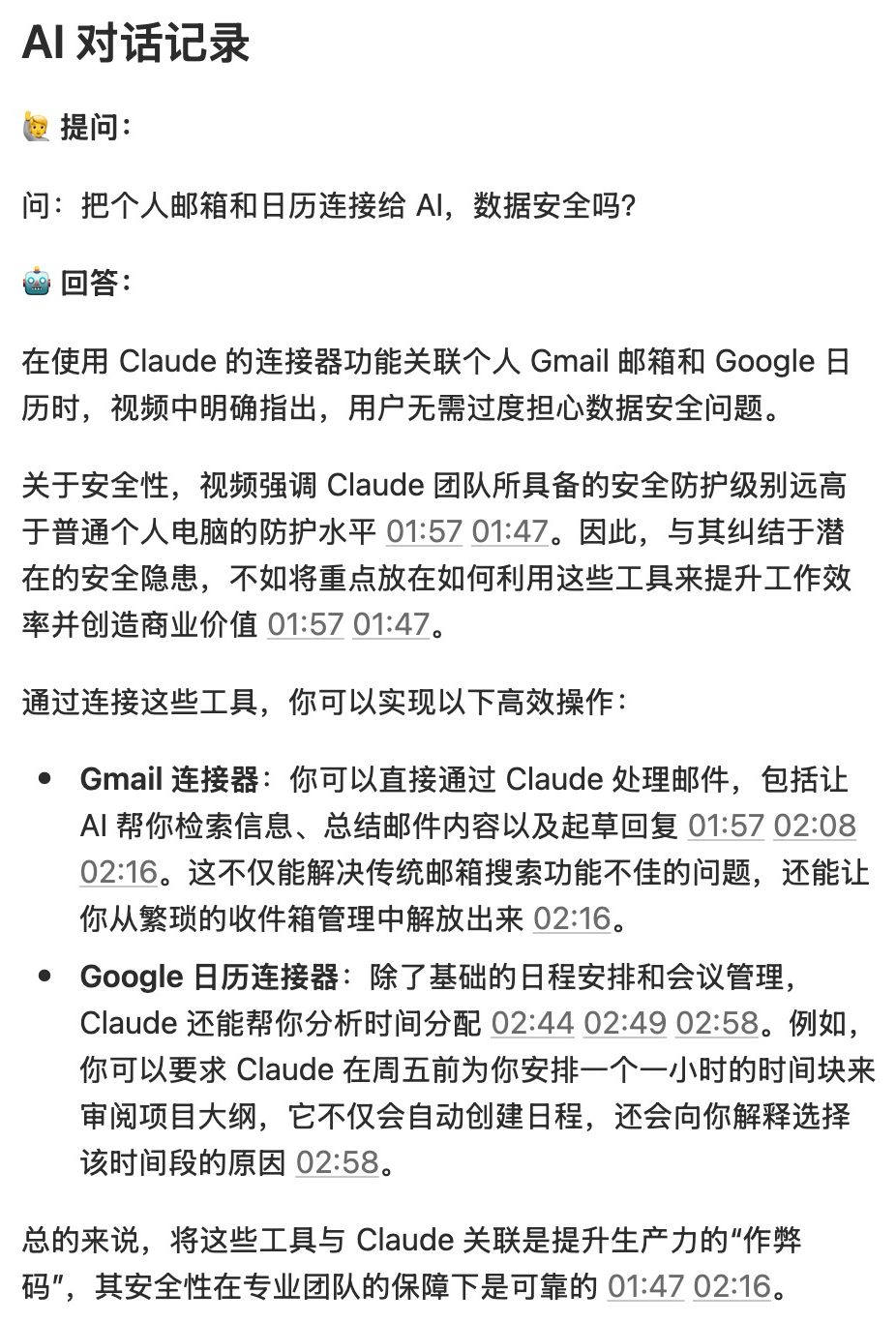
Screenshot: BibiGPT · Clickable citation timestamps in exported chats jump back to the original video
📝 Content Creation & Export
One-Click Translation for Rewritten Articles
Article rewrite results (for WeChat official accounts / Xiaohongshu-style posts, etc.) now support one-click translation: once a rewrite is done, you can translate the whole piece into a target language. In the dialog, you can choose the target language, translation prompt, and scope (full text / selected passage). After submitting, it loads paragraph by paragraph with the original and translation shown side by side, and the result is saved — no need to re-translate after refreshing the page.
Auto-Export Notes on Task Completion
Once processing finishes, results can now sync automatically to Obsidian / a local folder — no need to manually open the content page to trigger it. The homepage also got a more prominent guide to the note export entry point.
More Updates
We also polished a batch of smaller things this round — here are the ones you’re most likely to run into:
- Rename summary titles: When YouTube title recognition fails and a summary shows up as a string of video IDs, you can now manually rename it back to something readable in the video list / content page / sidebar
- Desktop notifications jump straight in: After a task finishes, clicking the system notification now brings the main window to the front and jumps straight to the corresponding summary — one less step of manual searching
- Favorites: The per-row delete button has been replaced with a unified action menu (view summary / open source / move or copy / remove), and your sort order is now remembered across refreshes
- Copying chat messages now includes clickable timestamp links, and the note editor supports pasting Markdown with automatic formatting
- A batch of stability fixes: smoother visual analysis performance, batch task refresh no longer silently drops unfinished items, occasional crashes on the video list page, occasional stale subtitles returned on re-transcription, chapter summary expand/collapse, and more
Summary
To sum it up in one line: BibiGPT is now on the China App Store — just search “Bibi记笔记” on any iPhone in mainland China to use it for free; the AI chat line also got a full upgrade — freely pick your model, compare multiple models to find the best one, and click citations in exports to jump back. On top of that: clipboard link detection on mobile, one-click translation for rewritten articles, and a round of experience polish.
Spend compute, not brainpower — make audio and video fast to watch, easy to search, and ready to use.
Got feedback or a bug? Leave us a message on our WeChat official account 魔法司.
- 📱 China App Store download: Open the App Store and search “Bibi记笔记” to get it free
- 🌐 Website: bibigpt.co
- ✨ Explore more features: bibigpt.co/features
- 💻 Desktop download: bibigpt.co/download/desktop
- 📱 Mobile download: bibigpt.co/app
BibiGPT Team
Popular tools