How to Search Inside a Video: 4 Ways to Pinpoint Any Moment (2026)
How to Search Inside a Video: 4 Ways to Pinpoint Any Moment (2026)
You remember a guest said something crucial in a podcast, or a teacher mentioned a formula in an online lecture — but the video runs over an hour, and all you can do is drag the scrubber back and forth, guessing the minute from a foggy memory. Something a single Ctrl+F solves in a text document takes ten-plus minutes of blind hunting in a video.
The problem isn’t your memory; it’s that video is inherently unsearchable. Text is a string of indexable characters, while video is a timeline you have to play linearly to know its content. The good news: in 2026, turning video into a “searchable document” has several mature paths. This guide lays them all out and tells you which scenario each fits.
1. Why “searching inside video” is so hard, and so worth solving
An hour of video can pack as much information as a few dozen pages of a book, but you can’t skim it like a book. To find one line, the traditional approach offers only two options: drag the scrubber from memory, or fast-forward through from the start. Both are extremely inefficient.
According to ScreenApp’s video search guide, once a video is turned into a searchable index, you can type a keyword just like in a document, see every occurrence with timestamps, and click to jump straight there — exactly the core idea of pulling “video” up to the same searchability as text.
Practical rule: Don’t find a line in a video with “memory + scrubber dragging” — turn the video into searchable text first, then use search to pinpoint it.
The demo below walks through the full flow of “turning video into searchable text” — watch it once to build intuition:
Source: YouTube · AI video learning and retrieval demo
2. Method 1: Subtitle / transcript-based keyword search
The most mature and common path: turn the video’s speech into timestamped text first, then run keyword search over the text.
How it works
- Turn the video into timestamped transcript text
- Type a keyword into the transcript
- See every match and its timestamp
- Click the timestamp and the video jumps to that second
When to use it
- You’re looking for “a word that was spoken” (a guest’s name, a term, a number)
- The video is mostly dialogue / explanation, where on-screen visuals don’t matter
- You want second-level precision
The shot below is BibiGPT’s global search entry, so you know where to open the search box:
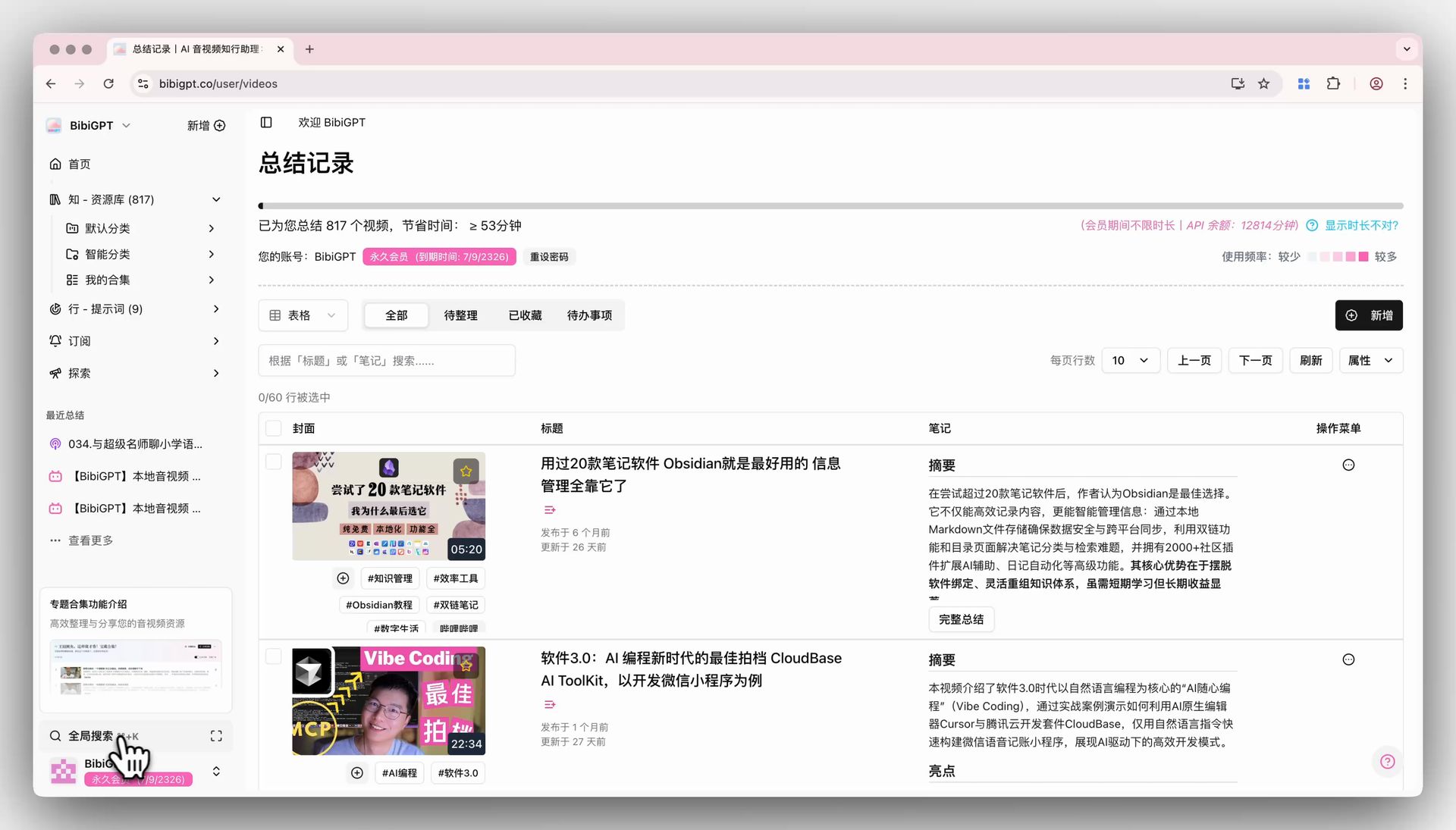
Screenshot: BibiGPT · global search entry demo
This path has a clear limit too: if the content you want to search appears only on screen (an image, a line of code) and no one says it aloud, pure subtitle search can’t catch it.
Practical rule: For content that “was spoken,” subtitle search is fastest; for content that only appears on screen, switch to semantic / visual search.
3. Method 2: Natural-language / semantic search
Subtitle search requires you to remember “the exact word.” But often you only remember “roughly what was said,” not the original phrasing. Semantic search is built for this — you describe it in your own words and the AI finds the closest-meaning segment.
According to WayinVideo’s AI video retrieval tool, you can paste a link or upload a file, then describe in natural language the scene, action, object, or even emotion you remember, and the AI jumps to the closest timestamp.
How it works
- Upload a video or paste a link and let the system finish processing
- Describe what you’re looking for in one sentence (no exact wording needed)
- The AI returns the closest-meaning moments
- Open each to confirm
When to use it
- You only remember the meaning, not the exact wording
- The content is abstract and keywords are hard to pin down
- You’re fine with “closest” rather than “exact match”
4. Method 3: BibiGPT’s deep search — locate across an entire video library
The first two methods solve “finding within one video.” But if you’ve summarized hundreds of videos, the problem upgrades to “I remember a word was said in some video, but I don’t remember which one.” BibiGPT’s global search + deep search is built for this scenario.
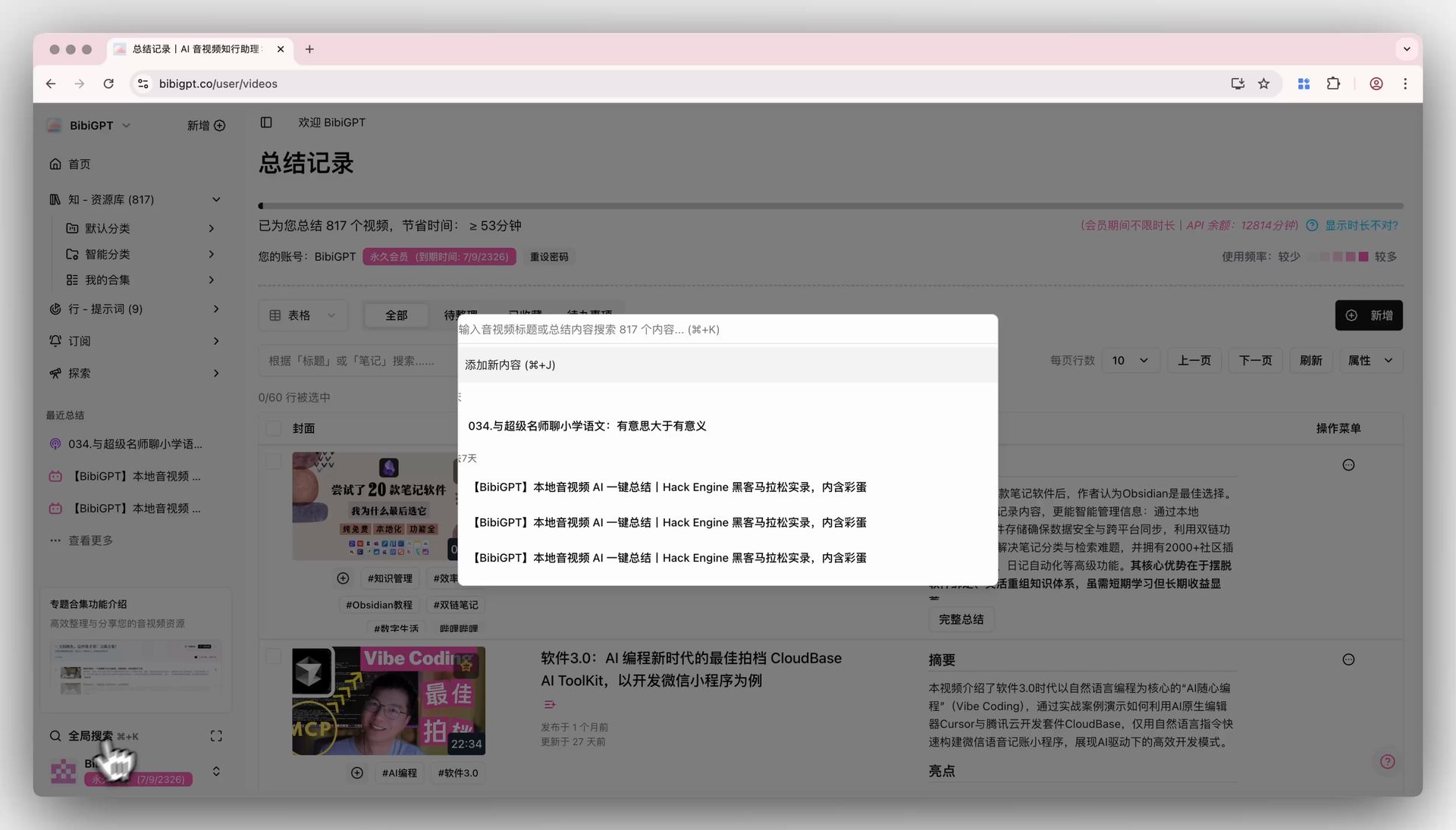
Regular global search matches the video’s title and AI summary. But sometimes the AI summary happens to not include the word you’re searching, so the search fails. Then you flip on the “deep search” toggle, and the system searches the video’s full subtitle text instead — pinpointing that video even if the keyword never appeared in the title or summary.
The shot below is the deep search results display, so you know what a search turns up:
Screenshot: BibiGPT · global search feature demo
You can first paste a video into BibiGPT to turn it into a searchable summary, after which it enters your searchable video library. The interactive demo below lets you experience the “paste a link → get readable key points” process directly:
Summarize any video in seconds
Pick a sample below to see the AI summary — TL;DR, key points, and jump-to timestamps.
TL;DR: Karpathy builds a GPT-style language model from scratch in code, explaining every piece — from a tiny character-level model up to the full Transformer.
Key points
- Start with a bigram model, then add self-attention so tokens can "talk" to each other
- A Transformer block = multi-head attention + feed-forward + residual connections + layer norm
- Training is just predicting the next token; scale and data do the rest
- The same architecture behind nanoGPT is what scales up to ChatGPT
Jump to
- 00:07 Why build GPT from scratch
- 08:23 Self-attention, intuitively
- 1:00:00 Assembling the Transformer block
- 1:35:00 From nanoGPT to ChatGPT
Demo: BibiGPT video summary feature
When to use it
- You have lots of summarized videos and need to find content across the library
- The word you’re searching isn’t in the AI summary
- You need full-text retrieval from title to complete subtitles
Practical rule: For finding within one video, use subtitle search; for finding across a whole library, use deep search — the latter searches the full subtitles, not just the summary.
5. Method 4: Ask the video directly and let the AI locate it
There’s an even more effortless path: instead of thinking up keywords yourself, just ask the video a question. You throw the question at the AI, and it finds the answer in the video content with the source moment attached.
The interactive demo below lets you experience asking a video a follow-up and getting a sourced answer:
Ask the video a question
Watched it but still unsure? Ask follow-ups and get answers grounded in the transcript.
Tap a question:
Demo: BibiGPT AI follow-up feature
How the four methods compare
| Method | Best for | Precision | Handles on-screen content |
|---|---|---|---|
| Subtitle keyword search | Finding spoken words | Second-level | No |
| Semantic search | Only remember the gist | Approximate | Partial |
| Deep search (cross-library) | Finding across many videos | Second-level | No |
| Ask the video | Want the answer directly | With source moment | Partial |
Decision filter: Ask yourself first — are you finding within one video, or across a stack of them? The former uses subtitle / semantic, the latter uses deep search.
According to Choppity’s clip-retrieval feature, more and more tools bring “keyword search” to the whole video, making video indexable like a document — the shared direction of 2026 video retrieval.
6. From “can’t find it” to “pinpoint in seconds”: a workflow you can actually run
Models are no longer scarce; whether you can find that one line in seconds inside hours of video is where the real efficiency gap opens up. Break it into 5 steps:
- Paste the video you need to search into BibiGPT, get a timestamped summary
- Finding within one video — use a keyword in the subtitles, click the timestamp to jump
- Finding across many videos — turn on deep search and search the full subtitles
- Can’t remember the exact words — ask the video a question directly, get a sourced answer
- Organize frequently-searched content into a collection for long-term reuse
People who really use video don’t just “finish watching” a clip — they turn it into material they can search, jump through, and question anytime. Pull video up to the same searchability as text and you’ll never drag the scrubber for ten minutes to find a line again.
Try it now
Next time you hit “I remember it was in the video but can’t find it,” paste that video into BibiGPT first — in minutes it becomes a searchable summary.
Turn video into a searchable summary for free
BibiGPT Team