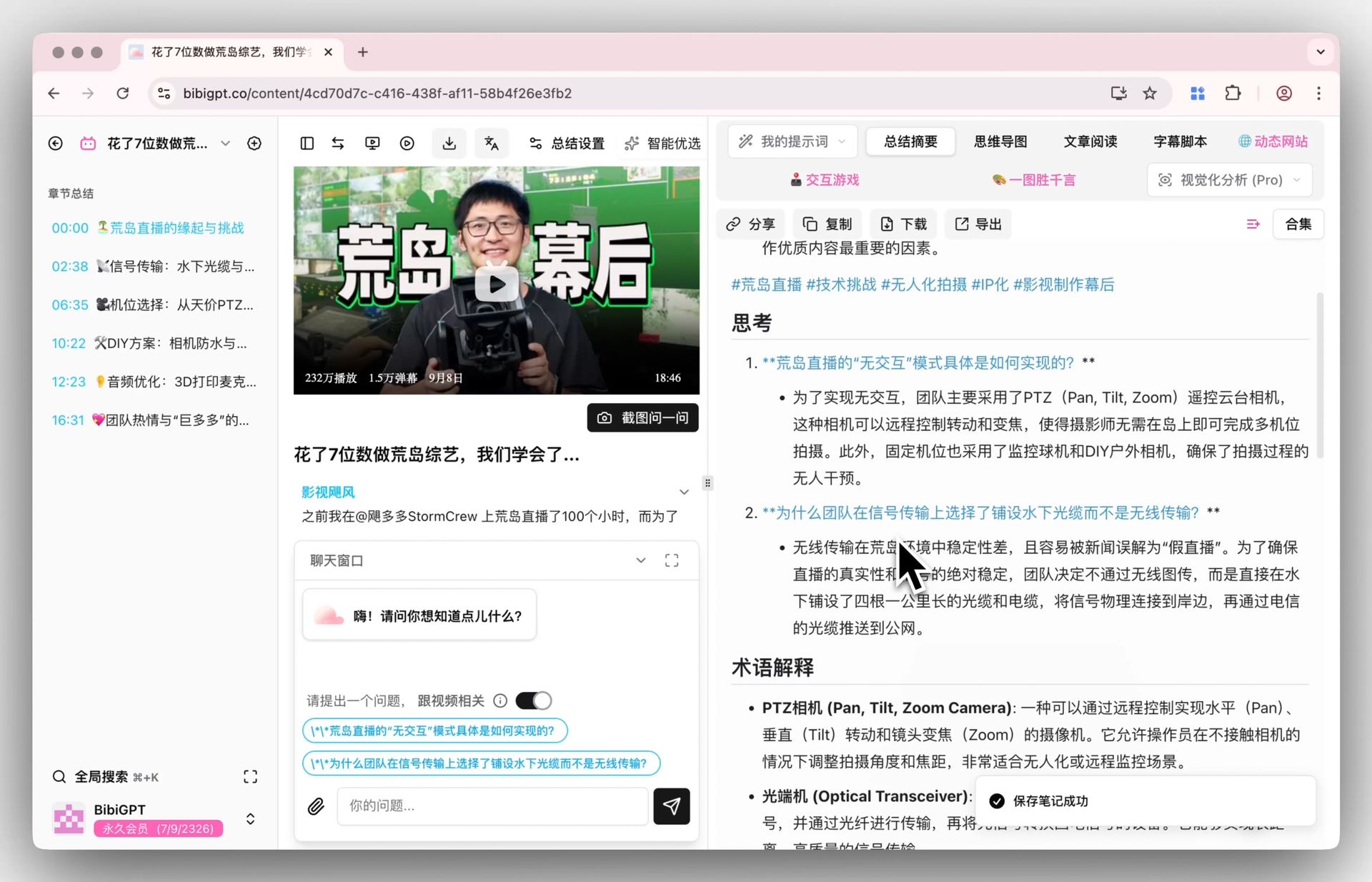
How to Summarize YouTube Videos with AI in 2026 (3 Methods Compared + BibiGPT Workflow)
How to Summarize YouTube Videos with AI in 2026 (3 Methods Compared + BibiGPT Workflow)
You open YouTube. You see a 45-minute interview, a two-hour podcast, a long engineering talk in your subscriptions. You already know: you don’t have that kind of time block. And the channels you follow will only grow. Can AI watch it for you? Yes—but only if you pick the right tool and copy the right workflow.
This guide skips the fluff. It walks through three concrete paths—web app, Chrome extension, desktop app—with screenshots, and ends with a five-step BibiGPT workflow you can run today.
Why summarizing YouTube videos with AI is worth doing right
People watch about 19 hours of YouTube per week (Datareportal 2025 global digital report). A lot of that is “I should have skipped this,” “I should have run it at 1.5x,” “I should have taken notes.” AI summary automates the “should have” steps so your attention goes only to videos that deserve full focus.
Practical rule: Video is a linear medium; text is skimmable, searchable, paste-able. If you can convert, you should.
YouTube is internally testing Ask AI guided search (TechCrunch coverage, April 2026), but it’s only US Premium today. Until it ships globally, third-party tools are the only option for most regions.
Method A: Web tool (paste a URL and go)
The lowest-friction path: open a web page, paste a YouTube link, wait 10 seconds.
When it fits
- Occasional one-off summaries
- Locked-down work laptop with no install permissions
- Mobile browser, on the go
How to do it
- Open BibiGPT web
- Copy the YouTube URL
- Paste it into the input field and press Enter
- Wait 10–30 seconds (depends on video length)
- Get a structured deep summary: core summary, highlights, thinking questions, glossary
Practical rule: Occasional use? The web tool is enough. Heavy use? Upgrade to one of the next two paths.
Strengths and limits
- Strengths: zero install, works on any device, outputs in 4 languages (zh/en/ja/ko)
- Limits: always a new tab, no in-place use on the YouTube player
Method B: Chrome extension (in-place on YouTube)
Path two: embed the AI summary right next to the YouTube player so summarization is one click from any video page.
When it fits
- 3+ YouTube videos a day
- You want to decide “is this worth watching to the end” before committing
- Heavy browser user, hates window switching
How to do it
- Search “BibiGPT” in the Chrome Web Store, or visit the browser extension page
- Click “Add to Chrome”
- Open any YouTube video
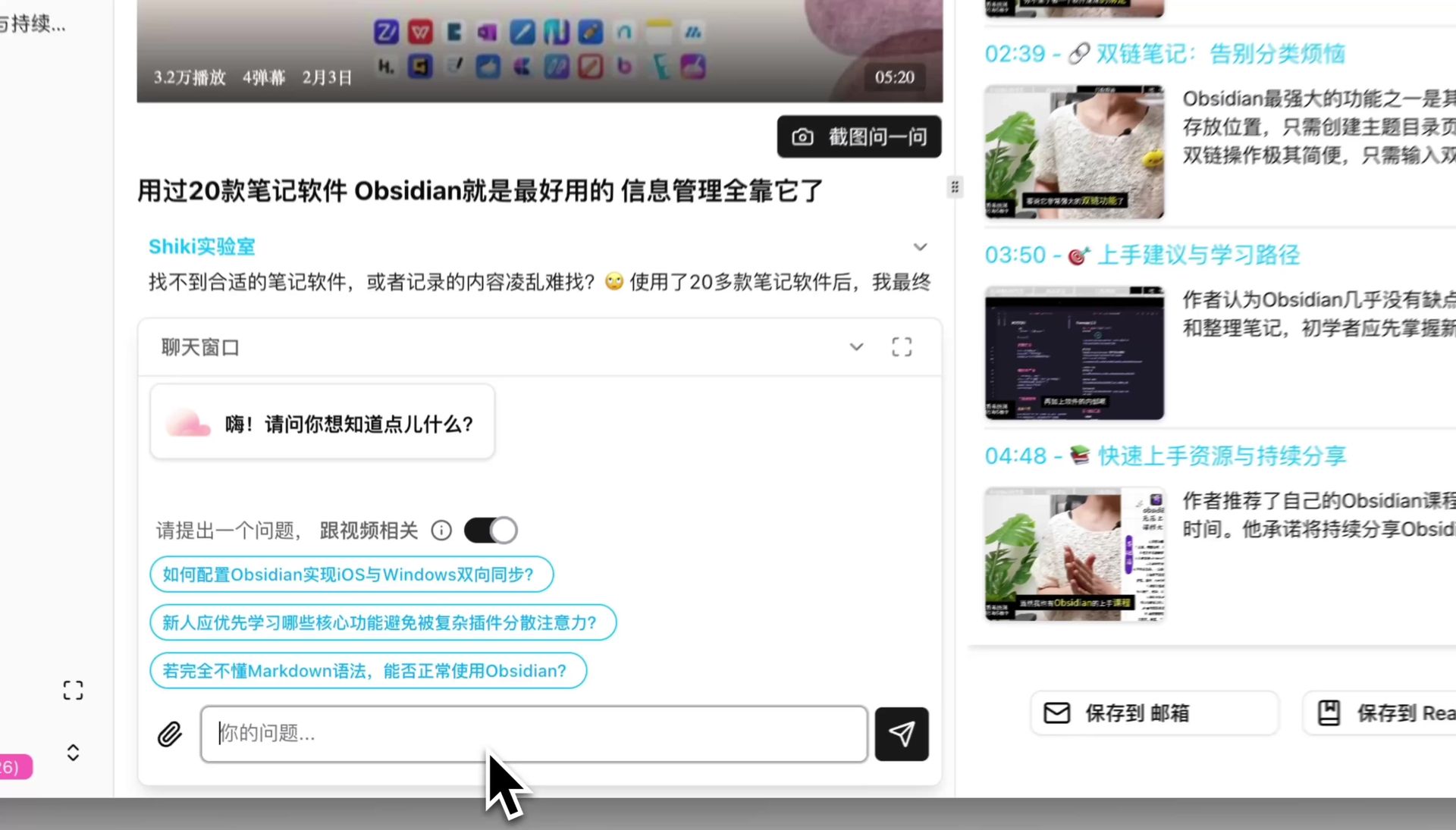
- Click the BibiGPT icon in the toolbar, or use the embedded summary button next to the player
- 10 seconds later, you have the summary
Strengths and limits
- Strengths: never leave YouTube, zero friction, also works on Edge and Firefox
- Limits: YouTube-only; batch processing is awkward
Practical rule: The Chrome extension is the best shape for “deep on one video.” For “synthesize across many,” switch to the desktop or web app.
Demo reference
A typical AI summary demo on YouTube:
https://www.youtube.com/embed/dQw4w9WgXcQ
Method C: Desktop app (macOS / Windows—batch + local files)
Path three: download the native desktop app—YouTube videos, local files, batch jobs, and auto-sync all in one place.
When it fits
- 10+ summaries a day
- Batch-process an entire channel or playlist
- Local video files (lecture recordings, downloaded interviews)
- Auto-sync into Notion / Obsidian / Logseq
How to do it
- Open BibiGPT desktop download page
- Pick macOS or Windows
- Install and sign in
- Paste a YouTube URL or drag a local file in
- Choose “sync to Notion,” “export Markdown,” or “export Anki”
Strengths and limits
- Strengths: batch processing, local files, folder monitoring, deep note-tool integration
- Limits: needs install, occupies disk space
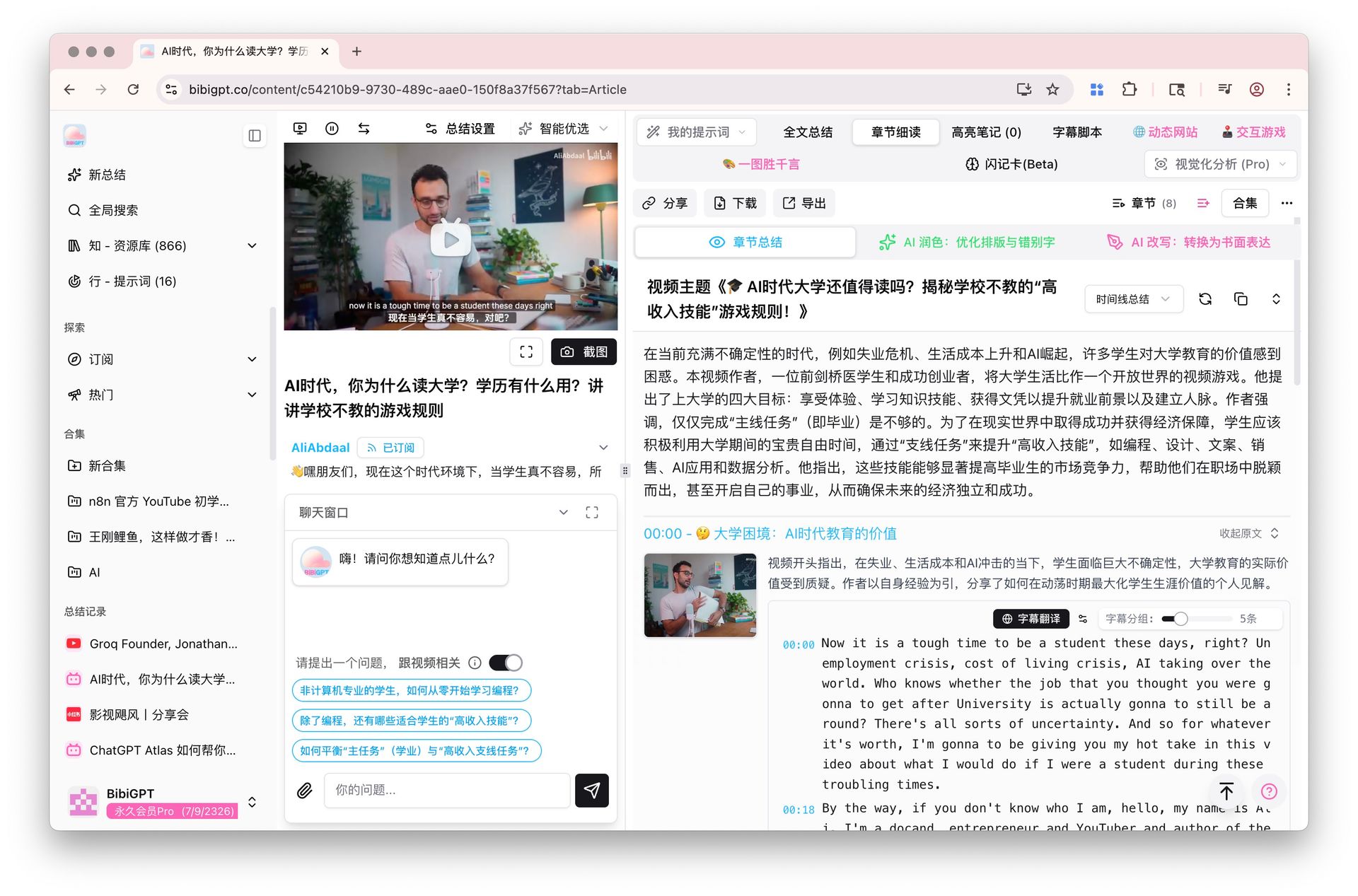
Choosing among the three
| Dimension | Web tool | Chrome extension | Desktop app |
|---|---|---|---|
| Install friction | None | Add extension | Download + install |
| Frequency fit | Occasional | Medium | Heavy |
| Sources | YouTube + 30+ platforms | YouTube-focused | YouTube + local + 30+ |
| Batch | Single video | Single video | Batch + folder watch |
| Note integration | Copy/paste | One-click export | Auto-sync |
| Best fit | Students, occasional users | Creators, researchers | Power users, content workers |
Decision filter: 20+ YouTube videos per month? → Desktop. 10–20? → Chrome extension. ≤10? → Web tool.
The BibiGPT workflow: from URL to knowledge asset (five steps)
The core workflow is shared across all three paths. You don’t have to memorize three apps—just memorize five steps.
- Paste URL, get the summary: 10–30 seconds for a structured deep summary—core summary, highlights, thinking questions, glossary
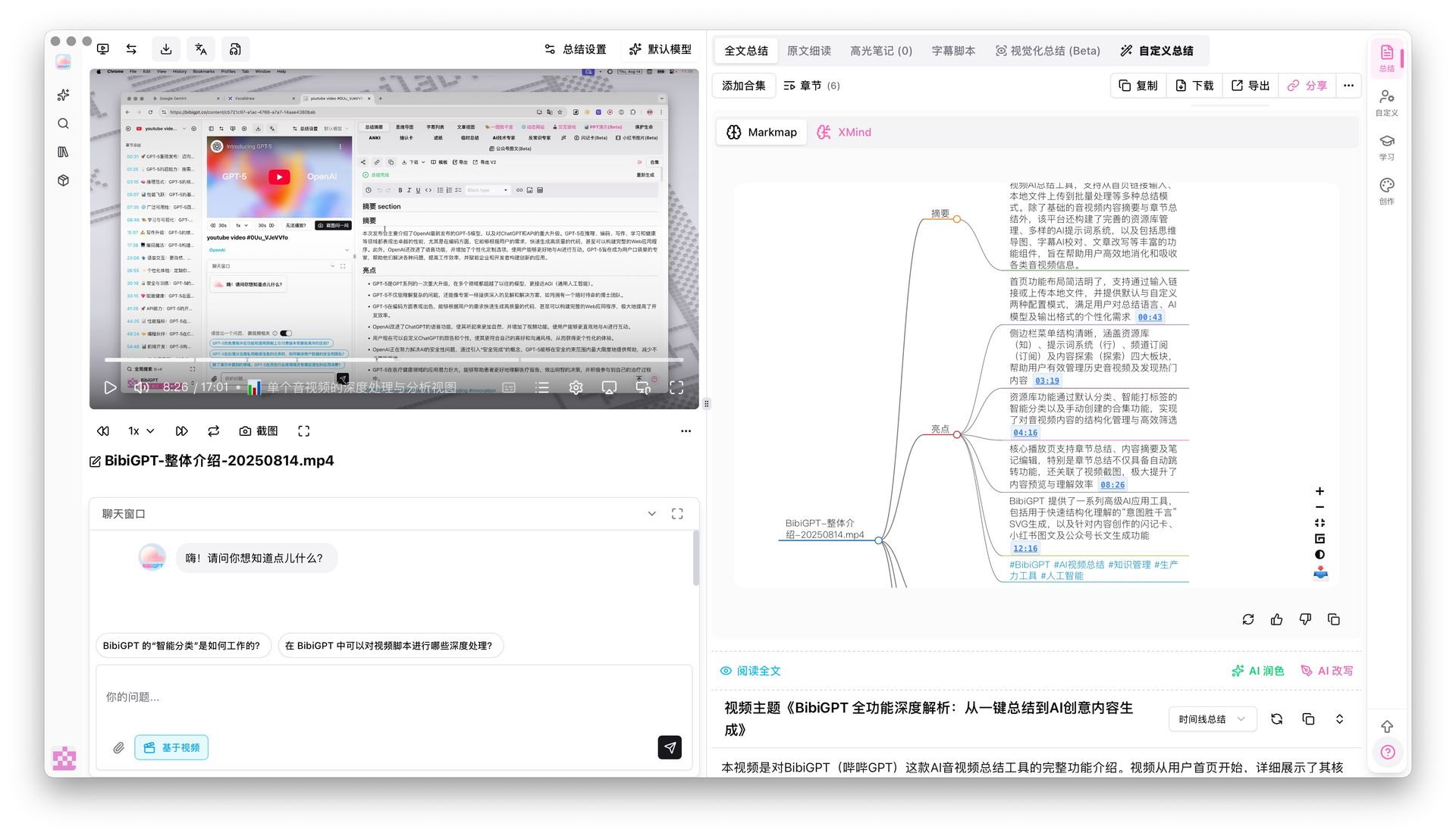
- Switch to the mindmap: the Markmap mindmap view renders the video’s logical hierarchy; every node is a clickable timestamp
- Use AI chat to fill gaps: when something is unclear, ask in the chat window; answers come with clickable timestamps for verification
- Lock it down as an asset: export Markdown to Notion / Obsidian / Logseq, or push flashcards to Anki for spaced repetition
- Cross-video search: group videos into a collection and let the AI synthesize across the whole set
Buzzsprout’s 2026 content-consumer survey found learners using structured notes + spaced repetition retain 4.2x more than passive viewers. That’s the real leverage in step 4.
Advanced: how to squeeze a video dry
If you’re willing to go two steps further than 80% of viewers, these moves maximize a single YouTube video.
Step one: read the summary first, then decide whether to watch
Not every video deserves 45 minutes. Read the BibiGPT summary, take 30 seconds, decide if scrubbing to the end is worth the cost. The minutes you save buy you 10 more useful videos.
Step two: self-test with the thinking questions
The smart deep summary attaches 3–5 thinking questions (Smart Deep Summary details). Try answering them without peeking at the summary—the parts you get right are truly yours; the parts you can’t are your real starting point.
Step three: bind notes to the original video timeline
With mindmap timestamp jump, every note stays tied to the source video. Two months later, clicking a node takes you back to the exact explanation—something a plain text note can’t do.
Practical rule: Making your notes “clickable back to the source” is the switch that turns short-term understanding into long-term assets.
FAQ
Q: What’s free vs paid?
The free tier runs the whole five-step workflow: paste URL, get structured deep summary, mindmap, basic AI chat, Markdown export. Plus / Pro unlocks heavy use—longer videos, premium AI models, batch collection analytics, auto-sync to Notion. For 1–3 videos a day, free is more than enough.
Q: Can I summarize a YouTube livestream?
Past livestreams archived as regular videos: yes. In-progress livestreams: process after the stream ends.
Q: Which platforms besides YouTube are supported?
BibiGPT covers 30+ platforms, including Bilibili, Douyin, TikTok, Xiaohongshu, Apple Podcasts, Spotify podcasts, Vimeo, and local files.
Q: How does this pair with YouTube’s native Ask AI?
See our YouTube Ask AI vs BibiGPT deep dive. Short version: YouTube Ask AI for “while watching,” BibiGPT for “after watching, for output.”
Q: Can I batch-process an entire YouTube channel?
Yes. The desktop app accepts a whole channel URL and processes the queue automatically; results can be exported in bulk. Researchers and consultants live in this mode.
Closing: the time to start is today
You don’t have to learn the full workflow in one sitting. Open a YouTube video today, paste it into BibiGPT, and see what comes back. If 30 seconds later you understand the video better than before, the next step makes itself: do this to every other channel you follow.
Further reading:
- YouTube AI video summary: BibiGPT + Feynman technique
- Best YouTube Video Summarizer 2026
- Best YouTube AI Summarizer Chrome Extensions
Start your AI efficient learning journey now:
- 🌐 Official Website: https://aitodo.co
- 📱 Mobile Download: https://aitodo.co/app
- 💻 Desktop Download: https://aitodo.co/download/desktop
- ✨ Learn More Features: https://aitodo.co/features
—— BibiGPT Team