BibiGPT v4.413 Update: Member AI Credits Monthly Quota, Xiaoyuzhou Podcast Sidebar Entry, macOS Zero-Download Private Transcription
BibiGPT v4.413 Update: Member AI Credits Monthly Quota, Xiaoyuzhou Podcast Sidebar Entry, macOS Zero-Download Private Transcription
Three things in v4.413: the AI credits monthly quota, a dedicated Xiaoyuzhou Podcast sidebar entry, and macOS zero-download private transcription. We’d like to be upfront about the first one before diving in — below, in Use / Watch / Find order.
🛠️ Better to Use
Member AI Credits Monthly Quota: a quick word first, on what’s been hard
Honestly, this one we didn’t really want to ship. Over the past year BibiGPT has shipped AI rewriting, visual summaries, visual follow-up chat, keyframe analysis, Xiaoyuzhou podcasts, Xiaohongshu image generation, WeChat article generation, image-to-short-video, and more. The feature surface keeps growing, and every one of those outputs costs real AI compute on the backend — compute that isn’t free for us either.
What’s been harder lately is this: a handful of accounts have been burning through “custom summaries”, “visual follow-up chat” and “image-to-short-video” at extreme rates — a single account in a single day can consume as much as several hundred regular users combined, repeatedly destabilising the whole server. If you’ve noticed flaky access recently, this is the root cause — a small number of extreme cases dragging down the experience for everyone else.
We really didn’t want to change the rules for the sake of a few outliers. But without any ceiling on this kind of usage, normal “watch a video, generate a summary” flows kept getting pushed aside — and that’s not something we could keep ignoring. So this release, we had to put a ceiling on the extreme cases. Regular users will basically never hit this line — just keep using BibiGPT as normal.
Alongside this, we also shipped a full server upgrade late over the weekend and added handling for these extreme usage patterns — responsiveness is up, and peak-hour stability is noticeably better. We hope you can feel it.
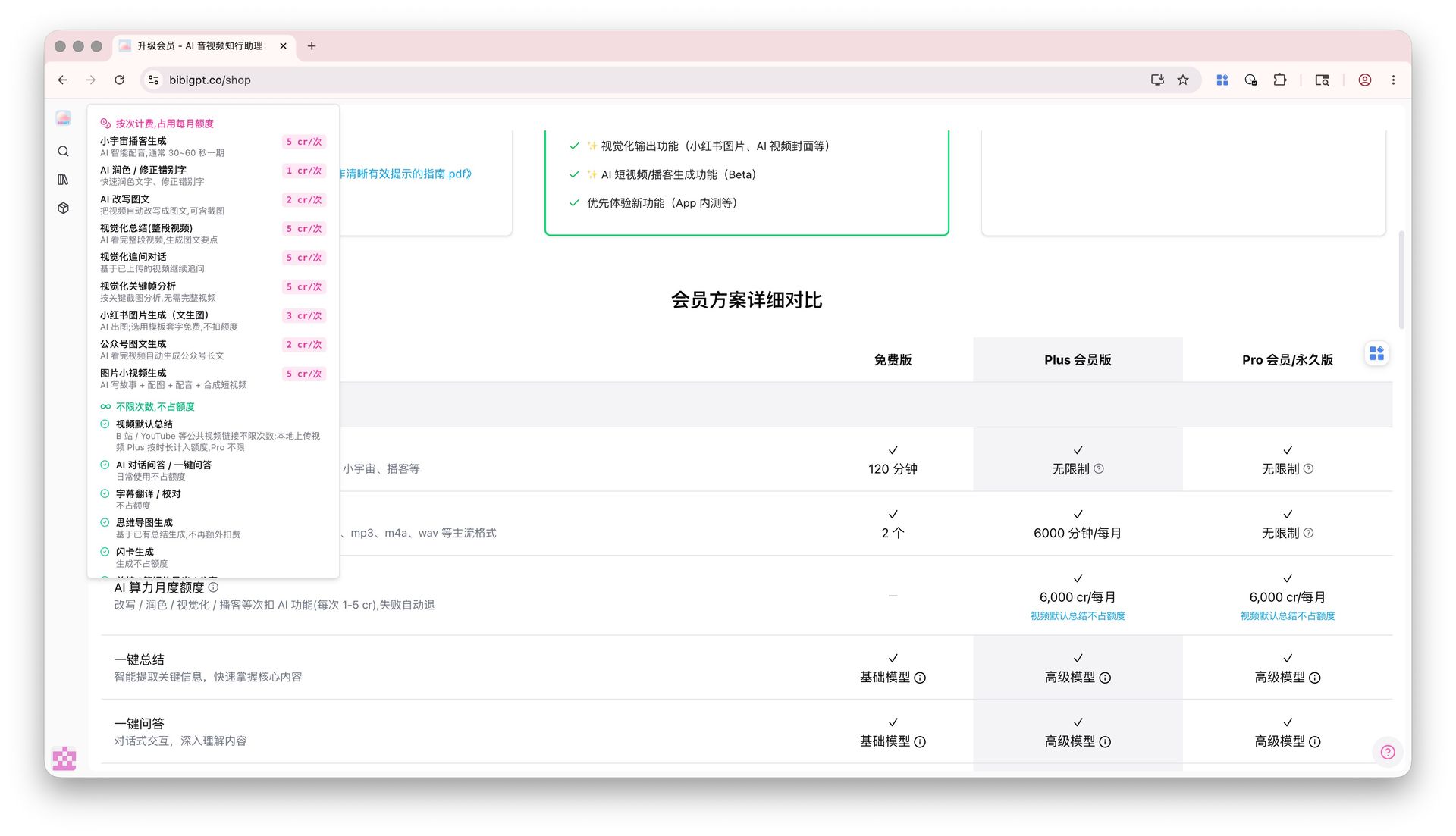
Here are the full member credits rules as they stand now:
Plus/Pro members receive 6,000 cr of monthly AI compute, auto-refilled after 30 days, dedicated to the per-action AI features. The full rule set lives at the top of bibigpt.co/shop in the “Billing rules & unlimited features” section — a single source aligned across FAQ and the membership comparison table.

Per-action features (1–5 cr each):
- Xiaoyuzhou podcast generation (AI dual-host, 30–60s/episode): 5 cr
- AI polish / typo correction: 1 cr
- AI article rewrite (video → article with screenshots): 2 cr
- Visual summary — full-length video: 5 cr
- Visual follow-up chat: 5 cr
- Visual keyframe analysis: 5 cr
- Xiaohongshu image generation — text-to-image (template overlays are free): 3 cr
- WeChat article generation: 2 cr
- Image-to-short-video (AI scriptwriting + images + voice-over + assembly): 5 cr
Unlimited, quota-free features (keep using freely):
- Default video summarization — public links (Bilibili / YouTube / etc.) are unlimited; local uploads are time-metered on Plus, unlimited on Pro
- AI chat / one-tap Q&A
- Subtitle translation / proofreading
- Mind maps (derived from existing summaries — no extra charge)
- Flashcard generation
- Summary / note export & sharing
Tier-by-tier quotas are spelled out in the “Membership comparison” table on /shop:
To make every charge fully visible, the top-right corner of every video summary page now has a credits popover — hover to see your current balance, this month’s Pro quota burn (X / 6000), and when the next +1 cr is coming. It also exposes a “Confirm before charge” toggle — once on, every chargeable action pops up a confirmation telling you exactly what this run will cost:
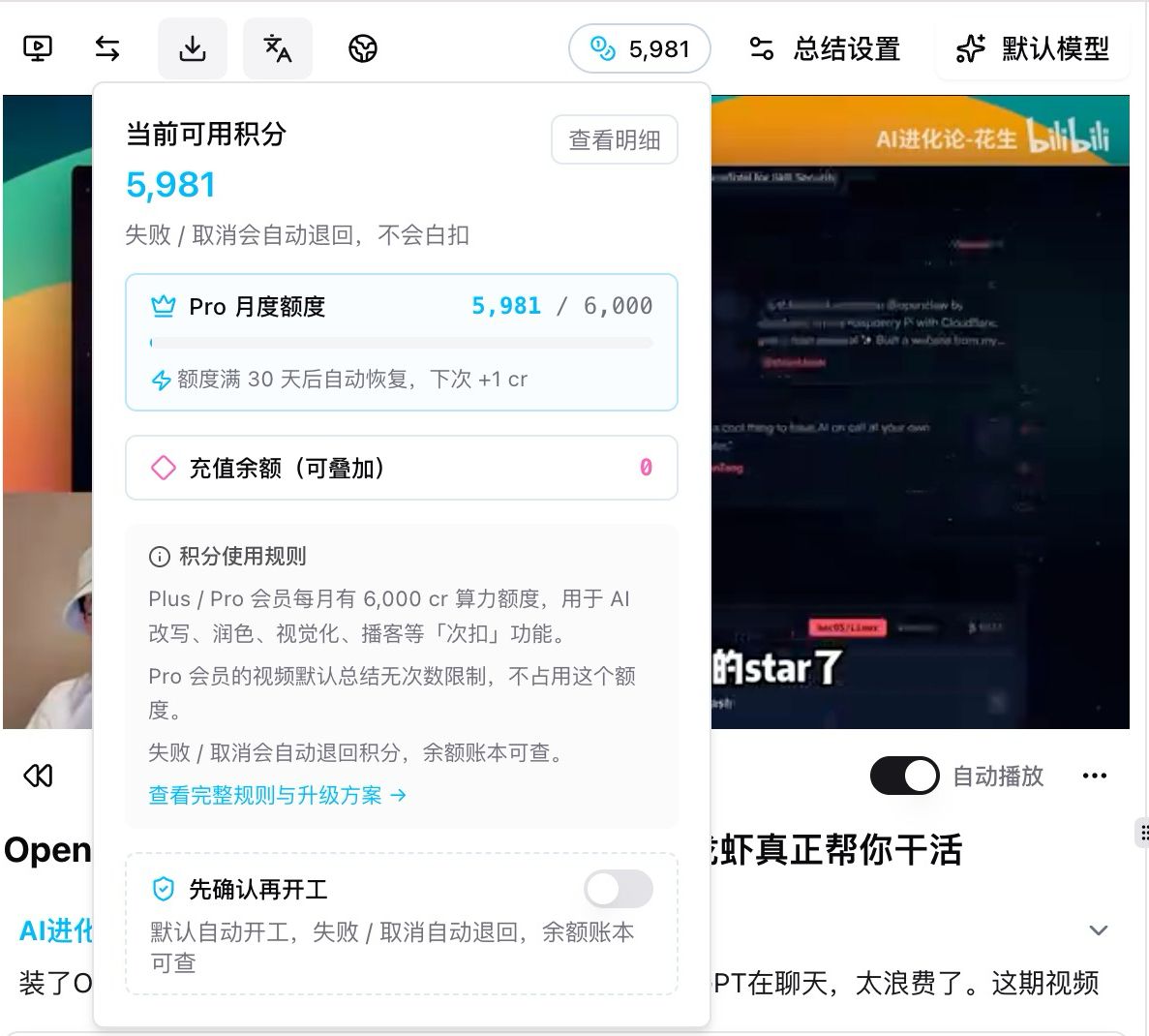
Worried about silent deductions? The rule is simple: every failed or cancelled action refunds credits automatically — and the full ledger is queryable at bibigpt.co/user/usage with every debit and refund line.
Configurable Desktop Download / Export Folders
The desktop client’s “About” panel used to let you change only the cache directory. This release opens up download folder and export folder as well:
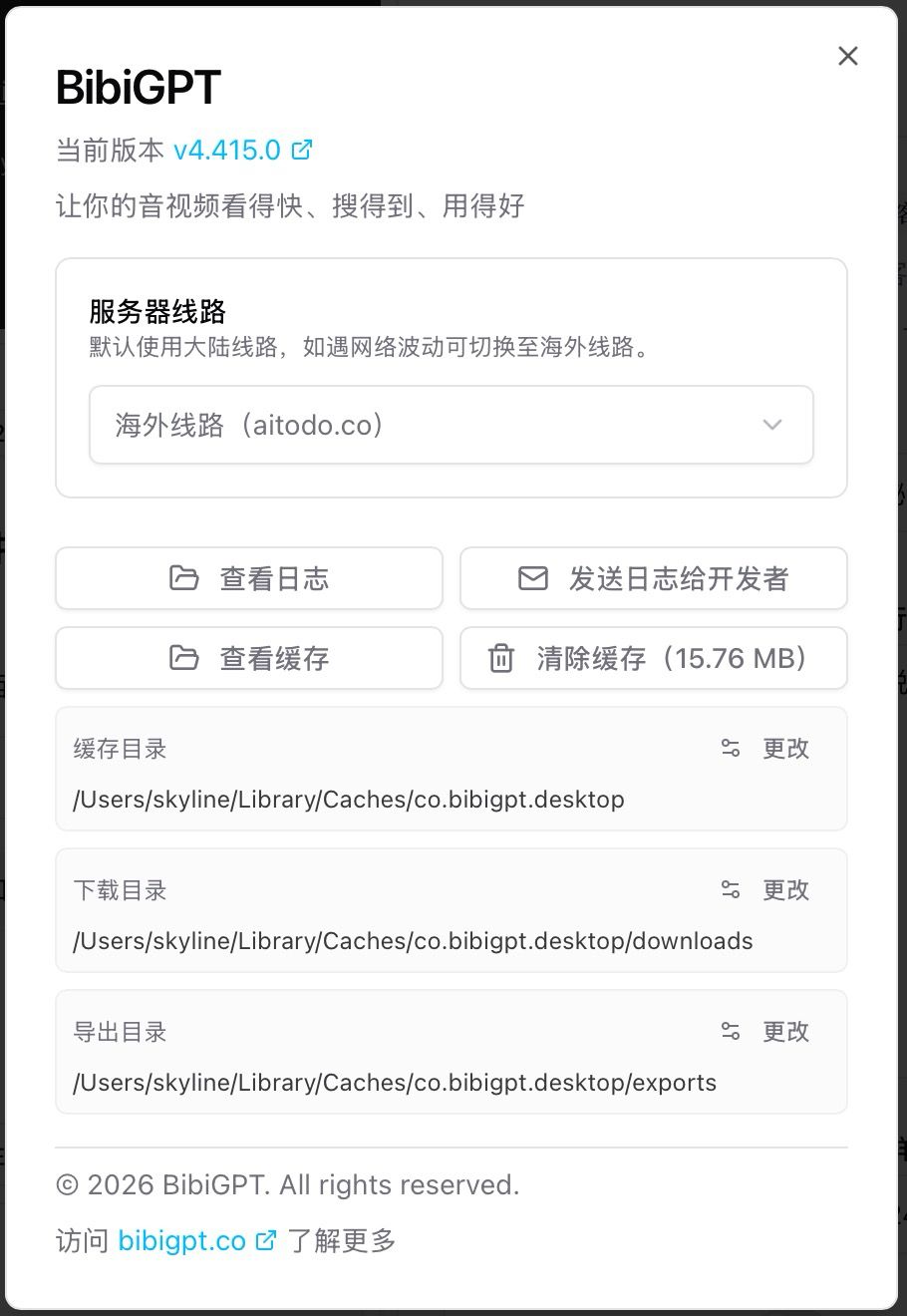
All three default to subfolders under the system’s Library/Caches. Each row has a “Change” button that pops up the native file picker — point it at Desktop, iCloud Drive, Dropbox, an external SSD, a private NAS mount, whatever you prefer. Changes apply immediately, no restart required.
Typical setups:
- Download → Desktop: every downloaded video/subtitle lands somewhere you can immediately see, no more digging through Library
- Export → cloud-sync folder: AI summaries and notes sync to all your devices the moment they’re exported
- Cache → external drive: free up the system disk when cache grows
Combined with the existing “Clear cache / View cache / View logs” buttons, the desktop client is now a complete local data console.
⚡ Faster to Watch
macOS Zero-Download Local Private Transcription: Apple Speech, direct
Previously, the desktop client’s “Local Privacy Mode” required you to download a Whisper model first — 64 MB at minimum, up to 3 GB for the multilingual variant. Slow, disk-hungry. This release wires Apple Speech (macOS’ built-in speech recognition) directly into the mode, marked Fastest, with zero model downloads required.
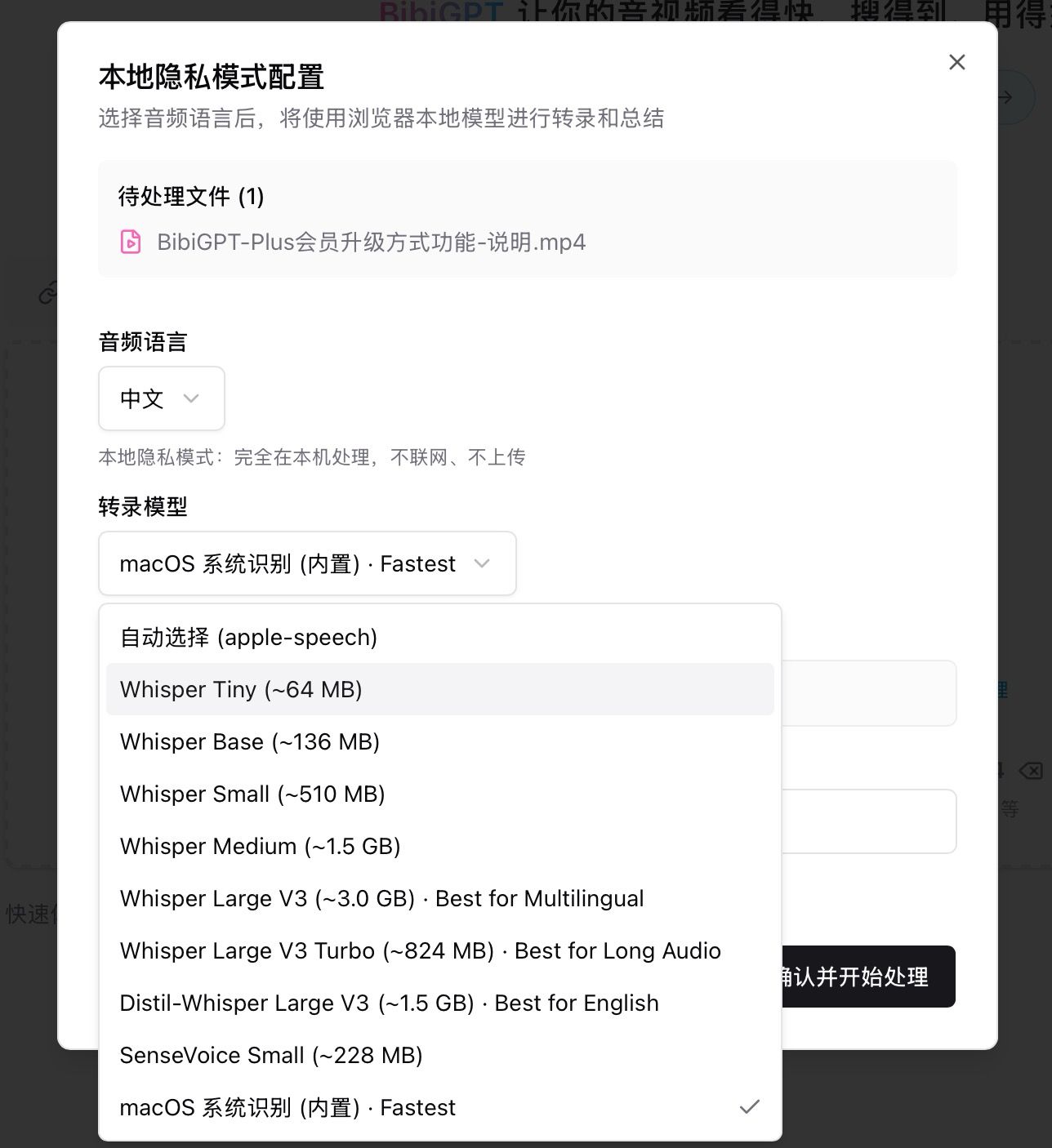
The transcription-model dropdown now reads:
- Auto (apple-speech) — picks the best available system capability
- macOS system recognition (built-in) · Fastest ✓ — Mac-only, zero download, fastest
- Whisper Tiny / Base / Small / Medium / Large V3 / Large V3 Turbo / Distil-Whisper / SenseVoice Small — older models still available, switch as needed
The flow is short: drop in an audio/video file → “Local Privacy Mode” config dialog opens → pick a source language → “macOS system recognition” is selected by default → click “Confirm and start”. Left side shows the video preview + processing queue, right side streams the live transcript:
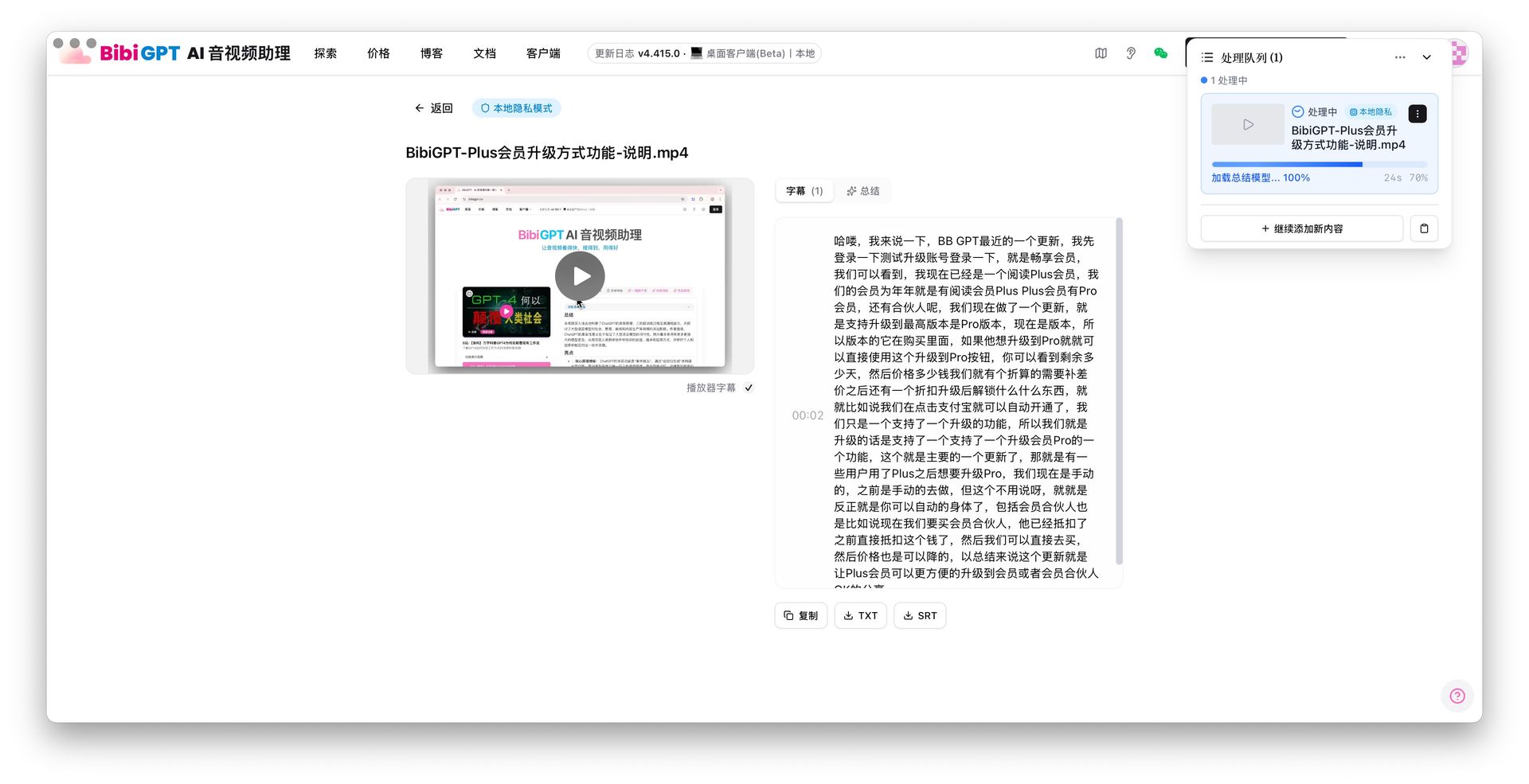
Everything runs locally — no network, no uploads, no database writes — and Apple Silicon kicks on CoreML acceleration automatically. Great for meeting recordings or internal videos: the audio never leaves your machine.
🔎 Easier to Find
Xiaoyuzhou Podcast: dedicated sidebar entry + Output page tab for centralized management
The AI dual-host podcasts you generate used to be buried inside individual video summary pages. Now, alongside articles, mind maps and WeChat articles, they have a dedicated entry under “Output / 行 · 产出物” — collected, searchable, and easy to revisit.
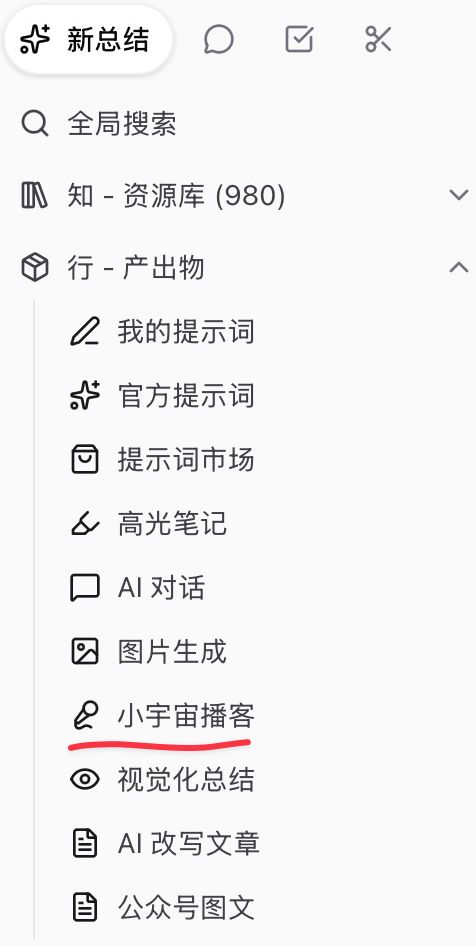
New sidebar menu item: under the left nav’s “Output: build outputs via prompts (Agents)” section, you’ll now see a dedicated “Xiaoyuzhou Podcast” entry next to Highlight notes / AI chat / Image generation / Visual summary / AI rewritten article / WeChat article:
Output page tabs: enter the “Output” hub and you’ll see top-level tabs — Highlight notes / AI chat / Image generation / Xiaoyuzhou Podcast / Visual summary / AI rewritten article / WeChat article. Pick one to filter to that output type only:

Generation entry is still on the video summary page: open any video summary page. The right-side “Create” panel has tabs for Xiaohongshu Image (Beta) / WeChat Article (Beta) / Image-to-Short-Video (Beta) / Xiaoyuzhou Podcast (Beta). Pick “Xiaoyuzhou Podcast” and you’ll see the AI Podcast Lab card — fill in a theme, pick a voice pair (e.g. “Dayi-laoshi × Mizai-tongxue · steady male + lively female”), and hit generate. Batch generation for entire collections is supported.

Each generated episode costs 5 cr and refunds automatically on failure; downloading / sharing / exporting the resulting podcast is still free.
Summary
The most important thing this release is that the monthly quota stops a few outliers from squeezing out regular users, and the matched weekend server upgrade keeps peak hours steady; the desktop client’s download / export / cache folders are all customisable; macOS users get Apple Speech as the zero-download default; and Xiaoyuzhou Podcast finally has its own home in the sidebar. Three paths — watch, find, use — all sharpened in one release.
Try BibiGPT now:
- 🌐 Member upgrade / billing rules: https://bibigpt.co/en/shop
- 💻 Desktop download: https://bibigpt.co/en/desktop
- 📊 Credits ledger: https://bibigpt.co/en/user/usage
- 📱 All platforms: https://bibigpt.co/apps