Cloud Drive Video to Text: Turn Baidu / Aliyun / Google Drive Videos into AI Notes (2026 Guide)
Cloud Drive Video to Text: Turn Baidu / Aliyun / Google Drive Videos into AI Notes (2026 Guide)
Last updated: June 2026
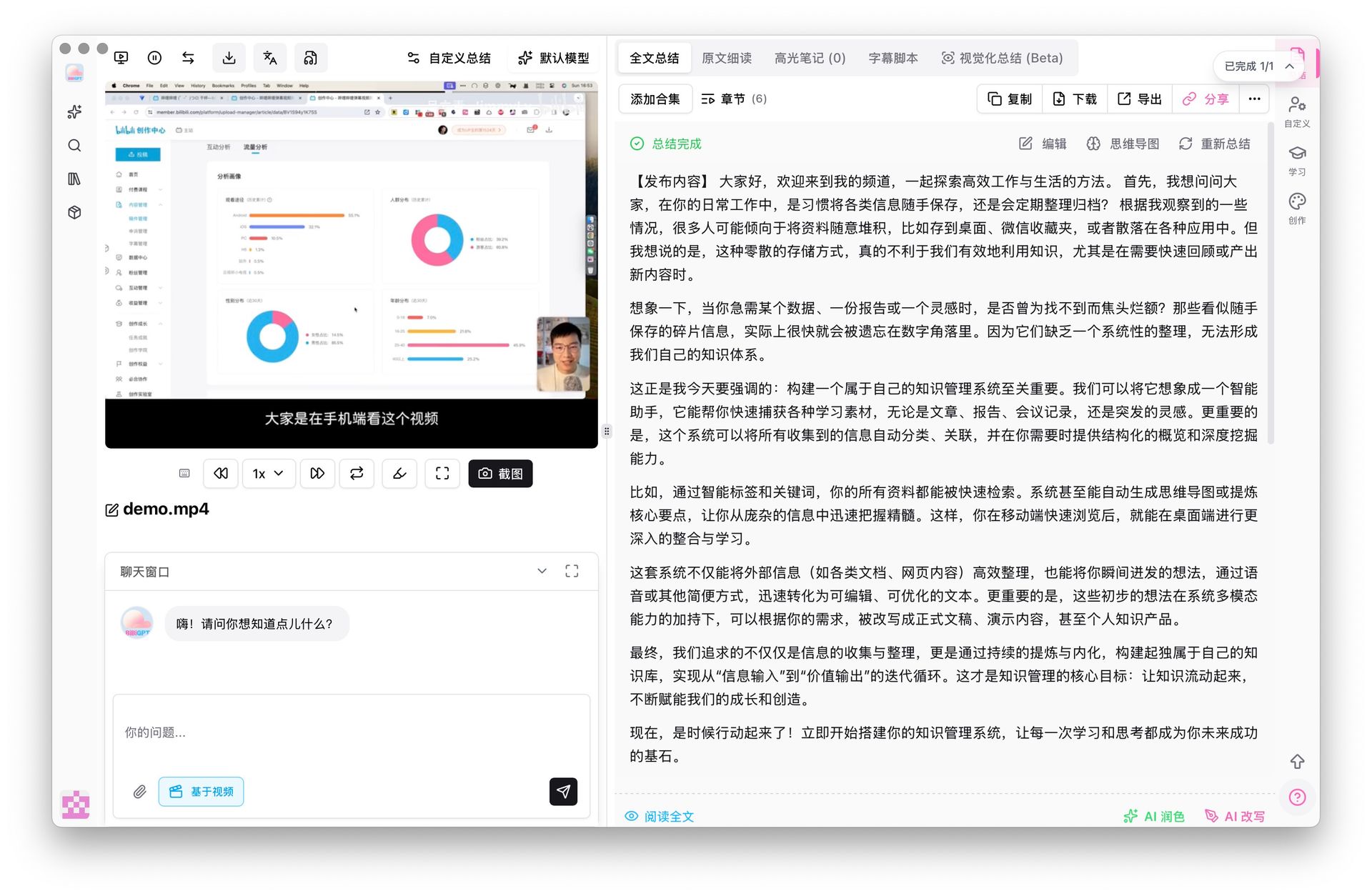
Quick answer: The fastest way to clear the video backlog sitting in your cloud drive is a three-stage pipeline — get each video out of the drive (or point a tool at it), convert it to a transcript, then let AI turn that transcript into structured notes you file into Notion or Obsidian. The single move that makes all of this practical is an AI video-to-text tool: paste a share link or drop a file, and get a timestamped transcript plus key points in minutes. This guide walks Baidu Netdisk first (the main scenario for Chinese users), then covers Aliyun Drive, Quark, Google Drive, and Dropbox, and finishes with one universal workflow that ties them all together.
Why your cloud drive becomes a video graveyard
Most people’s cloud drive tells the same story: a folder of paid courses you bought during a sale, a stack of meeting and webinar recordings you saved «to review later», a few documentaries and long interviews, and a sync folder full of phone clips and screen recordings. The intent was good. The problem is that watching all of it in real time would take weeks you do not have.
The trap is that a video is a sealed box. You cannot skim it, you cannot search it, and you cannot tell from the filename whether minute 34 holds the one insight you actually need. So the backlog grows, and every new download quietly lowers the odds you will ever open the old ones.
The escape is to stop treating these as videos and start treating them as text. Once a two-hour course is a searchable transcript with section headings and takeaways, «finishing» it stops meaning «sitting through 120 minutes» and starts meaning «reading the five paragraphs that matter.»
Practical rule: Decide up front whether a video deserves your eyes or just your index. Most archived course and meeting recordings only need to be searchable, not watched — convert them to text first, and watch only the segments the text flags as worth it.
Baidu Netdisk (百度网盘): the main battlefield for Chinese users
Baidu Netdisk is where most Chinese learners stockpile course videos, so it deserves the most attention. It does ship a built-in «audio notes» feature that transcribes a file and produces a short summary, which is fine for one-off, lightweight clips.
The wall you hit is reuse. The transcript lives inside Baidu Netdisk, in its own summary panel, and it does not travel — you cannot fold it into a note alongside content from other platforms, and you cannot search across your whole library from one place. For a single video that is acceptable; for a 50-video course folder you want to mine and file, it is a dead end.
The way around it is to keep the transcription step but change where the output goes. Point an AI tool at the Baidu Netdisk file — or sync the folder to local and let the tool watch it — and the transcript plus structured notes land in a format you control, ready to push into your knowledge base. This interactive demo shows what «video → transcript + key points in one step» feels like:
Summarize any video in seconds
Pick a sample below to see the AI summary — TL;DR, key points, and jump-to timestamps.
TL;DR: Karpathy builds a GPT-style language model from scratch in code, explaining every piece — from a tiny character-level model up to the full Transformer.
Key points
- Start with a bigram model, then add self-attention so tokens can "talk" to each other
- A Transformer block = multi-head attention + feed-forward + residual connections + layer norm
- Training is just predicting the next token; scale and data do the rest
- The same architecture behind nanoGPT is what scales up to ChatGPT
Jump to
- 00:07 Why build GPT from scratch
- 08:23 Self-attention, intuitively
- 1:00:00 Assembling the Transformer block
- 1:35:00 From nanoGPT to ChatGPT
Aliyun Drive (阿里云盘) and Quark (夸克): strong native understanding, weak portability
Aliyun Drive leans on a built-in transcription service that does more than dump text — it pulls key points, builds a structured summary, and handles long videos well. Quark, popular for storing study material and exam prep, offers similar lightweight transcription on saved files. Both are genuinely good at understanding a single video.
The same portability ceiling applies. Aliyun’s structured result and Quark’s transcript each stay inside their own app. The moment your material spans Aliyun plus Baidu plus a few Bilibili lectures — which is the normal case, not the edge case — you are back to manually copying fragments between platforms, and the «structured» output stops being structured the second it leaves home.
Practical rule: If your videos all live on one drive forever and you never reuse them elsewhere, the native transcription is enough. The day a second source appears, switch to a tool that outputs a portable transcript — retrofitting unification onto scattered native results is far more painful than starting unified.
Google Drive and Dropbox: clean transcripts, but text is the floor not the ceiling
For overseas users and teams, Google Drive and Dropbox are the default homes for meeting recordings, training videos, and shared material. Dropbox offers native video transcription that is simple and direct; Google Drive content is easy to share and to point external tools at.
These produce clean, accurate transcripts — and that is exactly the limit. A raw transcript is an intermediate, not a finished note. It is a wall of text with no headings, no takeaways, and no shape, so you still have to read the whole thing and highlight it yourself. The value you actually want — «what are the three decisions from this meeting,» «what are the steps of this method» — only appears when AI processes the transcript into structure.
So treat Google Drive and Dropbox transcription as step one of three, not the whole job. Get the text out, then run it through AI to get notes — covered next.
The universal workflow: from any drive to filed AI notes in 3 steps
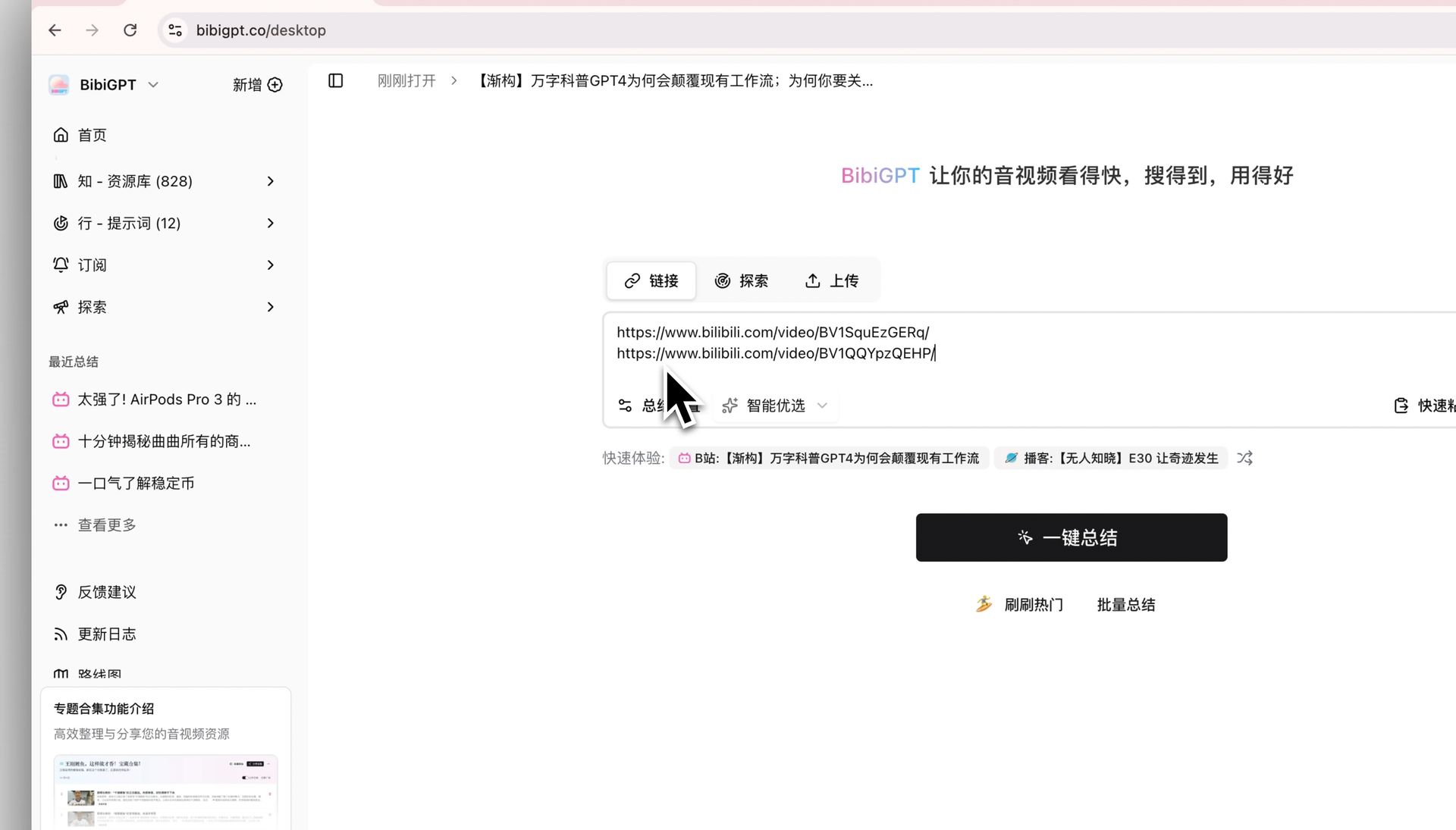
No matter which drive a video sits in, this workflow is the same. It is built around AI one-click transcription because that single move covers «transcribe plus key points» together.
Step 1: Get the video to the tool
Two ways in — pick whichever is handier:
- Share link: copy the Baidu Netdisk, Aliyun, or Google Drive share link (or a Bilibili / YouTube link, if that is the source) and paste it in.
- File: a downloaded video, a synced folder file, a local screen recording, or a meeting recording — just drop it in. Common formats like MP4, MOV, and MP3 are supported.
To try this on your own backlog, open the video-to-text tool and start with one file.
Step 2: Let AI transcribe and structure it
The AI recognizes the speech, produces a timestamped transcript, and at the same time extracts section headings and core takeaways. A one-hour video usually finishes in a few minutes — dozens of times faster than typing by ear. For a folder of 50 course videos, batch processing means you queue them once and walk away.
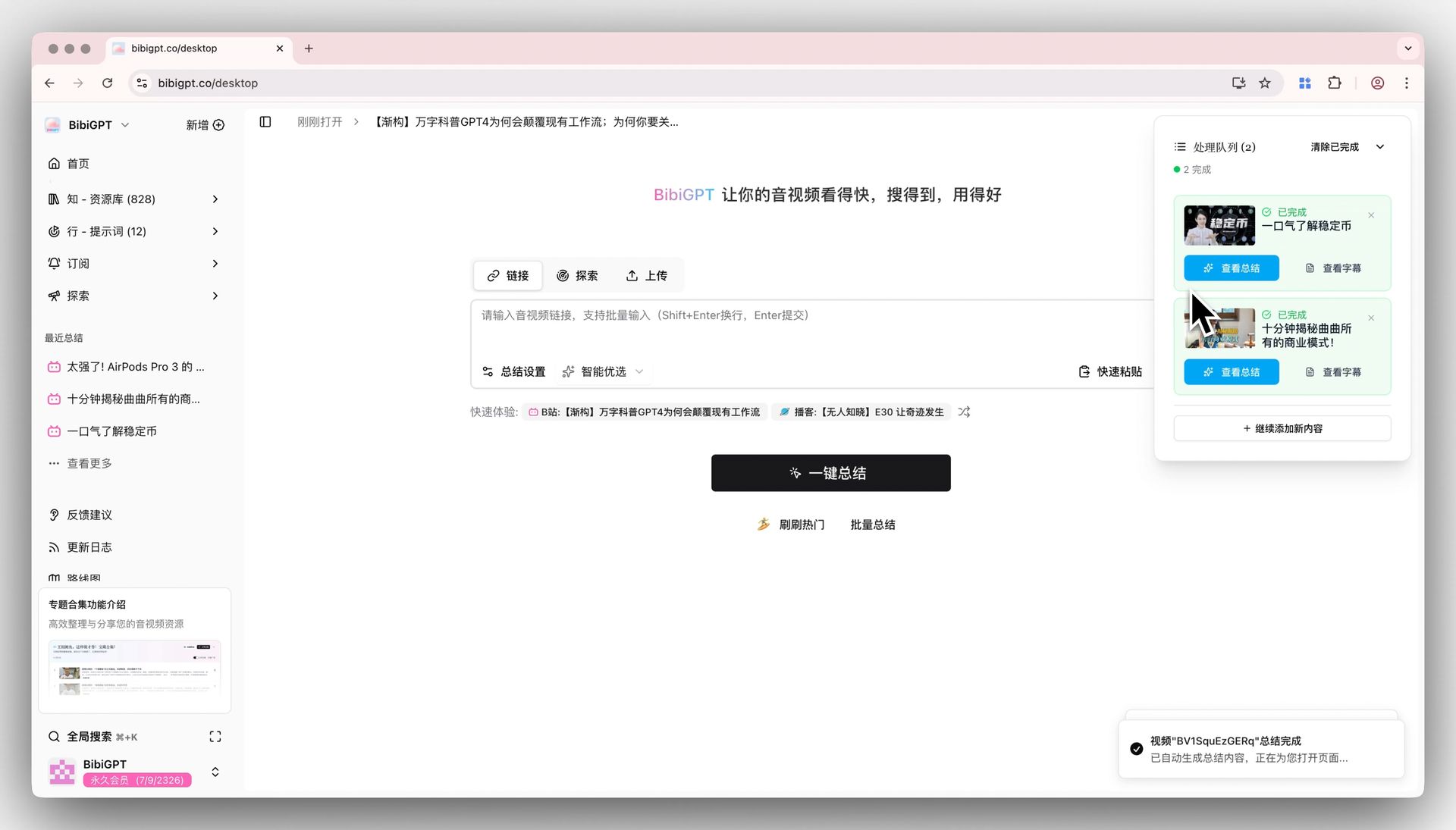
Practical rule: After transcribing, spot-check before you trust it — click 2 or 3 random timestamps and compare with the original video. AI occasionally trips on proper nouns and names; one verification pass makes the notes safe to file.
Step 3: Turn the transcript into a note and file it
This is the step most people skip — and the reason their transcripts rot in a downloads folder. Once you have structured text, do three things:
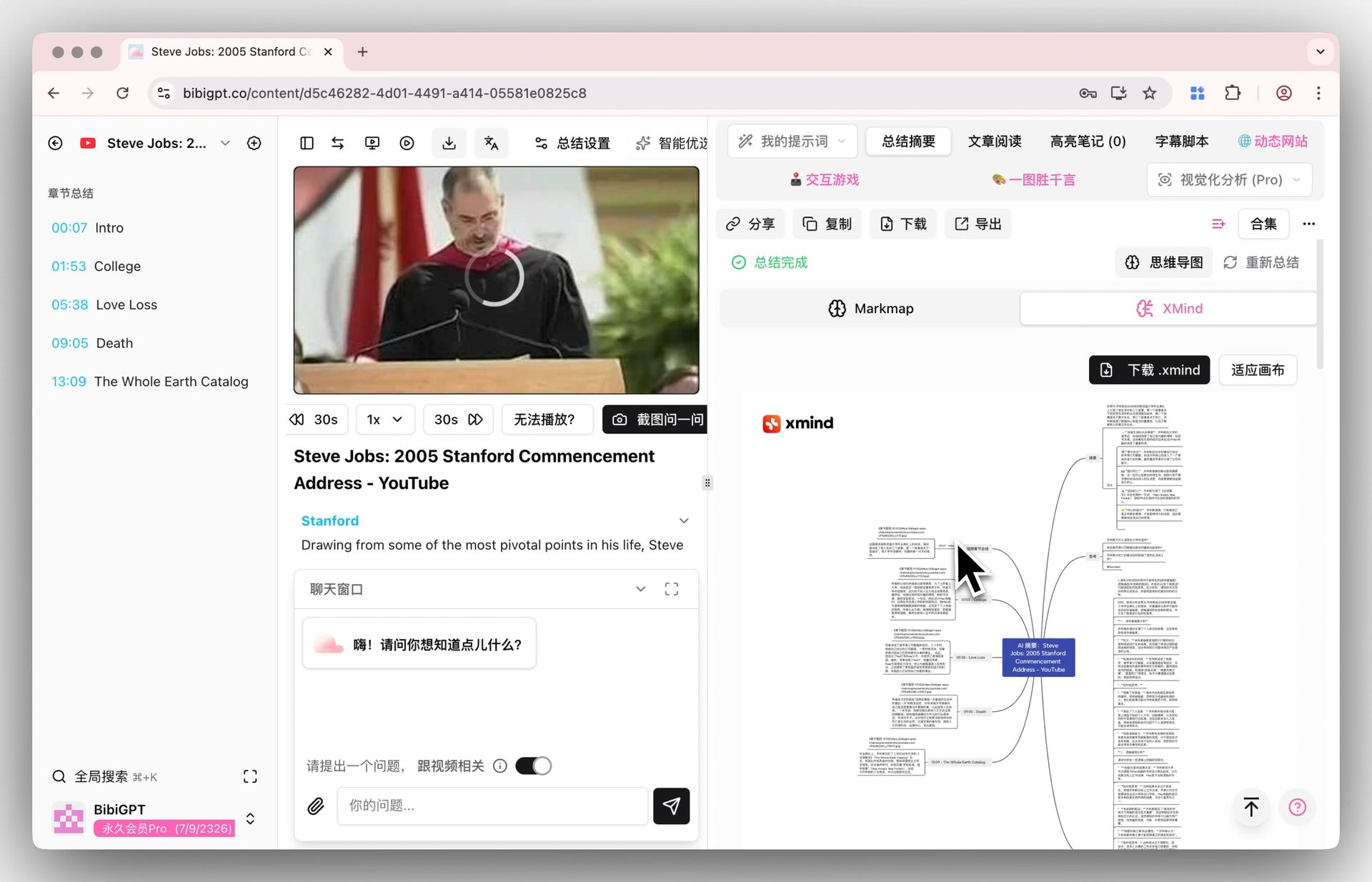
① Generate a mind map to see the skeleton of a whole course or meeting at a glance — ideal for review and for untangling long recordings. Use video mind map generation to make one in a click. This demo shows the effect:
Turn a video into a mind map
A linear talk becomes a structured tree. Drag to pan, click nodes to fold.
② Ask the AI follow-ups directly against the transcript — «what are the steps of the method discussed here» — and get answers with clickable timestamps that jump to the exact clip.
③ File it into your knowledge base. Export the note as Markdown or sync it to Notion and Obsidian, tagged by source and topic, so the next time you search «pricing strategy» the answer surfaces from a course you watched six months ago.
Why one unified pipeline beats five native features
Each drive’s built-in transcription solves the small problem — turning one file into text. None of them solves the real one: your videos come from several drives at once, and knowledge only compounds when it lives in one searchable place.
A unified tool changes the unit of work. Instead of «open Baidu, transcribe, copy out; open Aliyun, transcribe, copy out; open Dropbox, repeat,» everything funnels through one entry point into one format. BibiGPT covers Baidu Netdisk, Aliyun Drive, Quark, Google Drive, Dropbox, plus Bilibili, YouTube, podcasts, and local files — 30+ sources in total — and outputs a consistent transcript-plus-notes you can search, review, and export across all of them. It is trusted by over 1 million users, with over 5 million AI summaries generated.
If you want the deeper multi-source breakdown of each drive’s transcription, see the complete video-to-text guide across cloud drives. And if a chunk of your backlog is YouTube rather than drive files, the guide to summarizing YouTube videos covers that path, while the guide to learning from videos with AI covers turning transcripts into real retention.
Practical rule: The point of converting video to text is not the text — it is the note you file afterward. If a transcript does not end up in your knowledge base tagged and searchable, you have done the hard 80% and skipped the 20% that pays you back.
Clear your cloud drive backlog this week
The course folder you have been avoiding does not need 40 hours of watching. It needs one pass through a pipeline:
- 📂 Any drive, one entry point: Baidu Netdisk, Aliyun Drive, Quark, Google Drive, Dropbox — paste a share link or drop a file, 30+ sources supported;
- ⚡ Batch transcription: queue a whole course folder, get timestamped transcripts plus key points, long videos done in minutes;
- 🧠 From transcript to note: mind maps, AI follow-ups, and article rewrites turn raw text into something you actually keep;
- 🔗 Filed in your knowledge base: export to Markdown, or sync to Notion and Obsidian, searchable forever.
Open BibiGPT, point it at the oldest video in your drive, and have a filed, searchable note minutes later — then watch the backlog shrink instead of grow.
FAQ
Q: My course videos are all in Baidu Netdisk — do I have to download each one first?
No. You can paste the share link or sync the Baidu Netdisk folder to local and let the tool watch it, so the transcript and notes are generated without manually downloading every file one by one.
Q: Aliyun Drive already transcribes and summarizes — why add another tool?
Because Aliyun’s result stays inside Aliyun. The moment your material also lives in Baidu, Google Drive, or Bilibili, you need a single place to search and file across all of them. If you genuinely only ever use one drive, the native feature is enough.
Q: Can I process a whole folder of 50 videos at once?
Yes. Batch processing lets you queue an entire course folder, transcribe everything, and produce structured notes for each — you set it going once instead of repeating the steps 50 times.
Q: Will the transcript be accurate enough to take notes from?
Mainstream AI transcription is highly accurate for clear speech. Spot-check by clicking 2 or 3 random timestamps against the original video and fixing any proper nouns by hand before you file the note.
Q: How do I get the notes into Notion or Obsidian?
Export the structured note as Markdown, or sync directly to Notion and Obsidian, tagged by source and topic so it stays searchable inside your existing knowledge base.
BibiGPT Team
Popular tools
More in this series
- 5 Best Free Audio-to-Text Tools (2026): Convert Audio to Text in 1 Click — BibiGPT vs Deepgram, ScribeBuddy & More
- 5 Best Free AI Video to Text Converter Tools in 2026: BibiGPT Leads the Pack
- How to Convert Video to Text in 2026: 4 Methods Compared + AI One-Click Key Points (3-Step Tutorial)
- Xiaohongshu Video to Text Tool: BibiGPT AI Video Summary with High-Precision Speech-to-Text
- Turn Xiaohongshu Videos into Notes with BibiGPT: Stop Letting Your Favorites Collect Dust