BibiGPT v4.758.0: Motion Chart and Motion graphic

Hey there, BibiGPT friends 👋
BibiGPT shipped another round of updates this week. The one to try first is Motion Chart: a set of numbers from a video can now become a chart that actually moves, with music, exported as an MP4 you can drop into a group chat or a presentation. Beyond putting summaries to work, audio/video summaries gain a stronger model, and the library is easier to browse, so reading faster gets a boost too.
🛠️ Put it to work
Motion Chart: make the data move
You’ve just watched a video full of industry figures. The conclusions are all in the summary, but if you want a short clip or a slide, you still have to find a tool and animate it frame by frame yourself.
Where: open any summary → “Custom” in the right sidebar → “动态图表” (Motion Chart; the button currently shows its Chinese name).

Screenshot: BibiGPT · the “Custom” panel in the summary page’s right sidebar, with the two new buttons side by side
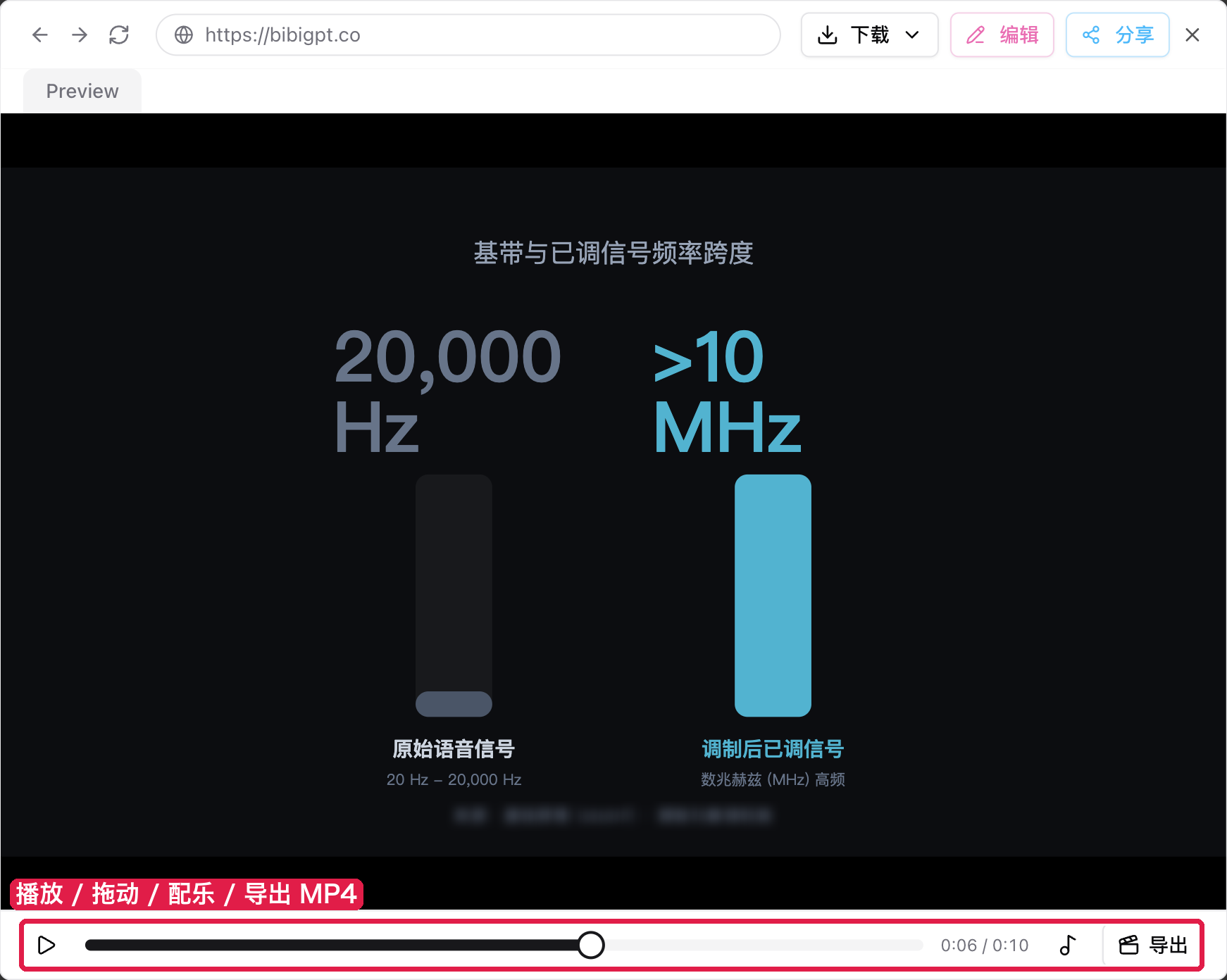
BibiGPT picks one number story from the video and turns it into an animated chart of about 10 seconds. A playback bar sits under the result: play, pause, or drag to any second and stop there. Click “Open editor” to watch it full screen.
Screenshot: BibiGPT · Motion Chart in full-screen preview; the bar at the bottom lets you play, scrub, add music and export
Click “Export” to get an MP4 (it switches to WebM automatically if your browser can’t make MP4), or export a GIF. It all happens in your own browser, with nothing uploaded. Want some atmosphere? Click the music-note button and pick one of 6 built-in tracks, or use your own local audio. The music loops to fit the clip and fades out at the end.
Motion graphic: a few-second infographic
The existing “Infographic” is a static image. Great for keeping, but it doesn’t grab much attention in a group chat.
Where: same place as Motion Chart: open a summary → “Custom” in the right sidebar → “Motion graphic” (see step ② in the image above).
It takes the single most important comparison in the video and turns it into an infographic animation a few seconds long. When it finishes, it holds on the last frame, so the conclusion is clear at a glance. In the preview you can change the font, copy, download, or click the expand button to watch full screen. The static version is still there, right next to it, so pick whichever fits.
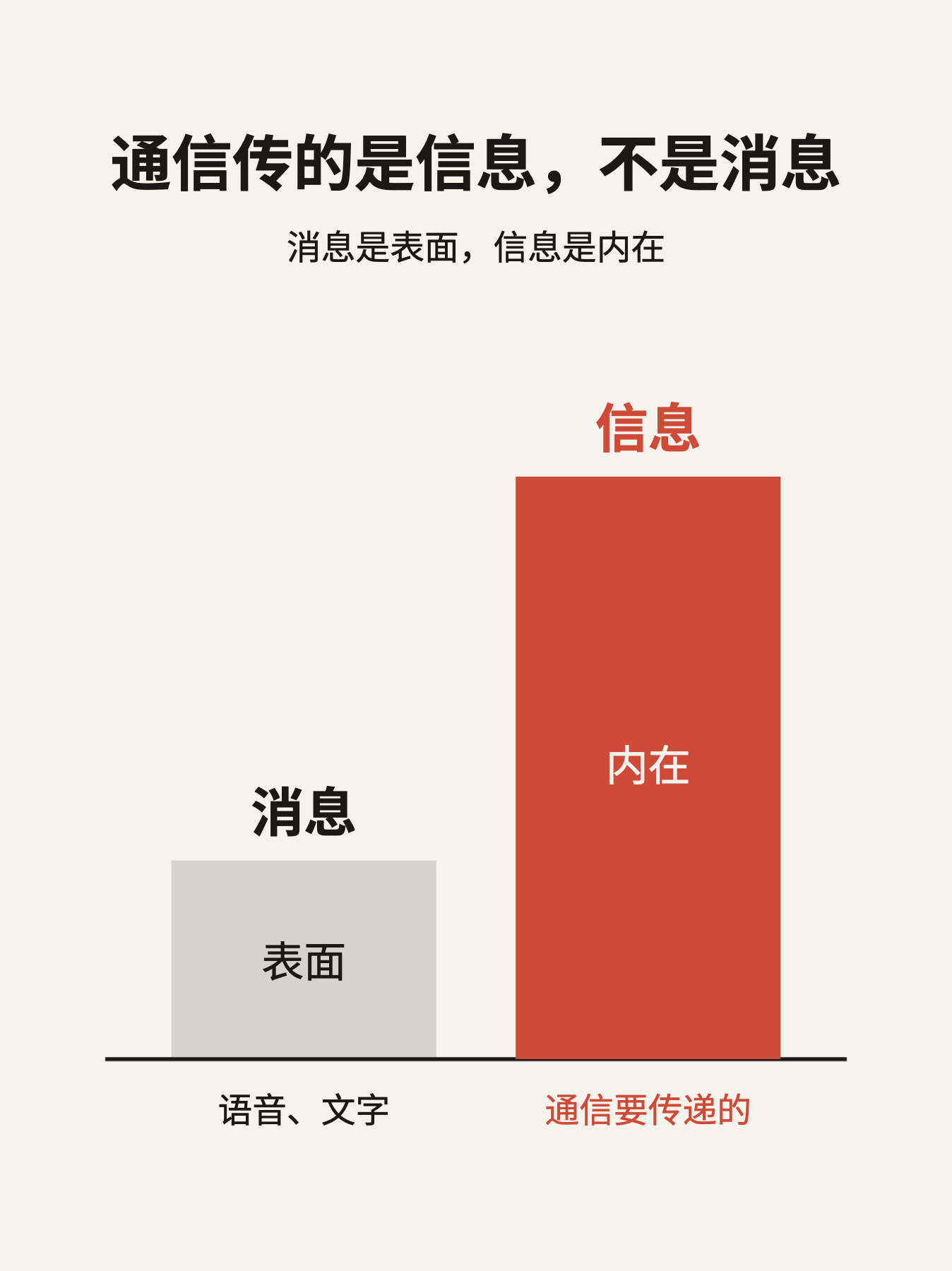
Screenshot: BibiGPT · a Motion graphic generated from a “Principles of Communication” online lecture, holding on its final frame
The conclusion of a video is now something you can both read and play for others.
⚡ Read faster
Kimi K3.1 Pro for audio/video summaries
For long videos and dense lectures, you might want a stronger reasoning model to do the summary.
Where: at the top of a summary page, click “Settings” → “Choose LLM” to open the audio/video summary and chat model picker → search “Kimi”. The same setting also lives under your avatar at the bottom left → “Preferences”.
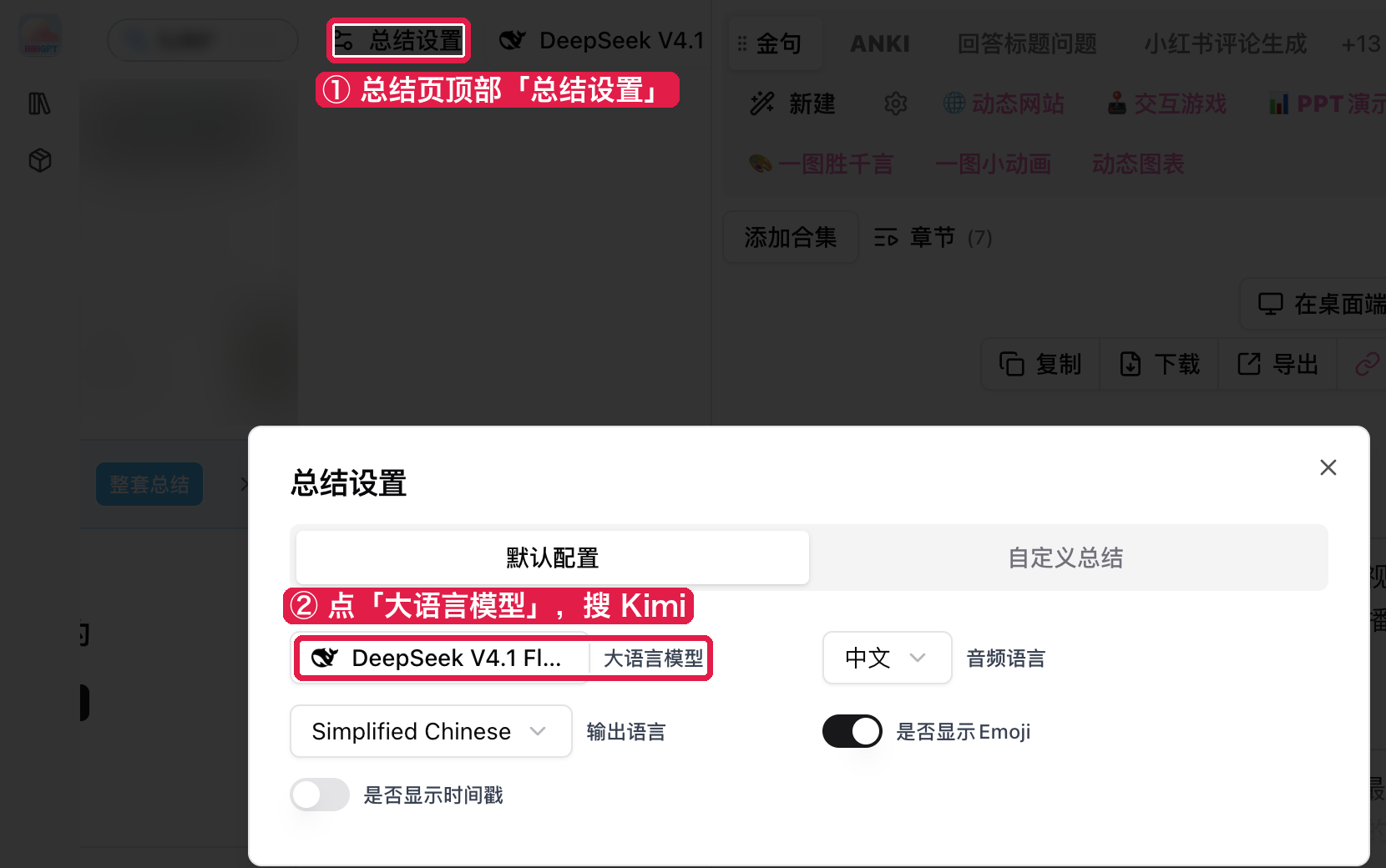
Screenshot: BibiGPT · click “Choose LLM” under “Settings” at the top of the summary page to switch the summary model
The new Moonshot: Kimi K3.1 Pro is marked New. Pro members can use it for audio/video summaries, AI chat, frame-by-frame screenshot analysis and whole-video understanding. See the Kimi Open Platform docs for details on the model.
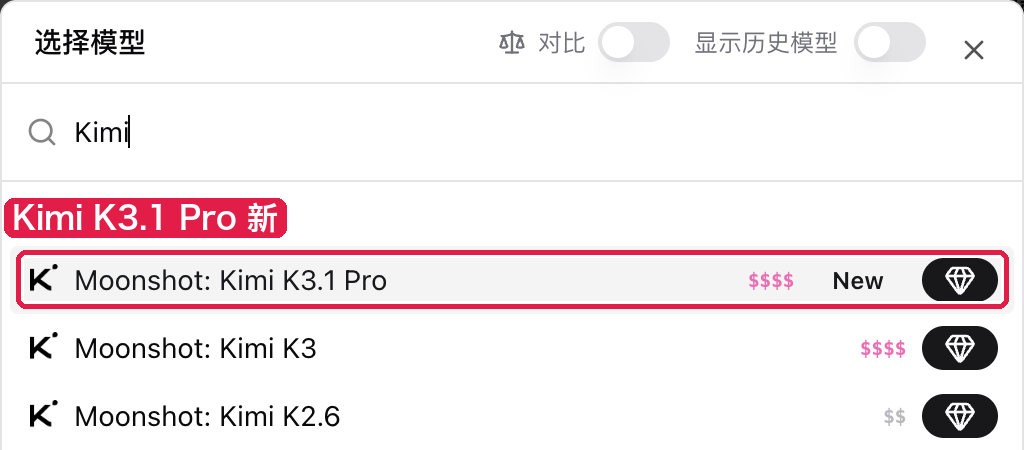
Screenshot: BibiGPT · search Kimi in the model picker; the new K3.1 Pro is marked New
Library views rebuilt
Once summaries pile up, gallery cards felt too loose: on a phone you’d see one or two per screen, and the list view couldn’t load more pages.
Where: open your library from the left sidebar → the view switcher to the left of the category tabs; the first three icons are Gallery, Masonry and List.
- Gallery: 3 to 5 columns on desktop, two on mobile. Each card shows the cover, a two-line title, author and time, and an excerpt, and the whole card is clickable
- Masonry: excerpts flow naturally by length, handy for a quick scan of your content
- List: thumbnail on the left, text on the right, and more items load automatically as you scroll
Sort order, view and rows per page all remember your last choice, so it looks familiar the next time you open it.
Other recent improvements
- Local mode in the desktop app can now tell speakers apart: when you upload a multi-speaker recording, turn on speaker separation and give a voiceprint a name, and future recordings will recognize that person automatically. You can also add a whole folder at once, gather everything one person said, and ask questions across files, all without your recordings ever leaving your computer
- If an uploaded recording is too quiet, open volume boost from the player’s ”…” menu and choose 2×, 3× or 4×, without clipping; the highlight on the current subtitle line now keeps following playback
- If you paste a link before signing in for the first time, BibiGPT picks up that summary right after you log in, so you don’t have to paste it again. When your first summary finishes, you’ll see your remaining minutes and three next steps: ask the AI, subscribe to the creator, or summarize another one
- The list of failed summaries now has a “Delete all” button that clears everything after one confirmation, and the count reflects the real total
- When a transcript is grouped by speaker, copies and downloads now break at each change of speaker instead of merging two people’s words into one paragraph
- The AI RSS home page now shows a few example channels you can open and subscribe to right away; links to Bilibili’s new collection pages can be subscribed to as well
- AI rewrite no longer mixes up content when you switch videos, and results you’ve already generated come back after a page refresh
Wrap-up
This issue, start by opening a summary of a video with some data in it, then click Motion Chart under “Custom” on the right and watch it turn the numbers into a short animated clip. Add music and try exporting it. If you’d like a stronger summary model, search for Kimi under “Settings”.
Ideas or issues? Leave us a note on the WeChat Official Account “魔法司”.
- 🌐 Website: bibigpt.co
- ✨ Explore features: bibigpt.co/features
- 💻 Desktop app: bibigpt.co/download/desktop
- 🔌 Browser extension: bibigpt.co/apps/browser
- 📱 Mobile app: bibigpt.co/app
—— BibiGPT Team
Popular tools
More in this series
- AI Competitive Intelligence Workflow: Build Industry Monitoring with BibiGPT Video Summaries
- Lessons From Shipping BiliGPT: Two Cold-Start Growth Tactics Behind a GPT-3 Side Project
- [BibiGPT Growth Series] Episode 1 | How AI Summaries for Bilibili Were Born
- BibiGPT Advanced Guide 2026: Download + AI-Summarize Videos from WeChat Channels, RedNote, TikTok, and Enterprise Intranet Sites
- Chat with Any Video: How to Ask AI Questions About Videos Instead of Watching the Whole Thing (2026)
Zobacz wszystkie artykuły (4) w temacie Podsumowanie wideo z AI →