Free AI Video & Podcast Summary Tools Compared: 2026 Buying Guide + 6 Tools Tested
Free AI Video & Podcast Summary Tools Compared: 2026 Buying Guide + 6 Tools Tested
Short answer: When choosing a free AI video or podcast summary tool, don’t just ask “can it summarize?” — check five hard criteria: how generous the free quota is, which platforms it covers, whether it has clickable timestamps, whether it supports multiple languages, and whether it allows follow-up questions and exports. Applying those criteria: if you need a one-stop solution across YouTube, Bilibili, podcasts, and local files — with timestamps and follow-up Q&A — BibiGPT is the best fit; for lightweight single-video YouTube use, a browser extension is faster; and for turning multiple sources into a deep-research knowledge base, NotebookLM is the right choice. Read on for a full breakdown of each criterion and each tool.
Don’t want to read everything before deciding? Paste a video link into BibiGPT and try it now — you’ll see a real summary in under a minute, then come back to check it against the criteria below.
1. Start with the Criteria: Five Dimensions That Actually Matter
Most roundup articles just list features, but the real pitfalls come down to these five points. Lock in the criteria first so you won’t be misled by marketing copy.
- Free quota: How long a video, and how many, can you summarize for free? Many “free” tools are hooks that force you to pay after a few tries.
- Platform coverage: Does it only support YouTube, or can it also handle Bilibili, Douyin, TikTok, Xiaohongshu, podcasts, and local files? This determines whether you need to juggle multiple tools.
- Timestamp navigation: Can you click each key point in the summary and jump to that exact moment in the video? A summary without timestamps is almost as slow as rewatching.
- Multilingual support: Can it generate a Chinese summary from an English video? This is a must-have for anyone watching English courses or overseas podcasts.
- Follow-up Q&A and export: After the summary, can you ask follow-up questions, generate a mind map, and export to your note-taking app? This determines whether the tool is a “one-off” or something that fits into your workflow.
Practical rule: To judge whether a summary tool is worth long-term use, ask one question — can you click a timestamp in the summary to jump back to the original video? If not, it’s just making you re-watch the video in a different format.
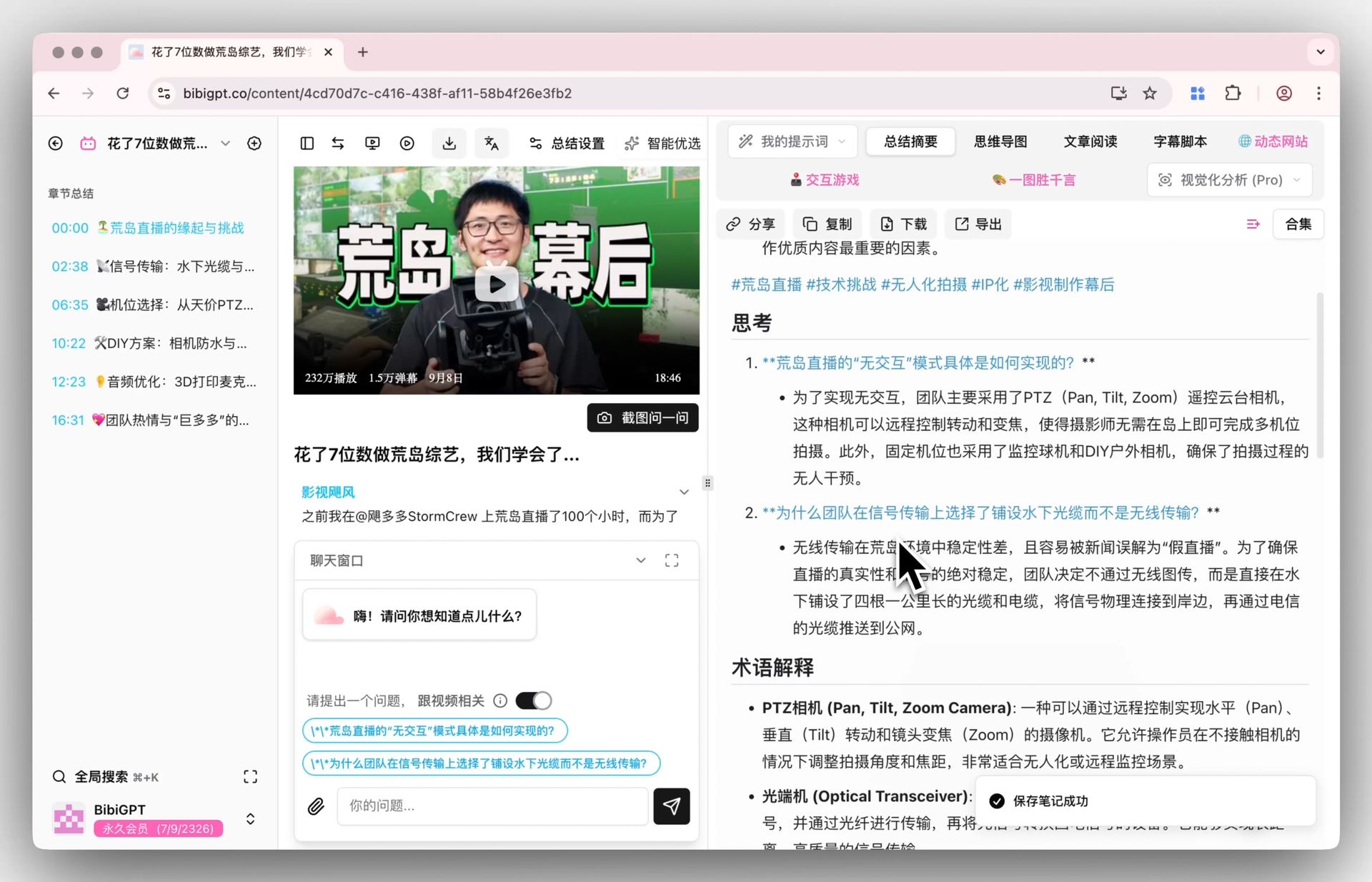
Screenshot: BibiGPT · Structured summary with timestamps
2. Option A: All-in-One Multi-Platform Summary (BibiGPT)
If your content comes from everywhere — a YouTube lecture today, a Bilibili study video tomorrow, plus regular podcasts — then “one tool that handles every platform” is the key to saving time. BibiGPT supports YouTube, Bilibili, Douyin, TikTok, Xiaohongshu, podcasts, and 30+ other platforms as well as local audio and video files, and has already generated 5 million+ summaries for 1 million+ users.
How to use it:
- Open BibiGPT and paste a video or podcast link into the input box;
- For local files, drag and drop via the local audio/video to text entry;
- Get a structured, timestamp-linked summary in about a minute;
- Click timestamps to jump back to the original video, and use AI follow-up Q&A to dig deeper into anything you didn’t understand;
- Generate a mind map with one click, or export to your note-taking app.
Who it’s for: Anyone whose content spans multiple platforms, needs timestamps and follow-up Q&A, and wants to build a searchable knowledge archive from their summaries. Who it’s not for: Casual users who only occasionally watch a single YouTube video and don’t want to sign up — a browser extension is faster for that.
Here’s what it looks like to convert a video summary into a mind map with one click, making knowledge hierarchy instantly clear:
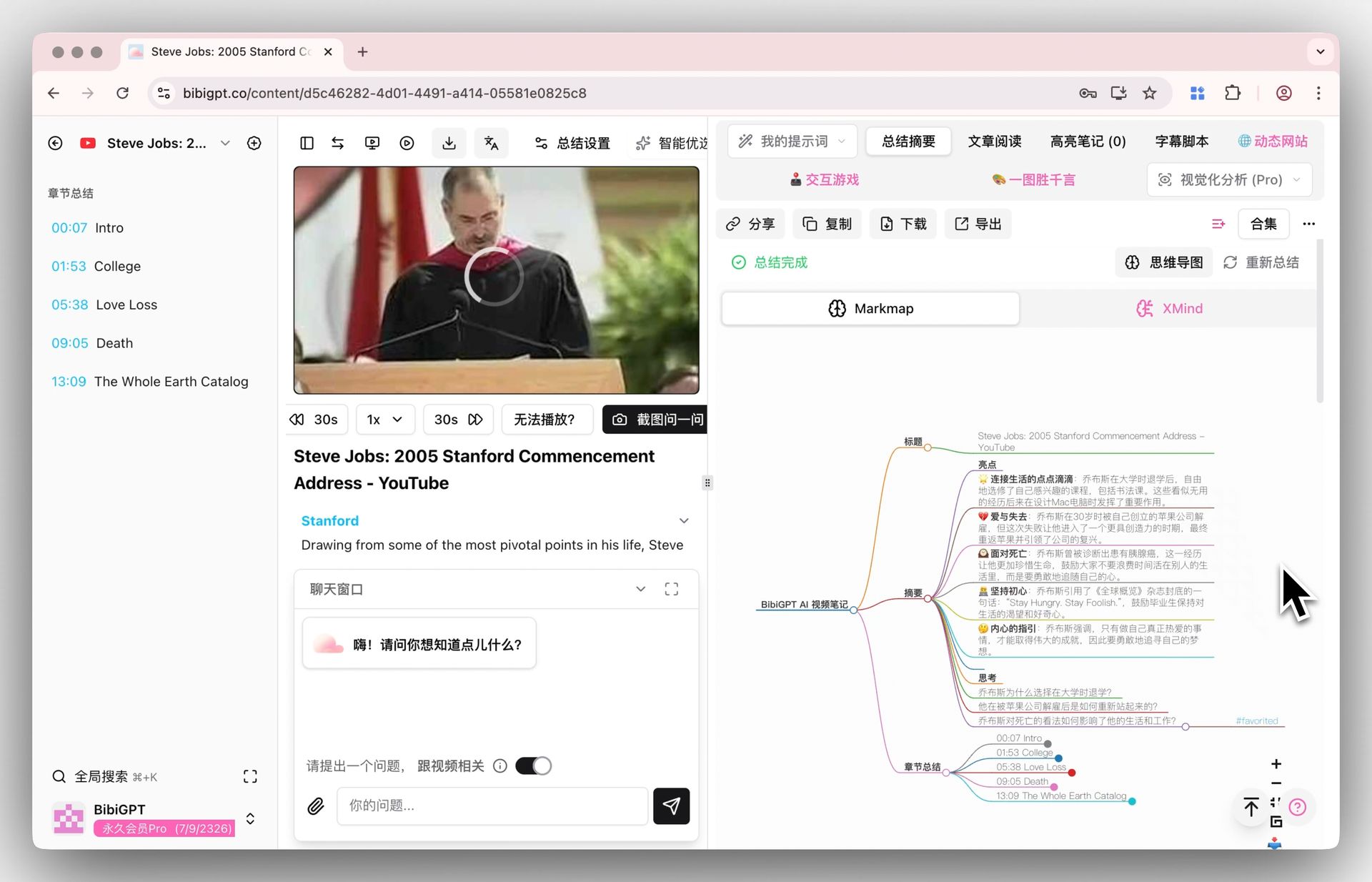
Screenshot: BibiGPT · Video summary converted to mind map
Want to see how it works without signing up? The interactive demo below lets you experience the summary output directly:
Summarize any video in seconds
Pick a sample below to see the AI summary — TL;DR, key points, and jump-to timestamps.
TL;DR: Karpathy builds a GPT-style language model from scratch in code, explaining every piece — from a tiny character-level model up to the full Transformer.
Key points
- Start with a bigram model, then add self-attention so tokens can "talk" to each other
- A Transformer block = multi-head attention + feed-forward + residual connections + layer norm
- Training is just predicting the next token; scale and data do the rest
- The same architecture behind nanoGPT is what scales up to ChatGPT
Jump to
- 00:07 Why build GPT from scratch
- 08:23 Self-attention, intuitively
- 1:00:00 Assembling the Transformer block
- 1:35:00 From nanoGPT to ChatGPT
Seeing is believing — paste a link and generate a summary.
3. Option B: Lightweight Single-Video Summary (Browser Extension / Online Tool)
If 90% of your time is spent on YouTube and you just need “open a video, give me 8 key points right now,” a lightweight tool is more direct.
- NoteGPT: Paste a YouTube link and get a transcript plus a short summary — no download or install required, optimized for speed. According to Memories.ai’s tool roundup, it also supports Bilibili summaries and multilingual translation. That said, third-party reviews note that user experience has declined in recent years — its Trustpilot score is around 2.3/5, with frequent complaints about quota cuts and billing issues, so try it with a small amount before committing to a paid plan.
- ScreenApp: According to its official feature page, it supports YouTube, Instagram, TikTok, and uploaded videos, producing timestamp-linked summaries, transcripts, and speaker identification in 2–3 minutes.
- Eightify: A Chrome extension that generates 8 key points directly in the YouTube page sidebar, each with a clickable timestamp.
What these tools have in common: fast to start, great for a single YouTube video; but narrow platform coverage, weak follow-up and export capabilities, and hard to integrate into a workflow.
Practical rule: Lightweight extensions answer “is this video worth watching all the way through,” but they can’t help you “turn a whole semester of content into a searchable set of notes.” Once your need upgrades from “watch one video” to “manage a whole collection,” it’s time to switch to a heavier-duty tool.
4. Option C: Knowledge-Base-Style Deep Research (NotebookLM)
If your use case isn’t “quickly skim one video” but rather “load a bunch of sources into a knowledge base and keep asking questions,” NotebookLM is a different kind of solution.
According to the Google official blog, NotebookLM lets you add multiple sources — YouTube links, PDFs, audio recordings — to a single notebook and then query them as a unified knowledge base; it can also turn your notes into visual outputs like Video Overviews.
But it comes with a clear trade-off: according to third-party reviews, setting up a notebook, adding sources, and getting useful output for the first time typically takes 5–10 minutes. It’s designed for deep research and systematic learning — not for quickly judging whether a 10-minute video is worth your time.
Who it’s for: Research-oriented users doing literature reviews or cross-referencing multiple sources. Who it’s not for: Anyone who just wants to quickly understand a single video.
5. Side-by-Side Comparison: Choose by Your Primary Use Case
Here’s how the three options stack up against the five criteria:
| Dimension | BibiGPT | Lightweight extensions (NoteGPT / Eightify, etc.) | NotebookLM |
|---|---|---|---|
| Platform coverage | 30+ platforms + local files | Mostly YouTube-focused, some include Bilibili | Primarily uploaded sources |
| Timestamp navigation | ✅ Clickable jump-to | Partial support | Partial support |
| Multilingual (English video → Chinese summary) | ✅ Supported | Partial support | Supported |
| Follow-up Q&A + mind map | ✅ Q&A + mind map + highlight notes | Limited | ✅ Knowledge-base Q&A |
| Best for | Multi-platform all-in-one + workflow integration | Quick scan of a single YouTube video | Deep research across multiple sources |
The video below shows the AI summary process from a hands-on perspective — see what the “paste link → get structured key points” experience actually feels like:
Video source: YouTube · AI content summary walkthrough
Decision filter: Start by identifying your primary use case — choose BibiGPT for cross-platform daily consumption, a lightweight extension for scanning a single YouTube video, and NotebookLM for deep research across multiple sources. Defining your scenario first is much faster than trying every tool one by one.
See which one fits you — paste one of your go-to videos into BibiGPT and get a result in a minute.
6. Going Further: Turn Summaries into a Searchable Knowledge Archive
Picking the right tool is just the first step. What really separates casual users from power users is what you do with the summary. A one-off summary is forgotten as soon as you close the tab; a summary that flows into your knowledge system compounds over time.
The follow-up Q&A feature in BibiGPT is a step many users overlook: keep asking questions based on the actual content of the video — “summarize the core argument in one paragraph,” “list every data point and source mentioned in the video,” “what are the three most memorable takeaways from this section?” Every answer is grounded in the original video, effectively giving you a teaching assistant who has watched the whole thing.
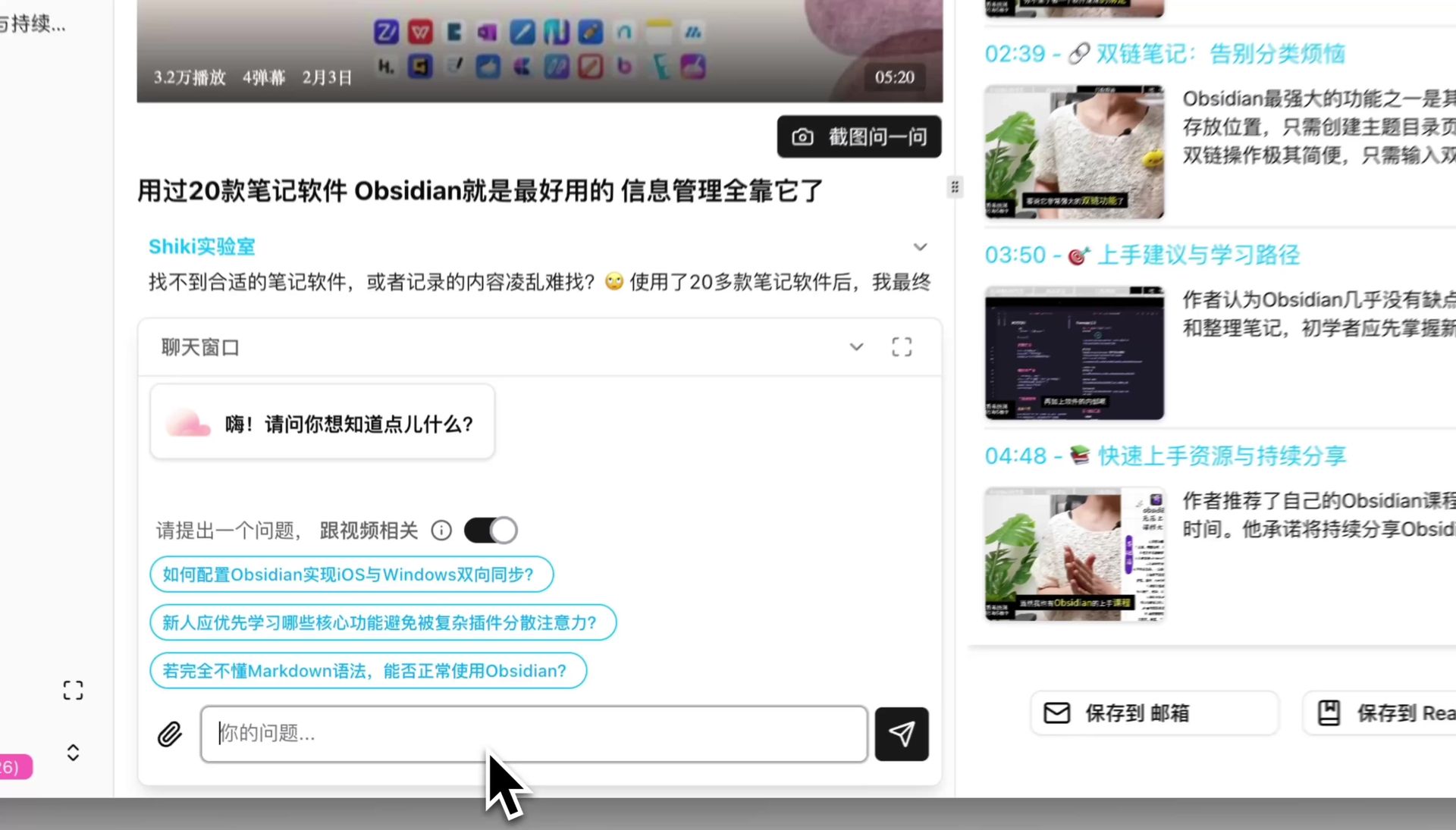
Screenshot: BibiGPT · AI follow-up Q&A interface
If you want to go further and build a searchable video knowledge base, check out How to Build a Video Knowledge Base with BibiGPT (Obsidian PKM Workflow) to turn every summary into a long-term, retrievable asset.
7. FAQ
Q1: Are these tools really free? A: Most offer a free quota, but the generosity varies significantly. We recommend running one of the videos you watch most often through the free tier to validate the output quality before deciding to upgrade. BibiGPT lets you experience the core summary workflow immediately after signing up.
Q2: Can it generate a Chinese summary from an English video? A: Yes. BibiGPT supports generating Chinese summaries from English videos — the most common setup for people watching English courses or listening to overseas podcasts. Some lightweight tools also support multiple languages, though quality varies.
Q3: Can it summarize podcasts? A: Yes. BibiGPT supports podcasts and local audio files, generating structured summaries based on the content; conversational content can also be organized by speaker.
Q4: Can I export summaries to my note-taking app? A: BibiGPT supports exporting summaries and highlighted notes so you can archive them into Obsidian, Notion, or any other knowledge system. Lightweight extensions are generally weaker on this front.
Q5: Which tool is best for students? A: It depends on the use case. For quickly deciding whether a lecture video is worth watching in full, a lightweight tool is enough; for systematically building a semester’s worth of recorded lectures into reviewable notes, a tool like BibiGPT — with timestamps, follow-up Q&A, and export — is a much better fit.
Try It Now
No amount of comparison beats a quick test. Paste a link to the video or podcast you watch most often, get a structured summary with timestamps in under a minute, and check it against the five criteria above — you’ll know instantly which tool is right for you:
Paste a video link to generate a summary
BibiGPT Team
Popular tools
More in this series
- Narzędzie streszczenia wideo AI Bilibili: BibiGPT streszcza 30+ platform natychmiast (2026)
- Top 3 Douyin Video Summary Tools (2026 Update): AI-Powered Insights from Viral Clips
- Top 3 Xiaohongshu Video Summary Tools in 2026 (Paste Link, Get Notes in Seconds)
- 2026''s Best AI Video Summary Tool: How BibiGPT Covers Every Platform End-to-End
- Best Bilibili AI Video Summary Tool 2026: How BibiGPT Helps You Say Goodbye to "Hard Learning" Tutorials?