How to Convert a Webinar Recording to Text in 2026: 3 Methods Compared + AI One-Click Notes (Zoom/Teams/Webex)
How to Convert a Webinar Recording to Text in 2026: 3 Methods Compared + AI One-Click Notes (Zoom/Teams/Webex)
Quick answer: There are three mainstream ways to turn a webinar recording into text — platform captions, general transcription tools, and AI one-click notes. The first two give you “a wall of verbatim text”; the last gives you “readable notes with key points and timestamps.” If your goal is “understand fast + search easily,” AI one-click notes is the least effort: paste the recording link or upload the file, get structured text in minutes. Below we lay out all three side by side, then give hands-on steps for Zoom, Teams, and Webex.
1. Why a webinar recording is worth turning into text
You attended (or missed) a two-hour webinar, and the replay sits there — but will you really spend another two hours rewatching it? Probably not. A recording’s biggest problem is that it’s unsearchable and un-skimmable: to find that one figure a speaker mentioned, you can only drag the scrubber and guess.
Turning it into text solves exactly this. A text record can be full-text searched, skimmed fast, copied and cited directly, and fed into other tools for further processing.
Practical rule: If the value is in “what was said,” a searchable text record is almost always more useful than a two-hour recording.
By common industry observation, enterprise webinars average 30 to 60 minutes, with some deep trainings running over 90. That means even turning a few recordings into text saves a meaningful chunk of rewatch time.
2. Method 1: Platform caption export (fastest, but roughest)
Zoom, Teams, and Webex mostly have built-in live captions and recording transcription. Tick it on during the meeting, and you can export text afterward.
When to use this method
- You’re the host or have recording rights, so you can get the platform’s exported transcript.
- You only need “verbatim text” and don’t mind structuring it yourself.
- The content is mostly English (platform transcription accuracy drops for mixed-language or heavy-accent scenarios).
How to do it
- Enable “live captions / transcription” in the platform settings before the meeting.
- Keep transcription on throughout the recording.
- Download the transcript file from recording management afterward (usually VTT or TXT).
What it’s not good for
Platform transcription gives you a structureless verbatim stream — no key points, no topic segments, and timestamps that often don’t line up with what you’re trying to find. A two-hour meeting export might be a wall of tens of thousands of words you still have to read once to use.
3. Method 2: General transcription tools (controllable accuracy, but upload required)
If all you have is a recording file (say, a replay someone sent you), you can use a general audio/video transcription tool, upload the file, and turn it into text.
The video below demonstrates the rough flow of turning long content into readable text — the same idea behind what we’re doing:
Video source: YouTube · content-to-text demo
When to use this method
- You only have the file, no platform transcription rights.
- You have accuracy requirements (e.g., for formal citation).
- You’re willing to spend a bit of time uploading and waiting.
How to do it
- Get your recording or audio file ready.
- Upload it to the transcription tool and select the language.
- Wait for processing, then download the text result.
What it’s not good for
General transcription tools still output “verbatim text” with limited structure. And uploading large files takes time, which isn’t friendly for long webinars. If what you want is “understand + distill,” you still need a separate summarization step.
4. Method 3: AI one-click notes (best for “understand + search”)
The third method skips the “verbatim text” middle state entirely and gives you readable notes with key points, topic segments, and timestamps. This is exactly BibiGPT’s strength — an AI audio/video assistant supporting 30+ platforms that compresses a two-hour webinar into a few minutes of structured key points.
You can try the demo below: pick a sample and watch the AI break content into a TL;DR, key points, and timestamps.
Summarize any video in seconds
Pick a sample below to see the AI summary — TL;DR, key points, and jump-to timestamps.
TL;DR: Karpathy builds a GPT-style language model from scratch in code, explaining every piece — from a tiny character-level model up to the full Transformer.
Key points
- Start with a bigram model, then add self-attention so tokens can "talk" to each other
- A Transformer block = multi-head attention + feed-forward + residual connections + layer norm
- Training is just predicting the next token; scale and data do the rest
- The same architecture behind nanoGPT is what scales up to ChatGPT
Jump to
- 00:07 Why build GPT from scratch
- 08:23 Self-attention, intuitively
- 1:00:00 Assembling the Transformer block
- 1:35:00 From nanoGPT to ChatGPT
Demo: BibiGPT turns a recording into structured notes
How to do it (3 steps)
- Paste a link or upload a file: drop the webinar recording link into BibiGPT, or upload the local file directly.
- One-click notes: get a timestamped AI summary, segmented key points, and the full transcript.
- Export and file: export to Markdown or send to note tools like Notion and Obsidian for easy searching later.
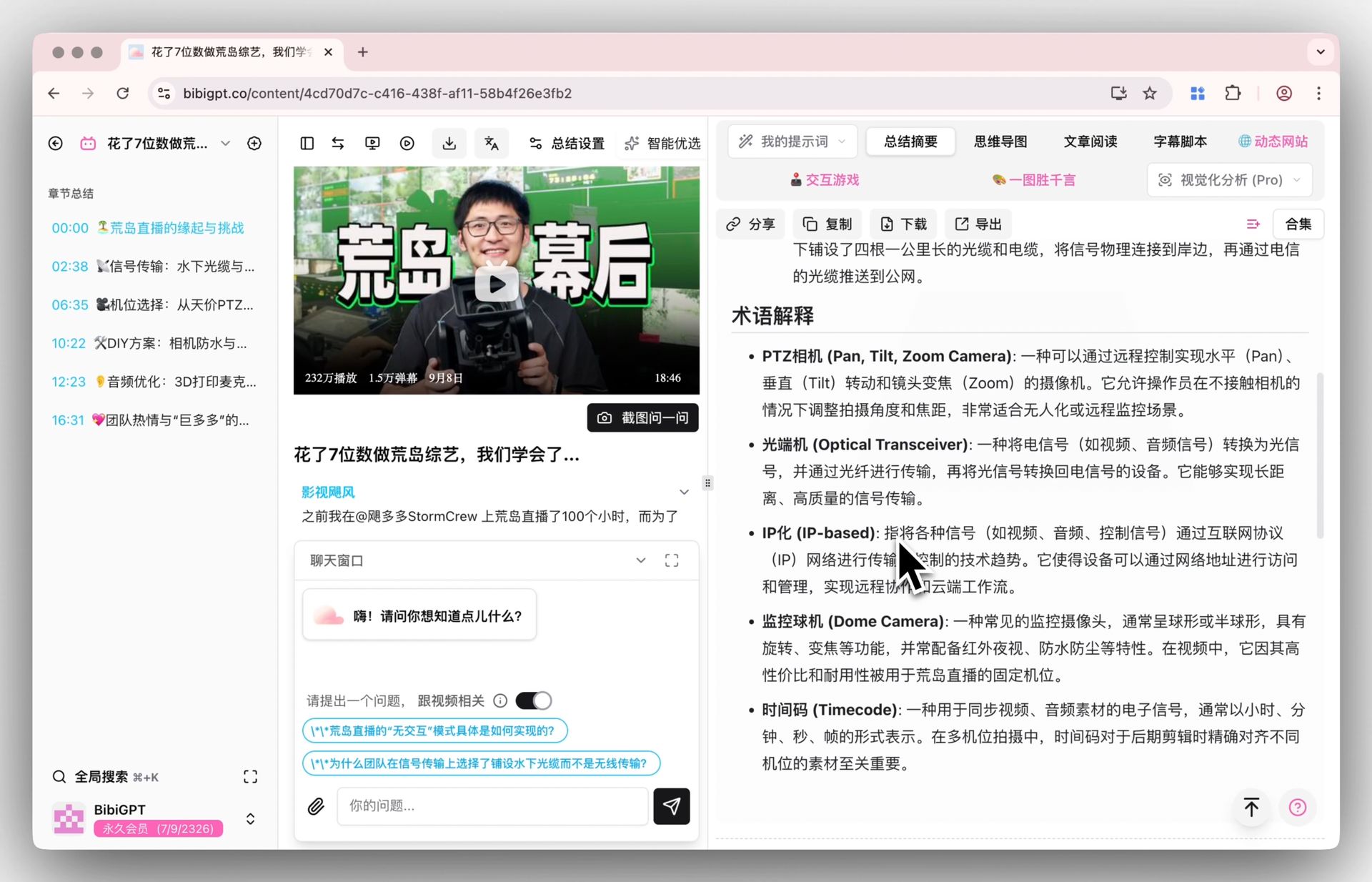
The image below shows BibiGPT’s smart deep summary in action — the structure is clear at a glance:
Screenshot: BibiGPT · smart deep summary feature demo
What about cross-language webinars
If the webinar is in a foreign language, you’ll also need a translation to compare against. The image below shows the entry to BibiGPT’s bilingual subtitle translation, with source and target lines aligned sentence by sentence so even foreign-language webinars become understandable:
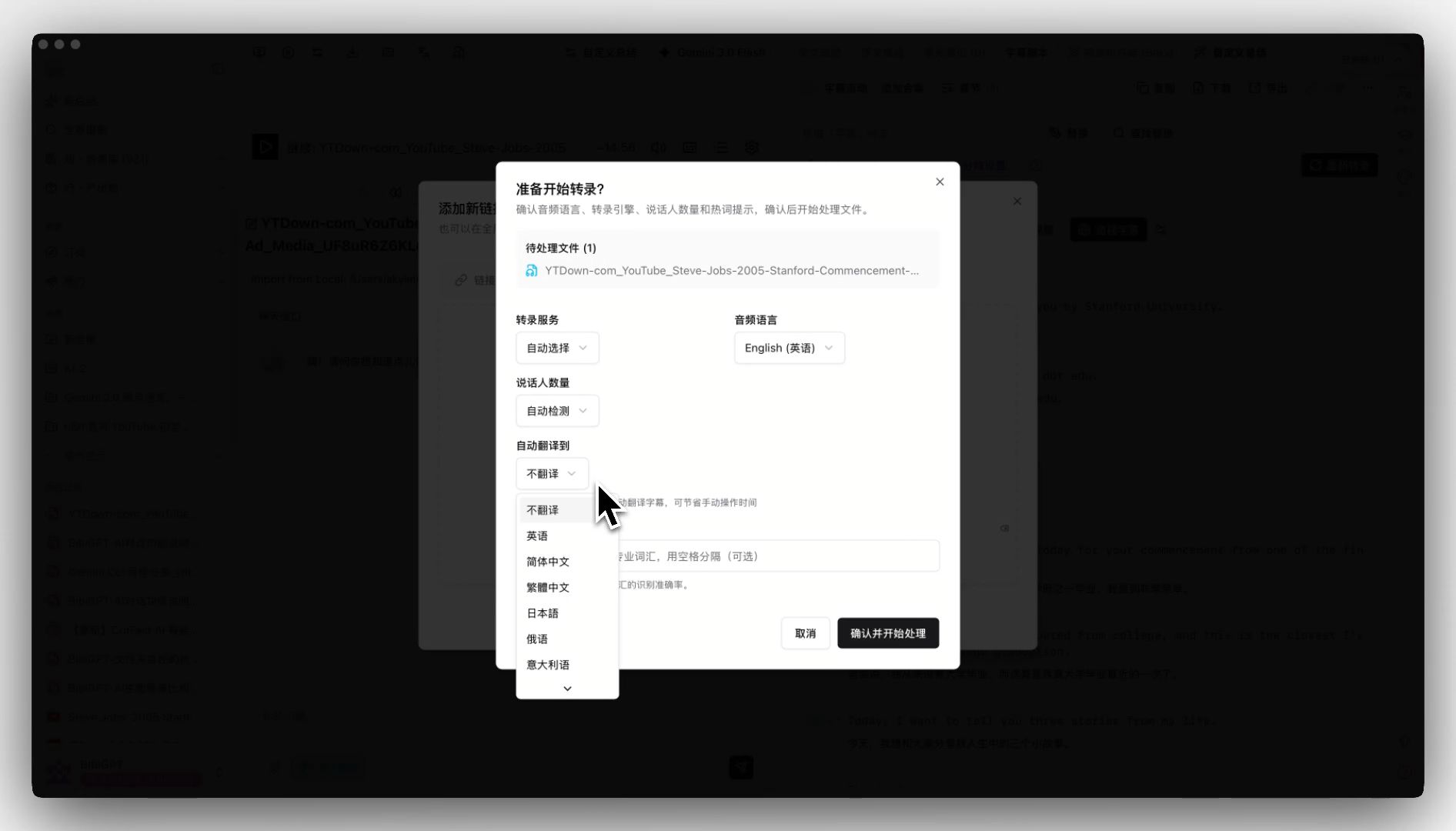
Screenshot: BibiGPT · upload auto-translate feature demo
The demo below shows the actual side-by-side source/target subtitle alignment:
Translate captions into your language
Original and translation, line by line, with timestamps. Great for foreign-language talks.
| 00:07 | We're going to build GPT from scratch, together. | Vamos a construir GPT desde cero, juntos. |
| 08:23 | Self-attention is the heart of the Transformer. | La autoatención es el corazón del Transformer. |
| 45:10 | Each token emits a query and a key. | Cada token emite una consulta y una clave. |
| 1:35:00 | At its core, this is the same model behind ChatGPT. | En esencia, es el mismo modelo detrás de ChatGPT. |
Demo: BibiGPT sentence-by-sentence source/target subtitle comparison
If you handle recordings often, you can lock in this flow with BibiGPT’s smart deep summary.
Practical rule: Before picking a to-text method, ask one thing — do you want a “transcript” or “readable notes”? Use a transcription tool for the former, AI summaries for the latter; don’t pick the wrong tool for the job.
5. How to choose among the three methods
Put all three side by side and pick by your constraints.
| Method | Best for | Output form | Ease of use | Permission needed |
|---|---|---|---|---|
| Platform captions | Meeting hosts | Verbatim text | Medium (pre-meeting setup) | Recording rights |
| General transcription | People with just a file | Verbatim text | Medium (upload and wait) | None |
| AI one-click notes | Understand fast + search | Structured notes | High (just paste a link) | None |
Decision filter: Ask one question — after transcription, will this be “edited, archived, or read directly”? If it’ll be read directly, don’t pick a transcript; pick structured notes.
On platform distribution, Zoom, Microsoft Teams, and Cisco Webex are the mainstream enterprise webinar platforms, and recordings from all three work with the methods above — AI one-click notes has the best cross-platform compatibility since it only needs a link or file.
6. Advanced: turn notes into reusable knowledge
Turning it into text is just step one. The truly efficient distill each webinar’s notes into reusable knowledge.
A practical workflow:
- Use AI to get structured notes in one click.
- Export to your note base (Notion / Obsidian) and tag by topic.
- Next time you prep similar content, pull up every related webinar’s key points by tag at once.
For the full “video/recording → knowledge base” method, see 5 practical AI video summary workflows.
FAQ
Q1: How long does converting a webinar recording to text take?
Depends on the method. Platform export is near-instant but needs pre-meeting setup; AI one-click notes usually takes minutes after you paste a link and gives you readable structure directly.
Q2: Can foreign-language webinars be turned into my language?
Yes. Use AI summaries for the key points first, then pair with bilingual subtitle translation so foreign-language webinars become understandable and distillable.
Q3: No recording rights, just a replay link — can I still convert it?
Yes. AI one-click notes only needs a link or file; it doesn’t depend on whether you were the host.
Q4: Can the resulting text be searched directly?
Yes. Text notes support full-text search, far more efficient than dragging a scrubber.
Q5: Can notes be exported to note tools?
Yes — export to Markdown and connect to Notion, Obsidian, Cubox, SiYuan and more.
7. From “a recording sitting there” to “notes you can use”
A webinar’s value isn’t that you recorded it, but whether you can quickly pull up its key points when you need them. A transcript is a half-finished product; structured notes are the finished product you can use directly.
The least-effort path you can start today:
- Paste the recording link into BibiGPT and get structured notes in one click.
- Export to your note base and file by tag.
- Reuse by tag next time in one pass.
Models are no longer scarce; what’s scarce is the speed to understand, file, and recall a two-hour webinar on demand.
To turn a webinar recording sitting on your drive into searchable, readable, citable text notes, try BibiGPT smart video summary now — paste a link and watch it compress two hours into a few minutes.
BibiGPT Team