AI Meeting Recording to Summary Notes: The Complete 2026 Workflow
AI Meeting Recording to Summary Notes: The Complete 2026 Workflow
As of 2026-04-28 | Built for Zoom, Google Meet, Teams, sales calls, interviews, and research recordings
TL;DR: A high-quality meeting summary should never be typed by hand in 2026. The state-of-the-art workflow is a 5-step loop: upload/link → AI transcript → structured summary → mind map → re-creation. In BibiGPT this collapses to “drag the file, paste the URL, wait 10 minutes” — you get a timestamped summary, a shareable mind map, and a draft article ready for your newsletter or internal docs. This guide walks through the full path, from a single meeting to a team knowledge base.
Why “AI Meeting Notes” Became a Daily Need in 2026
- After 2024-2025 normalized remote work, 5-10 weekly Zoom / Meet / Teams sessions are now standard
- Hand-written notes lose 30%+ of content — no human can keep up with a 2-hour discussion
- Mainstream ASR engines now hit sub-5% WER (see our coverage of the Microsoft MAI-Transcribe-1 release)
- Raw transcripts are no longer enough — teams need decisions + action items + searchable knowledge
The 5-Step Workflow
Step 1 — Bring in the recording (4 paths)
| Scenario | Recommended path |
|---|---|
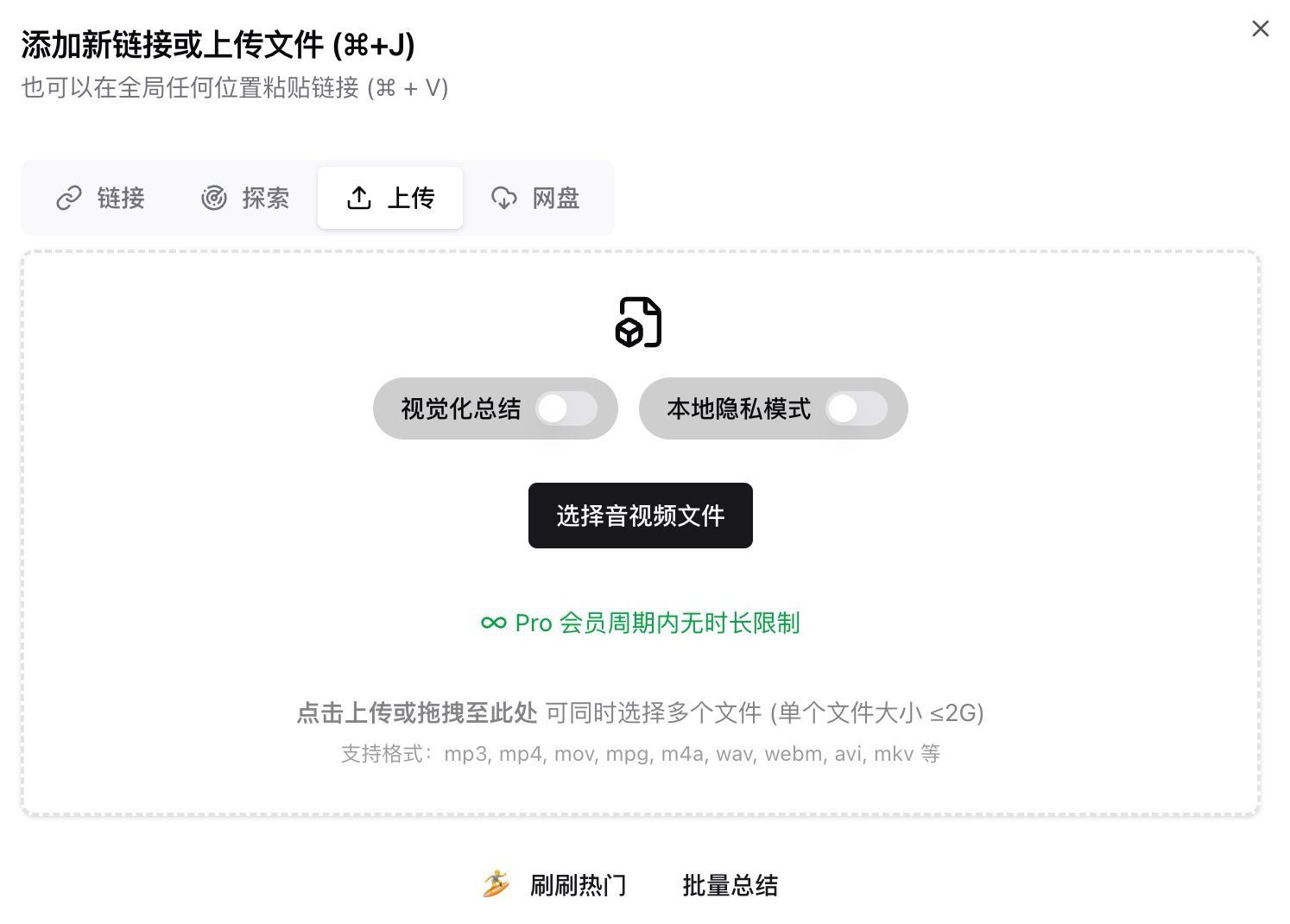
| Local Zoom / Teams recording | Drag into BibiGPT local video-to-text |
| Google Meet / cloud recording link | Paste URL into BibiGPT homepage |
| Audio-only (phone interview, podcast-style call) | Use free online speech-to-text |
| HR / legal / compliance content | Enable Local Privacy Mode — fully in-browser, never uploaded |
Real-world flow: You wrap a 1-hour cross-team sync at 10am Monday, download the Zoom local file, drag into BibiGPT, and 8 minutes later transcript + summary + mind map are ready.
Step 2 — Transcript with speaker separation
BibiGPT generates a timestamped transcript with speaker turns. Power users can hit “Re-transcribe” to switch to ElevenLabs Scribe / Whisper / (MAI-Transcribe-1 once integrated).
Quality knobs:
- < 5-minute meetings: default engine is fine
- 1-hour multi-speaker calls: switch to ElevenLabs Scribe for better diarization
- Mixed-language or jargon-heavy: add a glossary in the custom-prompt field
If you’re standardizing on Zoom recording-to-text or free meeting transcription, BibiGPT is one of the most-recommended entries.
Step 3 — Structured summary with chapter splits
Transcripts are raw material. BibiGPT auto-produces:
- One-paragraph overview (drop into a group chat)
- Section-level highlights (auto-chaptered by topic)
- Decision list (with timestamp citations)
- Action-item checklist (owner + due-date detection)
Need a tighter format? Use a custom prompt: “Group by topic, list decisions and disagreements, cite original timestamps.”
Step 4 — Mind map + AI chat for retrospectives
- Mind map: one-click generation, exports to SVG / PNG / Markmap — perfect for your weekly report
- AI video chat: ask “What budget cap did the customer mention?” and get an answer with a click-through to the timestamp
This is where “meeting notes” becomes “meeting knowledge” — not a one-off doc, but a queryable asset.
Step 5 — Re-creation and team distribution
| Output | Workflow |
|---|---|
| Newsletter / blog | Video-to-article → polish → export |
| Notion / Confluence doc | Markdown export → drop into Notion + BibiGPT workflow |
| Obsidian second brain | Export → archive via Obsidian + BibiGPT template |
| Anki flashcards | Export flashcards for spaced review of key decisions |
| Readwise / Cubox highlights | Auto-sync highlights for retrieval |
Want a full “meetings → second brain” case? See our AI second brain methodology guide.
Tool Comparison: BibiGPT vs Single-Purpose Meeting Notetakers
| Dimension | BibiGPT | Otter / Tactiq / Fireflies |
|---|---|---|
| Source coverage | 30+ (meetings + videos + podcasts + local) | Mostly Zoom / Meet / Teams |
| Summary depth | Sections + decisions + action items + mind map | Summary + keywords |
| AI chat with sources | Built-in with click-through citations | Mostly basic Q&A |
| Native multilingual | Chinese / English / Korean / Japanese | English-first; others via translation |
| Knowledge tools | Notion / Obsidian / Readwise / Cubox | Partial |
| Re-creation | Video-to-document, PPT, flashcards | Limited |
| Privacy mode | Optional in-browser processing | Mostly cloud-only |
| Pricing | Subscription + pay-per-use | Subscription |
If you’ve been using a meeting-only tool like Granola or Tactiq, see our Granola vs BibiGPT comparison.
Power-User Tactics
Tactic 1 — Use collections for series of meetings
Drop every meeting from a single project into one collection. BibiGPT’s collection summary then generates a project-level synthesis: “What happened in the last month? What were the key decisions?”
Tactic 2 — Templated custom prompts
Save prompts per meeting type:
- Cross-team sync: “List each team’s progress, blockers, next steps”
- Customer call: “List requirements, objections, pricing, next follow-up”
- OKR review: “List done / not-done / adjusted / risks”
Tactic 3 — Calendar / folder integration
The desktop app can watch a local sync folder. As soon as your meeting recording lands, processing kicks off — zero clicks to a finished summary.
Tactic 4 — Cross-language meetings
For mixed Chinese/English calls, enable auto-translate on upload — transcript and summary land in your target language.
Common Mistakes to Avoid
| Mistake | Impact | Fix |
|---|---|---|
| Uploading m4a / aac without conversion | Some older clients fail | BibiGPT supports them natively |
| Treating a 1-hour transcript as the “summary” | Coworkers won’t read it | Run summary + decision + action-item extraction |
| Posting raw transcript as the “minutes” | Useless for stakeholders | Use the auto-chaptered structured output |
| Cloud ASR for sensitive content | Compliance risk | Switch to Local Privacy Mode |
FAQ
Q1: Does BibiGPT upload my meeting recording?
A: By default, yes — for higher ASR accuracy. For sensitive material, enable Local Privacy Mode: fully in-browser, never uploaded, results stored in IndexedDB.
Q2: Can it handle 5+ speakers?
A: Yes. For complex panels, switch to ElevenLabs Scribe for stronger diarization. For 10+ speaker roundtables, validate audio quality before recording.
Q3: My meeting is bilingual — what language is the summary in?
A: The dominant language by default. Use a custom prompt to override: “Summarize in English; preserve technical terms in their original language.”
Q4: How long can the free tier handle?
A: Free tier includes a monthly quota. For long meetings, use Plus subscription or single-use credits — see pricing.
Q5: Can I batch-process 6 months of past recordings?
A: Yes — Plus / Pro users can use cloud-drive folder sync on the desktop app or batch upload on the web. Pro tier supports EPUB / ZIP batch export.
Q6: Does it integrate with Notion / Slack / Confluence?
A: Today via Markdown export + paste. Deeper integrations are on the roadmap — feedback welcome.
Closing: From “Lost” to “Settled”
Meeting notes were never about hearing — they were about reusing. AI transcripts are the first mile; the real value is structured + searchable + rewritable + connected. BibiGPT chains the five steps into one paste-and-go flow. From single meeting to team knowledge base, the distance is one URL paste.
Try it now:
- Web: https://bibigpt.co/en/desktop?utm_source=growth-pages&utm_medium=blog-inline-cta&utm_campaign=ai-meeting-recording-to-notes-workflow-2026
- Desktop: https://bibigpt.co/download/desktop
- Mobile: https://bibigpt.co/app
BibiGPT Team