Obsidian 1.12 CLI Ultimate Guide: Automate BibiGPT Video Summaries into Your Vault via Command Line
Obsidian 1.12 CLI Ultimate Guide: Automate BibiGPT Video Summaries into Your Vault via Command Line
If you’re the kind of person who drops Bilibili, YouTube, or podcast links into BibiGPT to get summaries — and then manually copies and pastes the result into your Obsidian Vault — the Obsidian 1.12 series released between February and March 2026 was made for you. This isn’t a UI tweak. It’s a structural shift in Obsidian’s product philosophy: for the first time, scripts and AI agents can take the lead.
1. What Happened in the Obsidian 1.12 Series
The Obsidian 1.12.x series shipped in rapid succession from February to March 2026. The most significant updates center on the CLI tool:
- v1.12.4 (2026-02-27) — milestone release, introduces CLI: “A command-line interface lets you control Obsidian from the terminal, useful for scripts and automation”; also debuts the iOS Share extension (save to Vault in one tap from Safari and other apps); Live Preview supports drag-to-resize images; prompts to delete attachments when deleting a file
- v1.12.5 (2026-03-05) — CLI adds
id=parameter autocomplete; pasting URLs with multiple cursors auto-generates Markdown links - v1.12.6 (2026-03-18) — CLI fixes macOS directory detection; support for hiding dotfile configs
- v1.12.7 (2026-03-23) — new CLI binary significantly speeds up terminal interactions; fixes for table and multi-cursor URL wrapping bugs
- v1.12.0 (2026-02-10) — Bases enhancements, file Ctrl-C/V support, Canvas backlinks
Full changelog: Obsidian Releases
In short: the Obsidian 1.12 series used CLI as the key to unlock local-first note-taking’s integration with the automation ecosystem.
2. What This Means for BibiGPT Users — My Take
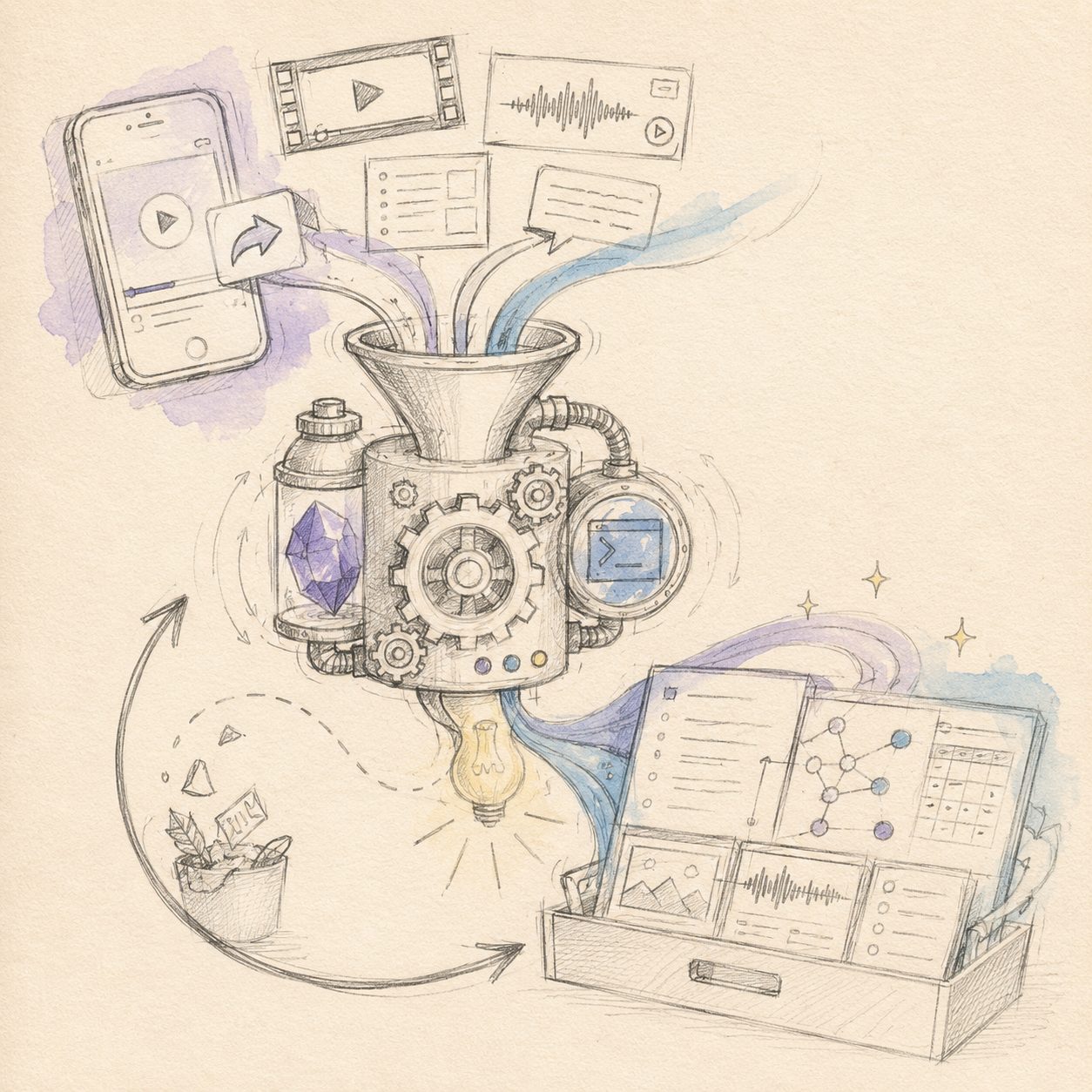
A quick sketch to put the idea on paper — the diagram below maps the key flow:
Illustration: drawn by the BibiGPT team
On the surface, Obsidian’s CLI is just “typing a few commands in the terminal.” In practice, it unlocks an entire automation paradigm: upstream content generation → automatic ingestion.
The Core Pain Point This Solves
Before CLI, BibiGPT users had only one path to push video summaries into Obsidian: export Markdown from BibiGPT → manually copy → open the Obsidian desktop app → paste → clean up frontmatter → add backlinks. That’s 3–5 minutes every single time — worse if you’re watching videos on your phone during a commute.
CLI collapses that workflow into a single command: call the BibiGPT API with curl to fetch the summary, then write it directly to your Vault directory via obsidian-cli — no need to open the desktop app at all. The entire process can be fully automated with a shell script, or even hooked into a webhook so notes are filed the moment a video finishes summarizing.
My take: Obsidian adding CLI in 1.12 is a product philosophy milestone — a local-first note app is allowing scripts and AI agents to be the actor for the first time, rather than requiring the user to open a desktop GUI. For a product like BibiGPT that generates content upstream, this is especially significant: we output structured Markdown, and Obsidian CLI accepts structured Markdown — a natural pipe connection.
How This Relates to BibiGPT’s Existing Capabilities: Complementary, Not Overlapping
Some users worry: as Obsidian’s AI plugin ecosystem grows, will it start doing video summaries? The answer is no — these are two completely different capability boundaries.
BibiGPT does source video understanding: it takes a 90-minute YouTube interview, a paid online course, or a podcast episode, and uses compute to convert it into structured text + chapter outlines + mind maps. That requires subtitle extraction, timeline alignment, and multimodal content analysis — none of which overlap with a note app’s development roadmap.
Obsidian does local knowledge base management + backlinks + scripted automation: your 500 video notes live on your local filesystem. You control the format, the paths, the privacy. No service provider can read your data.
My take: BibiGPT has no plans to build “note consolidation + cross-file search + local RAG,” and Obsidian has no plans to build “video understanding.” Before CLI, BibiGPT’s curl/webhook push still required manual work in the Obsidian desktop app for that last mile. After CLI, that last mile can be directly piped through, bypassing every manual step. This is the inflection point where the complementary boundaries of these two tools become clearer and the integration cost drops to its lowest.
New Opportunities for Obsidian Users
Two other updates in the 1.12 series deserve a mention:
iOS Share extension is a lifesaver for commuters. Watching YouTube videos or long Twitter threads on iPhone — you can save links directly to your Obsidian Vault through the system share sheet. Combined with BibiGPT’s iOS shortcut, that link can automatically trigger a summary and write it back to the Vault, all without touching a computer.
Automatic attachment cleanup solves a real annoyance: previously, deleting a video note left all its embedded screenshots and attachments sitting in the Vault wasting space. Now you’re prompted to clean up attachments when deleting a file, finally ending orphaned file sprawl.
3. The Practical Workflow: Full Automation with BibiGPT × Obsidian CLI
This workflow is designed for “auto-file video summaries into Vault + auto-create backlinks,” covering both desktop and mobile scenarios.
Step 1: Paste the video link into BibiGPT, generate a structured summary
Open BibiGPT, paste a Bilibili, YouTube, or podcast link — get a structured summary + chapter outline + highlights in 30 seconds. Once you’re happy with the quality, move on.
Step 2: Get your BibiGPT API key and configure the curl command
Enable API access in your BibiGPT settings page (available for Pro users) and grab your API key. Basic call format:
curl -X POST "https://bibigpt.co/api/summary" \
  -H "Authorization: Bearer YOUR_API_KEY" \
  -H "Content-Type: application/json" \
  -d '{"url": "https://www.youtube.com/watch?v=VIDEO_ID"}' \
  -o /tmp/bibigpt-result.json
The returned JSON contains summary, chapters, and highlights fields — all structured data that renders directly into Obsidian Markdown.
Step 3: Write a 10-line shell script for automatic Vault ingestion
This is the heart of the workflow. Save the script below as ~/bin/bibigpt-to-obsidian.sh and make it executable:
#!/bin/bash
# bibigpt-to-obsidian.sh — Auto-file BibiGPT video summaries into Obsidian Vault
VIDEO_URL="$1"
VAULT_DIR="$HOME/Documents/ObsidianVault/Videos"
DATE=$(date +%Y-%m-%d)

# Call the BibiGPT API
curl -s -X POST "https://bibigpt.co/api/summary" \
  -H "Authorization: Bearer $BIBIGPT_API_KEY" \
  -d "{\"url\": \"$VIDEO_URL\"}" | \
  jq -r '"---\ntitle: \(.title)\ndate: '"$DATE"'\ntags: [video-summary]\nsource: \(.url)\n---\n\n## Summary\n\(.summary)\n\n## Chapter Outline\n\(.chapters | map("- " + .) | join("\n"))"' \
  > "$VAULT_DIR/$DATE-$(echo "$VIDEO_URL" | md5 | head -c8).md"

# Use obsidian-cli to trigger Obsidian to open the new note
obsidian-cli open --vault "ObsidianVault" --file "Videos/$DATE-*.md"
echo "✅ Written to Vault and opened in Obsidian"
Usage: bibigpt-to-obsidian.sh "https://www.youtube.com/watch?v=VIDEO_ID"
Step 4: Use obsidian-cli id= autocomplete with Alfred / Raycast for fast search
The id= parameter autocomplete added in 1.12.5 makes in-Vault search remarkably smooth. Set up a Workflow in Alfred: type a keyword → call obsidian-cli search --id= → jump directly to the target note. For users who’ve accumulated hundreds of video notes, this “jump without opening Obsidian” capability saves enormous context-switching overhead.
The Raycast approach is similar: install the Obsidian plugin from Raycast Extensions, then bridge through obsidian-cli for precise path jumping — faster than Obsidian’s native global search.
Step 5: iOS Share extension + BibiGPT shortcut, auto-file on the go
Mobile workflow:
- Watching YouTube / Twitter / Weibo videos on iPhone — tap “Share” → “Save to Obsidian” (Share extension)
- The link is automatically written to the “Inbox” folder in your Vault as a pending record
- Simultaneously triggers the BibiGPT iOS shortcut (via URL Scheme), automatically calling the BibiGPT API to summarize the video
- When the summary is ready, a push notification arrives — tap it to view the finished note directly in the Obsidian iOS app
The elegance of this flow is that video consumption and note filing are completely async — you casually share while commuting, BibiGPT runs the summary in the background, and when you get back to your desk and open Obsidian, the notes are already organized.
Step 6 (optional): Use Obsidian Bases to organize video notes by topic view
Once your video notes hit 100+, the enhanced Bases feature from 1.12.0 lets you create dynamic views: filter finance videos by tags, sort by date for the past week, or manage learning progress with a custom “digested/undigested” field. This is Obsidian’s core moat over other note apps — your data is local, your views are fully customizable.
Step 7 (optional): Auto-cleanup attachments, keep Vault tidy
When a video note becomes stale or outdated and needs to be deleted, the new deletion prompt in 1.12.4 asks whether to also clean up attachments (embedded screenshots, downloaded cover images, etc.). During a periodic Vault cleanup, choosing “Delete file + attachments” will noticeably reduce disk usage.
If you haven’t tried BibiGPT yet, try BibiGPT for free to experience the complete loop of video-to-structured-notes — paste a link, results in 30 seconds, copy the Markdown to import manually into Obsidian or automate ingestion via the shell script above.
4. Local-First × AI-Generated: The Most Worthwhile Workflow Combination
Obsidian 1.12’s CLI tool reduces the integration friction between “BibiGPT as the content generation layer and Obsidian as the local knowledge base layer” to its minimum. Your video notes all live as plain-text Markdown on your local filesystem — no vendor lock-in, version control, backups, and migration all in your hands.
Think of BibiGPT as the “video understanding layer” and Obsidian CLI as the “local auto-ingestion layer” — this is the most worthwhile pairing for tool enthusiasts and developers in 2026.
Want more workflows combining note apps with BibiGPT? Check out our Note Apps blog category — each app gets its own dedicated workflow breakdown.
Drop a comment to share your workflow.