BibiGPT v4.632.0: DeepSeek V4.1 Flash and batch summary

Hey there, BibiGPT friends 👋
Over the past few days, BibiGPT shipped another round of updates. This week’s through-line is a new audio/video summary model and the batch-summary entry: when you summarize audio/video or ask a follow-up, you can switch to DeepSeek V4.1 Flash in the picker right away; batch summary is also one tap from the Library sidebar. Read faster, find it, put it to work — you can use all of that this week.
⚡ Read faster
Two faster models for audio/video summaries
When you summarize audio/video or ask a follow-up, and you want the new faster tier, open the list and it is there.
Where: open any summary or AI chat → tap the model name at the top → “Select model”. There is a search box at the top; type “deepseek” or “v4.1”. You can also get to the same window from Preferences.
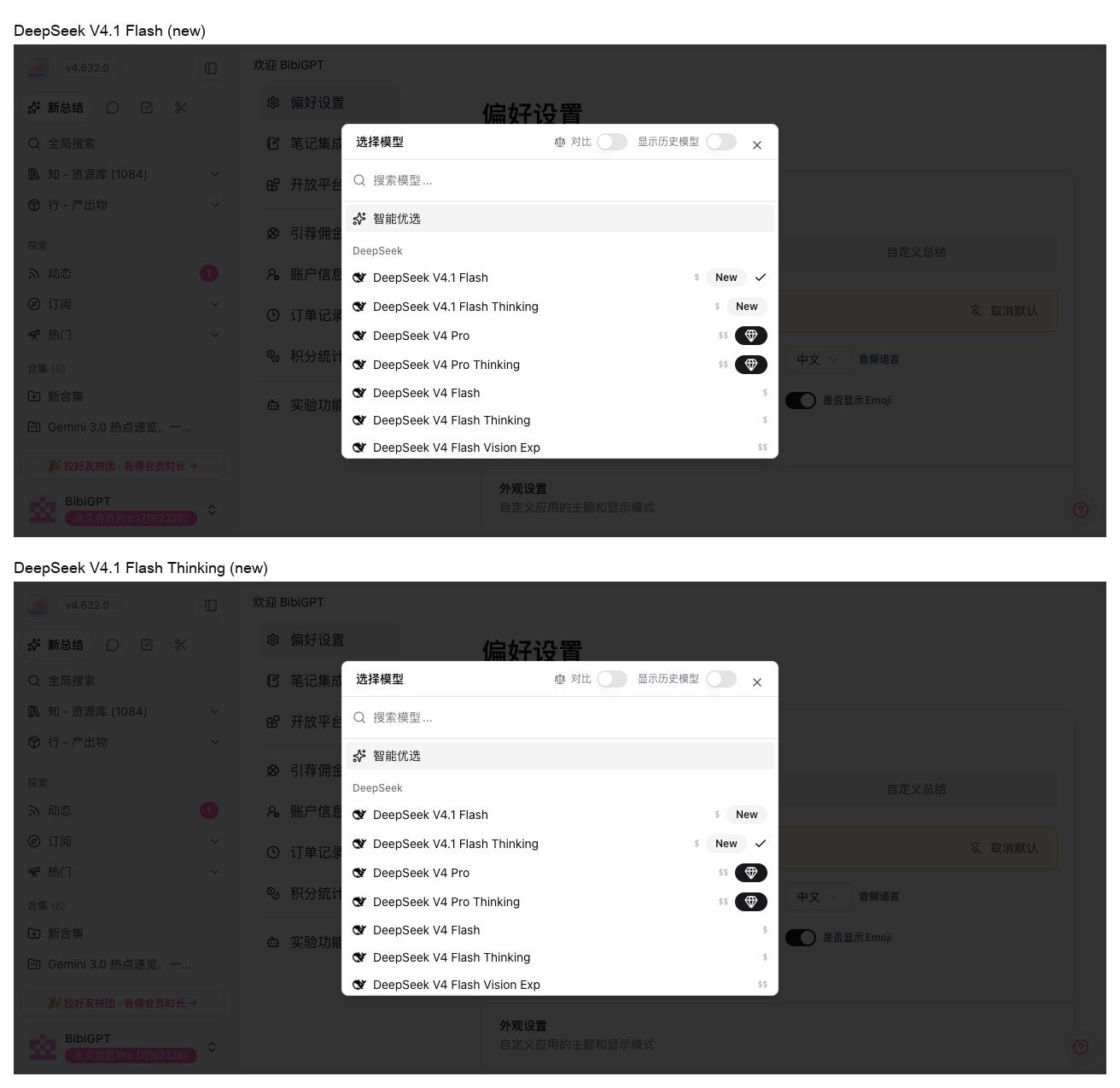
This week the audio/video summary and chat model picker adds two models, both marked New:
- DeepSeek V4.1 Flash
- DeepSeek V4.1 Flash Thinking
The previous DeepSeek V4 Pro, V4 Flash, and V4 Flash Vision Exp are still there; only the date suffix and New were removed. Pick one and it applies to the current summary or chat right away. You can re-summarize the same item with another model to compare. It is not the new default. Details: DeepSeek V4.1 Flash official notes.
Screenshot: BibiGPT · DeepSeek V4.1 Flash and Flash Thinking in “Select model”, both marked New
🔎 Find it
Batch summary lives in the Library
You have a pile of links in the Library and want to paste them for batch summary, without bouncing back to the home page.
Where: after you sign in, open bibigpt.co → expand “Know - Library” on the left → tap “Batch summary”.
Batch summary is not new; this week it is easier to find. It sits with Summary history, Collection management, Auto import, and Subtitle studio, and stays highlighted after you enter. You can paste a channel or favorites link, or several video links at once. On the right are summary settings and the prompt; the “Start batch summary” button stays reachable in the desktop layout.
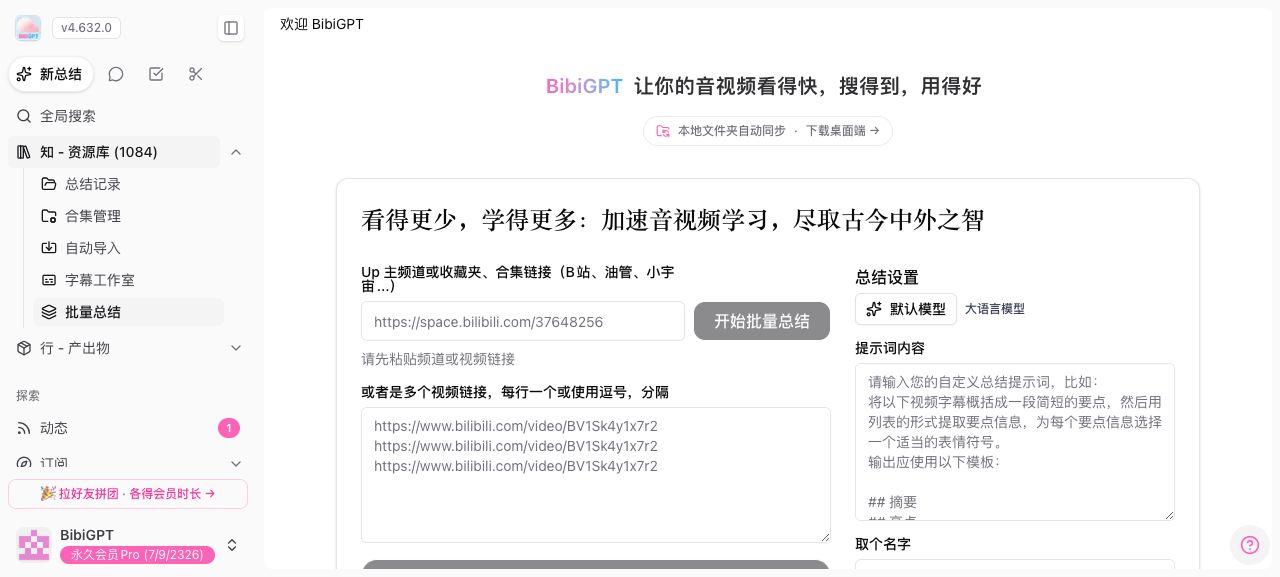
Screenshot: BibiGPT · “Batch summary” stays highlighted under “Know - Library”; the start button is on the right
🛠️ Put it to work
Sign-in page interaction polish
When teammates abroad sign in with Google, the sign-in page is laid out again: common options are easier to spot, without hunting through a row of small icons.
Where: while signed out, open bibigpt.co → “Sign up / Log in” in the top right.
WeChat scan stays on the right; Notion, Apple, GitHub, and X remain as icons. The email field sits under the third-party buttons.
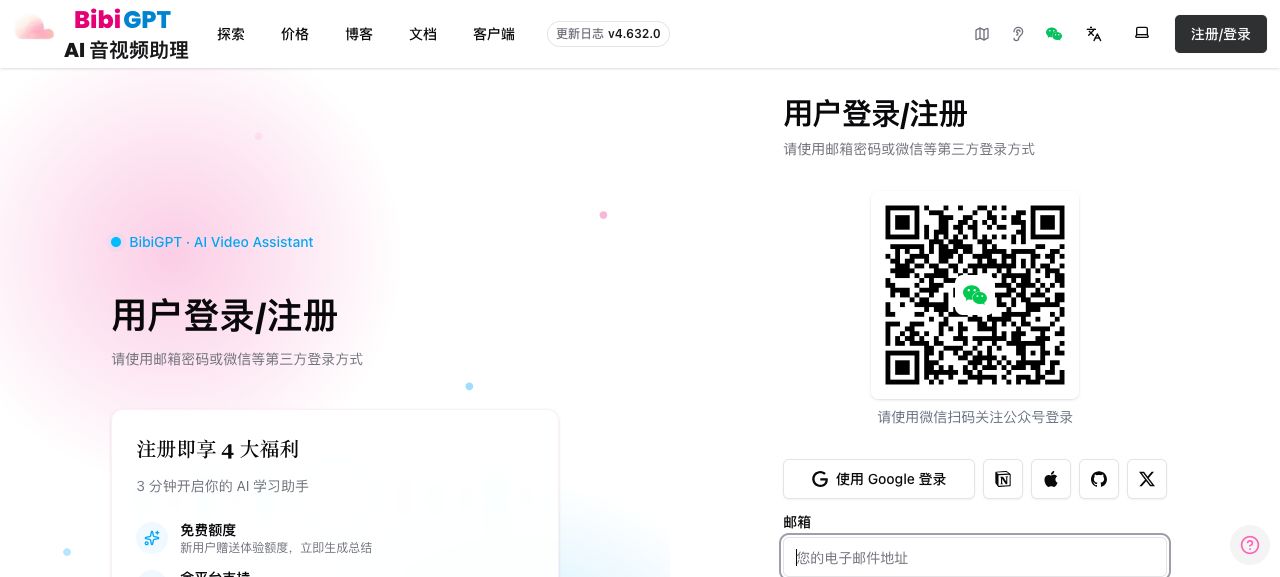
Screenshot: BibiGPT · third-party options after the sign-in interaction polish; common ways are easy to see
MCP and Agent
When you install a skill that can watch video, the entries split by job. Two addresses are enough:
- MCP: bibigpt.co/mcp for the connection notes
- Agent: bibigpt.co/agent to install the video-summary skill
Clients not on the list still get a generic copy-paste config.
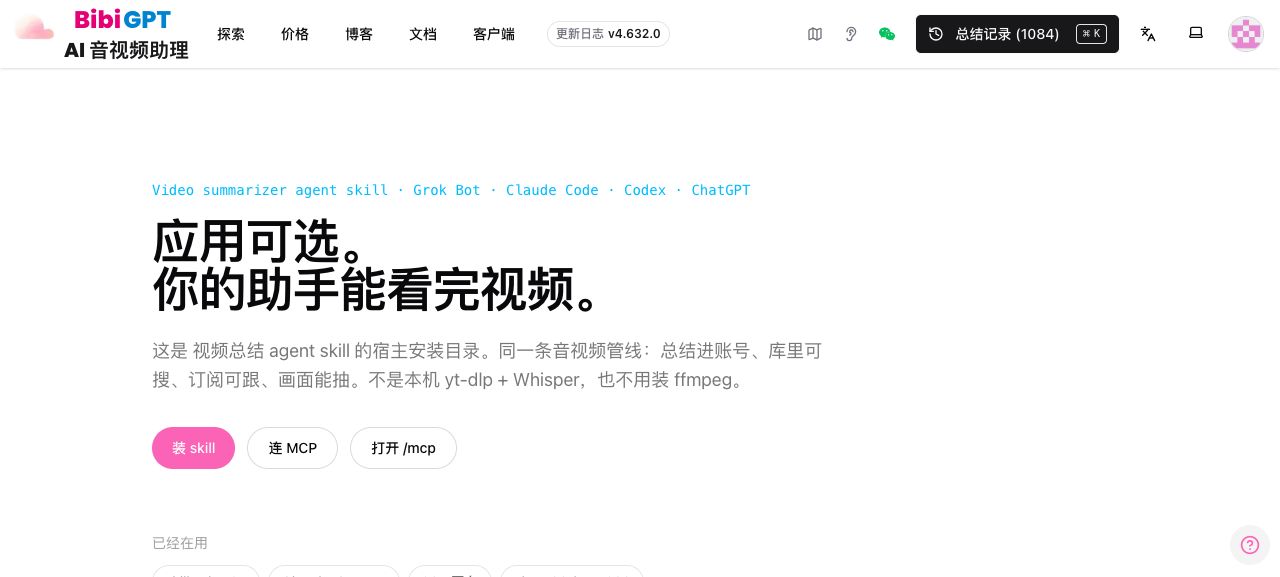
Screenshot: BibiGPT · Agent install index; the header leads to MCP
Other recent polish
Accounts that already bound a real email can rebind WeChat. Where: after you sign in, tap the avatar at the bottom of the left sidebar → “Account info” in the menu (or open bibigpt.co/en/user/profile) → “Bind WeChat” under “Third-party sign-in” → “Rebind”, then scan with the new WeChat. If you currently only sign in with WeChat and have no email yet, bind an email on the same page first, then tap “Rebind”.
- Douyin image notes and WeChat image notes can be summarized in one tap; the pictures go with the visual pass
- Official Douyin / Kuaishou live replay links can be summarized directly
- Default summaries follow video length; short videos no longer get a long recap
- Custom summaries stream as paragraphs
- Douyin channels can be subscribed from every entry
- YouTube items with auto captions only still summarize in the home queue
- The failed queue can be cleared in one tap; local files resume after a restart
Wrap-up
Start with DeepSeek V4.1 Flash and batch summary in the Library this issue — one so audio/video summaries can switch to the new model right away, one so a pile of links does not send you back to the home page. The sign-in interaction polish, plus the MCP / Agent split, is easy to try as soon as you open it.
Ideas or issues? Leave us a note on the WeChat Official Account “魔法司”.
- 🌐 Website: bibigpt.co
- ✨ Explore features: bibigpt.co/features
- 🔌 Browser extension: bibigpt.co/apps/browser
- 💻 Desktop app: bibigpt.co/download/desktop
- 📱 Mobile app: bibigpt.co/app
—— BibiGPT Team
Popular tools
本系列更多文章
- AI Competitive Intelligence Workflow: Build Industry Monitoring with BibiGPT Video Summaries
- Lessons From Shipping BiliGPT: Two Cold-Start Growth Tactics Behind a GPT-3 Side Project
- [BibiGPT Growth Series] Episode 1 | How AI Summaries for Bilibili Were Born
- BibiGPT Advanced Guide 2026: Download + AI-Summarize Videos from WeChat Channels, RedNote, TikTok, and Enterprise Intranet Sites
- Chat with Any Video: How to Ask AI Questions About Videos Instead of Watching the Whole Thing (2026)