BibiGPT v4.797.0: Documents Now Play Like a Video, With AI Narration

Hey there, BibiGPT friends 👋
One time-sensitive thing first: Black Friday is on, and annual plans are 50% off through December 1, applied automatically at checkout. Take a look →
BibiGPT shipped another round of updates this week. The one to try first is uploading a document: drop in a PDF or a slide deck and, besides the summary, it plays page by page like a video, reads itself aloud, or gets an AI explainer that turns to the right page as it talks. You can read faster, find subtitles more easily, and get more done with what you’ve summarized.
🎁 Black Friday: 50% off annual plans
Where: the pricing page, or the Black Friday banner on the home page.
- Annual plans at 50% off: Plus and Pro annual plans are both half price. No code needed, the discount is applied automatically
- Team up for bonus time: start annual plans together with friends and each person gets extra months of the same plan. Until November 11 it’s 1 month for 2 people, 3 months for 3, and 6 months for 5; after that it’s 1, 2 and 3 months. Start a group →
- Bring your monthly plan or top-up with you: if you paid for a Plus or Pro monthly plan in the last 90 days, your latest payment counts toward the first year. If you bought a top-up in the last 14 days, it can cover up to half of the annual price, and the minutes you already have stay
The sale ends December 1 at 23:59 (US Pacific). Everything in this issue, including document playback and the AI explainer, works on paid plans right away.
👉 Get an annual plan at 50% off
⚡ Read faster
Documents now play like a video
Slides, reports and e-books used to be chat attachments only. If you wanted to go page by page, or have someone walk you through them, you had to open another reader.
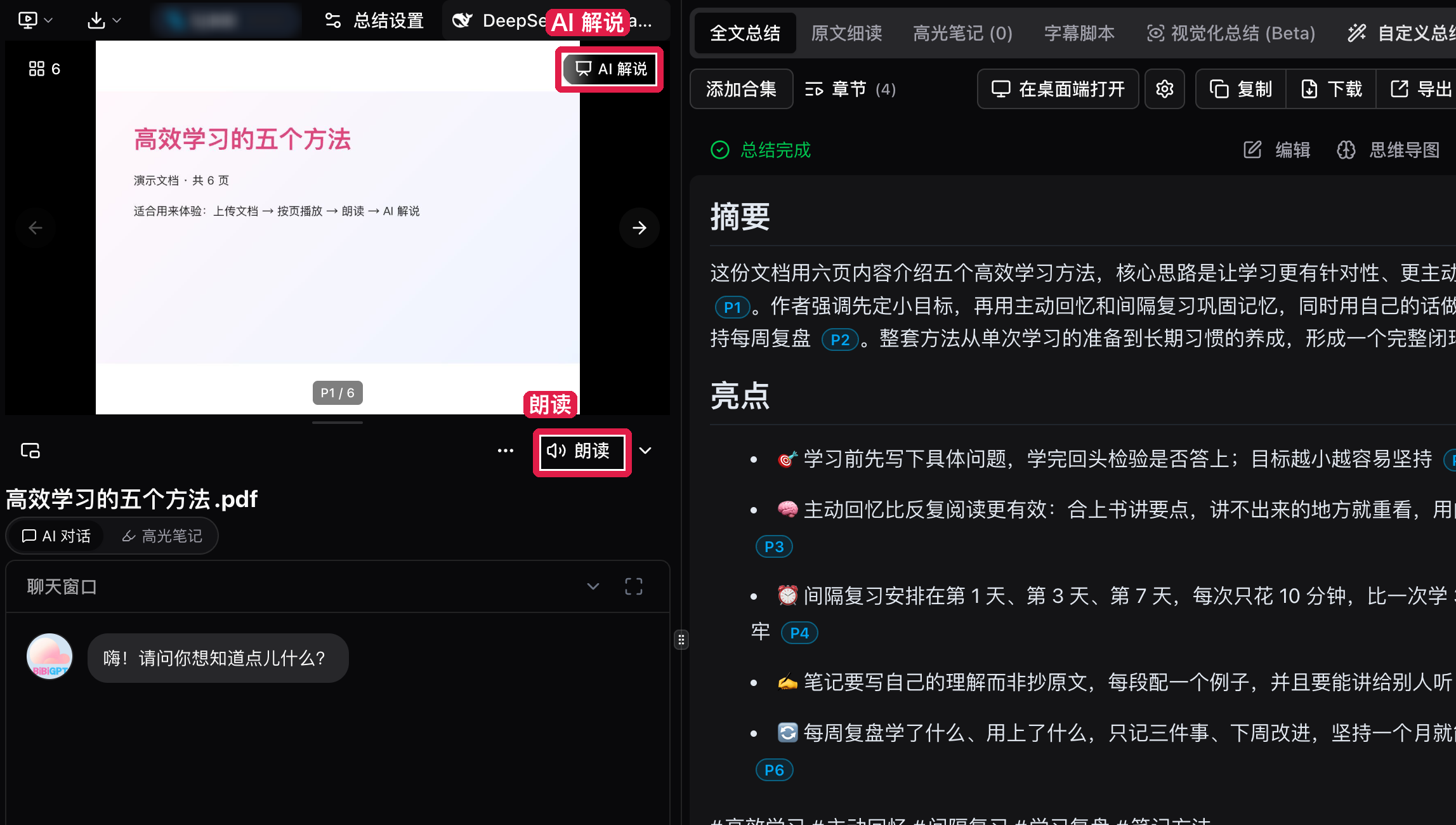
Where: New summary → Upload → pick a PDF / PPT / EPUB / Word / Markdown file. Open the summary: “Read aloud” is under the player, “AI explainer” is at the top right, and “All pages” is at the top left.
PDFs show the real pages; other formats show chapter cards. Timestamps in the summary become “P3” or “Chapter 2”, and clicking one turns to that page.
- Read aloud: the browser reads the current page sentence by sentence, highlights the word it’s on, and turns the page when it’s done. You can pick the voice and speed
- AI explainer: choose a voice and a style, and you get a narration track. The player turns to whichever page it’s talking about, with subtitles one sentence at a time, lit up word by word
- Explainer script: switch the subtitle tab between “Original” and “Explainer script”, and click any line to play from there
- All pages: opens a thumbnail grid; click a page to jump to it
Screenshot: BibiGPT · a 6-page demo PDF in the document player; page numbers in the summary are clickable
Supported formats: pdf, pptx, epub, docx, odt, rtf, md and txt, up to 50 MB and 300 pages per file. Each PDF or slide page counts as 1 minute, and every 1,000 words of EPUB, Word or Markdown counts as 1 page, from the same pool as audio and video. Your balance is checked before uploading, so nothing gets uploaded for nothing. The AI explainer uses credits (paid plans use the monthly allowance first) and refunds automatically if it fails.
History: full summaries in the list
After the last redesign you had to open an item, or hover over it, to see its summary. Many of you told us you used to read straight down the list.
Where: Library → Summarized → switch to “List” or “Masonry”.
In List view, the full summary (overview, highlights, questions) opens right under each title, so you can just keep scrolling, on your phone too. Masonry cards also show the full summary, sized to fit.
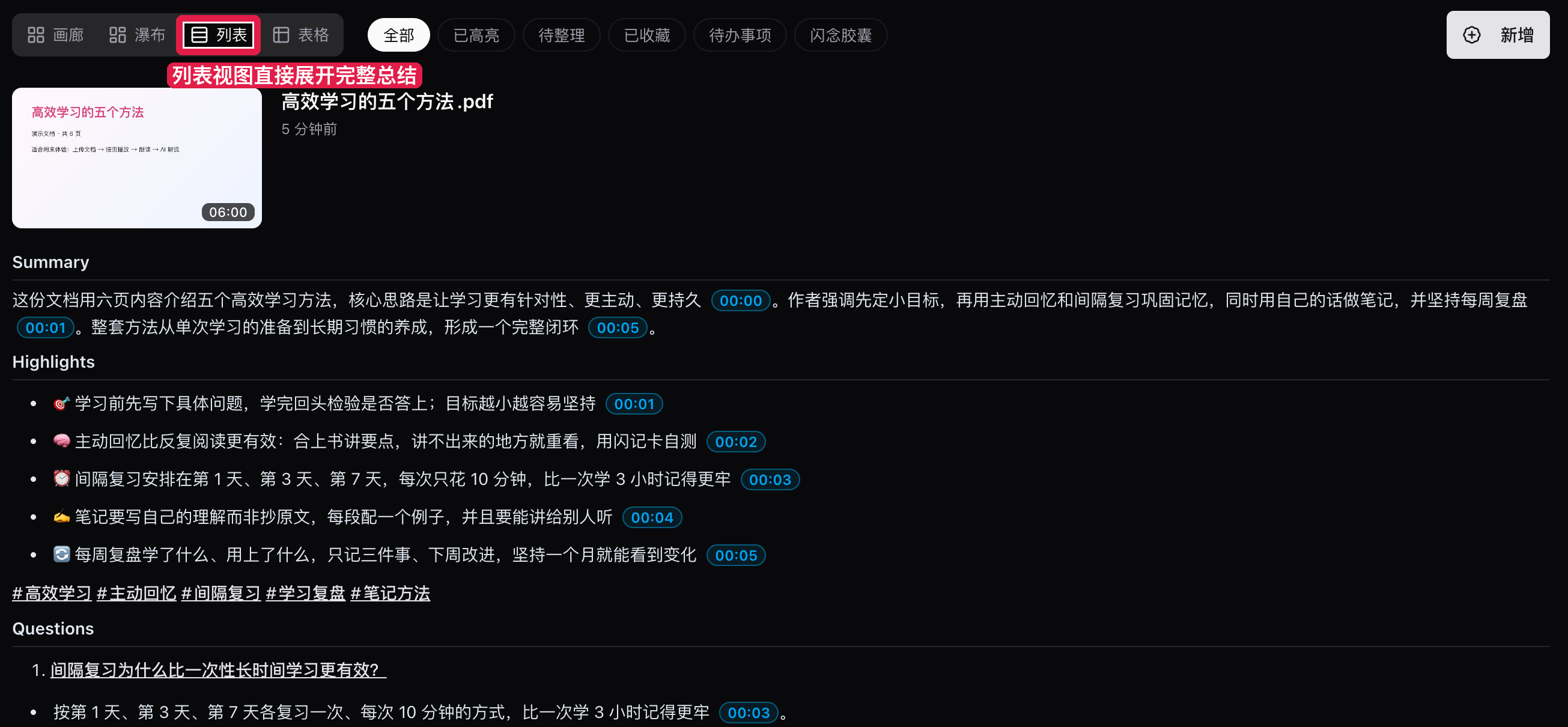
Screenshot: BibiGPT · the List view shows each summary in full without opening it
🔎 Find it
Subtitles: “Translate · Bilingual”
The button above the subtitles used to be called “Select subtitles”, and plenty of people couldn’t find translation.
Where: open a summary → Subtitles → “Translate · Bilingual”.
The first option is “Bilingual: original + your interface language”. Common languages are listed right there and the rest are under “More languages”. The subtitle list header now has an “Original | Bilingual | Translation” switch; if there’s no translation yet, clicking “Bilingual” starts one. Subtitle downloads follow whichever view you’re on.
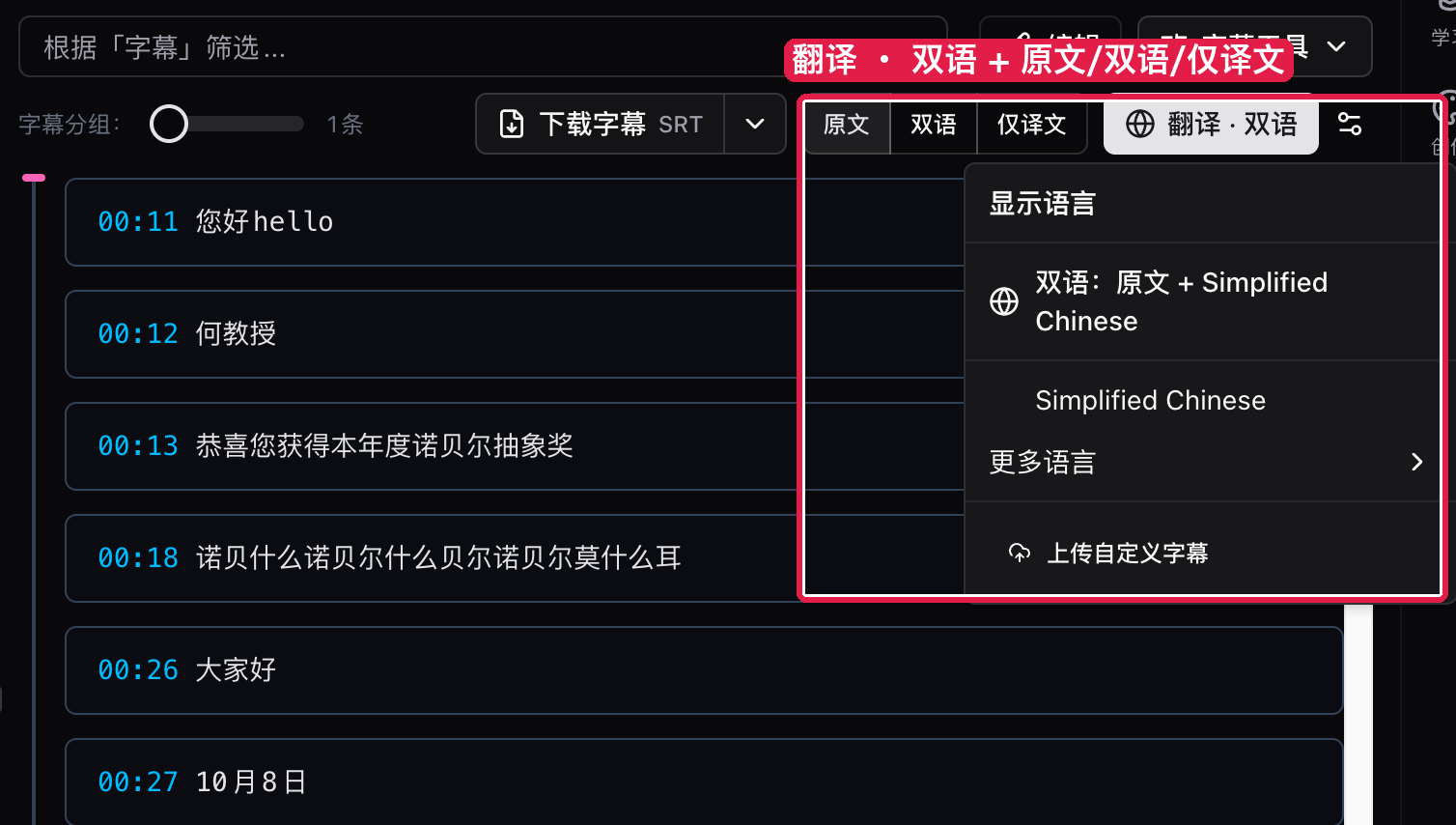
Screenshot: BibiGPT · the three-way switch and the Translate · Bilingual menu above the subtitles
🛠️ Put it to work
Turn this video into…
Done reading the summary and want an article or an image carousel out of it? You used to have to go find the right spot in Create.
Where: open a summary → “Turn this video into…” at the bottom of the full summary.
There are five cards: an article, an image carousel, an illustration, a podcast (a two-host audio show) and flashcards. Each card shows roughly how many credits it takes and which plan it needs.
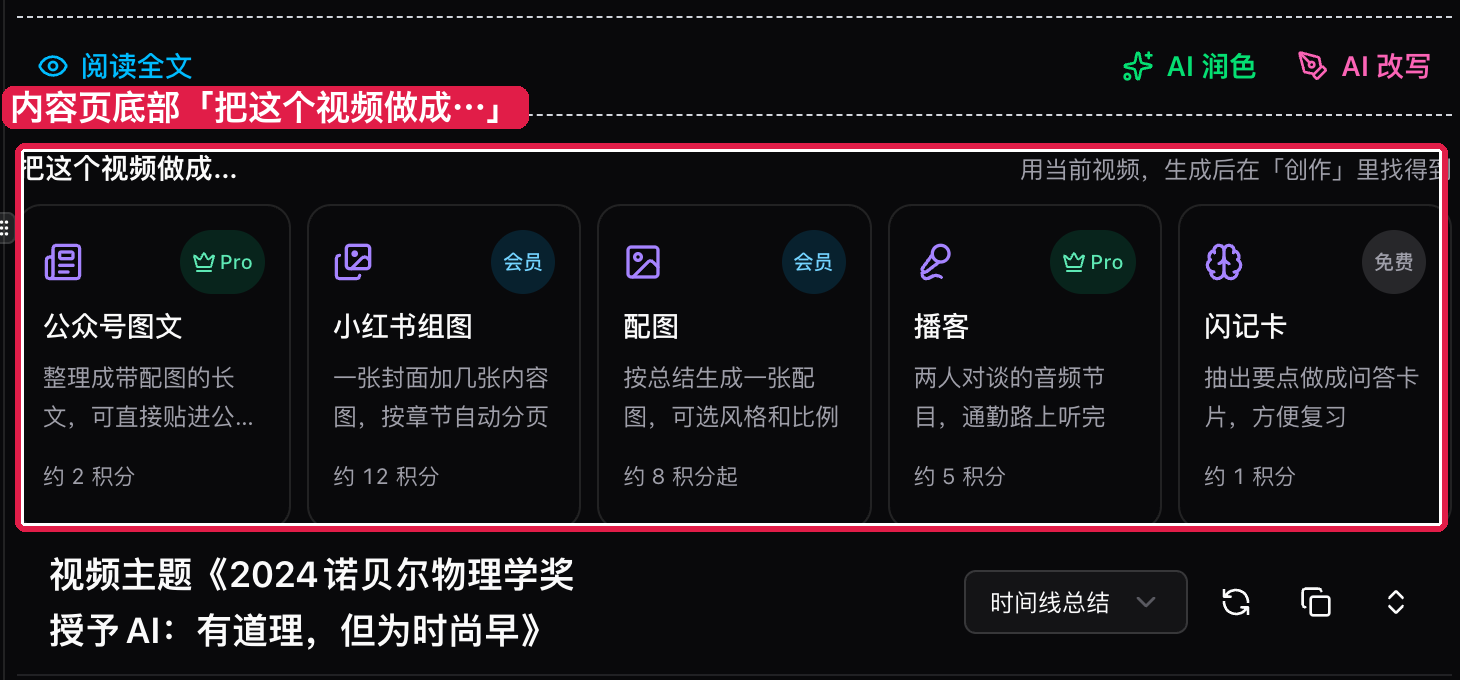
Screenshot: BibiGPT · the card wall under the full summary; results show up in Create
Your highlight notes can be used to create, too.
Where: Me → Create → Highlights → “Create from notes” → tick a few → “Create from selected notes”.
You can pick notes from different videos and combine them into one article or carousel draft, then keep editing it in Create. Create also has a new “New creation” button that starts from a video, a set of highlights or a collection.
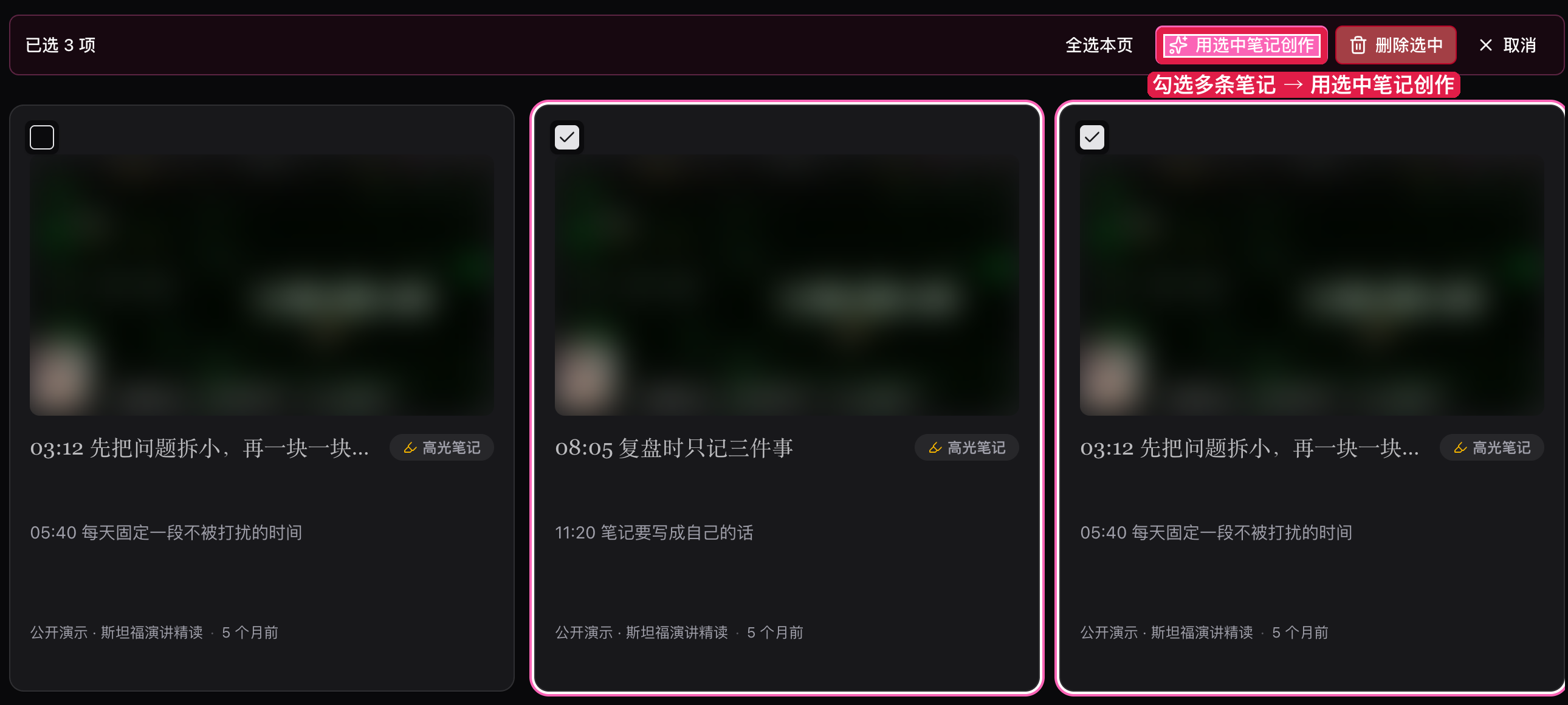
Screenshot: BibiGPT · the action bar after selecting 3 highlights (thumbnails blurred)
Sort collections your way
With lots of collections, sorting only by creation date made it hard to keep a course in order.
Where: Collections → “Sort by” at the top of the folder tree.
Choose newest first, oldest first, by name, or a custom order. Drag folders to reorder them; dragging switches to custom order automatically. The sidebar follows the same order, and sorting by name puts “Lesson 2” before “Lesson 10”.
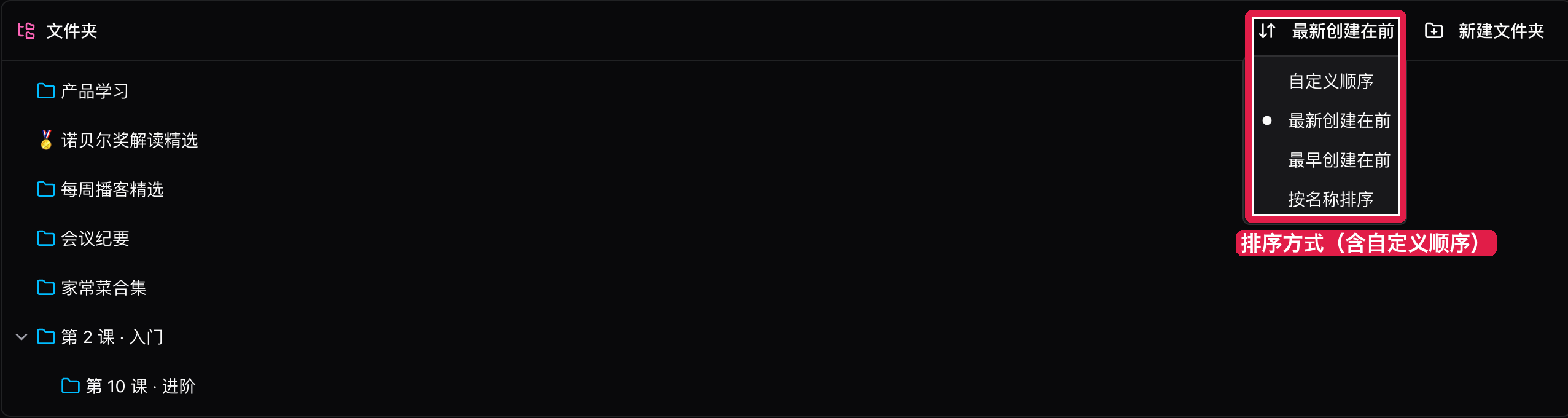
Screenshot: BibiGPT · the sort menu in Collections
Custom prompts: save vs. use once
Clicking “Save” in Custom Summary used to make that prompt your default too, so trying a new prompt replaced your old default.
Where: open a summary → “Settings” at the top → “Custom Summary”.
There are now three buttons at the bottom:
- Save: just saves it
- Save & pin as default: saves it and makes it your default summary
- Summarize this video: uses it for this video only, without changing your default
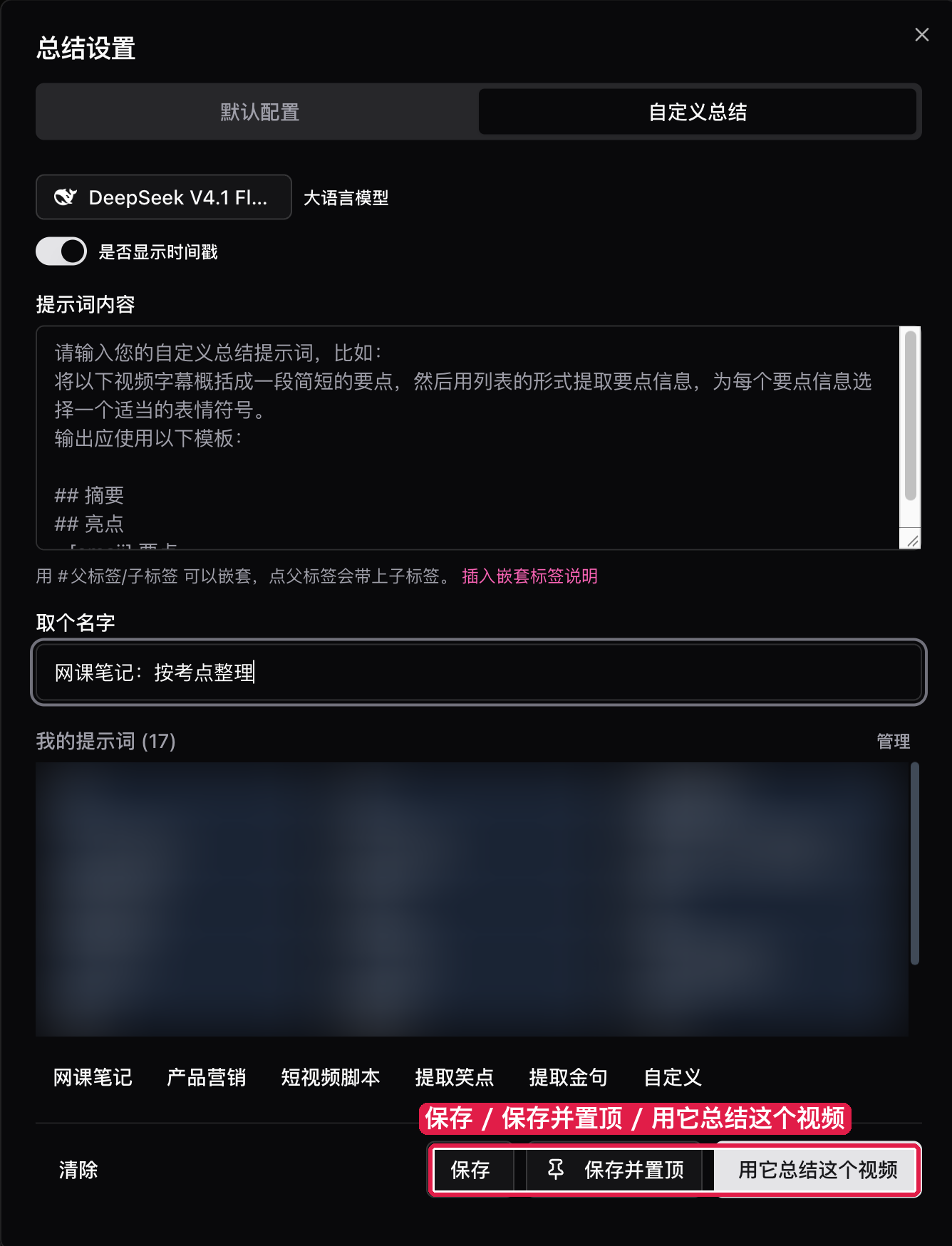
Screenshot: BibiGPT · the three buttons at the bottom of the Custom Summary dialog (prompt list blurred)
Other recent improvements
- Paid members can now hide the sidebar promo card and the group-buy entry
- The summary page lays itself out by your actual screen size: stacked on a portrait iPad or in split view, side by side on an unfolded foldable, without reloading when you rotate
- In the desktop app, cache options in the player’s ”…” menu are grouped under “Local cache”
- Web uploads that stall for 45 seconds now retry on another route automatically
- Uploads land in the collection you picked as soon as they finish
Wrap-up
This week, upload a set of slides or a report you have on hand and click “AI explainer” to hear it walk you through page by page. Then try “Turn this video into…” at the bottom of a summary.
One last reminder: Black Friday 50% off ends December 1, and the bigger group-buy bonuses end November 11.
👉 Get BibiGPT annual at 50% off · Team up for bonus months
- 🌐 Website: bibigpt.co
- ✨ Explore features: bibigpt.co/features
- 💻 Desktop app: bibigpt.co/download/desktop
- 🔌 Browser extension: bibigpt.co/apps/browser
—— BibiGPT Team
Popular tools
More in this series
- AI Competitive Intelligence Workflow: Build Industry Monitoring with BibiGPT Video Summaries
- Lessons From Shipping BiliGPT: Two Cold-Start Growth Tactics Behind a GPT-3 Side Project
- [BibiGPT Growth Series] Episode 1 | How AI Summaries for Bilibili Were Born
- BibiGPT Advanced Guide 2026: Download + AI-Summarize Videos from WeChat Channels, RedNote, TikTok, and Enterprise Intranet Sites
- Chat with Any Video: How to Ask AI Questions About Videos Instead of Watching the Whole Thing (2026)