BibiGPT v4.833.0: Finish a Batch, Swipe Through the Key Points

Hey there, BibiGPT friends 👋
One time-sensitive thing first: Black Friday is on, and annual plans are 50% off through December 1, applied automatically at checkout. Take a look →
BibiGPT shipped another round of updates this week. The one to try first is “Snack this batch”: drop in a few videos at once, and when they finish you no longer have to open them one by one. Swipe through one card per video to catch the takeaway and key points, and tap a timestamp to jump to the part you want. You can read faster, find what matters sooner, and get more done with what you’ve summarized.
⚡ Watch faster
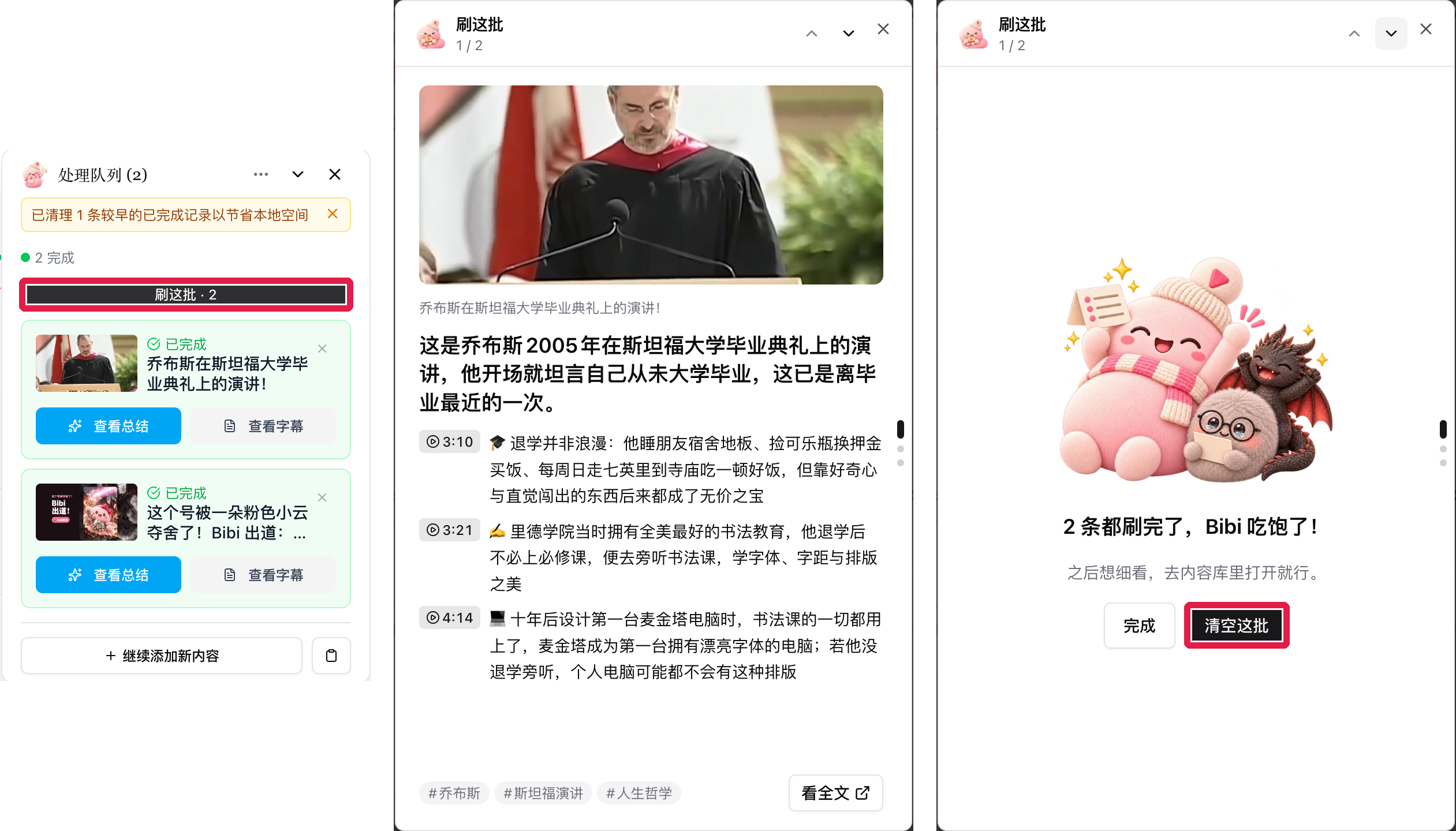
Swipe through a finished batch
Summarize several videos at once and you usually have to open each result separately. By the third one, you’ve forgotten what the first said.
Where to find it: add two or more links at once → the processing queue in the top right (the Bibi icon) → when the batch is done, tap Snack this batch.
- One card per video: a one-line takeaway plus three key points
- Tap a timestamp to jump there: each point has a time; tap it to go to that exact second, or tap Read full for the complete summary
- Clear it in one tap: on the last card, Clear this batch sits next to Done. It only clears the finished tasks from this batch; anything that finished while you were swiping, is still running, or failed stays put
- No extra credits: the cards read summaries that already exist
The queue icon is now Bibi, too: chewing means processing, holding a bowl means queued, choking means something failed, and full means everything’s done.
Screenshot: BibiGPT · the processing queue after two videos finished, the first card, and the last card
In the desktop app, Bibi can also sit in a corner of your screen showing progress. Drag a file or link onto it to start a summary, or turn it off under Desktop App in Settings.
Two new models for video and audio summaries
Where to find it: Settings → Summary settings → the model picker for video and audio summaries and chat (type a model name in the search box).
- Qwen4 Max: the flagship of Alibaba’s Qwen 4, reads images, good for long videos and demanding summaries. Qwen official site
- Hunyuan 4 Flash: the fast tier of Tencent’s Hunyuan 4, reads images, worth trying when you want summaries back quickly. Tencent Hunyuan
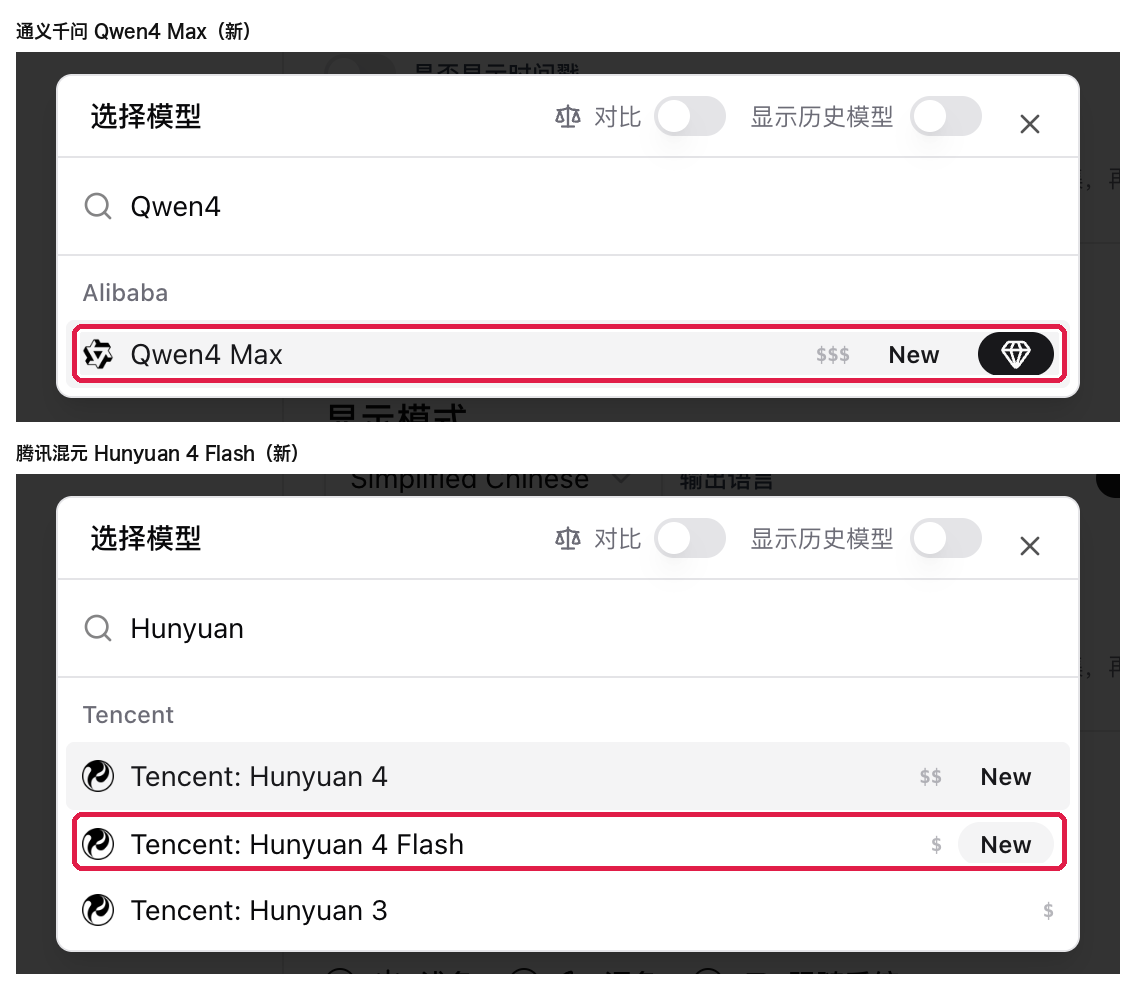
Screenshot: BibiGPT · searching for each model in Summary settings
🛠️ Get more done
Insert the current frame
When you’re editing a custom summary and want that slide or that scene in your notes, you used to screenshot it and upload it yourself.
Where to find it: open a video summary → Custom on the right → Edit on an answer → Insert current frame above the editor, or press ⌘/Ctrl+Shift+S.
Wherever the player is paused, that frame goes in at your cursor. Click Save to keep it. Audio-only content doesn’t show this button.
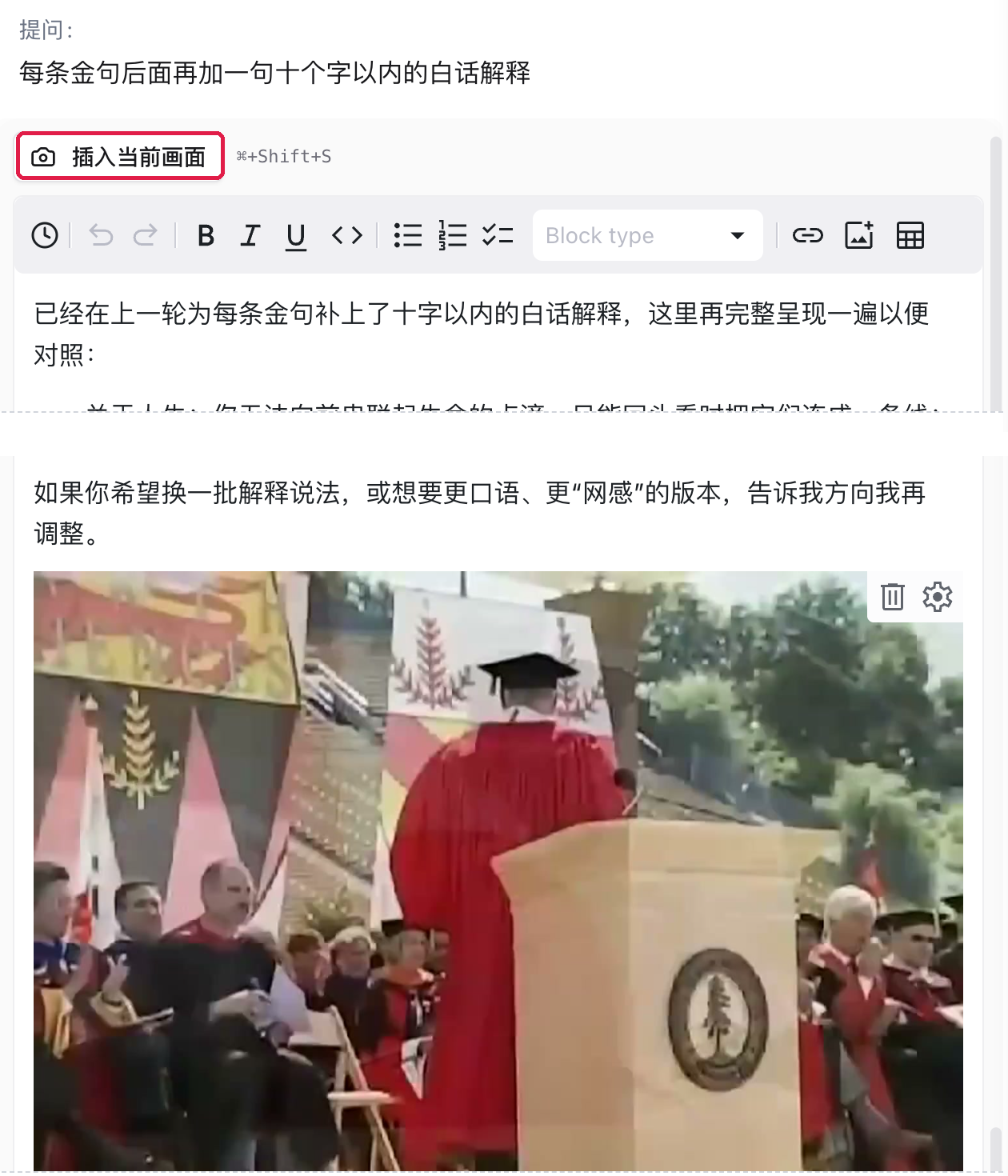
Screenshot: BibiGPT · inserting the current frame while editing a “Golden quotes” summary of Steve Jobs’ Stanford speech
Bulk-export custom summaries
If you’ve run your own prompts on every video in a collection, you used to export them one video page at a time.
Where to find it: Library → History or a collection → select a few → Export in the toolbar → Export ZIP (custom summaries).
You get one Markdown file per video per prompt, follow-up Q&A included, all in a single ZIP.
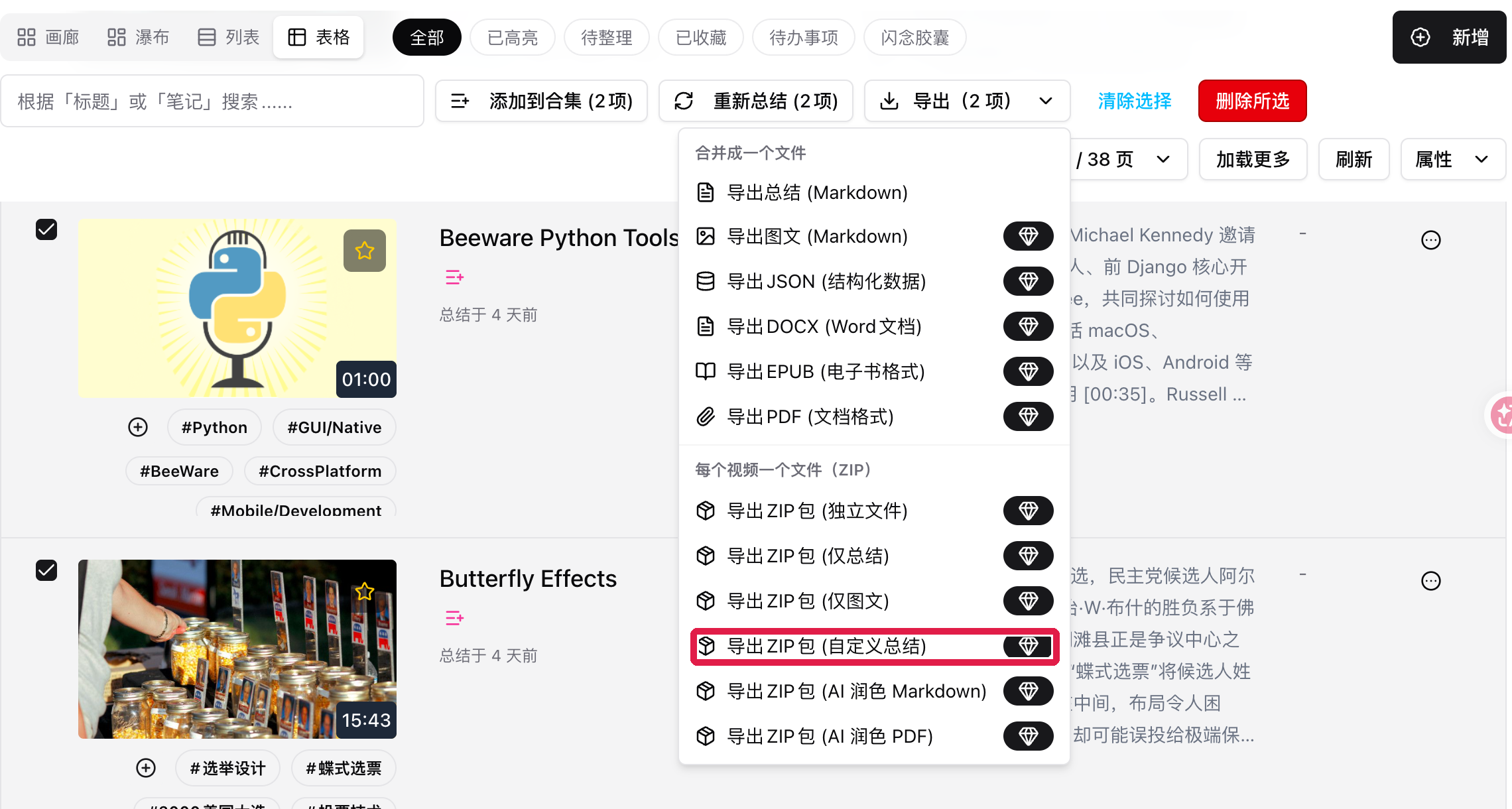
Screenshot: BibiGPT · the Export menu with two items selected
See every new feature in one place
Missed an update? The help menu in the bottom right (the avatar menu in the desktop app) now has What’s new. It lists recent feature cards by version, each with a picture and how to use it; tap Go to open the feature.
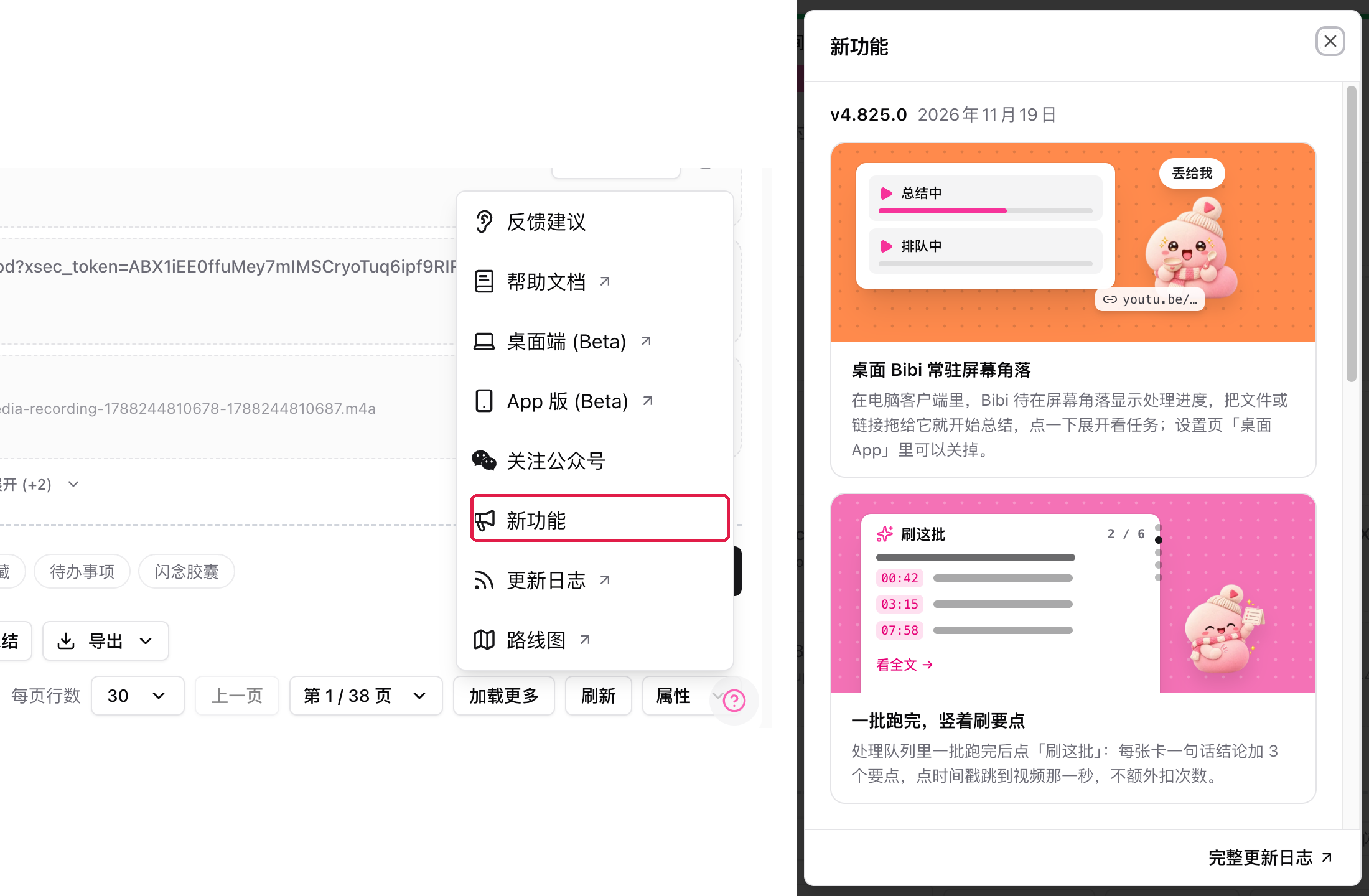
Screenshot: BibiGPT · the help menu and the “What’s new” panel
🔎 Find it faster
PDFs and EPUBs from cloud drives
When you import from Baidu Netdisk, Aliyun Drive or a self-hosted drive, the file list now shows PDFs, EPUBs and other documents too. Pick one and it’s summarized just like a document you uploaded from your computer.
Where to find it: New → Cloud drive → choose a drive → file list.
Douyin’s own summary comes first
While a Douyin video’s subtitles are still being transcribed, the summary area first shows Douyin’s own AI summary and chapters, so you’re not left waiting. The full summary appears as usual once the subtitles are ready. Videos without a built-in summary work as before.
Other improvements
- You can now request an invoice from My orders: select several orders, fill in the company name, tax ID and email, and get one combined Chinese VAT e-invoice by email
- Videos you’ve already summarized open straight to the existing result. Summary settings also has a Start summarizing as soon as I paste a link switch; turn it off to check the link first
- Deleted something from your library by mistake? You have 10 seconds to undo
- Text on Xiaohongshu-style images and WeChat article illustrations now quotes your transcript and highlights directly
- Image generation now includes Kling Image 4.0, and video generation includes Seedance 2.5 Flash
- The desktop app’s local version uses your graphics card when it can, and model settings can open the model folder directly. After you click Check for updates, progress and restart live on the update card in the bottom right
- The iOS app is in public beta: on the iOS download page, tap Join the TestFlight beta
- On a summary page someone shared with you, Summarize audio & video in one click now works even when you’re signed out. If a Douyin video was deleted or is private, you’ll see why
Wrap-up
This week, drop two or three videos you’ve been meaning to watch into BibiGPT, then tap Snack this batch when they’re done and get through them in a few minutes. If one deserves a closer look, tap a timestamp, or open a custom summary and insert the key frame right into your notes.
One last reminder: Black Friday 50% off ends December 1.
👉 Get BibiGPT annual at 50% off
- 🌐 Website: bibigpt.co
- ✨ Explore features: bibigpt.co/features
- 💻 Desktop app: bibigpt.co/download/desktop
- 🔌 Browser extension: bibigpt.co/apps/browser
- 📱 Mobile app: bibigpt.co/app
—— BibiGPT Team
Popular tools
More in this series
- AI Competitive Intelligence Workflow: Build Industry Monitoring with BibiGPT Video Summaries
- Lessons From Shipping BiliGPT: Two Cold-Start Growth Tactics Behind a GPT-3 Side Project
- [BibiGPT Growth Series] Episode 1 | How AI Summaries for Bilibili Were Born
- BibiGPT Advanced Guide 2026: Download + AI-Summarize Videos from WeChat Channels, RedNote, TikTok, and Enterprise Intranet Sites
- Chat with Any Video: How to Ask AI Questions About Videos Instead of Watching the Whole Thing (2026)