BibiGPT v4.455.0: AI Chat Agent Mode, Creator Update Notifications, and Multi-Format Subtitle Export
BibiGPT v4.455.0: AI Chat Agent Mode, Creator Update Notifications, and Multi-Format Subtitle Export
How many clicks does it take you to get through a video summary? Open the mind map, switch to AI rewrite, hunt down the export button — every feature is there, but you have to remember where each one hides. In v4.455.0, we tried to replace all that clicking with a single sentence: the new Agent mode in the AI chat window understands what you want and operates the entire summary page for you. Creator update notifications, multi-format subtitle downloads, and drag-to-reorder exports are all shipping together too — each change modest on its own, but stacked together they make finishing a video feel frictionless enough that you might not want to go back. Read on.
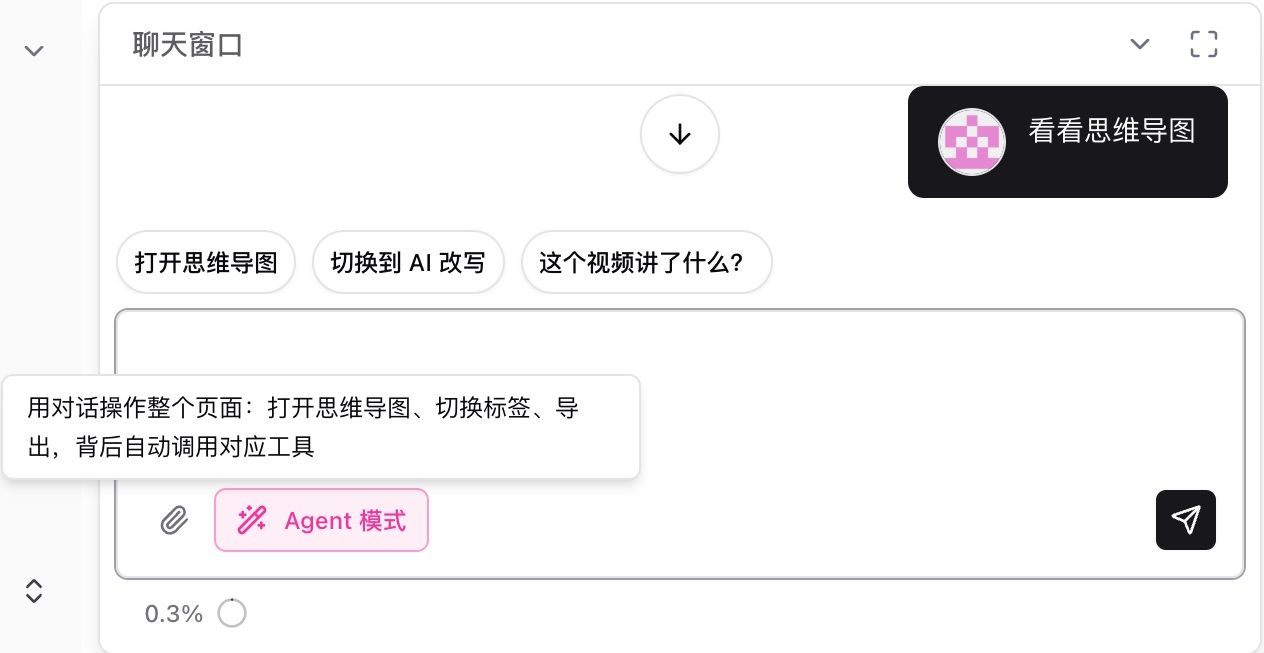
Screenshot: BibiGPT · The “Agent Mode” toggle and quick-suggestion bubbles in the AI chat window
⚡ Watch Faster
AI Chat Agent Mode: Control the Entire Summary Page with One Message
Before, navigating a summary page meant finding the mind map entry point yourself, clicking around to switch to AI rewrite, and digging through menus to export. Everything existed — you just had to remember where it all lived.
Now open the chat window in the bottom-right corner, flip on the Agent Mode toggle above the input box, and the AI goes from answering questions to taking action. Type “show me the mind map” and it navigates directly to the mind map view. Quick-suggestion bubbles like “Open mind map,” “Switch to AI rewrite,” and “What’s this video about?” sit above the input for one-tap access.
Both modes share the same draggable chat window — no separate panel pops up. Your chosen mode is remembered across refreshes. Here’s what it looks like after sending one instruction and having Agent automatically jump to the mind map results:
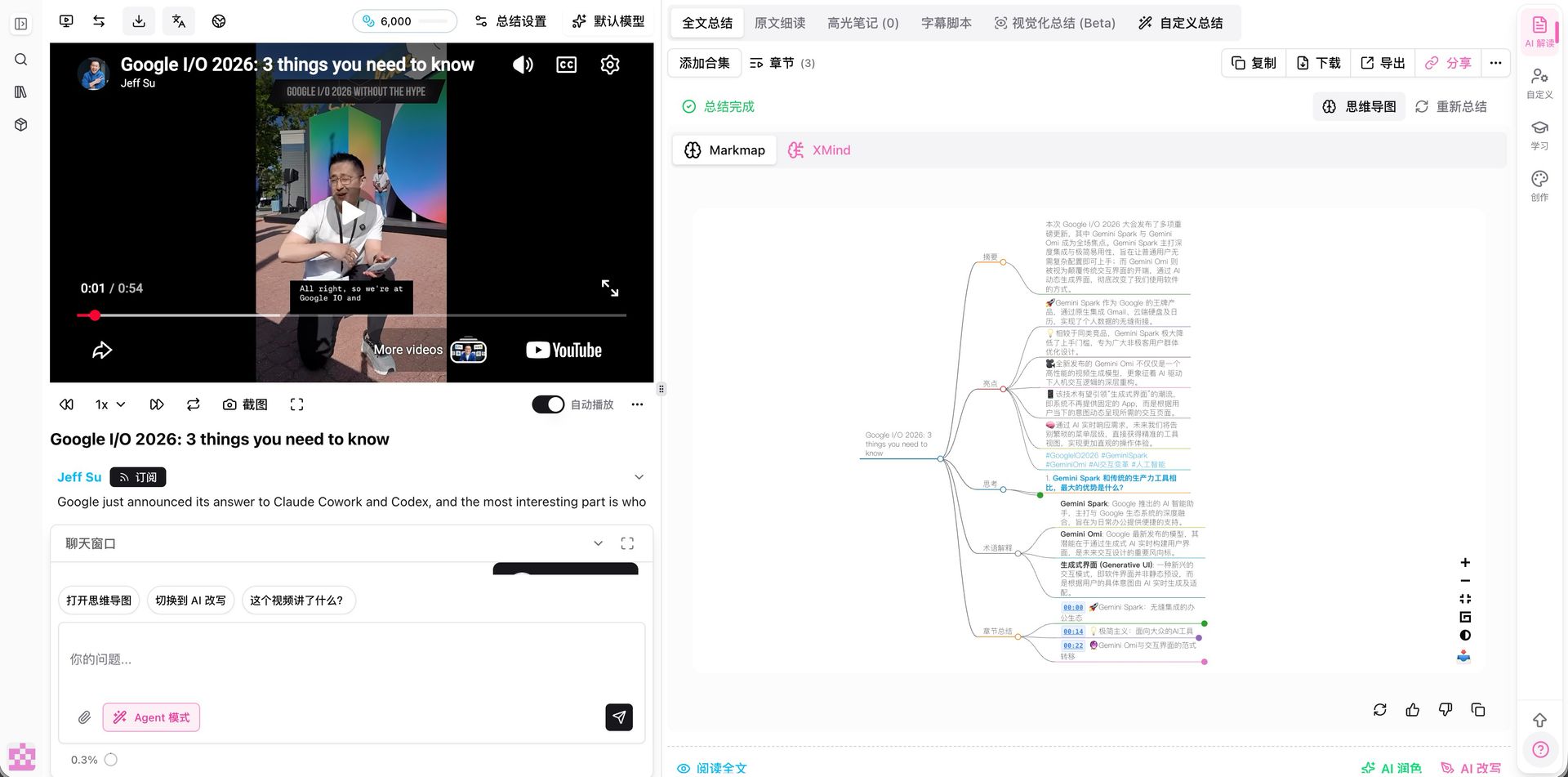
Screenshot: BibiGPT · Agent mode auto-navigating to the mind map view
Hand the “find the button, remember the steps” job off to AI — and watching a video summary goes back to feeling as natural as asking a question.
Browser Sidebar: Open Any Video, Summarize in One Click
Previously, the browser extension sidebar only showed the AI Summary tab for videos that had already been summarized. Now the tab appears for every video the moment you open it — one click to start summarizing, and if it’s already been done, the result loads instantly without charging you again.
Bilibili paid videos also work more smoothly: when the sidebar detects it’s received an incomplete preview transcript, it automatically re-fetches the full version using your login session, no manual intervention needed.
More Upload Formats: .ts / .mkv / .avi Now Accepted
If you had screen recordings or broadcast files in .ts, .mkv, or .avi, you had to convert them to mp4 first — an extra transcoding step that was slow and ate up storage.
Now uploads support mp4, mov, ts, mkv, mp3, m4a, wav, webm, avi, and more. Drop the file in and the system validates and transcodes it automatically — live recordings, screen captures, and files downloaded from cloud drives all go straight into the summary pipeline. Here’s the updated upload dialog:
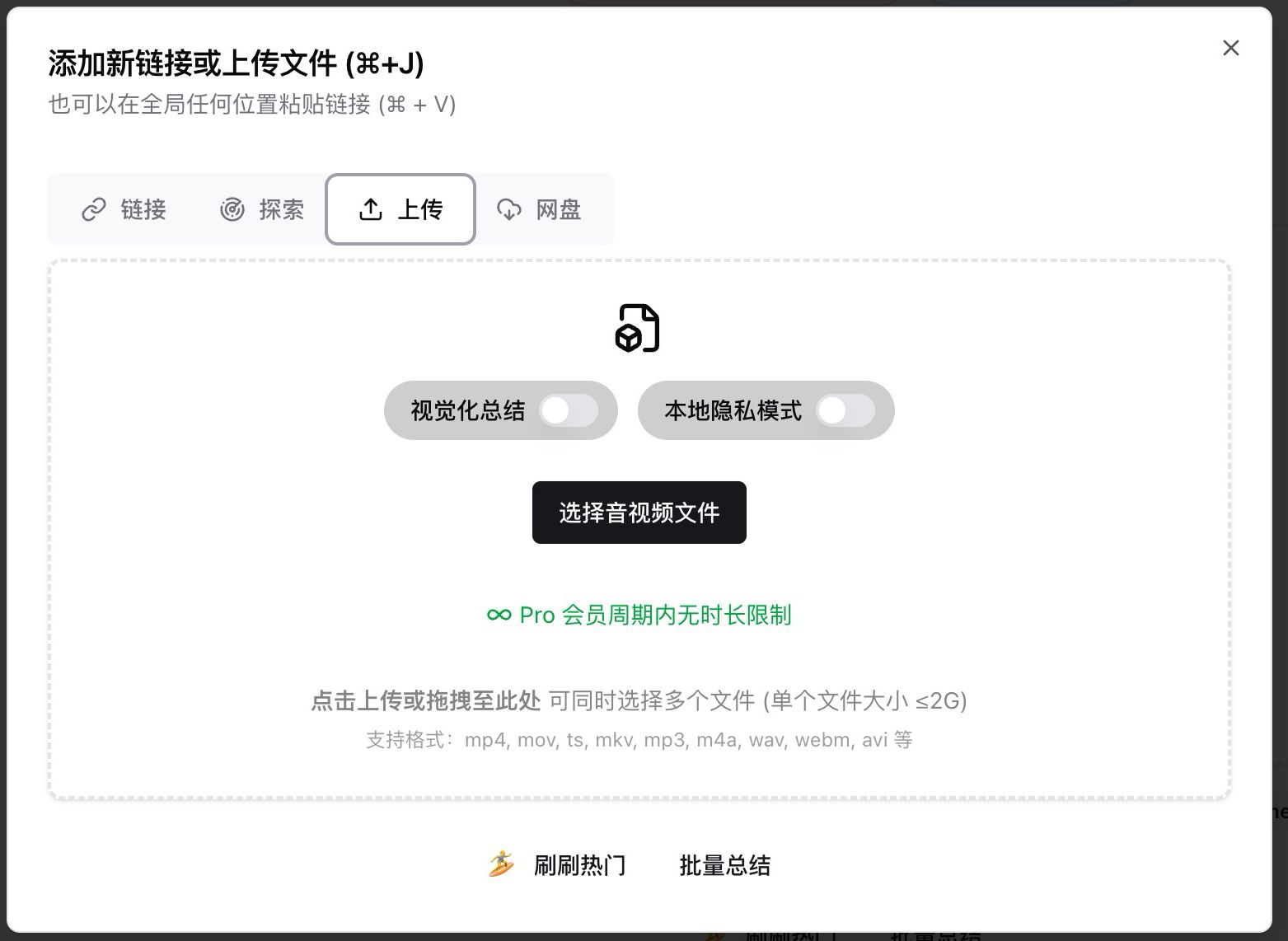
Screenshot: BibiGPT · Supported audio and video formats in the upload dialog
🔎 Search Better
Creator Update Notifications: Get a WeChat Alert the Moment a Creator Posts
You follow an active creator but you keep missing their uploads — either you forget to check their page, or by the time you remember, the video has been up for days.
After linking WeChat in your user settings, the new Creator Update Notifications feature sends you a WeChat message whenever a creator you’ve subscribed to or previously summarized has new content. Three notification levels to choose from:
- Off (default): no interruptions
- Subscribed channels only: only the creators you’ve explicitly subscribed to
- All (including past summaries): also alerts you about creators you’ve summarized before
Following new content goes from “remember to check manually” to “it comes to you.” Here’s what the settings panel looks like:
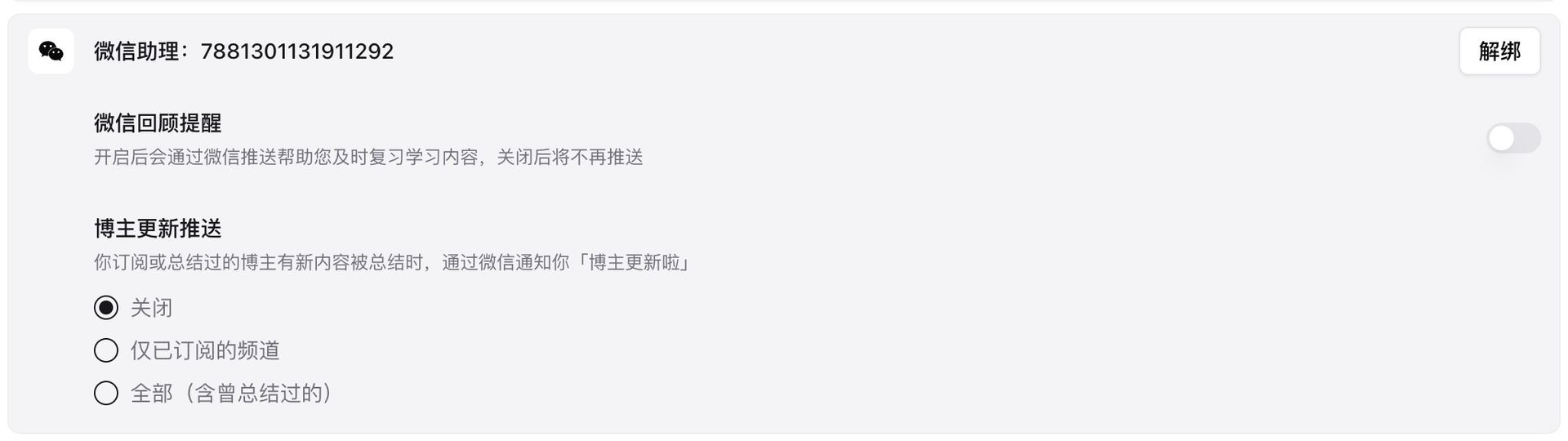
Screenshot: BibiGPT · The three-level creator update notification toggle in user settings
WeChat Channel Subscriptions: Separate Toggle for Official Accounts + Custom Summary Style
WeChat channel push notifications have been refined: there’s now an independent toggle for Official Account channels (controlled separately from enterprise WeChat), and pushes only include videos published within the last 7 days to prevent a flood of historical content. An unsubscribe link has been added at the end of notifications for easier management.
Plus and Pro members can also customize the summary style for channel push notifications directly from the WeChat binding page — something like “key financial figures only” or “three-sentence recap” — so every summary that arrives in your WeChat is already in the format you want.
🛠️ Use It Well
Multi-Format Subtitle Download: SRT / VTT / JSON / TXT / LRC in One Click
When you want to take subtitles somewhere else — burn them into a video, import them into notes for structured processing, or just get the plain text — the previous single-format export meant extra conversion work after download.
Now in the Transcript tab, click the dropdown arrow next to “Download Subtitles” and pick the format that fits your workflow:
- SRT: universal subtitles, for burning in or uploading to a player
- VTT: web player / browser-native format
- JSON: structured data, ready for programmatic processing
- TXT: timestamps + plain text
- LRC: lyrics format for music players
Each format is labeled with its typical use case, so you’re not guessing. Here’s the dropdown:
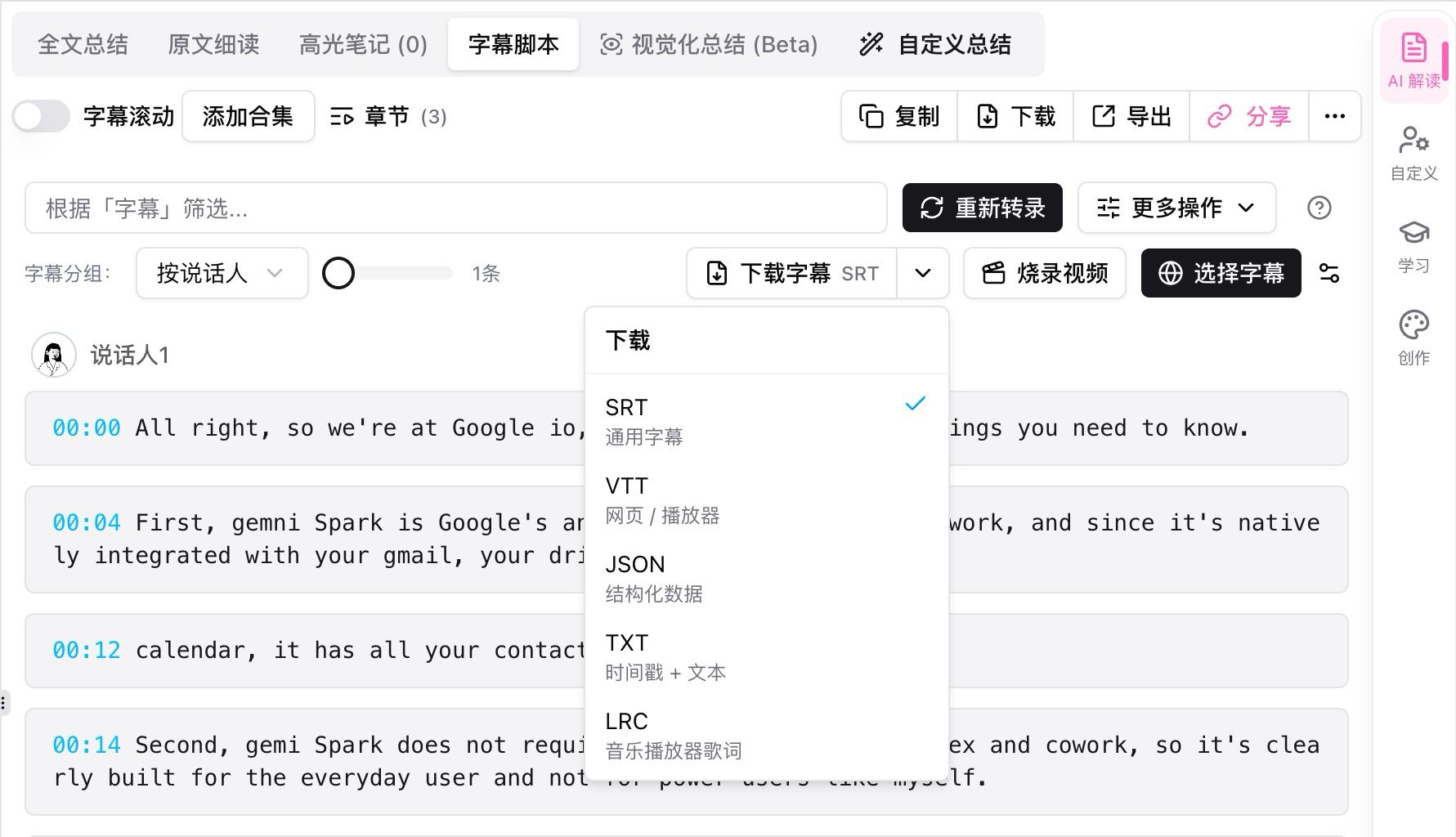
Screenshot: BibiGPT · The multi-format dropdown for “Download Subtitles” in the Transcript tab
Drag-to-Reorder Exports: Arrange Your Notes Before You Export
The order of content in exports — full summary, chapter summaries, article script — used to be fixed, regardless of how you actually organize your notes. After exporting, you’d end up rearranging things manually in Notion or Obsidian.
Now the Export panel has a new “Export Order” drag zone in the top-left corner. It lists every section you’ve checked, each with a drag handle on the left — grab and drag to reorder, and the export follows your arrangement exactly. The order is saved and applies to downloads, copies, and note exports alike. Here’s the panel:
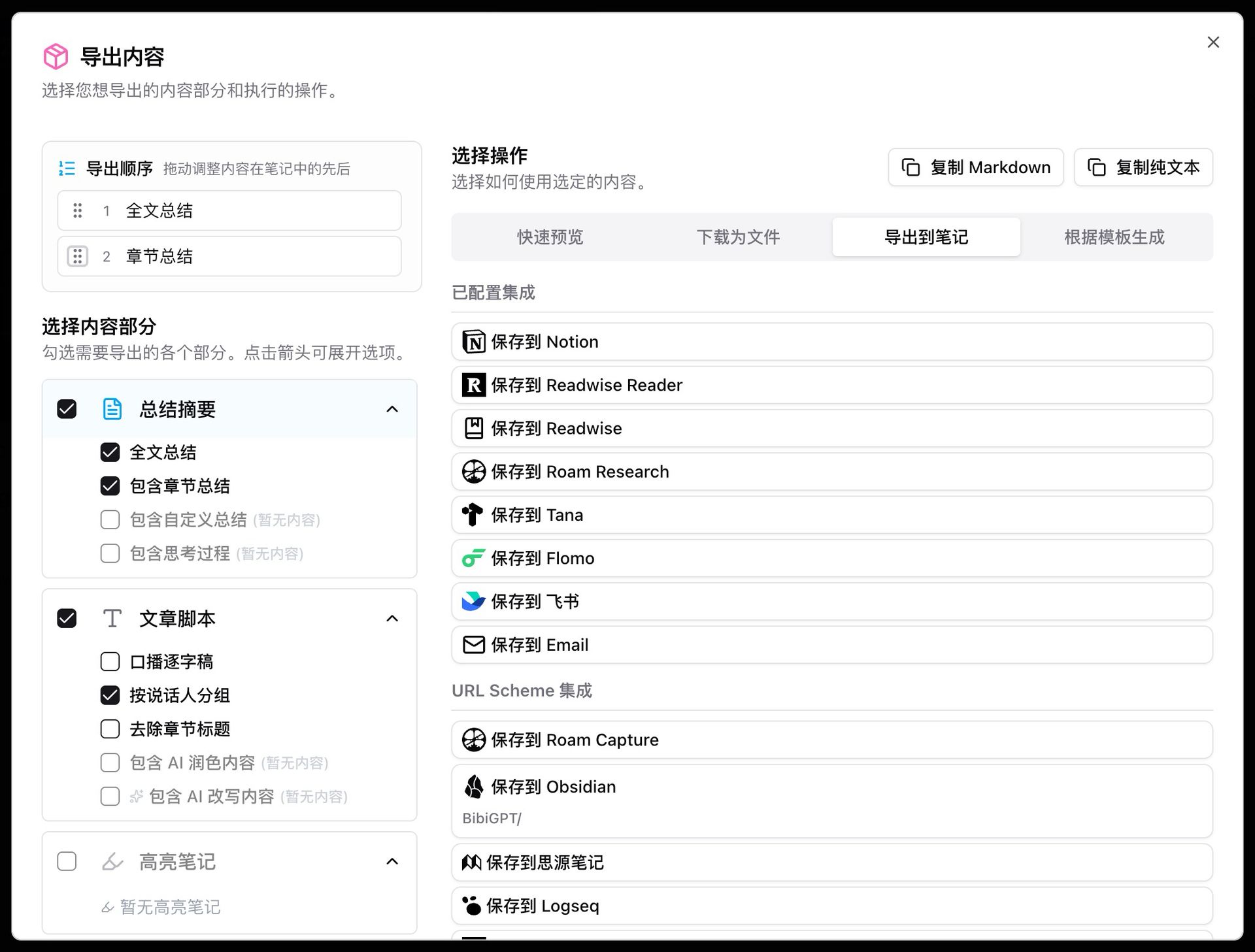
Screenshot: BibiGPT · The “Export Order” drag zone in the Export panel
Save Summaries Directly to Obsidian / Roam
The browser extension’s summary toolbar has three new save options in the “Save” dropdown: download as a Markdown file, send directly to Obsidian, or send to Roam Research. The Obsidian integration works via clipboard — no vault configuration needed, works out of the box. All three options support 17 languages.
Other Recent Improvements
- Usage progress bar: Subscribers now see a monthly usage progress bar at the top of the page — see at a glance how much you have left, with an upgrade prompt when you’re running low
- Smoother scrolling for long transcripts: The transcript list for full-length livestreams and long podcasts no longer stutters while scrolling
- Smarter desktop platform authorization: The app auto-detects which browsers are installed and ranks them by stability; uninstalled browsers are grayed out and unselectable, preventing failed authorization attempts
Wrap-Up
The feature most worth trying this release is AI Chat Agent Mode — one message to operate the entire summary page, bringing video summaries back to the most intuitive interaction imaginable: just ask. Creator Update Notifications mean you never miss a new upload from the creators you care about. Multi-format subtitle downloads and drag-to-reorder exports round out the “ready to use as-is” experience.
Save your mental energy with AI — watch faster, find more, do more with your audio and video.
Feedback or bugs? Leave us a message on the “魔法司” WeChat Official Account.
- 🌐 Website: bibigpt.co
- 🔌 Browser Extension: bibigpt.co/apps/browser
- 💻 Desktop App: bibigpt.co/download/desktop
- 📱 Mobile App: bibigpt.co/app
- ✨ Explore all features: bibigpt.co/features