BibiGPT v4.618.0: Xiaohongshu image carousel and collection import

Hey there, BibiGPT friends 👋
Over the past few days, BibiGPT shipped another round of updates. This week’s through-line is Xiaohongshu image notes and collections: paste a note that is only pictures plus text, and you still get an audio/video-style summary, with a swipeable carousel in the player; paste a YouTube playlist or a Bilibili collection, and it becomes a collection of your own. Read faster, find it, put it to work — you can use all of that this week.
⚡ Read faster
Xiaohongshu notes become a carousel
You hit a Xiaohongshu note with no video — just several pictures and a caption — and still want a one-tap summary, then to flip through the pictures.
Where: open bibigpt.co → new summary → paste a single Xiaohongshu note link (explore page or short link) → one-tap summary.
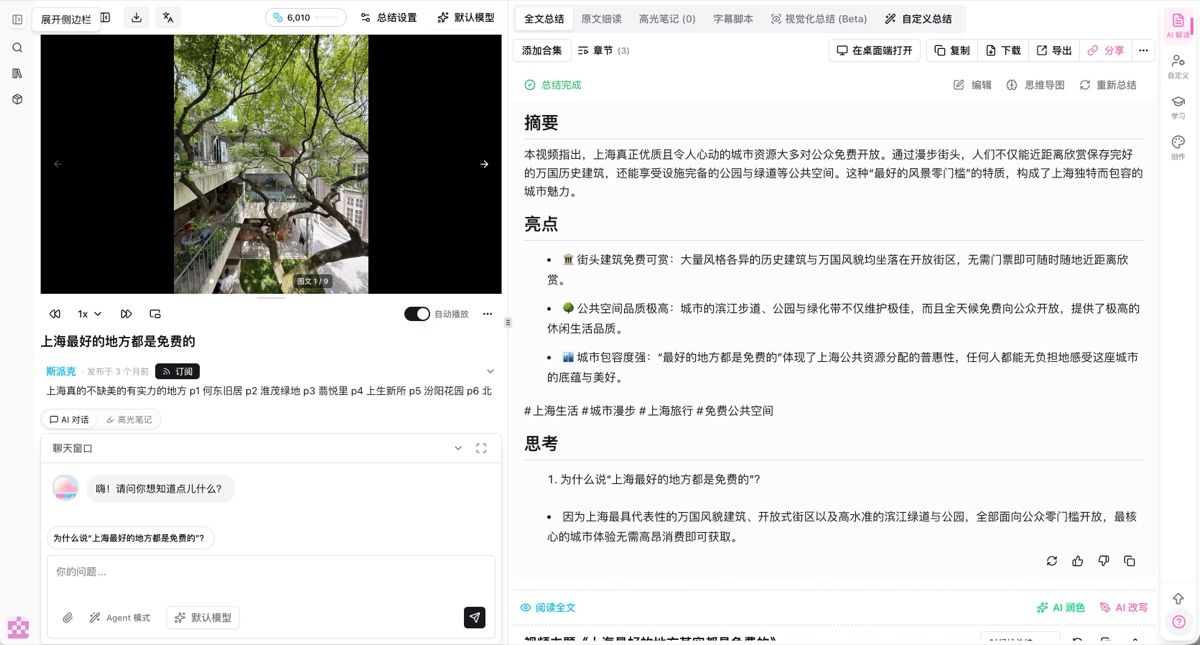
When it finishes, the player slot no longer waits for a video. It becomes a picture carousel, with a badge like “Image 1 / 9”, and you can swipe left and right. The right side is still the full summary, highlights, and visual analysis; the note’s pictures go into visualization with the rest. This is an image note, not a video; a user profile is treated as a channel. If the web cannot pull the note, it will ask you to install the extension or use the desktop app.
Screenshot: BibiGPT · result-page player slot shows “Image 1/9”; swipe through the note’s pictures
Gemini 3.8 Flash for audio/video summaries
When you summarize audio/video or ask a follow-up, and you want the new faster tier, open the list and it is there.
Where: open any summary or AI chat → tap the model name at the top → “Select model”. There is a search box at the top; type “gemini” or “3.8”.
This week the audio/video summary and chat model picker adds Gemini 3.8 Flash, with New and a membership mark. Same-group Gemini 3.7 Flash is still there; only New was removed. Pick it and it applies to the current summary or chat right away. You can re-summarize the same item with another model to compare. It is not the new default, and we did not ship several models at once. Details: Gemini 3.8 Flash official blog.
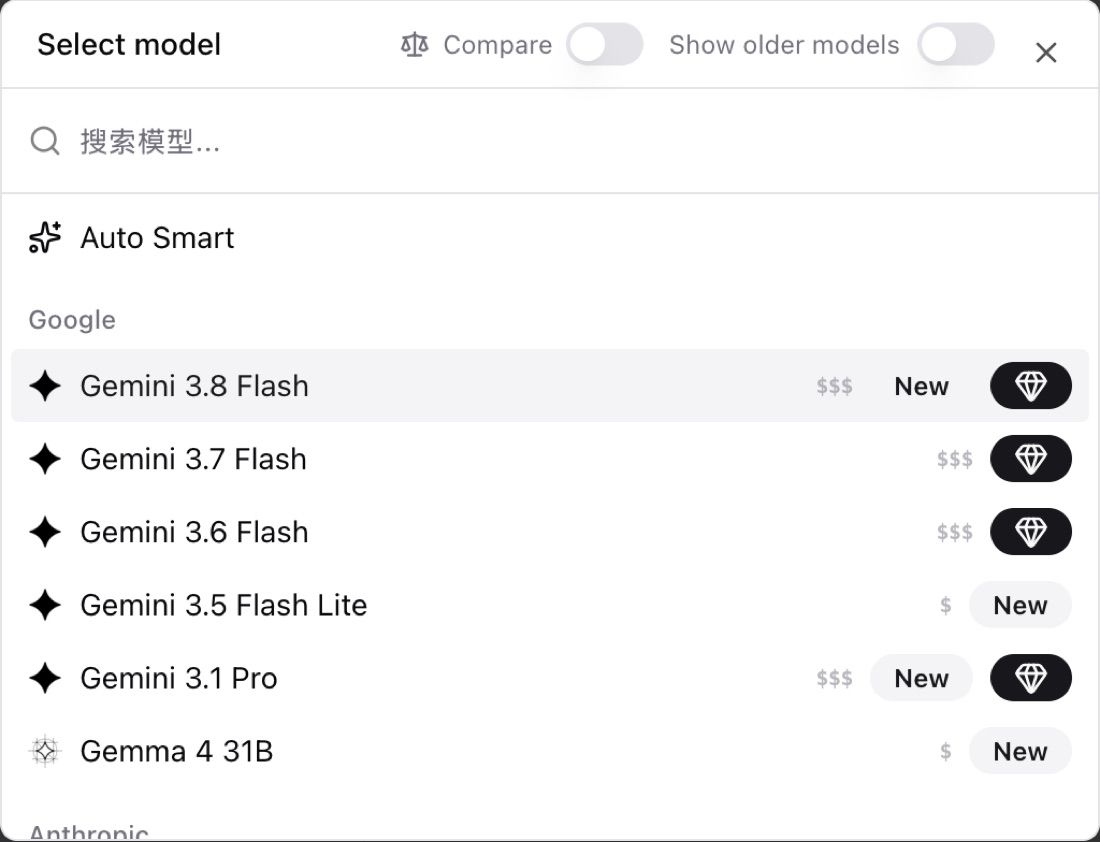
Screenshot: BibiGPT · Gemini 3.8 Flash in “Select model”, with New and a membership mark
Keyframes picked by scene change
For screenshot analysis, you want the frames that actually changed, not an even split by duration.
Where: open a video summary → screenshot analysis / visualization (“extract key frames, read them one by one”). After you pick a transcription model, the system picks frames by scene change.
Selected frames are highlighted, the rest fade, and it says “auto-selected N frames by scene (model cap)”, for example 133 frames down to 10. Open it and you can see how many were kept, and whether it hit the cap.
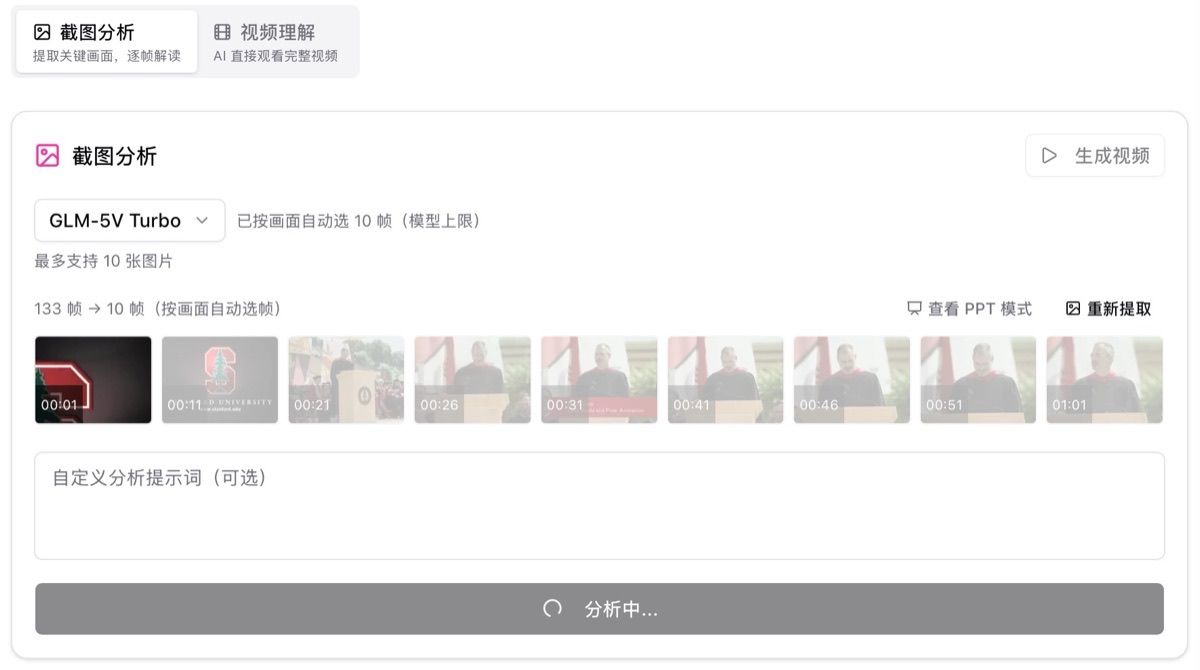
Screenshot: BibiGPT · screenshot analysis says “auto-selected 10 frames”; selected frames are highlighted
🔎 Find it
Turn a playlist into a collection
You have a YouTube playlist or Bilibili collection link, and you just want it as your own collection, summarized item by item.
Where: paste a YouTube playlist or Bilibili collection link on the home page. As soon as the list arrives, “Create a new collection and add content” opens, prefilled with the videos; you can edit the name and description. Summaries start only after you tap “Create and add”, plus a cross-video recap. Up to 50 items at a time.
The page says this is not a channel subscription. “Summarize the whole playlist” on a channel banner is the same path, started by hand.
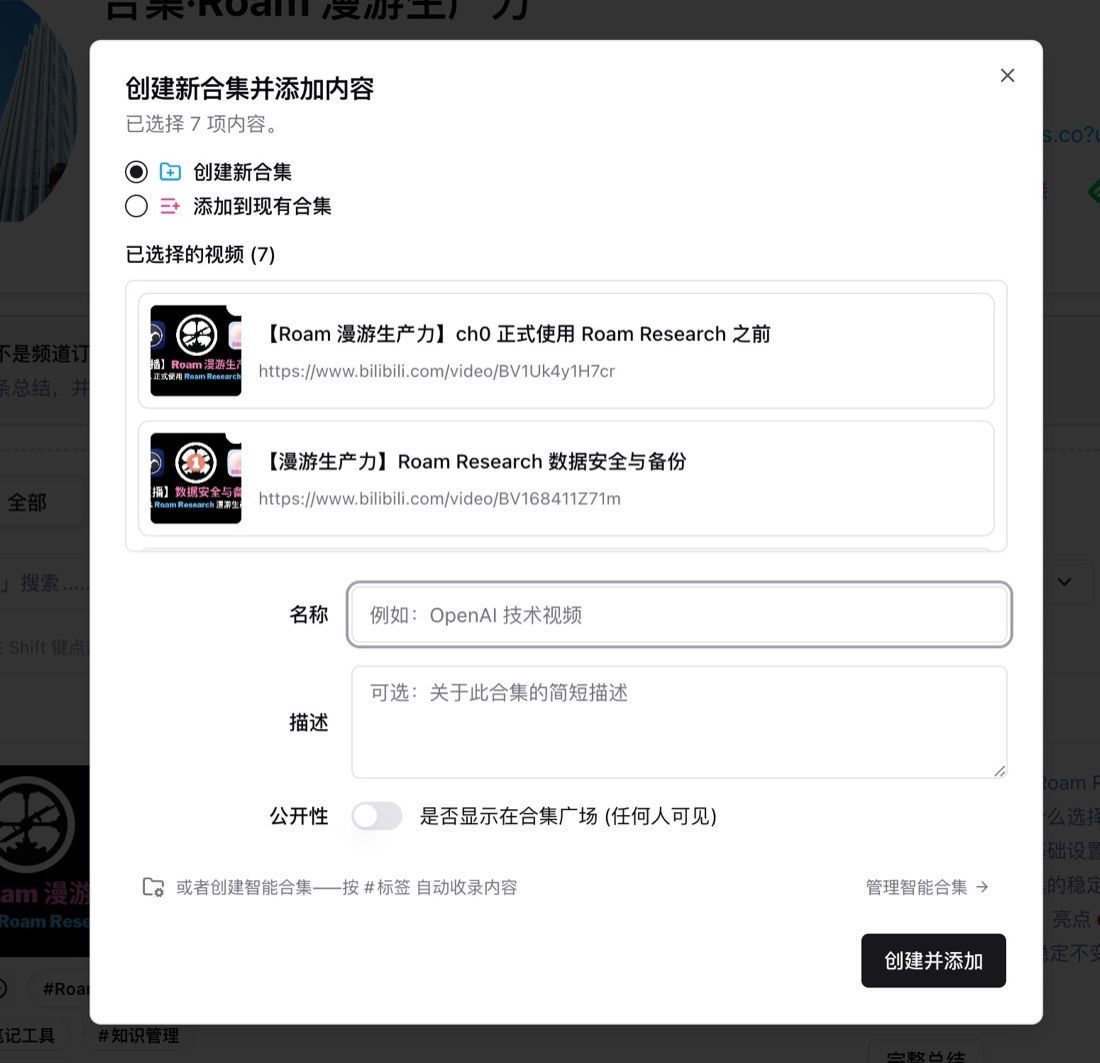
Screenshot: BibiGPT · “Create a new collection and add content” dialog, prefilled with the playlist videos
Download a ZIP when web captions fail
When the web cannot get captions, it used to only point you at the browser extension. If Chrome Web Store will not open, or you want to skip store review, ZIP now sits next to the store buttons.
Where: if web captions fail while processing a link, the install guide appears; you can also open the browser extension page. Chrome install, Edge install, and “Download ZIP to install manually” sit side by side. Unzip and drag it into the browser’s extension page. There is also “See all browser ZIPs” at the bottom.
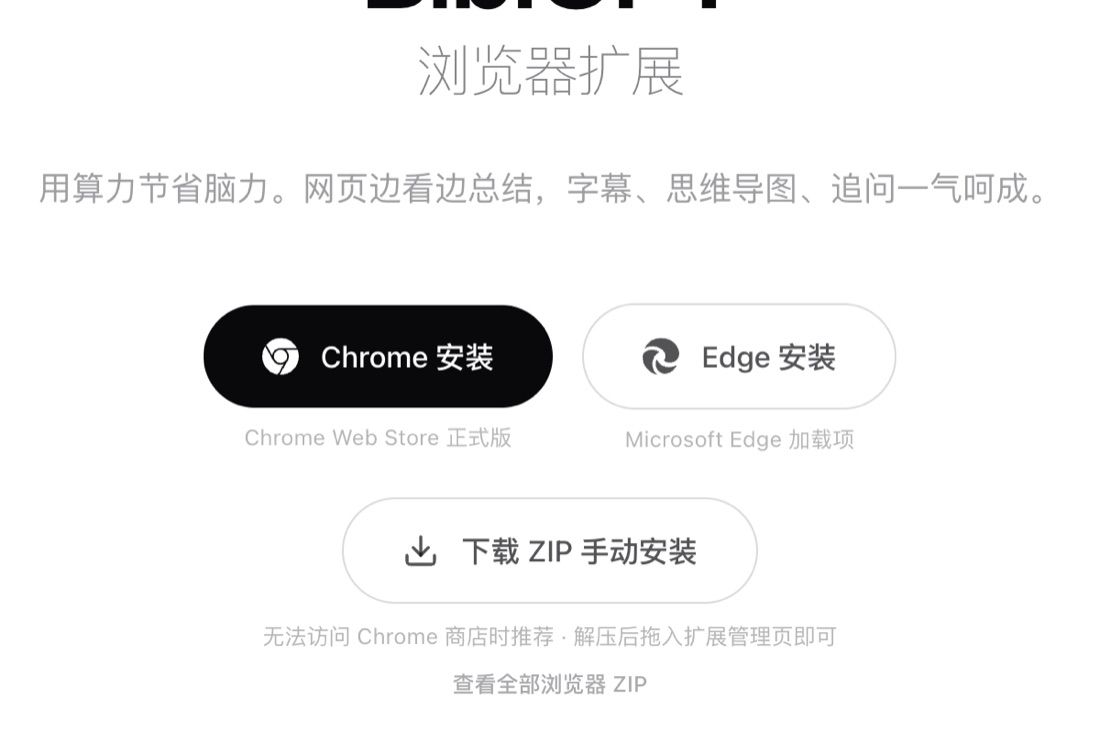
Screenshot: BibiGPT · browser extension page, “Download ZIP to install manually” next to the store buttons
🛠️ Put it to work
Pull a Creation draft from a collection
When you write a WeChat article or a Xiaohongshu image post, you should not have to stitch the first draft from summaries, collections, chapters, and highlights by hand.
Where: open an existing summary → Creation / WeChat article or Xiaohongshu image post. The top of the panel is “Generation source”: current video / custom text. Under that, “Bring in a first draft” can fill custom text from a collection recap, chapter blocks, the summary, or highlights — still editable.
Visible buttons include “Bring in highlight notes”, “Choose a collection”, “Collapse chapters”, and “Bring in selected chapters”. The chapter area supports multi-select, and selecting none. Custom text can “View the default prompt” first, then edit. Pure audio with no picture gets generated images inserted; a WeChat article that needs frames must be linked to the original video first.
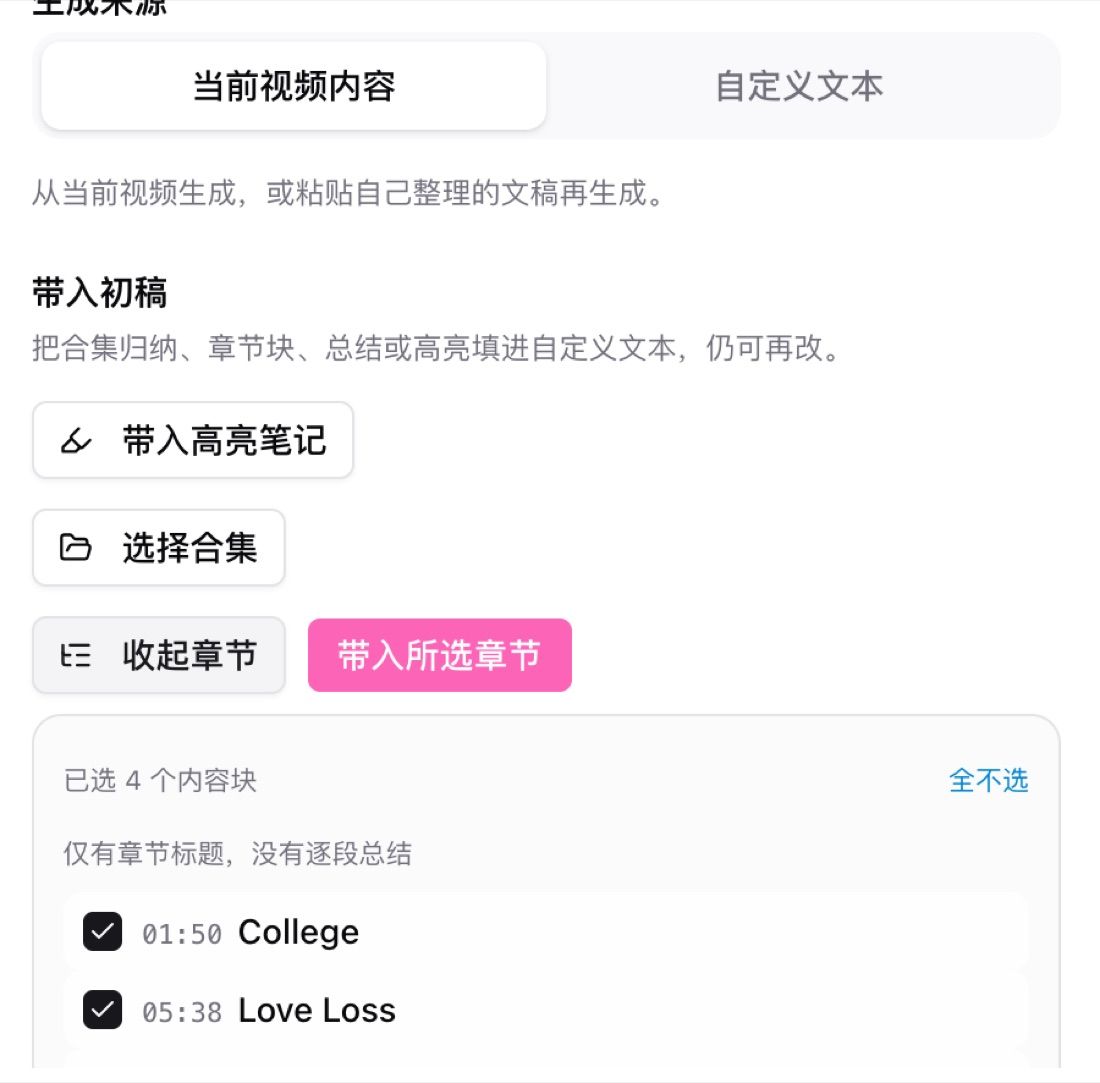
Screenshot: BibiGPT · Creation panel “Bring in a first draft”, from collections, chapter blocks, and highlights
Open the desktop app from the web
You are reading a summary in the browser, and you want to continue in the desktop client you already installed.
Where: open any content page → export / share bar → “Open in desktop” (monitor icon, same row as copy, download, export, share). The Settings “Desktop app” card has a switch, “Open links in the desktop app”: opening content in the browser launches the installed client; turn it off to keep reading on the web.
If you have not installed desktop yet, tap “Download the client”. This is a web-side entry; with no client it will send you to download. Desktop install: bibigpt.co/download/desktop.
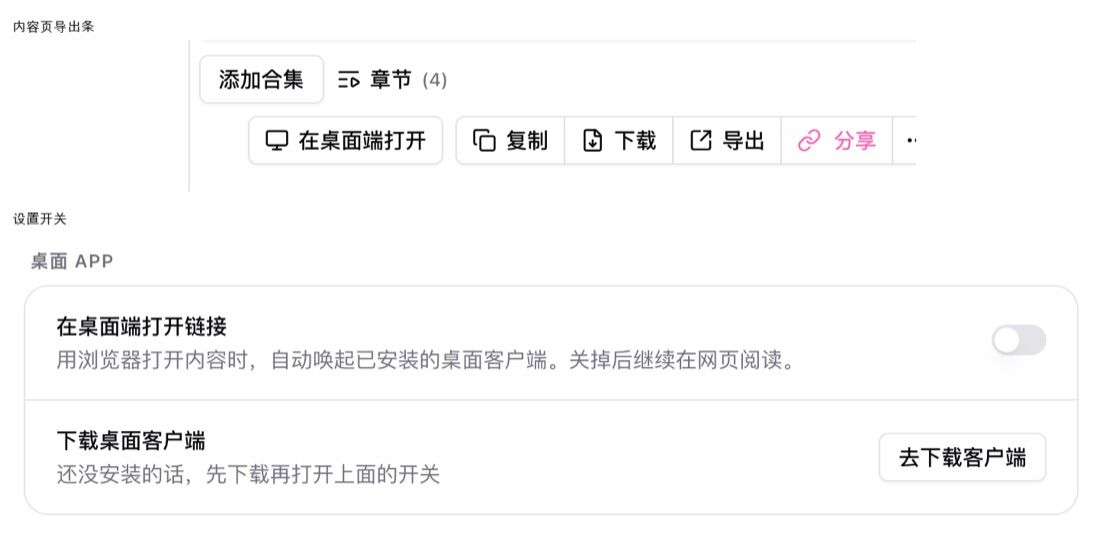
Screenshot: BibiGPT · “Open in desktop” on the export / share bar, same row as copy and download
Other recent polish
- Default summaries follow the content; they no longer pad to a word count or bullet quota
- Creator chapters or original YouTube chapters are used as-is, including the first chapter
- Opening a YouTube link while signed out now says you need to sign in to summarize
- Pressing Enter while choosing a pinyin candidate no longer submits the home page or the large input
- Failures are explained in plain language, not a tool name
- If polish does not produce an article, it asks you to try again; local recordings show a readable title
Wrap-up
Start with Xiaohongshu image notes and playlist-to-collection this issue — one so a pictures-only note can still be summarized and flipped through, one so a whole list lands in your collection in one go. Gemini 3.8 Flash in the audio/video summary and chat model picker, and scene-based keyframe picking in screenshot analysis, are easy to try on the way.
Ideas or issues? Leave us a note on the WeChat Official Account “魔法司”.
- 🌐 Website: bibigpt.co
- ✨ Explore features: bibigpt.co/features
- 🔌 Browser extension: bibigpt.co/apps/browser
- 💻 Desktop app: bibigpt.co/download/desktop
- 📱 Mobile app: bibigpt.co/app
The BibiGPT Team
Popular tools
More in this series
- AI Competitive Intelligence Workflow: Build Industry Monitoring with BibiGPT Video Summaries
- Lessons From Shipping BiliGPT: Two Cold-Start Growth Tactics Behind a GPT-3 Side Project
- [BibiGPT Growth Series] Episode 1 | How AI Summaries for Bilibili Were Born
- BibiGPT Advanced Guide 2026: Download + AI-Summarize Videos from WeChat Channels, RedNote, TikTok, and Enterprise Intranet Sites
- Chat with Any Video: How to Ask AI Questions About Videos Instead of Watching the Whole Thing (2026)
Zobacz wszystkie artykuły (4) w temacie Podsumowanie wideo z AI →