BibiGPT v4.663.0: MiMo for summaries and local privacy

Hey there, BibiGPT friends 👋
Over the past few days, BibiGPT shipped another round of updates. This week’s through-line is Xiaomi MiMo V2.6 on audio/video summaries, plus the local privacy app on the download page: when you summarize or follow up, you can switch to Xiaomi’s new model right away; if you want to process files on this computer without signing in, Windows and Mac (Apple silicon) can already install the local privacy app from the download page. Read faster, find it, put it to work — you can use all of that this week.
⚡ Read faster
MiMo V2.6 on summaries
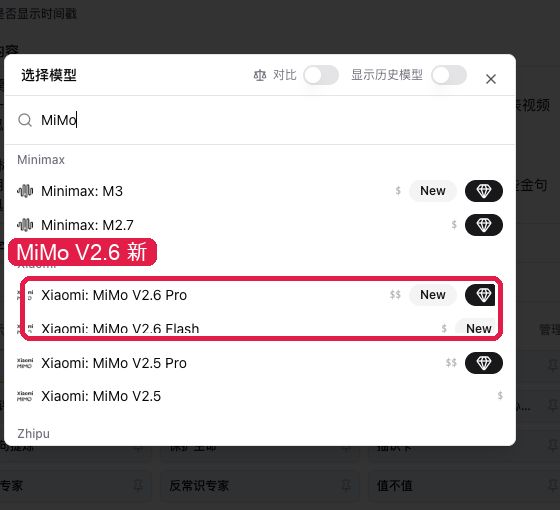
When you summarize audio/video or follow up in chat and want Xiaomi’s new model, open the list and it is already there.
Where: open any summary or AI chat → tap the model name at the top → the “Choose a model” sheet. There is a search box at the top; type “mimo” or “v2.6”.
This week the audio/video summary and chat model picker adds two entries, both marked New:
- Xiaomi MiMo V2.6 Pro (paid)
- Xiaomi MiMo V2.6 Flash
MiMo V2.5 Pro and MiMo V2.5 in the same group remain available and are no longer marked new. The choice applies to the current summary or chat right away; you can also switch models and re-summarize the same item. The default is not already V2.6. See the Xiaomi MiMo V2.6 notes.
Screenshot: BibiGPT · MiMo V2.6 Pro and Flash in “Choose a model”, both marked New
Local privacy Windows and Mac
If you want to process files on this computer, stay signed out, and stay off the cloud, the download page used to have no separate card, and you could not tell which platforms were ready.
Where: open bibigpt.co/apps/desktop → find the Local privacy card.
It only handles files on this computer, with no sign-in. The Windows and Mac (Apple silicon) buttons download; Linux stays gray. Do not treat it as ready on all three, and do not treat it as Windows-only. The card already lists the requirements (Mac: macOS 13 + Apple silicon, 16 GB recommended; Windows: Win10/11 64-bit, 32 GB recommended, 16 GB floor; Linux 64-bit). The installer includes speech; text models download the first time you open the app. This is not the same as ticking “local privacy” when you upload on the web.
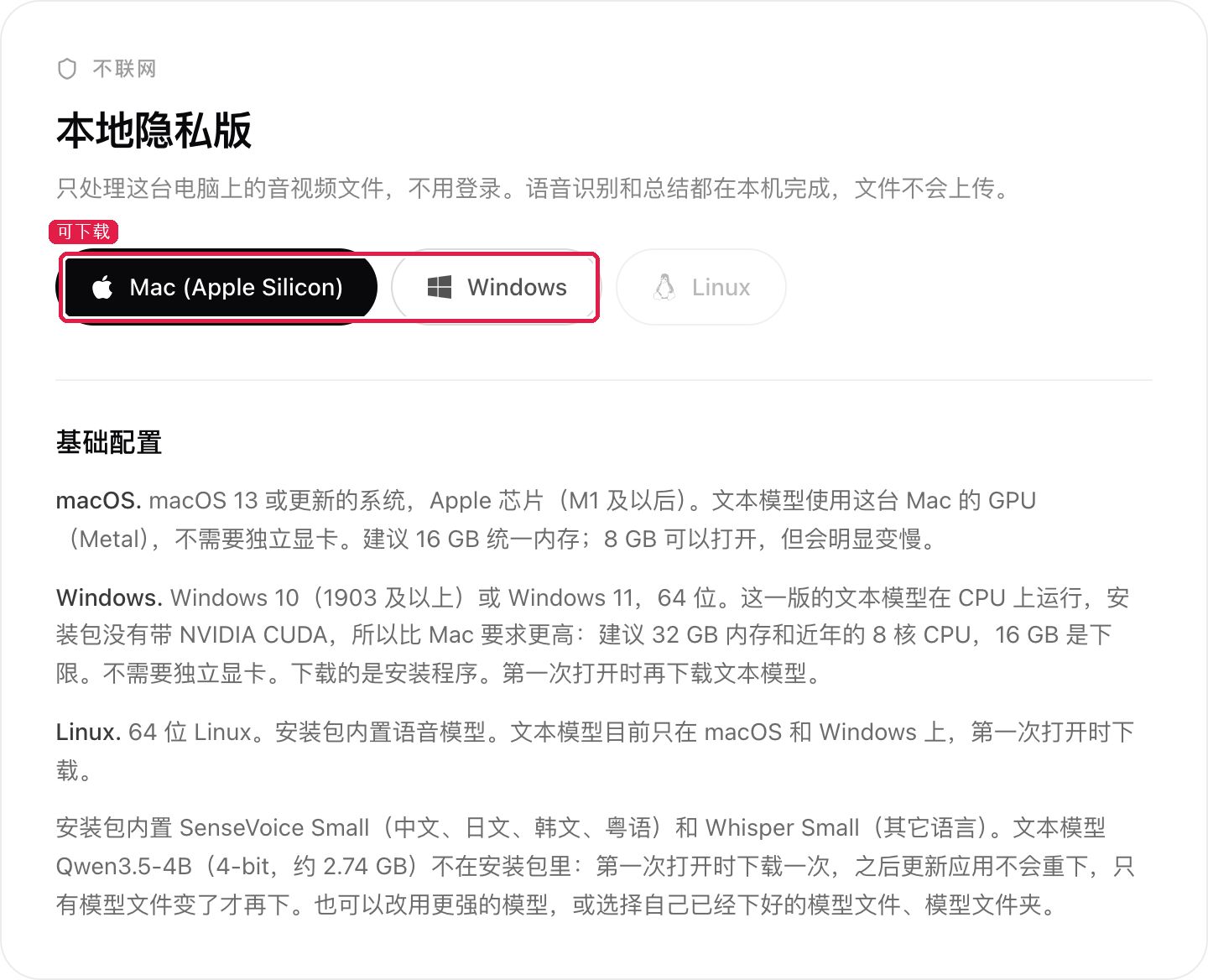
Screenshot: BibiGPT · Local privacy on the download page; Windows and Mac can tap, Linux stays gray
Model name stays on the paste row
On the home paste-a-link row, the settings trigger used to squeeze the default model name out of the pill, so you could not see which one this run would use.
Where: open bibigpt.co → tap “Add a new link or upload a file” (⌘J) → look at the paste-a-link row.
The settings trigger and the default-model pill now sit side by side; the name stays in the pill. This is a layout fix, not a change to the default model.
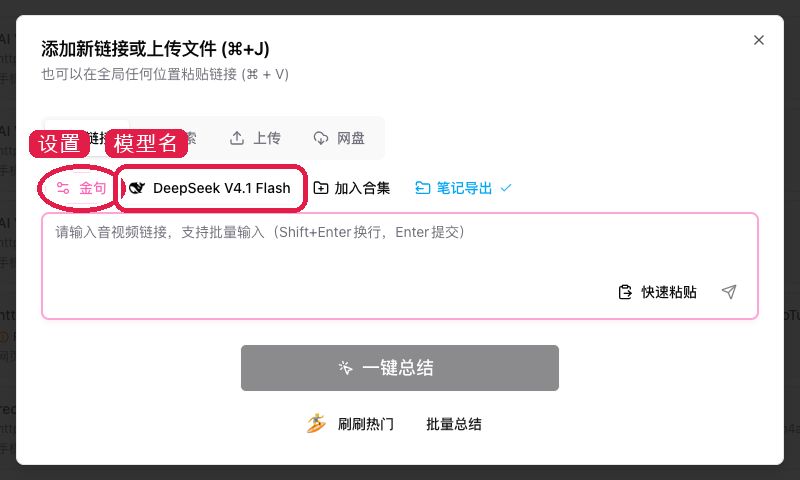
Screenshot: BibiGPT · home paste row, settings beside the model name, name still in the pill
🔎 Find it
Creator bio on channel pages
After you subscribe to a channel, the bio was often a one-line placeholder. You could not tell who the creator was or what they talk about.
Where: after you sign in, open bibigpt.co → Subscriptions on the left → open a subscribed channel.
The “Creator bio” in the header now shows the real intro. Xiaohongshu bios come from the creator profile, not a one-line placeholder. Last issue already covered web “Subscriptions / filter channels by platform” and the smaller header image — those are not new this week.

Screenshot: BibiGPT · creator bio in the header of a subscribed channel
Private notes next to the bio
After you subscribe to many channels, you may want a note only you can see on one creator. Refreshing the bio used to overwrite it.
Where: the same subscribed channel page → the note (pencil) beside the bio.
The dialog title is “Channel note”. The bottom says only you can see it, with a 500-character limit. It is stored on your subscription, so refreshing the creator bio does not wipe it, and it is still there next time. Subscribe first, then write.
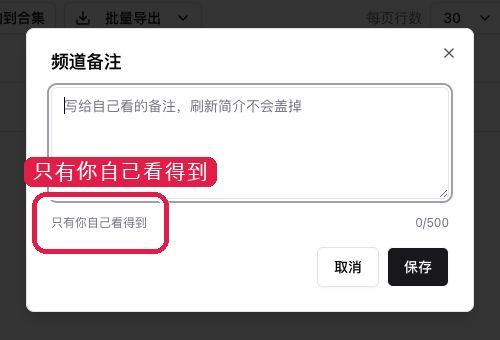
Screenshot: BibiGPT · note beside the bio; the dialog says only you can see it
Three new transcription engines
When you transcribe and want a newer China-region engine, or your own StepFun quota, the dropdown used to hide those names.
Where: open bibigpt.co → upload or re-transcribe → “Ready to transcribe”. User settings / Summary settings → Transcription opens the same sheet. The sheet splits “Transcription service” and “Audio language”.
This week the platform-engine dropdown adds:
- Qwen Audio 3.1 ASR (free; 3.0 stays available, they do not replace each other). See the Qwen speech-recognition notes
- Qwen Paraformer (free). See the Paraformer recording notes
- StepAudio 3 ASR (bring your own key): choosing it shows “StepFun API key”, which uses your own quota. Apply for a key on the StepFun platform
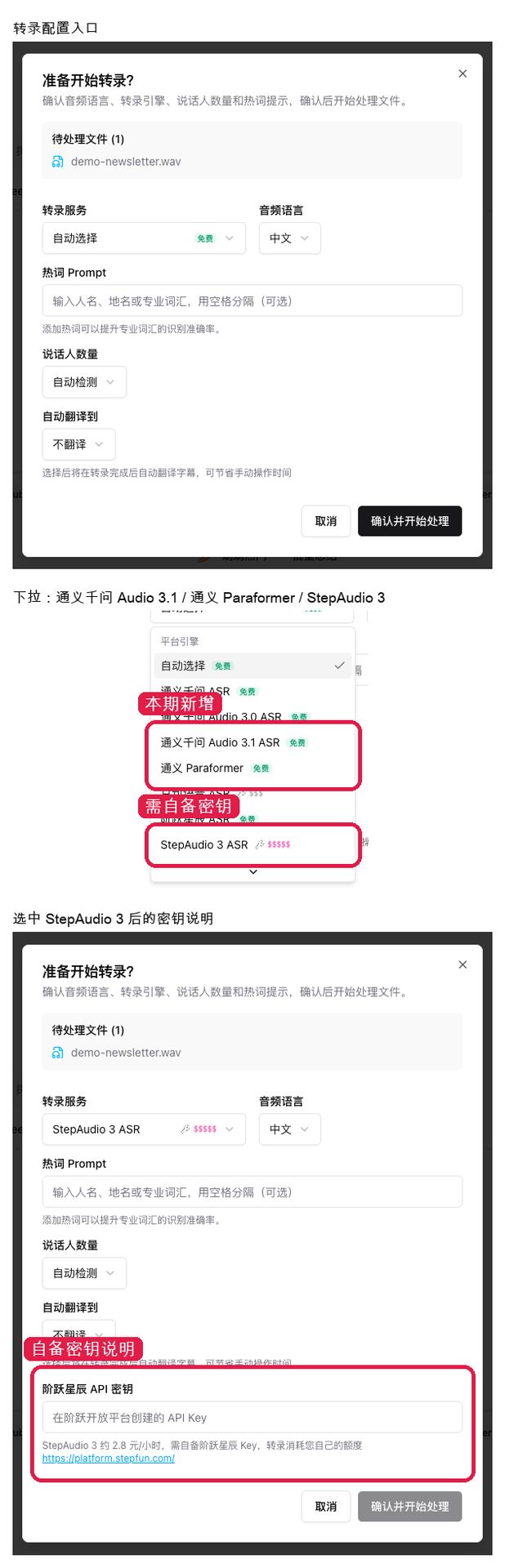
Screenshot: BibiGPT · platform engines in “Ready to transcribe”; all three are visible this week
🛠️ Put it to work
Export can hide video stills
When you export chapters, stills used to drop in as soon as they were ready. The same export could start clean and then pick up images; you could not turn that off if you only wanted text.
Where: after you sign in, open a summary → Export → expand “Summary”. Under “Include chapter summaries” is “Include video stills”.
Turn it off and the chapter text stays, plus images in highlight notes; only the video frames drop out. The choice is remembered, so the next video does not need the same tap.
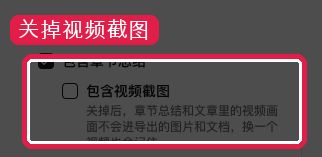
Screenshot: BibiGPT · Export → Summary, with Include video stills off
Custom prompts can hide timestamps
Custom-prompt summaries used to write timestamps into the draft. For cover lines or promo copy, you still had to delete the timecodes yourself.
Where: open bibigpt.co → Summary settings / Custom prompt → “Custom summary settings”, then the Custom summary tab. Above the prompt is “Show timestamps”.
Turn it off and this summary drops timestamps; the default is still on. Not every summary has timestamps removed.
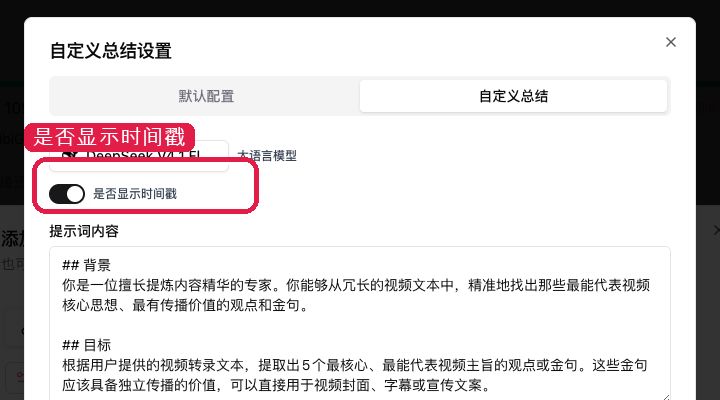
Screenshot: BibiGPT · Custom summary, the Show timestamps switch above the prompt
Other recent polish
- Signing out clears account data left on this device
- If remaining membership time fails to load this once, the UI no longer shows 120 minutes
- The processing queue can collapse after every job finishes
- The custom-prompt window stays open when you paste
- Failed Douyin captions are marked failed instead of sitting in the queue
Wrap-up
Start with MiMo V2.6 on audio/video summaries and the Local privacy card on the download page this issue — Windows and Mac (Apple silicon) can install it; Linux is still in progress. Subscribed channel pages show a creator bio, and you can keep a private note beside it. Export and custom prompts each gained a switch you can try as soon as you open them.
Ideas or issues? Leave us a note on the WeChat Official Account “魔法司”.
- 🌐 Website: bibigpt.co
- ✨ Explore features: bibigpt.co/features
- 🔌 Browser extension: bibigpt.co/apps/browser
- 💻 Desktop app: bibigpt.co/download/desktop
- 📱 Mobile app: bibigpt.co/app
—— BibiGPT Team
Popular tools
More in this series
- AI Competitive Intelligence Workflow: Build Industry Monitoring with BibiGPT Video Summaries
- Lessons From Shipping BiliGPT: Two Cold-Start Growth Tactics Behind a GPT-3 Side Project
- [BibiGPT Growth Series] Episode 1 | How AI Summaries for Bilibili Were Born
- BibiGPT Advanced Guide 2026: Download + AI-Summarize Videos from WeChat Channels, RedNote, TikTok, and Enterprise Intranet Sites
- Chat with Any Video: How to Ask AI Questions About Videos Instead of Watching the Whole Thing (2026)