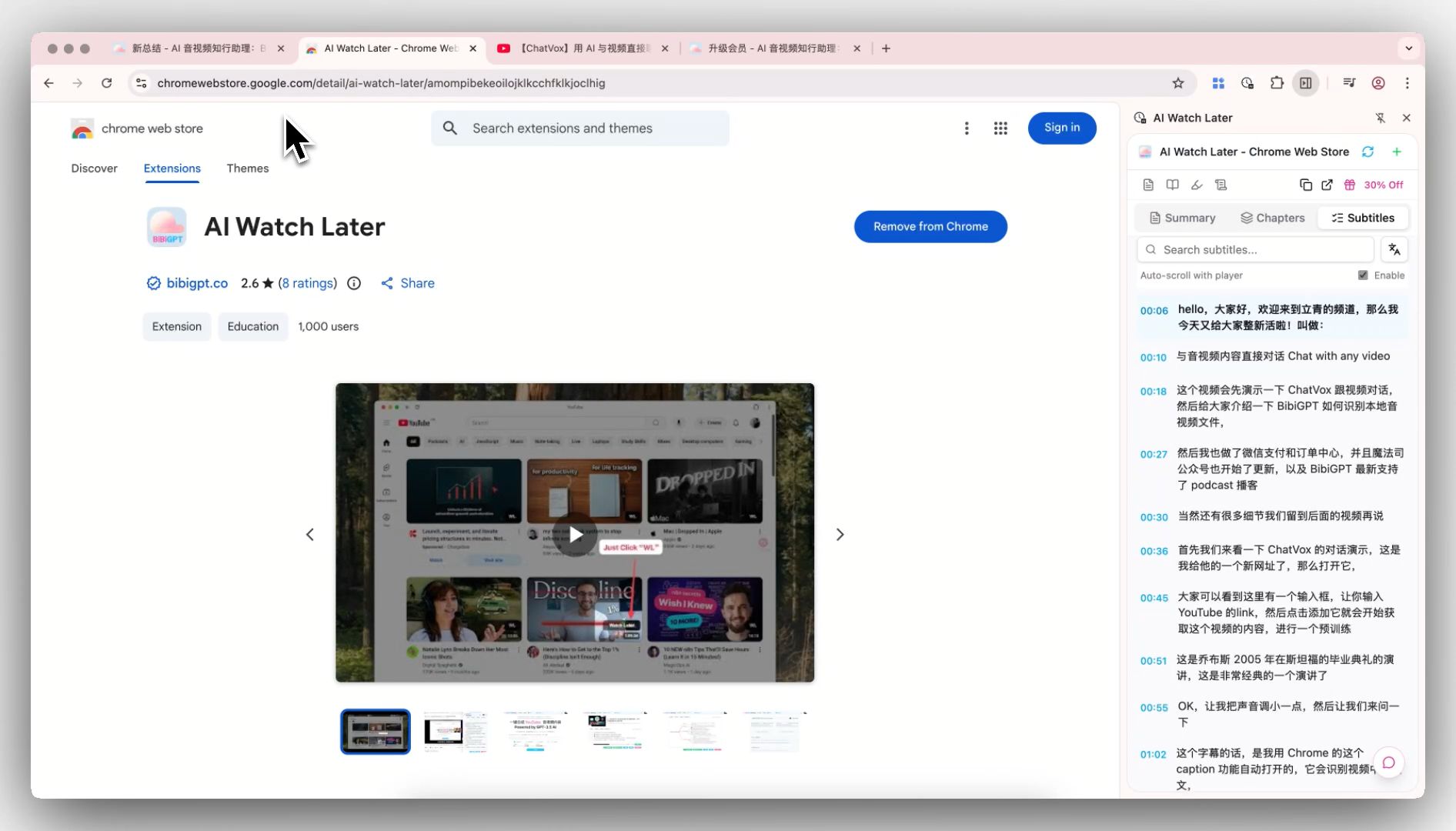
AI Video Summary Browser Extension: Summarize & Extract Subtitles on YouTube and Bilibili While You Watch
AI Video Summary Browser Extension: Summarize & Extract Subtitles on YouTube and Bilibili While You Watch
Your “Watch Later” list has dozens of videos waiting. Tutorials, podcasts, hours-long interviews, lengthy product keynotes — every one of them felt worth saving at the time. But a week goes by, you click one open, scrub through ten minutes without hearing anything useful, and quietly close the tab again.
This isn’t really a “not enough time” problem. It’s a decision bottleneck: you can’t know whether a video is worth an hour of your time until you’ve already spent some of it. You need to judge before you invest.
Most people work around this by manually scrubbing through the video, digging through comments for “key timestamps,” or copying the link to another website to get a summary. This post is about a lower-friction path: a browser extension that sits right beside the video and compresses long content into searchable, scannable highlights.
Why You Need a “Summarize While You Watch” Extension
The biggest cost of watching video in a browser is leaving the current page. Copy the link, open a new tab, paste it, wait for results — that whole sequence breaks your attention every single time, even though all you wanted was a quick answer to “what does this video cover?”
Moving the summary into a sidebar next to the video means you never have to leave the page you’re already on. You get the overview, chapter breakdown, and key points at a glance. The cost of deciding drops from “watch ten minutes and see” to “scan the summary in seconds.”
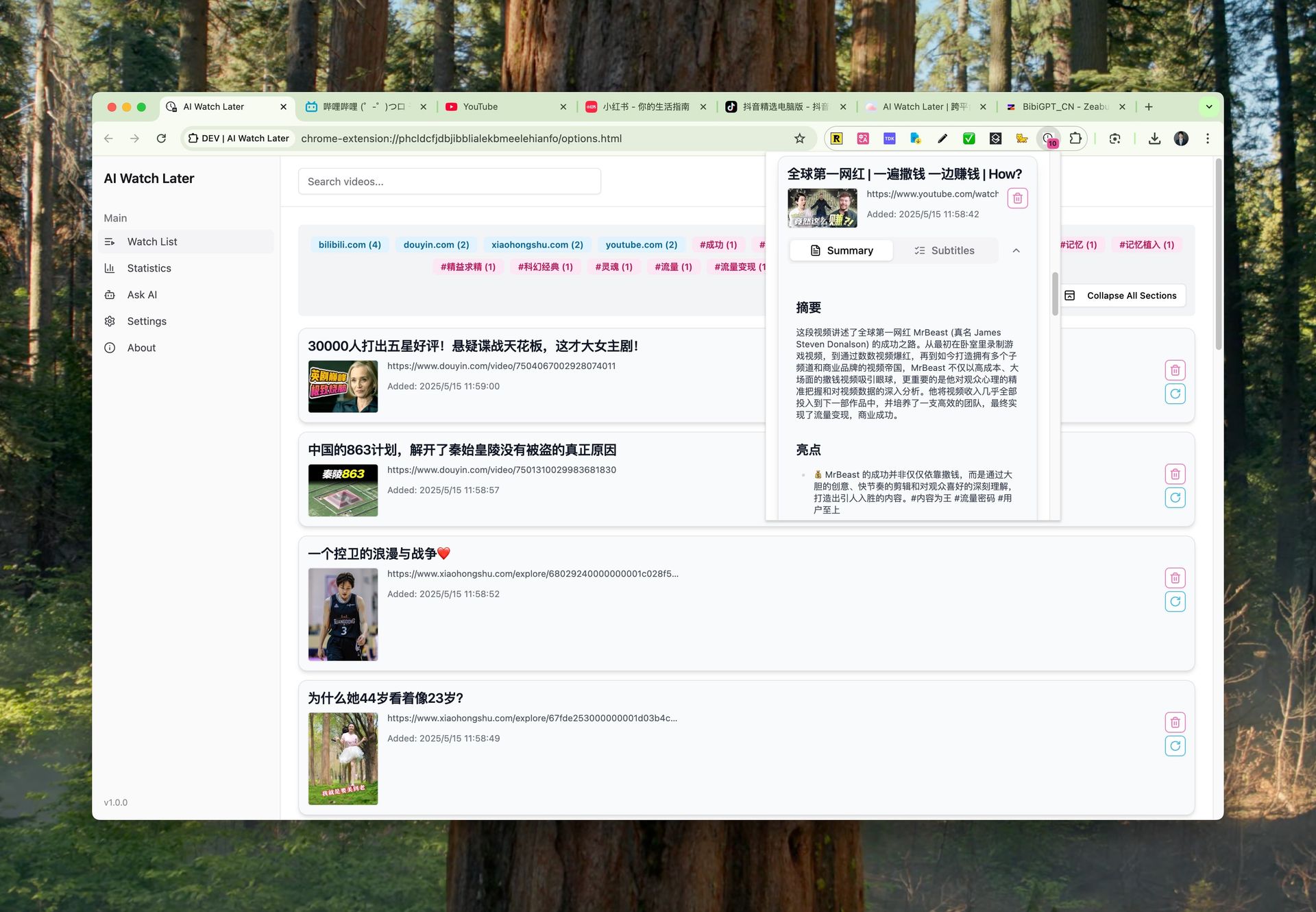
Practical rule: If what you want is “what does this video say,” a searchable text summary is almost always faster than the video itself.
Videos keep getting longer. Tutorials run thirty minutes, podcasts hit one or two hours, keynotes go even longer. Watching at 2x speed while scrubbing still requires your full attention the whole time — and it’s easy to miss the parts that actually matter. Reading the AI summary first, then deciding which chapter to rewatch, is how you put your time where it counts.
One-Click AI Summary + Automatic Chapter Breakdown
This is the extension’s core capability: click the extension icon on any video page and the sidebar instantly generates a full AI summary, key takeaways, and an auto-divided chapter list.
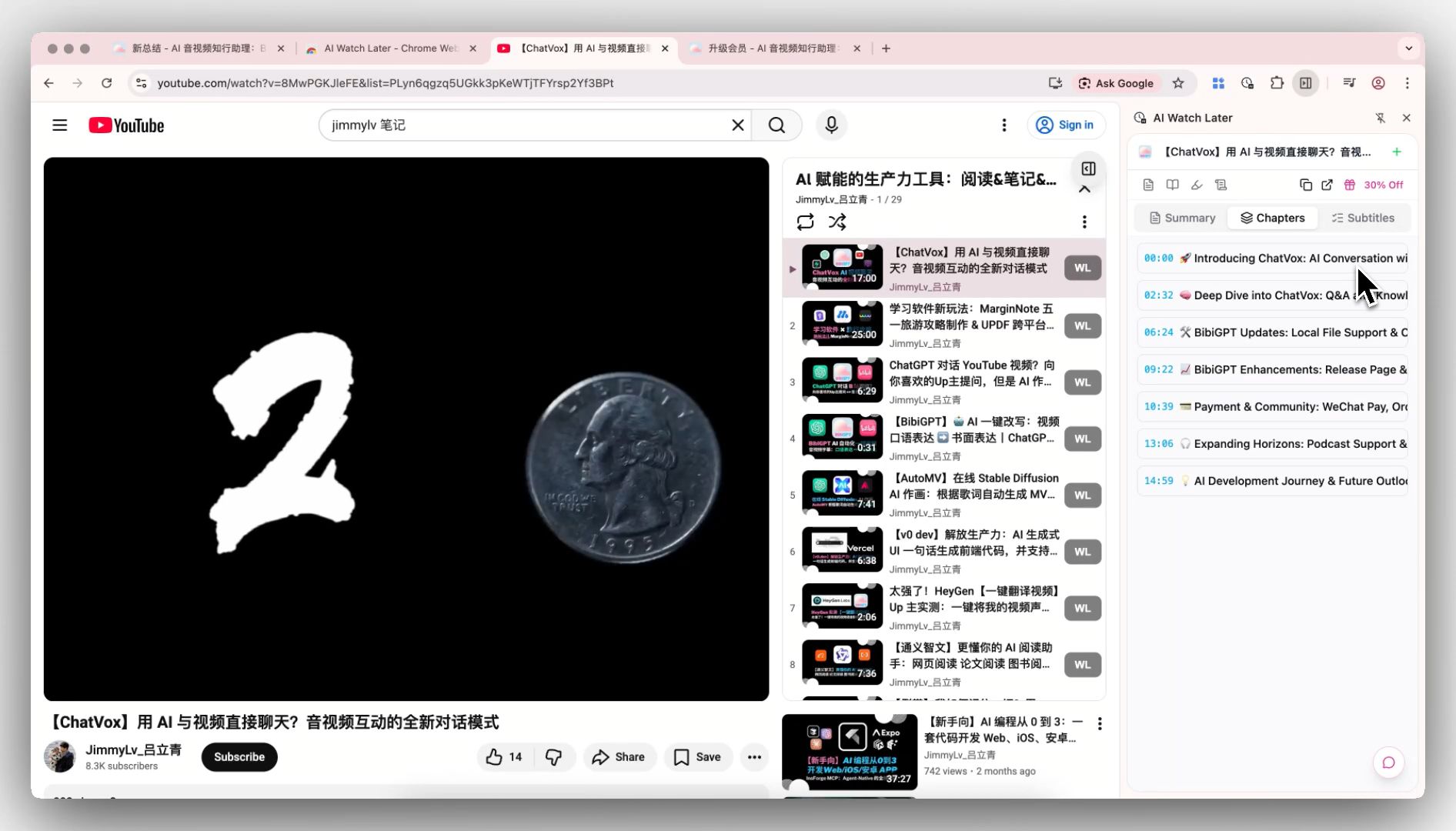
Every chapter comes with a timestamp. Scan the chapter titles to understand the video’s structure, then click any section that interests you to jump directly to that point in the video — no need to watch from the beginning.
When it’s most useful:
- Long tutorials: Scan the chapters and jump straight to the step where you’re stuck
- Interviews and podcasts: Check the summary to see whether the guest covered the topic you care about
- Keynotes: Get through an hour of content in two minutes
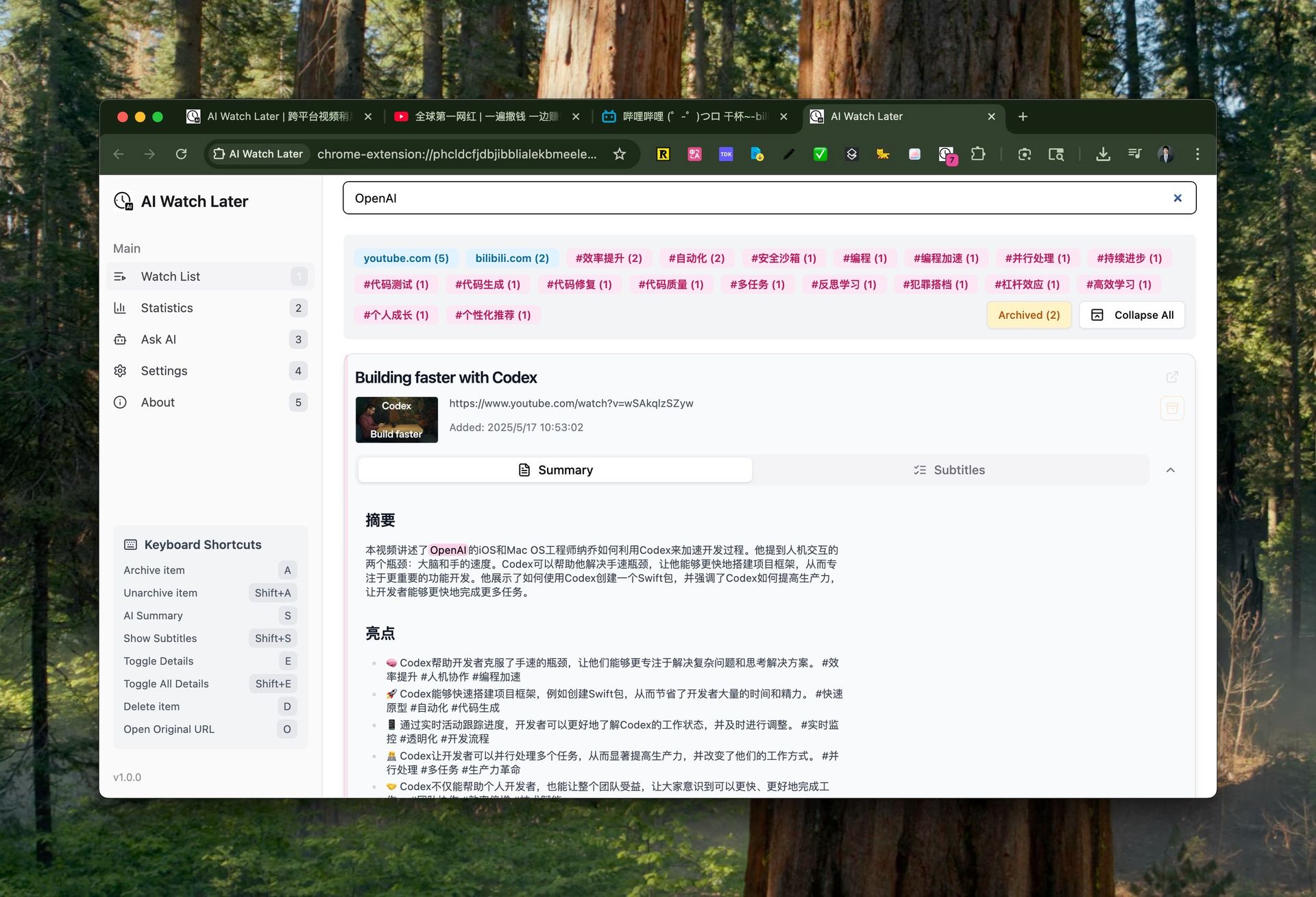
Practical rule: Read the summary and chapters first, then decide which section to rewatch. Turn “watch the whole thing” from your default into a deliberate choice.
Smart Subtitles: Extract, Search, Translate, and Jump
Beyond summaries, the extension can pull the complete subtitle track from any video and turn it into readable, searchable, translatable text.
- Transcription: Automatically captures the platform’s subtitles and organizes them into a coherent, readable transcript
- Search and jump: Search for any keyword in the subtitles and jump directly to that moment in the video
- Multi-language translation: Translate subtitles into your native language; click any line to jump to that point in the video, with auto-scroll for follow-along reading
- Export SRT: Download the subtitles as an SRT file for notes, repurposing, or adding captions
This subtitle capability is especially powerful for foreign-language videos: an English tutorial, a Japanese podcast — translate it into your language, read along while watching, and your comprehension improves dramatically compared to listening through unfamiliar audio.
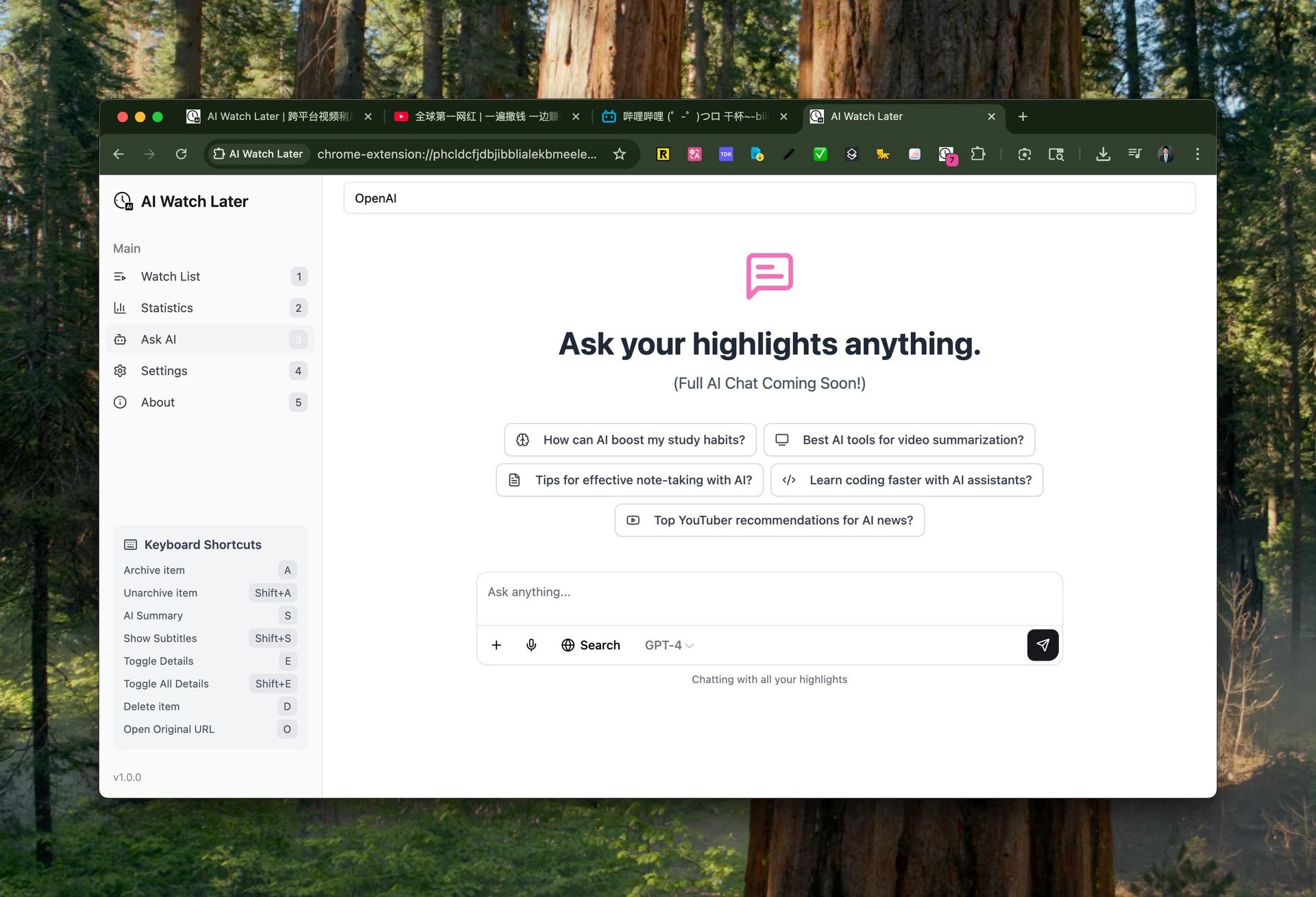
Still have questions after reading the summary? Ask the AI directly in the sidebar about anything in the video — “how exactly does step three work,” “what evidence does the guest give for that claim” — without switching tabs or rewatching. It feels like talking to someone who just watched the same video.
Beyond YouTube: Multi-Platform Coverage and How to Choose
Many people assume extensions like this only work on YouTube. In reality, it supports all the major video platforms — and the real differentiator is Chinese platforms, which most Western summarization tools can’t handle at all.
| Platform | One-Click Summary | Subtitle Extraction | Best For |
|---|---|---|---|
| YouTube | ✅ | ✅ | Tutorials, interviews, English-learning content |
| Bilibili | ✅ | ✅ | Educational content, courses, original productions |
| Podcasts | ✅ | ✅ | Long interviews, episodes you never have time for |
| Douyin / Xiaohongshu | ✅ | ✅ | Quick takeaways from short-form video |
| Local / cloud files | ✅ | ✅ | Screen recordings, meeting recordings, course files |
Practical rule: When choosing an extension, don’t just ask whether it supports YouTube — ask whether it covers the platforms you actually use every day.
For users outside China, the most valuable feature is this: understand foreign-language video in your native language. A Chinese tutorial on Bilibili, a Japanese podcast — the extension transcribes, translates, and summarizes it all in your language. Language is no longer a barrier to understanding.
Advanced: Mind Maps, Watch-Later Sync, and More
On top of the core summary, the extension connects to a suite of tools for turning video into knowledge outputs.
- Mind map: Convert the video’s structure into a mind map with one click, perfect for review and organization
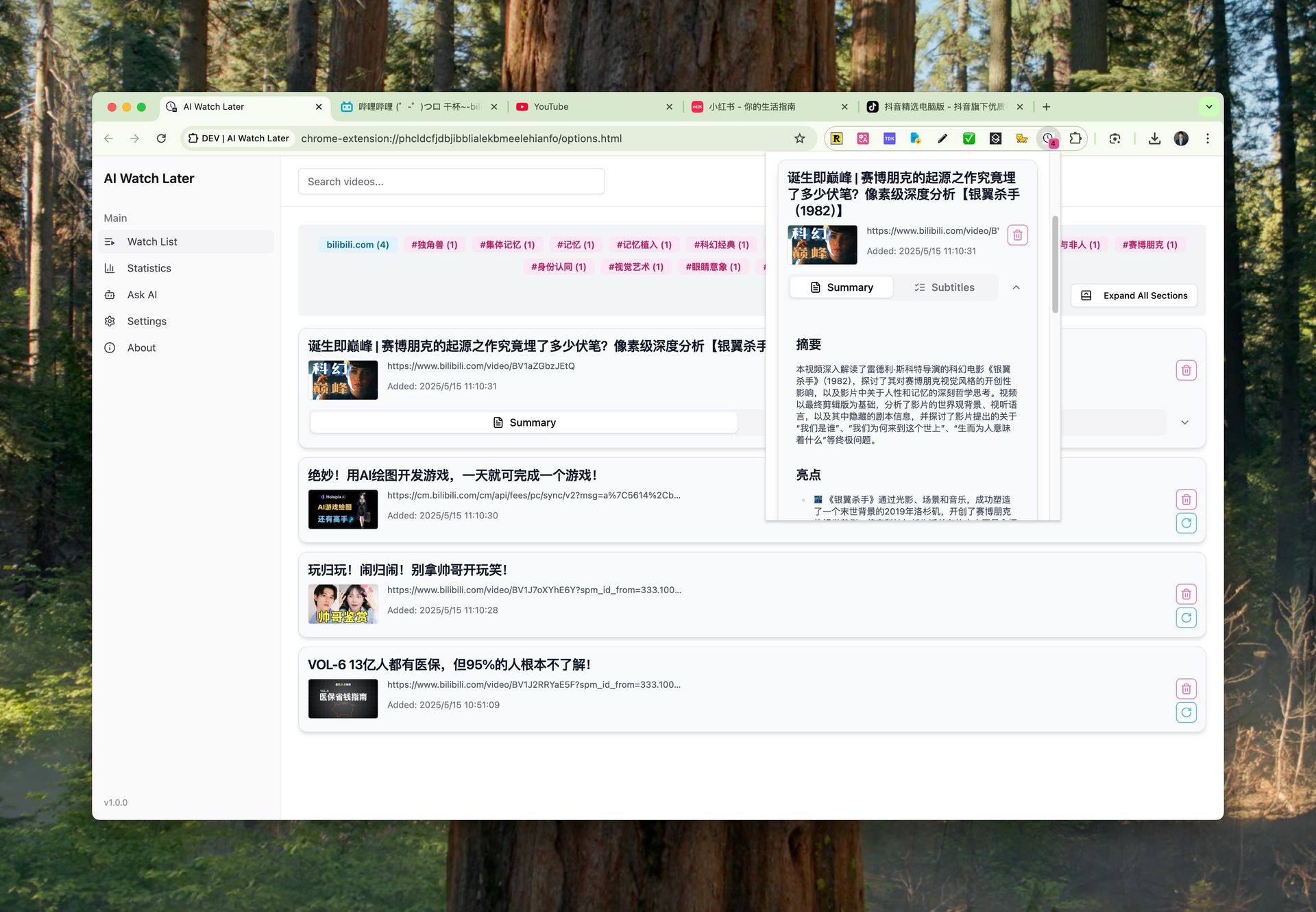
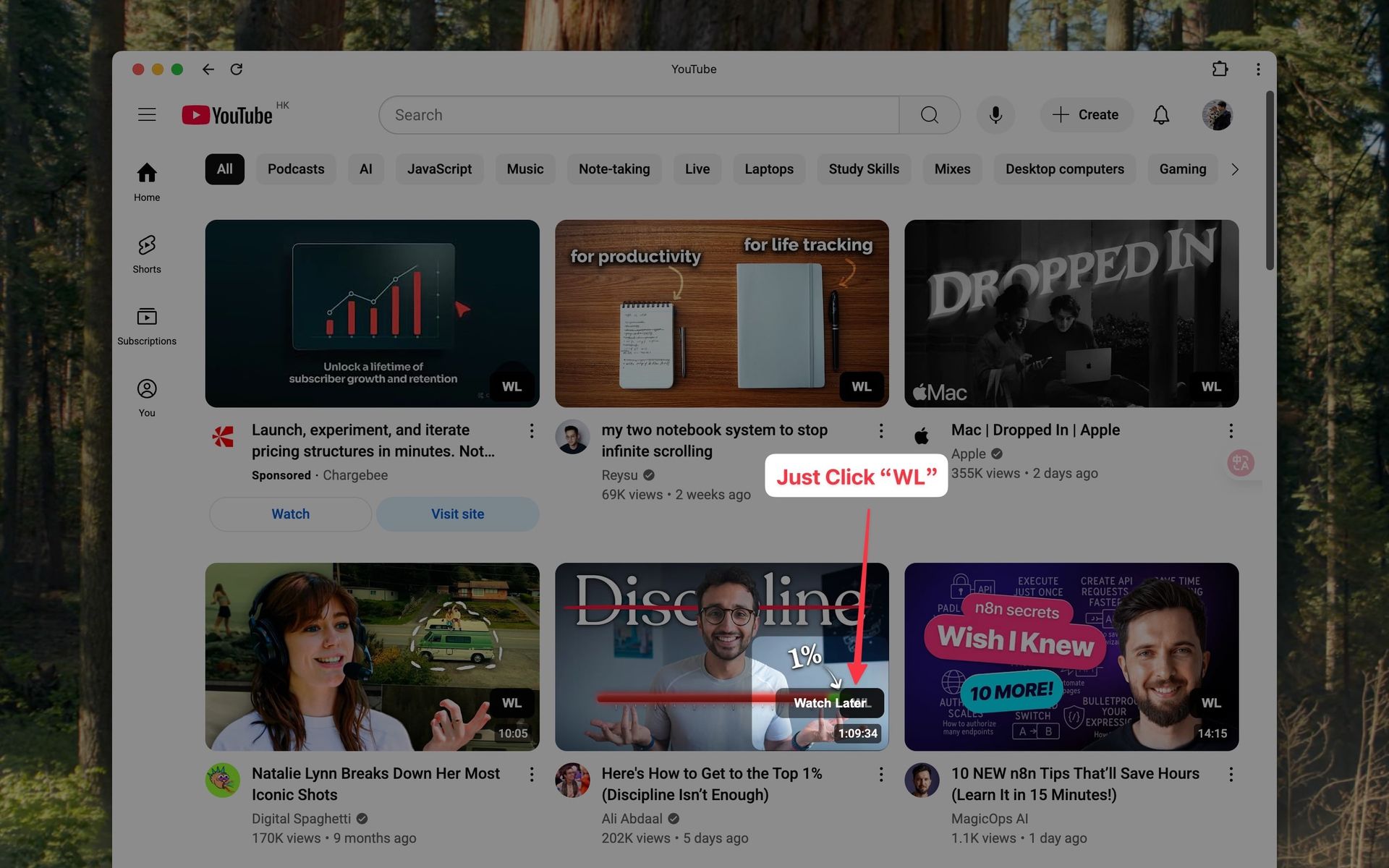
- Save to Watch Later: Bookmark any video worth returning to, with cross-device sync — save on your phone, continue on your computer
- Jump to advanced features: Go from the sidebar directly to the full summary page to view the original transcript, highlights, or a rewritten article version of the content
Frequently Asked Questions
Will the extension slow down my browser? No. It only activates when you click it — otherwise it runs silently in the background.
Which browsers are supported? Chrome, Edge, and Firefox are all supported.
Can it summarize videos without subtitles? Yes. Even when a video has no existing subtitles, the extension can still generate a summary based on the content.
Is it free? There’s a free tier for everyday use. Heavy users can upgrade to a paid plan.
Is it safe? Will it read my browsing history? The extension only operates on video pages you actively open. It does not access any of your other browsing data.
From “Never Get Around to It” to “Done in Minutes”: A Practical Workflow
Putting all these features together, here’s what an efficient video-watching flow looks like:
- Open the extension on a video page and read the AI summary and chapters first — decide whether it’s worth your time
- If it is, jump to the chapter that matters most; if it isn’t, close the tab and reclaim that hour
- For anything worth saving, add it to Watch Later with one click and pick it up on any device
- For deeper exploration, ask the AI follow-up questions in the sidebar or export subtitles for notes
- For content creation, convert the video into a mind map or a written article
Practical rule: Treat consuming a video the way you’d treat reading an article — scan the highlights first, then decide where to read deeply.
People who get the most out of this workflow aren’t just asking “how do I summarize this video.” They’re asking “do I actually need to watch all of it?” Front-loading that judgment is how you stop your Watch Later list from growing forever.
Ready to try it? Install the BibiGPT browser extension from the Chrome Web Store in one click. Next time you open a YouTube video or a Bilibili video, open the sidebar and start summarizing while you watch.
BibiGPT Team